
When you connect a newly bought monitor to a USB-C dock, even though the specs say it supports high resolution, you always feel ghosting when dragging windows and blurriness when scrolling web pages. After checking, you find the refresh rate is only 30Hz — whether it’s a 4K screen that can’t reach 60Hz, a 2K high-refresh screen that drops its refresh rate after connecting to the dock, or a refresh rate drop when using multiple screens at the same time, these are pitfalls many people encounter when using USB-C to connect external monitors. When this happens, don’t rush to assume the dock is broken. Most of the time, it’s just that one link in the entire chain from the computer to the monitor doesn’t meet the specifications required for the target refresh rate.
First, Confirm: Is What You’re Encountering a Real “Refresh Rate Locked at 30Hz” Issue?
Many times when we feel the picture is stuttering, it actually has nothing to do with the monitor’s refresh rate. First figuring out what a real 30Hz problem is can save a lot of troubleshooting time.
Criteria for Judging a Real 30Hz Issue
Refresh rate can be simply understood as the number of times a monitor refreshes the image per second: 30Hz means 30 refreshes per second, and 60Hz means 60 refreshes per second. In daily office work, when dragging windows, moving the mouse, or scrolling web pages, the difference in smoothness between the two is very obvious, just like the difference between turning the pages of a book slowly and quickly.
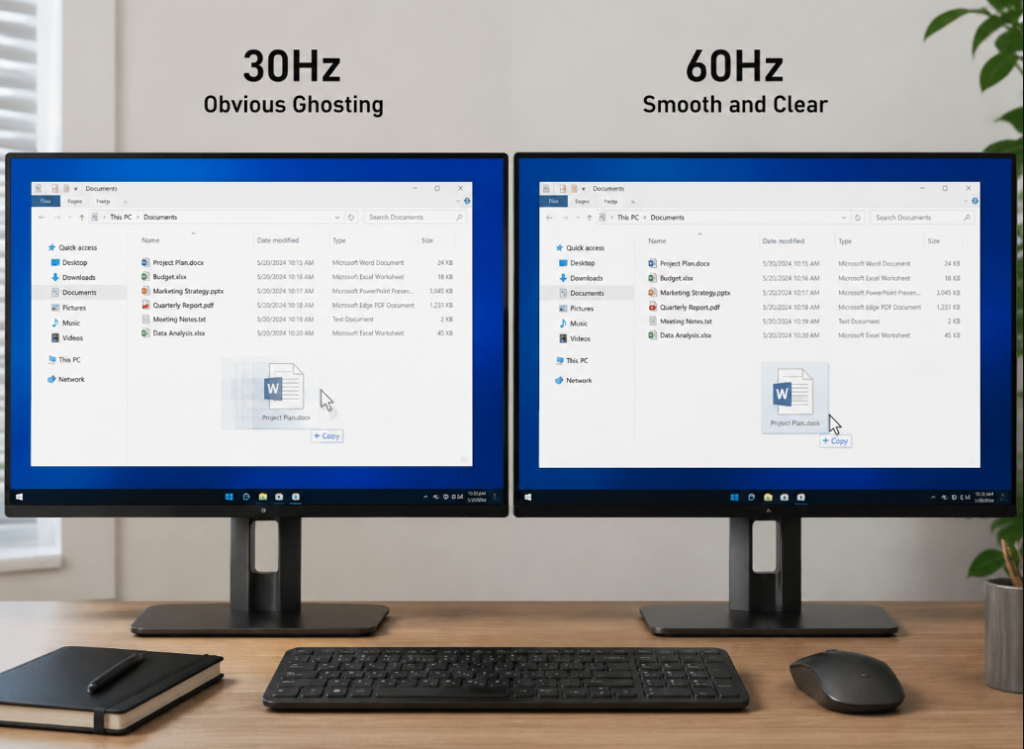
A real 30Hz issue in the video chain has several typical manifestations: obvious mouse ghosting, unsmooth window movement, blurry web page scrolling, normal video playback but stuttering operation interface, and especially poor experience in gaming or high-refresh scenarios.
The most reliable confirmation method is dual verification: first check that the current refresh rate is 30Hz in the system’s advanced display settings, then open the monitor’s built-in menu (OSD information page) to confirm that the signal actually received by the monitor is also 30Hz — only when the two are consistent is it a real refresh rate issue in the video chain.
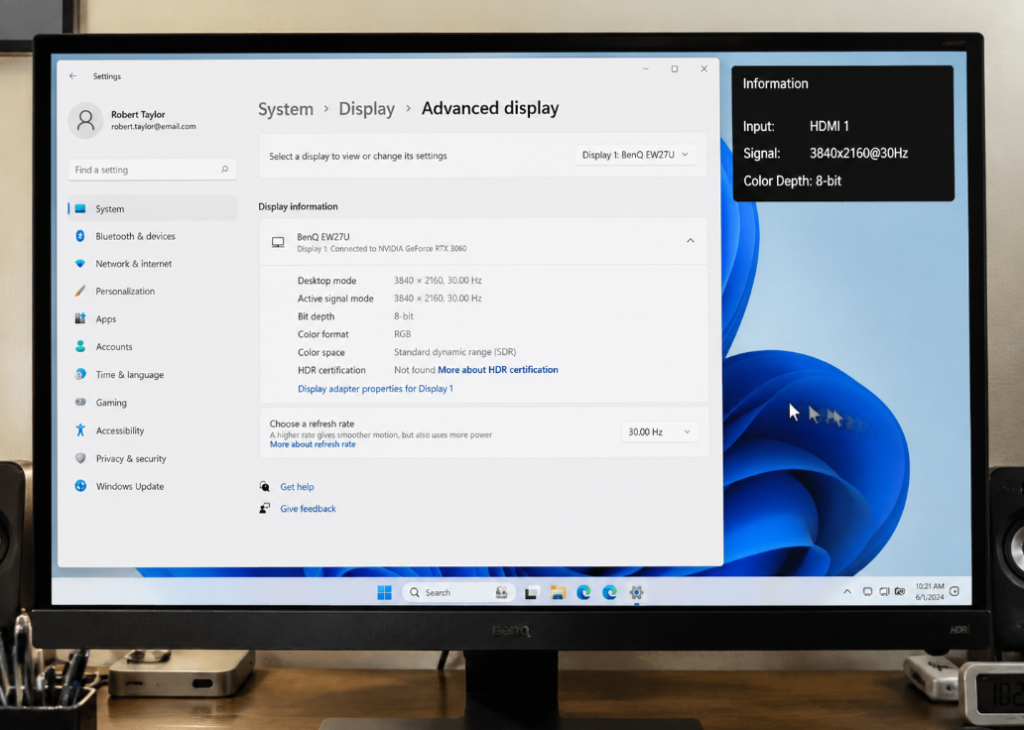
There is also a very typical triggering characteristic: only 30Hz is available at 4K resolution, and 60Hz can be selected after dropping to 2K or 1080p; or the monitor can reach 60Hz when directly connected to the computer, but only 30Hz when connected to a dock.
First Rule Out 6 Types of “Fake 30Hz” Faults
Many problems that seem like 30Hz issues actually have nothing to do with the dock or cables:
- Low frame rate of the content itself: For example, old movies are 24fps, cloud games or console games are locked at 30fps. This is a limitation of the source or the game itself, and has nothing to do with the monitor’s refresh rate. Even a 144Hz monitor won’t make it smoother.
- Software stuttering and frame drops: Too many running programs causing high load, remote desktop, screen casting, screen recording, or abnormal browser hardware acceleration can all make the picture look like 30Hz, but the actual video chain may still be 60Hz.
- Manually selected a low refresh rate: Windows or macOS will retain the settings of the last external monitor. If you previously connected an old monitor and set it to 30Hz, the low refresh rate may be used by default when connecting a new monitor. Just change it back manually.
- Power saving/performance mode limitations: Laptops with low battery mode or power saving mode enabled, or mobile phones and tablets with restricted performance mode, may actively reduce the specifications of external displays to save power.
- Wrong port plugged in: Not all USB-C ports on computers support video output, and different HDMI/DP ports on monitors may have different specifications. Plugging into the wrong port will fail to meet the expected specifications.
- Lowered by multi-screen duplicate mode: If duplicate (mirror) mode is used, the system will set the resolution and refresh rate according to the lowest specification among all devices. As long as one screen or adapter is 30Hz, all devices will drop to 30Hz accordingly.
Must-Know for Beginners: Port Markings and 3 Core Principles
Many people think that USB-C ports with the same shape have the same functions. In fact, you can quickly judge their approximate capabilities by looking at the small markings next to the ports:
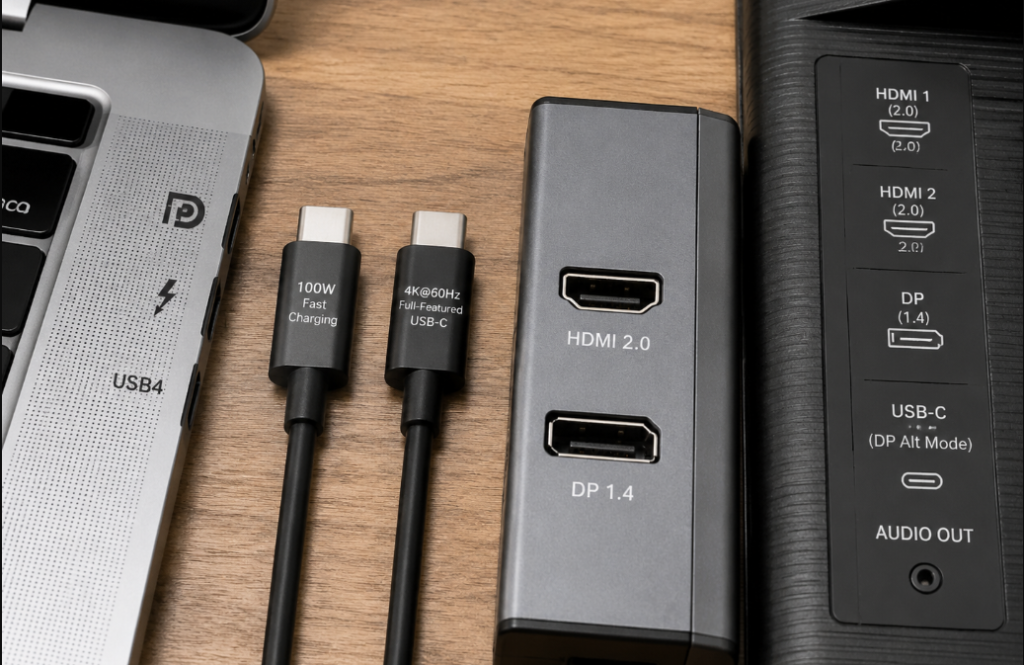
- Computer USB-C ports: If there is a DP (monitor-shaped) icon next to it, it supports video output; if there is a lightning bolt logo, it is usually a Thunderbolt 3/4 port with stronger functions and faster speed; if there is a USB4 logo, it generally supports high-speed transmission and video, but the final specification shall be subject to the manufacturer’s parameters.
- Monitor ports: HDMI 2.0/2.1 and DP 1.2/1.4 usually have the basic capabilities required for 4K60, but whether they can run at full capacity ultimately depends on the specific port specifications, the internal conversion chip of the dock, the cable grade, and the system negotiation result. The HDMI ports of many old 4K monitors only support 4K30, and only DP ports support 4K60. This is a very common pitfall.
- Cables: Only cables marked with 4K@60Hz, 8K, USB4, Thunderbolt 3/4, or full-featured USB-C may support high-specification video; only seeing words like 100W fast charging or charging cable cannot prove that it supports video. You still need to check whether it is marked with full-featured USB-C, USB4, Thunderbolt, or a clear resolution@refresh rate.
Here are 3 core judgment principles to remember, and all subsequent troubleshooting will revolve around these points:
- USB-C is just the shape of the port, and does not mean it necessarily supports video, high-speed data, high refresh rate, or Thunderbolt/USB4.
- The entire video chain follows the barrel effect: computer port → USB-C cable → dock → HDMI/DP cable → monitor port → system settings. The link with the lowest specification determines the final refresh rate.
- A stable 30Hz output is mostly caused by mismatches in bandwidth, protocol, specifications, identification, or settings, and rarely by hardware damage — if it is really broken, it usually results in a black screen or flickering screen, not a stable 30Hz output.
Core Principle: Why It’s Easy to Drop to 30Hz When Bandwidth Is Insufficient
To understand the 30Hz issue, you first need to understand a few simple basic concepts. You don’t need to memorize parameters, just understand the logic.
3 Basic Concepts (In Plain Language)
- Video bandwidth: Can be understood as the “number of road lanes” for transmitting image data. The more lanes there are, the more image data can be transmitted at the same time. The higher the resolution, the higher the refresh rate, and the richer the colors, the more bandwidth is required.
- DP Alt Mode: This is the most commonly used video output mechanism for ordinary USB-C docks — simply put, it switches the high-speed channels originally used by USB-C for data transmission to a mode dedicated to transmitting DisplayPort video signals.
- The entire chain follows the barrel principle mentioned earlier, and all subsequent troubleshooting will be checked according to this logic.
What Factors Increase Bandwidth Requirements
For the same 4K resolution, why can some scenarios run at 60Hz while others can only run at 30Hz? Because these factors will occupy additional bandwidth:
- Resolution: The number of pixels in 4K is 4 times that of 1080p, and the required bandwidth is also much higher.
- Refresh rate: At the same resolution, the bandwidth required for 60Hz is approximately twice that of 30Hz.
- Color depth and HDR: 10-bit color depth and HDR high dynamic range transmit more color and brightness information than ordinary 8-bit SDR images, occupying more bandwidth.
- Color format: RGB/YCbCr 4:4:4 has the clearest text, equivalent to full-color printing, but occupies the highest bandwidth; YCbCr 4:2:2 or 4:2:0 reduces some color information to save bandwidth. The difference is barely noticeable to the naked eye when watching movies, but text edges may appear blurry during office work.
- Multi-screen output: One uplink is shared by multiple monitors, so the bandwidth allocated to each monitor is reduced.
- DSC compression: The full name is Display Stream Compression, which is equivalent to “packing and compressing” image data before transmission. It usually achieves a compression ratio of 2:1 to 3:1, with almost imperceptible image quality loss, and can greatly reduce bandwidth requirements. However, it is only useful if the entire chain supports it.
It doesn’t matter if you don’t understand these professional terms. When troubleshooting, you can try in the simplest order: first turn off HDR → then switch to 8-bit SDR → confirm whether text edges are clear (corresponding to RGB/4:4:4 format) → finally check if the 60Hz option appears. For office scenarios, prioritize ensuring clear text and smooth 60Hz; for video scenarios, appropriate color downsampling is acceptable.
How USB-C Video Channels and Special Solutions Affect 4K60
Why can some docks not support 4K60 when a USB flash drive is connected? Essentially, the number of USB-C high-speed channels is limited, and different allocation methods result in different video and data capabilities. The following are common native video channel allocation methods:
- All 4 high-speed channels allocated to video: In this mode, the video capability is the strongest, and it is easy to support 4K60 or even higher specifications, but the high-speed data channels are gone. Only low-speed USB 2.0 peripherals (such as mouse and keyboard) are retained, and high-speed devices such as USB flash drives, network ports, and card readers will not work or will be very slow.
- 2 channels for video + 2 channels for USB 3.x data: This is the most common mode for ordinary docks with USB-A, network ports, and card readers. If the DP version is not high enough, or there is no DSC compression, the bandwidth of 2 channels is insufficient to run 4K60, so it can only output 30Hz.
- 2-channel solution with DP 1.4 HBR3 + DSC: Some high-specification ordinary USB-C docks, although also using 2 channels for video, can still achieve 4K60 while retaining USB 3.x high-speed data due to the higher DP version and DSC compression, provided that both the computer and the dock support the corresponding DP version and DSC.
- Thunderbolt/USB4 tunnel mode: Thunderbolt 3/4 or USB4 has higher bandwidth and more flexible scheduling, which is equivalent to having a wider highway that can carry video and high-speed data more flexibly; PD charging negotiates power supply capacity independently and does not occupy video/data bandwidth, making it more suitable for scenarios with multiple screens, high refresh rates, and the need for high-speed peripherals. However, it requires the entire chain of computer, cable, and dock to support Thunderbolt or USB4. If an ordinary DP Alt Mode dock is connected to a Thunderbolt port, the final specification still depends on the dock itself.
In addition to the above native video channel solutions, there is a special DisplayLink solution: it is not DP video passthrough, but compresses the image and transmits it through the USB data channel, which is equivalent to a built-in USB graphics card. The advantage is that it can bypass the limitations of the computer’s video port, and multi-screen configuration is more flexible; the disadvantage is that it requires driver installation, occupies CPU/GPU resources, has a certain delay, and is not suitable for gaming or professional graphics scenarios that require high delay and lossless image quality. Streaming media playback protected by HDCP/DRM and compatibility with some systems may also be limited.
Also note: although PD charging itself does not occupy video or data bandwidth, inferior docks, insufficient power supply, overheating, or firmware abnormalities may still cause black screens, flickering, downshifting, or instability.
Quick Reference Table for Common Video Specifications
You don’t need to memorize complex bandwidth parameters. You can quickly judge the approximate capabilities of common ports by looking at this table (typical values, specific details shall be subject to official parameters):
| Port Specification | Typical Video Maximum (no DSC/no downsampling unless otherwise specified) | Common Pitfall Reminders |
|---|---|---|
| HDMI 1.4 | 4K@30Hz 8-bit SDR | A common cause for low-cost docks and old 4K monitors |
| HDMI 2.0 | 4K@60Hz 8-bit SDR | 10-bit HDR requires reduced color sampling |
| HDMI 2.1 | Theoretically can cover higher specifications such as 4K120 and 8K; actual capabilities depend on FRL bandwidth, cable certification, monitor port, dock conversion chip, and system output capability | Some devices marked HDMI 2.1 actually only reach 4K60 or even lower. You must check the clear “resolution@refresh rate” marking |
| DP 1.2 (4-channel/HBR2) | 4K@60Hz 8-bit SDR | Insufficient bandwidth in multi-screen, HDR, and high-refresh scenarios |
| DP 1.4 (4-channel/HBR3) | Without DSC, it is usually sufficient for 4K60 8-bit, and can often cover some 4K60 10-bit/HDR scenarios; whether RGB/4:4:4 can be maintained depends on timing, color depth, and device implementation. 4K120/4K144 usually requires DSC or reduced color format | Do not judge solely by the version name. It needs to be combined with DSC support and actual specification markings |
The most reliable marking when purchasing or troubleshooting is a clearly written “resolution@refresh rate” combination, such as “4K@60Hz”, “dual 4K@60Hz”, “2K@144Hz”, which is much more reliable than just writing “supports 4K” or “HD output”.
Why Does the System Always Drop to 30Hz Instead of Other Gears?
You may be curious: why does the system always drop to 30Hz instead of 25Hz, 40Hz, etc., when negotiation fails?
Because the system’s priority is to first ensure “lighting up” and signal stability, then try a higher refresh rate. 4K30 is a “universal compatibility gear” supported by almost all devices, cables, and HDMI 1.4 conversion chips, just like Mandarin that everyone can understand. When negotiation fails, it will automatically fall back to this most stable gear.
Of course, it is not always 30Hz. It may also drop to 50Hz, 59.94Hz, low color depth, YCbCr downsampling, or directly reduce the resolution, depending on the monitor’s capability list, system, and graphics driver.
Sorted by Probability: 10 Real Causes of 30Hz Only on USB-C Docks
When encountering a 30Hz issue, you can troubleshoot one by one according to the probability from high to low. Most problems can be found in the first 3 items.
1. System Display Settings or Driver Issues
This is the easiest to solve and the most easily overlooked cause:
- The system selects 30Hz by default, or the low refresh rate setting of the last external monitor is retained.
- Power saving mode, HDR, high color depth, and third-party display management tools may cause the refresh rate to decrease or hide the 60Hz option.
- Outdated graphics drivers, chipset drivers, dock firmware, and monitor firmware will cause abnormal negotiation between devices and fail to reach the highest specifications.
Quick verification: Manually select 60Hz in the system’s advanced display settings; turn off HDR, power saving mode, and high color depth; update relevant firmware before testing again.
2. USB-C Cable or HDMI/DP Cable Does Not Support High-Specification Video
A charging cable is not the same as a video cable, which is the most common pitfall for beginners:
- Cables clearly marked with full-featured USB-C, USB4, Thunderbolt 3/4, or 4K@60Hz are more reliable; original cables also depend on specific specifications, and non-original certified cables can also support high-specification video. Many USB-C cables included with chargers only support charging and USB 2.0 low-speed data, and cannot transmit 4K60 video at all.
- Uncertified, inferior, or overly long cables: high-bandwidth video signals are very sensitive to cable quality. Overly long cables, extension cables, and multiple adapters connected in series may cause negotiation downshifting or screen flickering.
- Not only the USB-C cable from the computer to the dock, but also the HDMI/DP cable from the dock to the monitor that does not meet the standards will also become a bottleneck.
Quick verification: Replace with a short USB-C cable clearly marked 4K@60Hz or higher specification, and use a qualified HDMI/DP cable to connect the dock and the monitor at the same time, to test whether 60Hz is restored.
3. The Dock Itself Only Supports 4K30
Many low-cost docks have “supports 4K” written in large print on their promotional pages, but actually only support 4K@30Hz:
- Parameters that only write “supports 4K” but do not mark the refresh rate are mostly 4K@30Hz, usually using HDMI 1.4 conversion chips.
- Single-screen and dual-screen specifications may be different: single screen can do 4K60, dual screen may become two 4K30, or one 60Hz and the other with reduced specifications.
- Some docks can only run high specifications on Thunderbolt/USB4 hosts, and will downgrade to the low specification of DP Alt Mode when connected to ordinary USB-C computers.
Quick verification: Check the parameters on the dock’s official website, focusing on these fields: maximum single-screen output specification, maximum dual-screen simultaneous output specification, HDMI/DP port version, whether the uplink port is DP Alt Mode or Thunderbolt/USB4, whether it is stated that the video channel is 2-lane or 4-lane, whether it supports DSC/MST, and whether there are additional restrictions such as “only for Thunderbolt/USB4 hosts” or “4K60 is only supported when USB 3.0 is turned off”. Don’t just look at vague expressions like “supports 4K”.
4. Computer USB-C Port Does Not Support Video or Has Insufficient Video Specifications
Not all USB-C ports can output video, and even if they can, the specifications may be different:
- USB-C ports for charging only or data only cannot output video through DP Alt Mode, and can only use USB graphics card solutions such as DisplayLink.
- Even if DP Alt Mode is supported, if the DP version is low, there are only 2 video channels, or the transmission rate is insufficient, it may only run 4K30.
- Different USB-C ports on the same computer may have different capabilities: some are connected to discrete graphics cards, some to integrated graphics; some are Thunderbolt/USB4, some are ordinary USB-C.
- Note: USB data rate (such as 5Gbps/10Gbps) is not equal to video bandwidth. The key depends on the external display specifications of DP Alt Mode, Thunderbolt, and USB4.
Quick verification: Search for these keywords on the computer’s official website or in the manual: DisplayPort Alt Mode, Thunderbolt 3/4, USB4, external display support, maximum external resolution, maximum external resolution@refresh rate, maximum number of external monitors; note that do not directly infer video capability from data rates such as USB 5Gbps/10Gbps.
5. Monitor Port or Menu Limitations
The port specifications of the monitor itself may also be a bottleneck:
- The HDMI 1.4 ports of old 4K monitors usually only support 4K30, and only DP ports or HDMI 2.0/2.1 ports support 4K60.
- Multiple HDMI/DP ports on the same monitor may have different specifications, and only some ports support 4K60, HDR, or high refresh rate.
- Many monitors require options such as “HDMI Enhanced Mode”, “HDMI UHD Color”, “Deep Color”, and “DP 1.2/1.4 Mode” to be enabled in the menu to run at full maximum specifications.
Quick verification: Switch to the input port on the monitor marked as supporting 4K60, enable relevant enhancement options in the monitor menu, and then confirm the current refresh rate from the OSD information page.
6. Multi-Screen, Duplicate Mode, or MST Bandwidth Sharing
A drop in refresh rate in multi-screen scenarios is usually due to bandwidth being shared:
- Dual or triple screens share the same uplink bandwidth, and meeting the standard for a single screen does not mean that multiple screens can also meet the standard.
- MST (Multi-Stream Transport) technology can split a DP link into multiple independent screen outputs, which is commonly used in Windows systems, but the available bandwidth of each screen will be shared.
- macOS usually does not support ordinary DP MST single-line multi-screen expansion. Many multi-screen docks that work on Windows can only mirror or light up one screen on Mac, and require Thunderbolt or DisplayLink solutions to achieve multi-screen expansion.
- Duplicate mode will set the refresh rate according to the lowest specification screen, capture card, KVM, or adapter.
Quick verification: Connect only one 4K monitor, unplug other screens, capture devices, KVM, and high-speed peripherals, to see if 60Hz is restored.
7. Bandwidth Exceeded Due to HDR, 10-bit, or Color Format
Being able to run 4K60 SDR does not mean being able to run 4K60 HDR:
- After enabling HDR and 10-bit color depth, bandwidth requirements will increase. If the link bandwidth is insufficient, the system may reduce the refresh rate, or automatically switch to YCbCr 4:2:2/4:2:0 to save bandwidth.
- If you find text edges blurry during office work, first check whether the color format has changed from RGB/4:4:4 to 4:2:2 or 4:2:0.
Quick verification: Turn off HDR, switch to 8-bit SDR, reduce color sampling or resolution, to see if the 60Hz option is restored.
8. Operating System/Platform Limitations
Different systems and devices have different external display rules, which cannot be generalized:
- macOS limitations: Ordinary DP MST multi-screen expansion usually cannot achieve independent multiple desktops on macOS like on Windows; base model M1/M2/M3 MacBooks usually natively support only 1 external monitor, while models with Pro/Max/Ultra chips, Mac mini, Mac Studio, etc. have a large difference in the number of supported monitors. The specific details must be subject to the official specifications of the corresponding model.
- Windows limitations: Abnormal integrated/discrete graphics drivers, graphics control panel settings, enterprise system policies, and outdated drivers may all affect external display specifications.
- Linux/ChromeOS limitations: Support for some dock chips, DisplayLink drivers, MST, and HDR depends on the kernel, distribution, and manufacturer drivers.
- Mobile device limitations: The upper limit of external display in desktop mode on mobile phones, tablets, and Chromebooks is usually low, and resolution, refresh rate, and aspect ratio may all have manufacturer restrictions.
Quick verification: Test with another Windows computer or Mac with the same port, or check the official external display specifications of the corresponding model.
9. Compatibility Issues with EDID, Adapters, KVM, or Capture Devices
Sometimes the device itself is fine, but the intermediate adapter device will “falsely report” specifications:
- EDID can be understood as the “capability list” built into the monitor, which tells the computer which resolutions and refresh rates it supports. Docks, KVMs, capture cards, HDMI extenders, and converters may transmit incorrect EDID information, causing the system to think the monitor can only do 30Hz.
- USB-C/DP to HDMI is a common active conversion, but conversely, HDMI to DP usually requires an active converter and additional power supply. Buying the wrong direction will result in no display or only low specifications.
- KVM switches, capture cards, wireless screen casters, and HDMI splitters all have their own specification limits. Many cheap models only support 4K30, or do not support HDR or high color depth.
Quick verification: Bypass intermediate devices such as KVM, capture card, and extender, and connect the dock directly to the monitor; for Windows, you can check advanced display information or the graphics control panel, for macOS, check system information, and combined with the monitor’s OSD information page, focus on confirming whether the monitor model recognized by the system and the list of optional refresh rates are normal.
10. Rare Hardware Faults or Compatibility Issues
If all the above have been troubleshooted and there is still a problem, then consider hardware faults:
- Abnormal dock chip, damaged USB-C port pins, and aging monitor ports may all cause negotiation downshifting, screen flickering, or only 30Hz.
- Niche brand devices, outdated firmware, overheating, insufficient power supply, and loose ports will all increase unstable variables.
Quick verification: Use the same cable to connect to another computer, replace another dock on the same computer, and connect the same monitor directly to the computer, to perform cross-tests and eliminate fault points.
10-Minute Quick Troubleshooting Process: Settings First, Then Link, Finally Check Specifications
You don’t need to memorize the 10 types of causes above. Follow these steps one by one, and most problems can find the bottleneck in 10 minutes:
Step 1: Confirm Real 30Hz and Troubleshoot Basic Settings
First, double-confirm the current refresh rate through system settings and the monitor’s OSD, then manually try to select 60Hz or higher; turn off power saving mode, low battery mode, HDR, and high color depth; switch to extended mode instead of duplicate mode.
- Result judgment: If 60Hz can be selected, it is mostly a setting or color/HDR issue; if there is no 60Hz option at all, continue troubleshooting below.
Step 2: Minimize Connection Test
Unplug all devices on the dock except the power supply and 1 monitor, use a qualified HDMI/DP cable to connect the dock and the monitor, do not use extension cables or multi-level adapters.
- Result judgment: If 60Hz is restored, it means the problem is mostly from multi-screen, peripherals, KVM, bandwidth allocation, or compatibility; if it is still 30Hz, continue to the next step.
Step 3: Direct Connection to Verify the Upper Limit of Computer and Monitor
If the monitor has USB-C video input, use a full-featured USB-C cable to directly connect the computer and the monitor; if the computer has a native HDMI/DP port, use the native port to directly connect the monitor.
- Result judgment: If direct connection can achieve 4K60, it means the computer and monitor are probably fine, and the bottleneck is in the dock, cable, adapter, or link configuration; if direct connection also fails, first check the computer port, monitor port, system settings, and drivers.
Step 4: Cross-Test by Changing Cables, Ports, and Docks
Replace the links in the chain one by one, and test after each replacement: replace with a high-specification USB-C cable, replace with a USB-C port on the computer with a video/Thunderbolt mark, replace with a high-specification input port on the monitor and enable enhanced mode, and borrow a dock known to support 4K60 for testing.
- Result judgment: Whichever step restores 60Hz after replacement, the bottleneck is usually in the link that was just replaced.
Step 5: Check Parameters to Confirm the Final Bottleneck
If the above tests still fail to locate the problem, check the official specifications of each link one by one:
- Computer: Check whether it supports DP Alt Mode/Thunderbolt/USB4, maximum external resolution@refresh rate, and maximum number of external monitors
- Dock: Check the maximum single-screen/dual-screen specifications, HDMI/DP version, whether it supports DSC/MST, and whether it distinguishes between ordinary USB-C and Thunderbolt/USB4 hosts
- Cable: Check whether it supports video transmission and whether it clearly marks the target resolution@refresh rate. Don’t just look at the fast charging power
- Monitor: Check the maximum specifications of each input port and whether modes such as HDMI enhancement/Deep Color/DP 1.2/1.4 need to be enabled
- Identification information: Check whether the monitor model and refresh rate list recognized by the system are consistent with the official parameters, and eliminate EDID transmission errors
- Result judgment: If the official upper limit of any link is 4K30, it is a specification upper limit rather than a fault; if the entire chain is marked as supporting 4K60 but there is no corresponding option, then focus on troubleshooting cables, firmware, EDID, and compatibility issues.
Targeted Solutions: Choose the Most Cost-Effective Fix According to the Cause
After finding the bottleneck, you don’t need to blindly buy expensive equipment. Just choose the most suitable solution according to your needs:
System/Setting Issues
- Manually change to 60Hz or higher refresh rate in the system display settings.
- Turn off power saving mode, low battery mode, HDR, and 10-bit color depth; for office scenarios, prioritize maintaining RGB/4:4:4 and 60Hz to ensure clear text and smooth operation.
- Update graphics drivers, chipset drivers, dock firmware, and monitor firmware.
- When connecting a mobile phone/tablet externally, enable performance mode and desktop mode, and accept the upper limit of external specifications specified by the manufacturer.
Cable Issues
- Replace with cables clearly marked 4K@60Hz, USB4, Thunderbolt 3/4, or full-featured USB-C.
- Shorten the cable length as much as possible, and avoid using inferior extension cables, adapter series connections, and cables of unknown specifications.
- Between the dock and the monitor, choose qualified HDMI 2.0/2.1 cables or DP 1.2/1.4 cables according to the port version.
Insufficient Dock Specifications
- Single-screen 4K60 office demand: If you only connect a single screen and do not have high requirements for USB high-speed peripherals, an ordinary DP Alt Mode dock clearly marked “single-screen 4K@60Hz” is usually sufficient; if you also need to run high-speed devices such as USB 3.x hard drives, network ports, and card readers at the same time, you should confirm that it still supports 4K60 in 2-lane video mode (usually requires DP 1.4 HBR3+DSC), or directly choose a USB4/Thunderbolt dock.
- Single-screen 4K60 + USB 3.x high-speed peripherals: Prioritize USB4/Thunderbolt docks, or ordinary DP 1.4+DSC solution docks that are confirmed to still support 4K60 in 2-lane video mode.
- Dual-screen/high-refresh/HDR demand: Choose a dock clearly marked with target specifications and supporting DP 1.4/DSC/MST/Thunderbolt 4/USB4. Don’t just look at the number of ports.
Insufficient Computer Port Specifications
- Switch to a USB-C port with a DP icon, Thunderbolt lightning logo, or USB4 mark.
- For models with discrete/integrated graphics switching, check the graphics control panel, performance mode, and MUX/hybrid output settings.
- When the computer itself does not support high specifications, you can reduce the resolution/refresh rate, switch to a native HDMI/DP port, or use a DisplayLink solution as a compromise.
Monitor-Side Issues
- Plug into the HDMI 2.0/2.1 or DP port on the monitor that supports 4K60.
- Enable options such as “HDMI Enhanced”, “HDMI UHD Color”, “Deep Color”, and “DP 1.2/1.4 Mode” in the monitor menu.
- If the HDMI port of an old 4K monitor is only 1.4 specification, prioritize using the DP port; if all ports only support 4K30, you can only accept the specification upper limit or replace the monitor.
Multi-Screen, Platform Limitations, and EDID Issues
- Windows multi-screen: Choose a dock that supports MST/DSC and is clearly marked with dual-screen simultaneous output specifications, and confirm that the total bandwidth is sufficient.
- Mac multi-screen: Prioritize Thunderbolt/USB4 docks or DisplayLink docks. Before purchasing, be sure to check how many external monitors your model supports.
- EDID abnormality: Bypass intermediate devices such as KVM, capture card, splitter, and extender; update device firmware; if necessary, replace the KVM or capture device that supports the target specifications.
- Mobile devices: Set according to the highest external specifications supported by the manufacturer, and do not apply the experience of the PC platform.
Temporary Emergency Solutions
If you can’t replace the device for the time being, you can make do with it like this first:
- Reduce the resolution to 2K or 1080p in exchange for smooth 60Hz operation.
- Turn off HDR and 10-bit color depth, and switch to 8-bit SDR.
- Connect only one screen, and unplug high-speed peripherals, KVM, and capture card.
- Make trade-offs according to scenarios: office prioritizes 60Hz + clear text; video viewing prioritizes resolution + HDR; gaming prioritizes refresh rate, latency, and VRR.
Purchase Pitfall Avoidance: Must-Know Keywords and Red Flags Before Buying
Many 30Hz issues are actually caused by not reading the parameters clearly when purchasing. Remember these points to avoid most pitfalls:
Must-Check Core Parameters (By Priority)
- Video specifications: There must be a clearly written “resolution@refresh rate” combination, such as “4K@60Hz” or “dual 4K@60Hz”, which is much more reliable than just writing “supports 4K” or “HD output”.
- Video port version: HDMI should be at least 2.0, DP at least 1.2; for needs such as HDR, high refresh rate, and 4K120, prioritize DP 1.4+DSC, HDMI 2.1, Thunderbolt 4, or USB4 solutions.
- Uplink port type: Whether it is USB-C DP Alt Mode, Thunderbolt 3/4, or USB4, it must match the port of your computer.
- Additional technologies: DSC, MST, and DisplayLink depend on the applicable platform — Windows multi-screen often depends on MST; Mac multi-screen more often depends on Thunderbolt/USB4 or DisplayLink.
- Cables: Choose full-featured USB-C, USB4, Thunderbolt-certified, or cables clearly marked with the target refresh rate. Don’t just look at selling points unrelated to video such as 100W fast charging and braided outer sheath.
High-Risk Phrases in Product Details (Avoid Directly)
- Only writes “supports 4K HD output” and does not mark the refresh rate at all.
- Writes 4K60 in large print, and only marks “single screen only”, “Thunderbolt host only”, “only supported when USB 3.0 is turned off” in small print.
- Has dual HDMI ports but does not write the maximum specification for dual-screen simultaneous output.
- Writes “HDMI 2.0 compatible” but the actual output specification is only 4K30.
- USB-C to HDMI only writes maximum 4K, does not write 60Hz, HDR, color depth, and compatible systems.
- HDMI to DP does not indicate active conversion, direction, power supply, and maximum specifications.
- Takes PD 100W, USB 3.0, and number of ports as core selling points, but does not write the upper limit of video output at all.
Logic for Choosing a Dock According to Demand
- Single 4K office screen: An ordinary DP Alt Mode dock is sufficient, but it must be clearly marked with single-screen 4K@60Hz.
- Single 4K60 + high-speed peripherals: Prioritize USB4/Thunderbolt docks, or DP 1.4+DSC solutions that are confirmed to still support 4K60 in 2-lane video mode.
- Dual 4K60: Prioritize Thunderbolt 3/4/USB4 docks, or MST+DSC solutions clearly marked with dual 4K60; Mac users must first confirm how many external screens their model supports.
- Gaming/high-refresh users: Don’t just look at 4K60. Confirm full-chain support for 2K144, 4K120, VRR, HDR, and low-latency mode.
- DisplayLink solution: Suitable for office multi-screen supplementation, not suitable for scenarios sensitive to latency, DRM playback, gaming, and high-load graphics performance.
Common Misconceptions and Quick Judgment Formulas
7 Most Misleading Misconceptions for Beginners
- Stable 30Hz means the dock is broken: In fact, most are caused by specification mismatches, setting issues, cable issues, or EDID negotiation issues.
- Marked “4K” equals 4K60: 4K is just the resolution. You must also check the refresh rate. Be sure to check the clear specification markings before purchasing.
- A lit screen means the cable is fine: Low-specification cables can also light up 4K30, but cannot run 4K60.
- USB-C ports with the same shape have the same functions: Charging, data, DP Alt Mode, Thunderbolt, and USB4 are completely different capabilities.
- Replacing with a more expensive monitor will solve it: If the bottleneck is in the computer, cable, dock, KVM, or adapter, replacing the monitor is completely useless.
- One link being HDMI 2.0/DP 1.4 is enough: All links in the entire chain must meet the target specifications.
- Mac and Windows have the same multi-screen rules: The performance of ordinary MST multi-screen expansion may be completely different on Windows and macOS.
Quickest Judgment Formula for Locating 30Hz Issues
- Essential formula: USB-C dock only outputs 30Hz = the video capability required for the target resolution, refresh rate, color depth, color format, and number of multi-screens is not simultaneously met by all links in the entire chain.
- Troubleshooting order: Confirm real 30Hz → manually change to 60Hz and turn off HDR/power saving/high color depth → minimize single-screen connection → direct connection to verify the upper limit of computer and monitor → cross-test by changing cables, ports, and docks → bypass KVM/capture card/extender → check official parameters and EDID to confirm the bottleneck.
- Purchase principle: First confirm the upper limit of the computer port before choosing accessories; only buy products clearly marked with target specifications; additionally confirm platform compatibility for special scenarios.
- Final judgment logic: If the official upper limit of any link is 4K30, it is a specification upper limit rather than a fault; if the entire chain is marked as supporting 4K60 but there is no corresponding option, then prioritize troubleshooting cables, firmware, EDID, and intermediate adapter devices.
Reference for Common Troubleshooting Cases
Case 1: Low-Cost USB-C to HDMI Dock Only Supports 4K30
- Phenomenon: Only 3840×2160 30Hz option is available in Windows advanced display settings.
- Troubleshooting: Direct connection to the monitor using the computer’s native HDMI 2.0 port can achieve 4K60; checking the dock parameters, “4K HD output” is written in large print, and 4K@30Hz is only marked in small print.
- Conclusion: The upper limit of the specification of the HDMI conversion chip inside the dock is 4K30.
- Solution: Replace with a USB-C to HDMI/DP dock clearly marked with single-screen 4K@60Hz.
Case 2: Single Screen 4K60, Both Drop to 30Hz After Connecting a Second Screen
- Phenomenon: A single 4K monitor can run at 60Hz, and after connecting a second one, both become 4K30.
- Troubleshooting: An ordinary USB-C DP Alt Mode dock is used, and the dual screens share the same uplink bandwidth.
- Conclusion: The total video bandwidth is insufficient, or the upper limit of the dual-screen specification of the dock is 4K30.
- Solution: Reduce the resolution of one of the monitors, or replace with a Thunderbolt/USB4/MST+DSC dock that clearly supports dual 4K60; Mac users should first check the upper limit of the number of external screens for their model.
Case 3: 4K60 Disappears After Turning On HDR
- Phenomenon: 4K60 is normal in SDR mode, and only 30Hz remains after turning on HDR, or text edges are blurry.
- Troubleshooting: HDR and 10-bit color depth increase bandwidth requirements. The system either reduces the refresh rate or automatically switches to YCbCr downsampling to save bandwidth.
- Conclusion: The chain can run 4K60 SDR, but cannot run 4K60 HDR 10-bit RGB/4:4:4.
- Solution: Turn off HDR, switch back to 8-bit SDR, or upgrade docks, cables, and monitor ports that support higher bandwidth/DSC.
Case 4: 4K60 Changes to 4K30 After Replacing KVM
- Phenomenon: The dock directly connected to the monitor can achieve 4K60, and only 30Hz remains after adding a KVM switch in between.
- Troubleshooting: The upper limit of the KVM’s specification is 4K30, or the EDID information is transmitted incorrectly, only reporting the 4K30 capability to the computer.
- Conclusion: The KVM has become the lowest specification link in the chain, or the EDID transmission is abnormal.
- Solution: Replace with a KVM that clearly supports 4K60/HDR/target color format, or bypass the KVM and connect directly to the monitor.