
If you’ve been looking at laptops, docking stations, or high-speed portable hard drives recently, you’ve most likely seen two completely different logos next to the USB-C port: one is the USB trident logo with a number, marked “80Gbps”; the other is a lightning-shaped logo with the number “5” next to it. The former is USB4 2.0 (also called USB 80Gbps), and the latter is Thunderbolt 5.
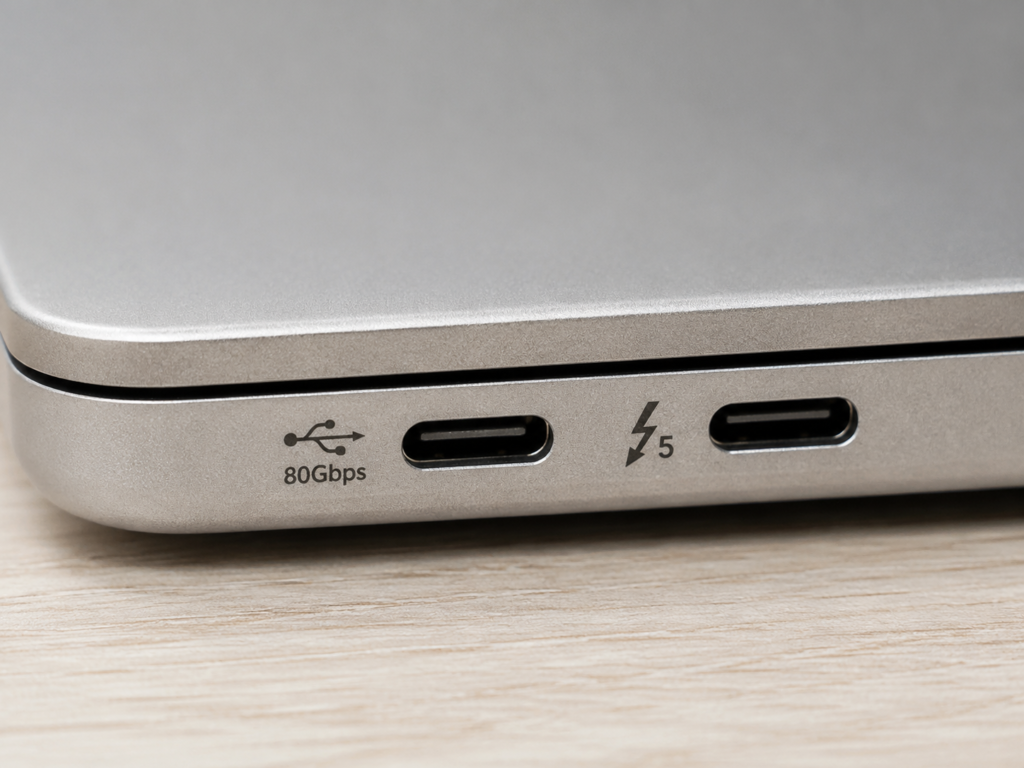
A lot of people get confused when they see these two: they’re both USB-C ports, both claim 80Gbps high speed, so what’s the difference? Which is faster? Which can connect to a monitor? Which is worth the higher price? Will buying the wrong one waste money, or leave you unable to use the features you need?
In this article, we’ll start with the most basic concepts, and thoroughly cover speed, video, docking stations, charging, cables, and compatibility all at once. At the end, we’ll give you shopping advice and pitfall avoidance guides for different scenarios. Even if you’re a total beginner, you’ll be able to judge which one to choose after reading.
Pre-Comparison Essentials: Unified Comparison Baseline and Premises for Conclusion Changes
Before we officially compare parameters, we need to unify the comparison baseline — otherwise many people will say after reading, “Why is what I have different from what you said?”
Default Premises for a Fair Comparison
The USB4 2.0 and Thunderbolt 5 referred to in this article both refer to official full-spec versions:
- The host, cable, and peripheral all support the highest-speed mode of the corresponding standard;
- Officially certified compliant cables are used, not cheap ordinary charging cables that cost a few bucks;
- System drivers, firmware, and BIOS/UEFI are all up to date, with no setting restrictions.
Ports that only say “USB-C” without marking the protocol, or non-full-function ports that only support charging or only video output, are not within our core comparison scope. In addition, older standards like USB4 20G/40G, Thunderbolt 3/4, and USB 3.2 will only be mentioned as compatibility background, and will not be compared with the full-spec versions.
These Situations Will Completely Change the Conclusion
We also need to make it clear in advance that all the comparison conclusions below are based on a full-spec end-to-end link. As long as one link does not meet the requirements, the result will change:
- If any one of the host, cable, or peripheral does not support 80Gbps, the actual speed will drop to the highest level supported by all three. For example, if you use a 40Gbps cable to connect an 80Gbps hard drive, the maximum speed you can get is 40Gbps;
- Many advanced features of USB4 (such as PCIe tunneling, video output, multi-monitor support) are optional. Manufacturers can include them if they want, or cut them if they don’t. So even if they are both called USB4 2.0, the capabilities of different devices can vary greatly;
- Although Thunderbolt 5 has stronger certification consistency, it is not omnipotent. For example, if your host’s GPU itself does not support 8K output, it’s useless even if the port is Thunderbolt 5;
- The commonly mentioned 120Gbps asymmetric mode requires end-to-end support to trigger, and it is mainly used for high-resolution high-refresh monitors, not to make file transfers faster. We will cover this in detail later.
Cross-Standard Compatibility: What Happens With Cross-Connection and Old Device Connections
After talking about parameter comparisons, many people will ask: if I plug a Thunderbolt 5 device into a USB4 port, will it work? What about the other way around? What happens when you connect older devices? In this section, we’ll cover the cross-standard compatibility rules.
The Core Rule: Bucket Effect, Backward Compatibility
When all Type-C devices are connected, they will automatically negotiate and operate at the highest capability jointly supported by the host, cable, and peripheral, which is the bucket effect — the slowest, least functional end determines the final speed and features.
For example, if you use a Thunderbolt 5 hard drive, connect it to a USB4 40Gbps laptop, and use an 80Gbps cable, the final speed will be 40Gbps, because the laptop’s port is the bottleneck.
If the only common capability of the three is charging, then it can only charge, and can’t even transfer data. A new port won’t make old devices automatically faster, and old devices won’t make new ports completely useless — they just drop to the commonly supported level.
What Happens When You Plug a Thunderbolt 5 Device Into a USB4 2.0 Port?
First of all, it will definitely fit physically — they are all USB-C ports. The specific features you can use depend on the capabilities jointly supported by both sides:
- Ordinary USB data transfer, charging, and basic video functions are generally usable, as long as the USB4 port supports the corresponding functions;
- Thunderbolt-exclusive features, or devices that rely on Thunderbolt certification (such as some Thunderbolt eGPU enclosures, Thunderbolt-exclusive docking stations) may not work, or their functions will be downgraded;
- Whether it can reach 80Gbps depends on whether the USB4 port is USB 80Gbps, whether the cable is full-speed, and whether the peripheral supports USB4 mode — all three must be satisfied.
In short: when you plug a Thunderbolt 5 device into a USB4 port, basic functions will most likely work, but high-end features may not, and the speed will be based on the lowest common denominator.
What Happens When You Plug a USB4 2.0 Device Into a Thunderbolt 5 Port?
Compatibility is usually better in this case, because Thunderbolt 5 itself is backward compatible with the USB4 standard, so USB4 devices generally work normally when plugged into a Thunderbolt 5 port.
But note: features that the USB4 device itself does not have will not appear out of thin air just because it is plugged into a Thunderbolt 5 port. For example, if your USB4 hard drive only supports 40Gbps, the maximum speed you can get when plugged into a Thunderbolt 5 port is still 40Gbps; if your USB4 dock does not support PCIe tunneling, it won’t support eGPU enclosures even when plugged into a Thunderbolt 5 port.
The final capability is still determined by the device’s own specifications — the port only provides the upper limit.
Backward Compatibility With Older Devices
- USB4 2.0: Backward compatible with all USB older standard devices, such as USB 3.2, USB 2.0 flash drives, hard drives, keyboards, and mice all work. Video capability depends on whether it supports DP output itself;
- Thunderbolt 5: In addition to being compatible with all older USB devices, it is also backward compatible with Thunderbolt 4 and Thunderbolt 3 devices. Almost all devices in the entire Thunderbolt ecosystem work, with broader compatibility.
No matter which one it is, the speed limit of old devices will not change. For example, a USB 3.2 hard drive can only run at USB 3.2 speed at most when plugged into a Thunderbolt 5 port.
Notes for Different System Platforms
Compatibility is also related to the operating system you use:
- Windows: Focus on the manufacturer’s port specifications, whether the drivers are installed correctly, whether the Thunderbolt/USB4 switch in BIOS/UEFI is turned on, and whether the device is authorized in the Thunderbolt Control Center. Many Windows laptops require manual authorization for Thunderbolt devices to work;
- macOS: The Thunderbolt/USB4 experience on Apple devices is usually more unified, and doesn’t require much tinkering. But the specific number of external monitors supported and the maximum speed still depend on the parameters of the specific model;
- Linux: Pay attention to the kernel version (too old kernels don’t support new USB4/Thunderbolt 5), Thunderbolt device authorization via the bolt service, USB4 drivers, as well as dock firmware and graphics card drivers. It’s relatively more troublesome to set up.
Causes of Common Compatibility Failures
If you encounter a problem where a device doesn’t work, you can first troubleshoot from these aspects:
- Wrong cable: Using a charge-only cable or low-speed cable — this is the most common;
- The host’s USB-C port is not a full-function port: For example, it only supports charging, or does not support video output;
- The dock or peripheral’s firmware is too old and needs to be updated;
- The operating system has not authorized the Thunderbolt device, or the driver is not installed correctly;
- The monitor’s input port, DP version, or cable does not support the resolution/refresh rate you want.
Real-World Usage Scenario Decisions: Which to Choose for Different Needs
After talking about so many parameters and compatibility, you might still be a bit confused: I’m just a regular user, which one should I choose? Below, we’ll give you direct conclusions based on the most common usage scenarios.
Daily Office Work / Ordinary File Transfer
Cases Where USB4 2.0 Is Sufficient
If you mainly connect a flash drive, ordinary portable hard drive, mouse and keyboard, Ethernet adapter, have no Thunderbolt-exclusive peripherals, have a limited budget, and don’t want to pay extra for a certified ecosystem you won’t use, then USB4 2.0 is completely sufficient.
Even in many cases, you don’t even need USB4 80Gbps — 40Gbps USB4 or USB 3.2 10Gbps is enough for daily use.
Cases Where Thunderbolt 5 Is More Suitable
If you already have a lot of Thunderbolt high-speed hard drives, Thunderbolt docks, or often connect high-speed hard drives, monitors, network cards, and multiple peripherals at the same time, and don’t want to spend time troubleshooting compatibility, then Thunderbolt 5 is more worry-free. Although it’s a bit more expensive, it causes a lot less trouble when using.
Conclusion
In daily office scenarios, the experience difference between the two is very small. The key is not to chase Thunderbolt 5, but to confirm that the ports and cables you use are not low-speed versions — don’t pay for USB4, but end up with a Type-C port that only supports USB 2.0.
Connecting Monitors / Multi-Screen Office Work
Cases Where USB4 2.0 Is Sufficient
If you only connect one ordinary 4K 60Hz monitor, and the official parameters clearly state that it supports video output and the corresponding resolution and refresh rate, and you don’t need complex single-cable multi-screen expansion, then USB4 2.0 is enough, and there’s no difference from using Thunderbolt 5.
Cases Where Thunderbolt 5 Is More Reliable
If you need to connect multiple 4K monitors, 8K monitors, high-refresh e-sports screens, or professional monitoring screens, don’t want to repeatedly research whether the USB4 port has cut video functions, or want to use a Thunderbolt-certified dock for a single-cable desktop setup, then prioritize Thunderbolt 5 — the chance of running into problems is much lower.
Points to Note
No matter which one you choose, display output doesn’t just depend on the port protocol. It also depends on the GPU, monitor, cable, dock, and DSC compression. If any link doesn’t meet the standard, you won’t get the effect you want.
Docking Stations / eGPU Enclosures
Cases Where USB4 2.0 Is Sufficient
If you use an ordinary dock, just to connect USB-A, HDMI, Ethernet port, card reader, keyboard, mouse and other ordinary peripherals, and the official clearly supports USB4 docks, then USB4 2.0 is completely sufficient, and there’s no difference from Thunderbolt 5.
Cases Where Thunderbolt 5 Is More Suitable
If you need to use an external GPU enclosure, or high-speed RAID, professional capture cards, 10Gigabit/high-speed network cards, multi-bay storage and other high-speed PCIe devices, or need more unified certified compatibility, then prioritize Thunderbolt 5.
Pitfall Reminder
- Not all USB4 ports can connect to eGPU enclosures. You must confirm that they support PCIe tunneling, and that there are real-world use cases;
- When a dock says 80Gbps, that refers to the total bandwidth of the upstream port. All downstream ports share this 80Gbps — it’s not that each port can run at full speed.
High-Speed Storage / Content Creation
Cases Where USB4 2.0 Is Sufficient
If you only use a single high-speed NVMe portable hard drive, occasionally transfer photos and video materials, and don’t connect multiple screens and multiple high-speed drives at the same time, then USB4 2.0 is enough. A single NVMe generally can’t even fill the 80Gbps bandwidth.
Cases Where Thunderbolt 5 Is More Suitable
If you use multi-drive RAID arrays, 8K/high-bitrate video materials, on-site capture, professional editing workflows, or connect high-speed storage, multiple monitors, capture cards and other high-speed devices at the same time, then Thunderbolt 5’s high bandwidth and stable PCIe tunneling will be more suitable for you, and there are also more professional storage devices in the Thunderbolt ecosystem.
Key Judgment Point
Don’t just look at the port name. The external hard drive’s controller, the SSD’s actual performance, and the thermal design are the key factors that determine speed — even if it’s a Thunderbolt 5 hard drive enclosure, if you put a junk SSD inside, the speed won’t be fast.
Charging Phones / Computers
Whether it’s USB4 2.0 or Thunderbolt 5, there is no inherent difference in charging speed. Charging completely depends on USB PD power: only when the charger, cable, and device all support the corresponding power can you reach the fastest speed.
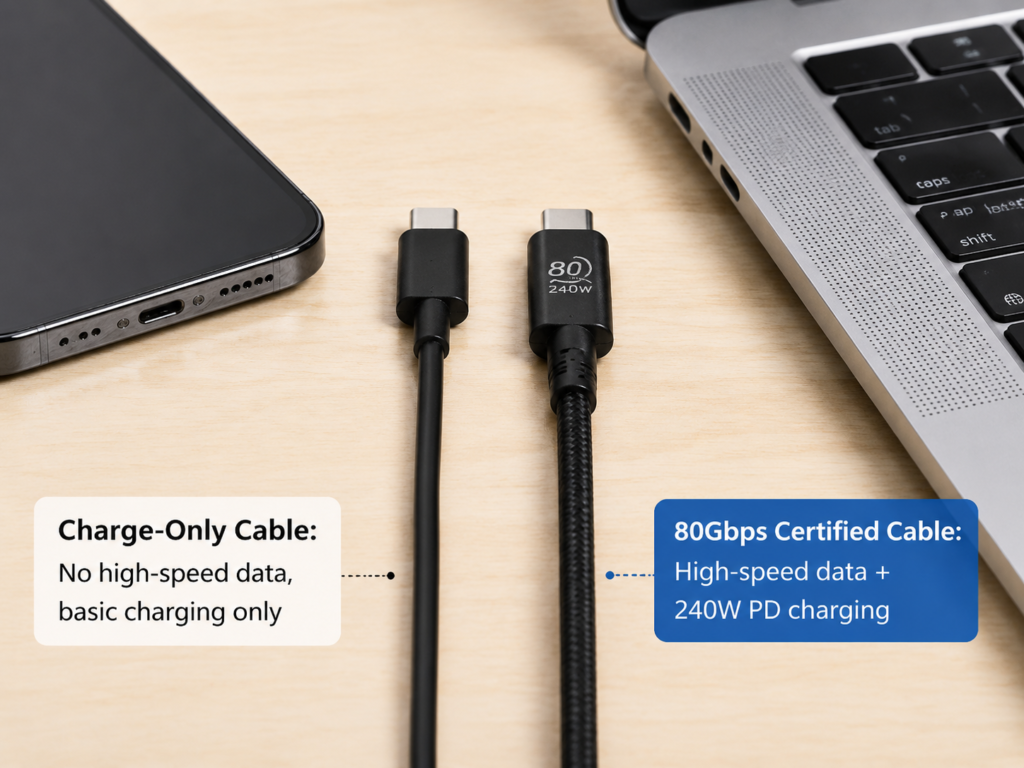
If you only charge your phone, you don’t need a Thunderbolt 5 cable at all — an ordinary charging cable is fine, it’s a waste of money; for charging high-power laptops, you need to confirm that the cable supports the corresponding PD power, which has nothing to do with the port protocol.
Common Misconceptions and Pitfall Avoidance Guide
Finally, we’ve compiled the 10 most common misconceptions, plus a pre-purchase checklist and common troubleshooting methods to help you avoid detours.
The 10 Most Common Misconceptions
- ❌ Misconception: USB4 2.0 is an upgraded version of the old USB 2.0.
✅ Correction: It is the second-generation specification of USB4, with a maximum speed of 80Gbps. It is completely different from the old USB 2.0 which is 480Mbps — the difference is more than 160 times. - ❌ Misconception: Thunderbolt 5 must transfer files faster than USB4 2.0.
✅ Correction: The symmetric link speed of full-spec versions is both at the 80Gbps level, and there is little difference in file transfer speed. The differences are mainly in certification, mandatory features, and ecosystem compatibility. - ❌ Misconception: 80Gbps equals 80GB/s.
✅ Correction: Gbps is bits. Divide by 8 to get bytes. The theoretical raw speed of 80Gbps is 10GB/s, and the actual effective speed is even lower. - ❌ Misconception: 120Gbps asymmetric mode can make ordinary file copying faster.
✅ Correction: It is mainly used for video output, allocating more bandwidth to one-way video transmission, and will not improve two-way file transfer speed. - ❌ Misconception: A Type-C port means it’s a high-speed port.
✅ Correction: Many Type-C ports only support charging or USB 2.0, and can’t even drive a 4K monitor. You must check the logo and parameters. - ❌ Misconception: A 240W cable must be a high-speed cable.
✅ Correction: Charging power and data speed are two independent parameters. Many high-power charging cables only have charging wire cores, no high-speed data wire cores, and transfer data very slowly. - ❌ Misconception: Thunderbolt 5 ports must charge faster.
✅ Correction: Charging speed is determined by the USB PD protocol, and has nothing to do with whether the port is Thunderbolt or USB4. If the PD power is the same, there is no difference in charging speed. - ❌ Misconception: USB4 ports can definitely connect to eGPU enclosures.
✅ Correction: The port needs to support PCIe tunneling, and the system and device must be compatible. Many USB4 ports do not have PCIe tunneling and cannot connect to eGPU enclosures. - ❌ Misconception: A dock marked 80Gbps means all ports run at full speed.
✅ Correction: 80Gbps is the total bandwidth of the upstream port. All downstream ports share this bandwidth — it’s not that each port can run at full 80Gbps. - ❌ Misconception: A new port can make old hard drives faster.
✅ Correction: Speed is determined by the slowest device. The speed limit of an old hard drive is fixed, and plugging it into a faster port is useless.
Core Checkpoints Before Buying Equipment
Whether you’re buying a laptop, dock, hard drive, or cable, check these points before buying, and you basically won’t run into big pitfalls:
- Check the port protocol: Is it USB4 20Gbps, USB 80Gbps, Thunderbolt 4, or Thunderbolt 5? You must distinguish clearly, don’t just look at “USB-C”;
- Check video capability: Is there DisplayPort output, which generation of DP is supported, what is the maximum resolution and refresh rate, how many monitors can be connected;
- Check PCIe capability: Whether it supports PCIe tunneling, how much bandwidth there is, whether it can connect to an external GPU (eGPU);
- Check power delivery capability: The host’s charging power, the dock’s reverse charging power, the PD power supported by the cable;
- Check cable specifications: Supported speed, whether there is official certification, length, passive or active, supported charging power;
- Check system compatibility: Support for Windows/macOS/Linux, whether drivers need to be installed, whether firmware updates are convenient.
Quick Troubleshooting of Common Failures
If you’ve already bought the device and encountered a problem, you can quickly troubleshoot with the following methods:
Charging Only, No Data Recognition
- First replace with a certified high-speed cable — it’s most likely a cable problem;
- Switch to another USB-C port on the host, some ports may only support charging;
- Check whether the device needs to install drivers, update firmware, or whether the Thunderbolt device is authorized in the system.
External Monitor No Signal or Insufficient Resolution
- Confirm that this USB-C port on the host supports video output;
- Confirm that the monitor’s input port supports the resolution and refresh rate you want — for example, some HDMI 2.0 ports can only do 4K60 at most;
- Replace with a cable that supports high-speed video — ordinary charging cables definitely won’t work;
- Temporarily unplug other high-speed devices that occupy bandwidth, or try lowering the refresh rate — it may be that the bandwidth is insufficient.
Transfer Speed Far Below Expectations
- Confirm that the host, cable, hard drive enclosure, and SSD all support the speed you expect. Any one that doesn’t meet the standard will drag down the speed;
- Check whether you are connected to a high-resolution monitor or multiple high-speed devices at the same time, which is occupying bandwidth;
- Check the SSD’s temperature — too high a temperature will cause speed reduction. You can try adding a heat sink;
- Use large files (such as tens of GB of video) for continuous read/write tests. Don’t test with small files — small files are inherently slow.
Device Frequent Disconnection
- Replace with a shorter certified cable — long cables may have unstable signals;
- Check whether the dock’s power supply is sufficient — connecting too many high-power devices may exceed its capacity;
- Update the dock’s firmware, the host’s BIOS, and related drivers;
- Rule out loose ports, device overheating, and whether the system’s power management policy has turned off the port.
Quick Judgment Method: How to Identify Port, Cable, and Device Capabilities
If you want to quickly know the actual capability of a port, cable, or device, you can use the following methods — you can figure it out without taking the machine apart.
Look at the Logo
This is the simplest method. Whether it’s a port or a cable, look at the logo on it:
- Lightning logo: Represents Thunderbolt. Then look at the number next to it — 3, 4, or 5. The larger the number, the newer the version;
- USB trident logo plus speed: For example, marked 20Gbps, 40Gbps, 80Gbps. The more clearly the speed is marked, the more reliable it is. If it only has the USB logo and no speed mark, it is defaulted to low speed;
- Only the Type-C icon or only PD marked can’t indicate any high-speed data capability — it may only charge.
Check the Official Specification Sheet
Logos can only be used for preliminary judgment. For specific capabilities, you must check the technical specifications on the official website, don’t trust the exaggerated publicity in e-commerce titles.
Focus on these keywords: USB 80Gbps, Thunderbolt 5, DisplayPort 2.1, PCIe tunneling, USB PD 3.1, 240W, eGPU support.
If it’s a dock, also check the specifications of the upstream port separately, and the individual specifications of each downstream port — don’t just look at the total bandwidth.
Use System Tools to Detect
If the device is already in your hands, you can check with the system’s built-in tools:
- Windows: You can look at the USB4 Host Router in Device Manager, the Thunderbolt Control Center, and the manufacturer’s own control software;
- macOS: Click the Apple icon in the top left → About This Mac → System Report → Thunderbolt/USB, where you can see the specifications of all ports and connected devices;
- Linux: You can use the boltctl command to view Thunderbolt devices, lsusb for USB devices, lspci for PCIe devices, as well as kernel logs and desktop environment authorization prompts.
Actual Testing and Verification
The most reliable method is actual testing:
- Connect the target peripheral with a certified high-speed cable;
- Use a high-speed SSD for continuous read/write testing to see if it can reach the expected speed;
- Connect a monitor to test the target resolution, refresh rate, HDR, and color depth to see if it can light up normally;
- Connect multiple devices at the same time to test stability. Don’t just test a single peak value — after all, you usually use multiple devices connected together.
Underlying Relationship and Future Trends
You might be curious: since USB4 and Thunderbolt 5 look the same and have similar speeds, why are there two standards? What is their relationship? What will happen in the future? Let’s talk briefly to help you understand more thoroughly.
Why Do the Two Have Such a High Overlap in Functions?
In fact, USB4 and Thunderbolt have a deep origin: back then, Intel opened up Thunderbolt 3 technology to the USB-IF, and the USB-IF launched the USB4 standard on this basis. So the two have a lot in common in underlying technology. By the generation of USB4 v2 (that is, USB 80Gbps) and Thunderbolt 5, the overlap of high-speed physical layers and tunneling capabilities is even higher.
Their core difference has never been “who is faster”, but the mandatory degree of functions, the strictness of certification testing, the consistency of the ecosystem, and product positioning — USB4 is open, manufacturers can configure it flexibly, covering different price points; Thunderbolt 5 is certified, with a mandatory lower limit of functions, to ensure compatibility and experience.
Why Are There Two Standards?
Simply put, they have different positioning:
- USB4/USB 80Gbps is aimed at broader industry popularization, from docks that cost a few hundred yuan to professional equipment that costs thousands of yuan, with a wide range of price options, suitable for most ordinary users;
- Thunderbolt 5 is aimed at high-performance and high-consistency experience, reducing users’ compatibility troubleshooting costs through a certified ecosystem, suitable for professional users and users with high-end peripheral needs, who are willing to pay extra for peace of mind.
For ordinary users, USB4 is more like “sufficient and cheap”, while Thunderbolt 5 is more like “high-end, worry-free, and friendly to professional peripherals”. There is no absolute good or bad, only whether it is suitable.
What Is a Dual-Standard Port?
You may see on some laptops that the same USB-C port has both the USB 80Gbps logo and the Thunderbolt 5 logo next to it. This is a “dual-standard port” — meaning this port supports both standards, can be used as USB4 or as Thunderbolt 5, with a wider compatibility range.
But note that dual-standard does not mean all functions are fully equipped. For example, some dual-standard ports may have DP 1.4 instead of 2.1 for video output, or only 60W power delivery. You still need to check the specific parameters.
Future Trends
In the future, USB and Thunderbolt technologies will continue to converge, and high-speed Type-C will gradually become standard on high-end laptops, monitors, and docks. But the real experience bottleneck will increasingly shift from the port itself to peripheral controllers, SSD performance, monitor specifications, heat dissipation, and cables — after all, the port already has 80Gbps, but many peripherals can’t even fill this speed.
For ordinary users, there’s no need to blindly chase the new, just choose what suits your needs; for professional users, choosing certified ecosystem devices according to your workflow can save a lot of tinkering time.
Quick Decision Logic
Finally, we’ve compiled a quick decision logic that you can use in 30 seconds, plus three abilities you should master after reading this article, to help you make quick judgments.
Cases Where USB4 2.0/USB 80Gbps Is Sufficient
- Daily office work, ordinary portable hard drives, single 4K60 monitor, ordinary dock;
- Limited budget, no use of Thunderbolt-exclusive professional equipment;
- Able to confirm that the host port, cable, and peripherals all meet your actual needs, willing to spend a little time looking at parameters.
Cases Where Thunderbolt 5 Is More Suitable
- Need for external GPU enclosures, high-speed RAID arrays, professional capture cards, high-end docks;
- Need for multi-screen, high-refresh, 8K monitors or complex single-cable desktop setups;
- Don’t want to repeatedly research USB4’s optional features, willing to pay extra for certified compatibility and high-end ecosystem, to save time and trouble.
Three Final Reminders
- Don’t just look at the words “USB-C” — the appearance doesn’t explain anything;
- Don’t just look at the “80Gbps” title — also check video capability, PCIe capability, power delivery, cables, and downstream port specifications;
- Before buying, be sure to check the entire link according to [host × cable × peripheral × system]. If any link fails, you won’t get the effect you want.
3 Things You Should Be Able to Judge Independently After Reading
- Distinguish the relationship between USB-C, USB4 2.0/USB 80Gbps, and Thunderbolt 5, and no longer confuse them;
- Judge whether your device can reach 80Gbps, or whether it can trigger 120Gbps asymmetric mode;
- Choose a more suitable solution according to your needs for monitors, docks, eGPU enclosures, high-speed storage, and charging, and no longer be fooled by merchants’ publicity.
Overall, USB4 2.0 and Thunderbolt 5 are not in a relationship where one replaces the other, but two standards for different groups of people and different needs. If you’re an ordinary user, doing daily office work, watching shows, transferring files, USB4 2.0 is completely sufficient, there’s no need to waste extra money; if you’re a content creator, professional user, with many high-speed peripherals or multi-screen needs, the stability and compatibility of Thunderbolt 5 will make you feel the money is well spent.
Spending two more minutes checking the parameters before buying is much better than tinkering for half a day after buying — after all, what suits you is the best.