
Introduction
Can a USB-C external SSD really handle 8K video editing?
The short answer is yes — but only when three core pieces align properly: the speed of your computer’s USB-C port, the sustained performance of the SSD itself, and the way you set up your editing workflow.
Many creators run into the same frustrating problem: they buy a high-speed USB-C SSD marketed for 8K work, plug it in, and still experience stuttering timelines, slow imports, and dropped frames. More often than not, the drive itself is not broken. The bottleneck lives somewhere else in the connection chain, from the port on the laptop to the cable on the desk to the settings inside your editing software.
This guide breaks down exactly how to choose, set up, and optimize a USB-C external SSD for 8K video editing, so you can get smooth performance without wasting money on hardware you do not need.
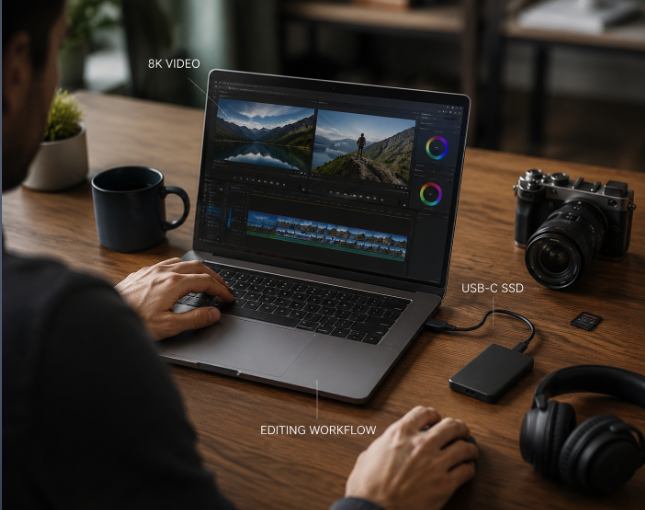
Quick Answer: Can USB-C External SSD Edit 8K Video?
If you are looking for the fast verdict, here is what you can expect:
- Works reliably: Proxy editing, compressed 8K H.265 footage, and single-track ProRes projects on 10Gbps or faster ports
- Works best: Native 8K ProRes and intermediate codecs on 20Gbps or 40Gbps USB4/Thunderbolt connections
- Not recommended: Heavy multi-track 8K RAW editing on 10Gbps or slower USB ports
For most independent creators, a good 10–20Gbps USB-C SSD is more than enough for regular 8K work. Only professional RAW workflows require the full speed of a premium Thunderbolt SSD for creators.
1. How Fast Does a USB-C SSD Need to Be for 8K Editing?
8K footage does not have a single speed requirement — it depends entirely on what codec you shoot in. The important question is not how large your 8K files are, but whether your USB-C external SSD can continuously deliver the required bandwidth during real editing.
Some 8K formats are light enough to run on almost any modern USB drive, while others demand the full bandwidth of a top-tier Thunderbolt connection. Below is what each common 8K codec requires from your external storage, and what type of USB-C setup is recommended:
| Codec | Storage Demand | Recommended USB-C Setup |
|---|---|---|
| H.265/HEVC 8K | Low bandwidth; most strain falls on CPU/GPU decoding | 10Gbps USB-C SSD |
| ProRes 422 HQ | Moderate sustained read speed required | 20Gbps USB-C SSD |
| ProRes RAW / Cinema RAW | Very high sustained bandwidth needed | USB4 / Thunderbolt 4 SSD |
Actual file sizes depend heavily on your camera model and recording settings. As a general reference, compressed 8K H.265 uses only tens of megabytes per second, while high-quality 8K RAW formats can demand well over 1000 MB/s for a single stream.
Why peak speed numbers are misleading
Editing is not the same as copying a single large file. When you scrub a timeline, play multiple tracks, or apply color grades, the drive is handling constant small random reads and mixed read/write work. A drive that hits 2000 MB/s for 10 seconds can still feel slow during real editing if its steady-state performance drops off. For 8K work, sustained minimum speed matters far more than the peak number on the product box.
A quick note on decoding performance
If your 8K timeline is stuttering, the SSD is not always to blame. Compressed codecs like H.265 put heavy load on your CPU and GPU for real-time decoding. If dropping the preview resolution makes playback smooth immediately, your computer’s processing power is the bottleneck, not your external storage.
2. USB-C Speed Explained: Why Your SSD Speed Depends on the Port
The single biggest reason external SSDs underperform is also the least understood: USB-C is just the shape of the connector. The actual speed is determined by the protocol running behind that port.
In simple terms: the port on your computer is the speed limit for the entire connection. Even the fastest SSD on the market cannot go faster than the port it is plugged into.
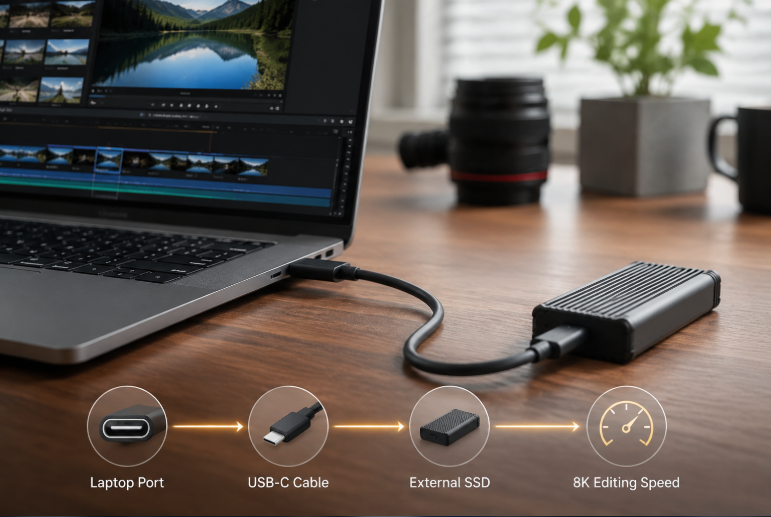
USB-C speed tiers for 8K editing
Here is how each common protocol performs with external storage, and what 8K work it is best suited for:
| Protocol | Theoretical Bandwidth | Real-World Sustained Speed | Best For 8K Work |
|---|---|---|---|
| USB 3.2 Gen 1 (5Gbps) | 5 Gbps | 400–500 MB/s | File backups and proxy editing only |
| USB 3.2 Gen 2 (10Gbps) | 10 Gbps | 800–1000 MB/s | Compressed 8K H.265 and proxy workflows |
| USB 3.2 Gen 2×2 (20Gbps) | 20 Gbps | 1500–2000 MB/s | Single-track native 8K ProRes and compressed workflows |
| USB4 (20/40Gbps) | 20 / 40 Gbps | 2500–3800 MB/s (40Gbps tier) | Professional 8K and multi-track editing workflows |
| Thunderbolt 3/4 (40Gbps) | 40 Gbps | 2800–3500 MB/s | Professional-grade, consistent 8K performance with certified drives |
Note: USB 3.2 Gen 2×2 is uncommon on many laptops, especially Macs. A 20Gbps SSD may run at lower speeds if the host device does not support this standard.
Important: USB4 is sold in both 20Gbps and 40Gbps versions. Always check your device’s specs to confirm the actual speed. Thunderbolt 4 guarantees 40Gbps on every certified port.
A quick reality check for each tier:
- 10Gbps ports: The most common on modern laptops. Great for H.265 8K and proxy work, but not ideal for 8K RAW or heavy multi-track ProRes.
- 20Gbps ports: The sweet spot for most independent creators. Handles most standard 8K editing tasks comfortably, though device support is less universal than 10Gbps.
- 40Gbps Thunderbolt/USB4: The professional standard. Delivers near-internal drive speeds for the most demanding 8K workflows.
How to check your port’s real speed
- Windows: Open Device Manager → Universal Serial Bus controllers
- macOS: About This Mac → System Report → USB / Thunderbolt section
- Physical labels: A lightning bolt logo means Thunderbolt; “SS 10” or “SS 20” marks USB 3.2 Gen 2 or Gen 2×2
3. How to Choose a USB-C SSD for 8K Video Editing
Shopping for the best external SSD for 8K video editing does not mean buying the most expensive drive with the biggest peak speed number. Prioritize these factors in order, and you will get the right balance of performance and value.
1. Match the drive to your port speed first
There is no point paying for a 7000 MB/s internal SSD if your laptop only has a 10Gbps USB port. The port will be the bottleneck, and the extra speed will go unused. Buy a drive that lines up with the fastest port on your computer.
2. Prioritize sustained write speed, not peak speed
Almost every SSD uses a temporary high-speed buffer called SLC cache to deliver impressive burst speeds. Think of it like a short express lane on a highway: it makes short trips very fast, but once the lane fills up, everything slows back down to normal speed.
For short file transfers, this cache makes the drive feel blazing fast. For long 8K renders and sustained editing, the cache fills up and performance drops to the drive’s steady-state speed. That steady, out-of-cache speed is the number that actually matters for editing work.
3. Pick the right SSD type
- Portable SSDs: Prebuilt, ready to use out of the box, and usually rugged for travel. The most reliable option for most creators and the best portable SSD for filmmakers working on location.
- DIY NVMe enclosures: You supply the M.2 SSD and slide it into a separate USB-C case. More flexible and often cheaper at high capacities, but performance depends heavily on the quality of the enclosure’s controller.
- Thunderbolt SSDs: Certified for full 40Gbps performance, built for professional media work. The top choice for studio-level 8K RAW workflows.
4. Check cooling and build quality
All SSDs heat up under heavy load, and when they get too hot, they automatically slow down to protect their internal components.
- Cool to the touch = best performance
- Warm during long editing sessions = completely normal
- Very hot + noticeable slowdowns = thermal throttling is occurring
All-metal enclosures with internal thermal pads handle sustained 8K work far better than cheap plastic cases with no heat dissipation.
5. Consider endurance for regular professional work
Drive endurance is measured in TBW (Terabytes Written), which estimates how much total data the drive can handle over its lifetime. For hobbyist and occasional 8K work, standard consumer SSDs are fine. For frequent professional 8K workflows with constant renders and cache writes, a higher TBW rating is a wise investment.
6. Buy more capacity than you think you need
8K footage fills up drives extremely quickly. Always leave at least 20% free space on the drive. A nearly full SSD runs slower and has less room for cache and temporary files.
- 1TB: Light 8K proxy editing and short projects
- 2TB: Standard creator workflow with compressed 8K
- 4TB: Professional ProRes and raw 8K projects
- 8TB+: Studio setups, multi-camera productions, and raw archives
Recommended USB-C SSD Setup by Editing Needs
| Your Workflow | Required USB-C Port | Minimum Sustained Speed | Recommended Drive Type |
|---|---|---|---|
| YouTube 8K videos / hobbyist | 10Gbps | ~1000 MB/s | Portable USB-C SSD |
| Travel filmmaker / independent creator | 20Gbps | ~2000 MB/s | NVMe SSD (prebuilt or enclosure) |
| Professional 8K RAW / studio | 40Gbps | 3000 MB/s+ | Certified Thunderbolt SSD |
4. The USB-C Connection Chain: Why Your SSD Is Slow
Storage performance is only as strong as the weakest link in the chain. There are four key stages between your footage and your editing software, and any one of them can cap your overall speed. This is why buying the fastest SSD on the market will not fix a slow port or a bad cable.
- Host USB-C port: Sets the absolute maximum possible speed for everything else.
- USB-C data cable: The most commonly overlooked bottleneck. A cheap charging cable will not carry full high-speed data.
- Bridge controller: The “translator” chip inside the enclosure that converts between USB signals and the SSD’s internal language. A low-quality controller will throttle speed and run hot.
- NVMe flash memory: The actual storage chips where your files live.
If your SSD is running slower than expected, work through this list from top to bottom. In most cases, the problem is not the drive itself — it is one of the links before it.
5. Best USB-C SSD Setup for Different Creators
Below are complete, real-world setups matched to common 8K editing workflows. Use these as a starting point to build your own system.
Setup 1: YouTube Creator & Hobbyist
- Laptop port: USB 3.2 Gen 2 (10Gbps)
- SSD choice: 1–2TB reputable portable USB-C SSD
- Recommended workflow: Shoot 8K H.265, edit with proxy files, relink to originals for final export
- Why it works: 10Gbps is more than enough for proxy editing and compressed 8K playback. This is the most affordable and portable setup for casual 8K work.
Setup 2: Independent Filmmaker & Solo Editor
- Laptop port: 20Gbps USB or USB4
- SSD choice: 2–4TB NVMe SSD (prebuilt portable or quality enclosure)
- Recommended workflow: Native editing of 8K ProRes 422 HQ, use render cache for graded sections
- Why it works: 20Gbps delivers enough sustained speed for most single-track 8K intermediate workflows, without the premium cost of full Thunderbolt gear.
Setup 3: Professional Editor & Post-Production Team
- Laptop/desktop port: Thunderbolt 4 / USB4 40Gbps
- SSD choice: 4TB+ high-endurance NVMe in a certified Thunderbolt enclosure
- Recommended workflow: Native 8K RAW and multi-track ProRes, with optimized media for complex timelines
- Why it works: 40Gbps bandwidth delivers near-internal drive performance, making it suitable for heavy commercial and cinema-grade 8K projects.
Setup 4: On-Location DIT Workflow
- Port requirement: Thunderbolt 4
- SSD choice: Dual-bay rugged Thunderbolt enclosure
- Use case: Simultaneous on-set backup and rough cutting
- Why it works: Combines data redundancy with enough speed for on-location review and rough edits.
6. Optimize Your 8K Editing Workflow
Even a great USB-C SSD will feel slow if your software and system are set up poorly. These adjustments will help you get the smoothest possible performance from your external drive.
File system choice
Pick a format that matches your operating system and workflow:
- APFS (macOS only): Best for Mac-only editing and Final Cut Pro, optimized for SSD performance.
- NTFS (Windows only): The most stable choice for Windows-only workstations.
- exFAT: Works on both Windows and Mac, ideal for drives that move between computers. It offers broad cross-platform compatibility but lacks some advanced features of native file systems.
Editing software storage tips
- DaVinci Resolve: Keep your media cache and optimized media on the same fast external SSD as your footage.
- Adobe Premiere Pro: Place large media and cache files on your fastest external drive for best performance.
- Final Cut Pro: Store your entire library on the external SSD for the cleanest, most portable workflow.
Proxy editing: the biggest performance upgrade
If you are working on a slower connection or with heavy codecs, proxy editing is the single most reliable way to get smooth 8K playback. You edit with smaller, easier-to-play copies of your footage, and your software links back to the full-quality originals when you export. It has almost no impact on final output quality and makes even 10Gbps connections feel fast and responsive.
Additional system optimizations
- Plug your SSD directly into your computer’s primary port, not through an unpowered hub.
- Place the drive on a hard, flat surface for good airflow. Soft surfaces trap heat and cause throttling.
- Disable USB power-saving settings on laptops during editing sessions.
- Pause background cloud sync and antivirus scans on your media drive while editing.
7. Troubleshooting USB-C SSD Performance
If your drive is running slower than expected, work through these core steps in order.
First: measure your real speed
Run a test with a media-focused benchmark tool to see what you are actually getting:
- Blackmagic Disk Speed Test: Purpose-built for video editors, shows what video resolutions your drive can handle.
- CrystalDiskMark: Detailed sequential and random speed measurements.
Always look at the sustained minimum speed, not just the peak number.
Step-by-step fix for slow transfer speeds
- Confirm your port speed. Make sure you are plugged into a port that supports the speed you expect.
- Swap the cable. Try a known-good, certified cable rated for your speed tier. Bad cables are the single most common cause of underperformance.
- Plug directly into the computer. Bypass docks, hubs, and adapters to rule out shared bandwidth.
- Check for overheating. If the case is too hot to hold comfortably, thermal throttling is likely slowing things down.
- Update firmware. Check the manufacturer’s website for drive and enclosure firmware updates.
Common stability issues
- Random disconnects: Usually caused by a loose cable, insufficient power, or a low-quality hub. Try a shorter cable or a different port.
- Speeds drop mid-render: Almost always thermal throttling. Improve airflow around the drive or take short breaks between long renders.
Data safety reminder
Always follow the 3-2-1 backup rule: three copies of your data, on two types of media, with one copy off-site. Never rely on a single external SSD as your only copy of 8K footage.
8. Frequently Asked Questions
1. Can you edit 8K video from a USB-C external SSD?
Yes, with the right setup. Compressed 8K and proxy workflows work well even on 10Gbps USB-C connections. Native 8K ProRes and RAW formats require 20Gbps or faster connections with high-performance NVMe SSDs. How smooth your workflow feels depends on your codec, number of tracks, and the full quality of your connection chain.
2. Is USB-C SSD better than internal SSD for 8K editing?
In raw speed, an internal SSD will almost always be faster and more reliable. But a USB-C external SSD wins on portability, flexibility, and ease of upgrade. For most creators, a good USB4 or Thunderbolt external SSD delivers performance close enough to internal drives for real-world 8K editing workflows, with the huge benefit of being able to move projects between devices instantly.
3. How fast does a USB-C SSD need to be for 8K editing?
It depends on the codec. Low-bitrate H.265 8K only needs tens of MB/s of read speed, though your computer’s decoding power matters more. Single-track ProRes 422 HQ works reliably with several hundred MB/s of sustained read. 8K RAW and multi-track workflows need 1500 MB/s or more of consistent speed.
4. Is 10Gbps USB-C enough for 8K editing?
It works well for low-bitrate compressed 8K and proxy editing workflows. It will struggle with high-bitrate ProRes, RAW footage, multi-track timelines, and heavy color grading. Remember: storage speed is only one factor — even if the drive can keep up, your computer’s decoding ability may still limit playback smoothness.
5. Why is my external SSD slower than the advertised speed?
Almost always because of a bottleneck somewhere else in the connection chain: a slower port on your computer, a low-quality cable, thermal throttling, or SLC cache exhaustion after large file transfers. Advertised peak speeds are measured under ideal lab conditions that rarely match real sustained editing work.
6. Do I need to use proxy files with an external 8K SSD?
Not necessarily, if you have a fast 40Gbps Thunderbolt setup and work with simple ProRes timelines. But proxies are the most reliable way to guarantee smooth, responsive editing on any hardware, and they are strongly recommended for compressed codecs, multi-track projects, or slower connections.
7. How much storage do I need for 8K projects?
As a rough guide, one hour of 8K 30fps footage takes roughly 15–40 GB for compressed H.265, close to 1 TB for ProRes 422 HQ, and 1–4 TB+ for RAW formats. Most creators working regularly with 8K will want at least 2 TB, and professional workflows typically need 4 TB or more.
8. Will a USB dock slow down my editing SSD?
It can. Many USB docks share bandwidth between all their ports. If you have a monitor, mouse, keyboard, and SSD all running through one hub, the SSD will not get full speed. For best performance, plug your editing SSD directly into the computer, or use a high-quality Thunderbolt dock with dedicated bandwidth.
Conclusion
Editing 8K video from a USB-C external SSD is not a simple yes or no question. It is a complete connection chain, and its performance is always limited by the weakest link. A fast drive on a slow port is wasted. A fast port with a cheap cable is wasted. Even perfect hardware will feel slow with poorly configured editing software.
The good news is that once you understand how the pieces fit together, you can build a setup that matches your workflow exactly, without overspending on unnecessary hardware.
Core takeaways
- The USB-C port on your computer sets the hard speed limit for your entire setup.
- Sustained real-world performance matters far more than the peak speed printed on the box.
- Proxy editing and smart workflow optimization can make even mid-range USB-C SSDs feel fast for 8K work.
Before you buy a USB-C SSD for 8K editing, check these three things
- What speed USB-C ports your computer actually has
- What sustained performance the drive delivers, not just its advertised peak speed
- What video codecs you actually shoot and edit with most often
Start with your port speed, match your drive and cable to it, and optimize your workflow for smooth playback. For most creators, a solid 10–20Gbps USB-C SSD paired with good workflow habits delivers a perfectly capable 8K editing experience.