
Introduction
If you’ve ever tried to stream your Nintendo Switch gameplay, turn a mirrorless camera into a crisp webcam, or record footage from an external device to your laptop, you’ve probably run into one problem: computers are built to send video out, not pull it in. That’s where a USB-C capture card comes in — think of it as a universal translator for video signals. It takes the raw HDMI output from your console, camera, or media player and converts it into a format your computer recognizes as a standard webcam. No fancy drivers, no opening up your PC case, just plug and play.
This guide breaks down everything you need to know — from what these devices actually do to how to spot fake “4K” marketing, pick the right model for your budget, and get up and running in five minutes.
Quick Takeaways (5-Second Summary)
- A USB-C capture card is a video translator. It turns HDMI output from game consoles, cameras, and media devices into a standard webcam signal your computer can use for streaming, recording, or video calls.
- Don’t be fooled by “4K” labels. There are three different resolution numbers — input, capture, and passthrough. Many cheap cards accept 4K input but only record in 1080p.
- You don’t need to overspend. $20–$50 entry models work perfectly for casual use. Reserve $150+ premium cards for full-time creators and professional production.
- Gamers need passthrough. A good passthrough port sends video directly to your monitor with near-zero lag, so your gameplay feels responsive while you stream.
- USB-C is just a shape, not a speed rating. Check that your computer’s port supports USB 3.2 or better — a USB 2.0 port will cripple even the best capture card.
1. What Is a USB-C Capture Card, and Do You Need One?
1.1 Plain-English Definition
At its core, a USB-C capture card is an external signal converter. It takes a video feed (usually HDMI, sometimes SDI on pro models) and encodes it into a standard UVC (USB Video Class) webcam signal that Windows, macOS, Android, and iPadOS can detect automatically. It’s plug-and-play for most uses — no internal hardware upgrades required.
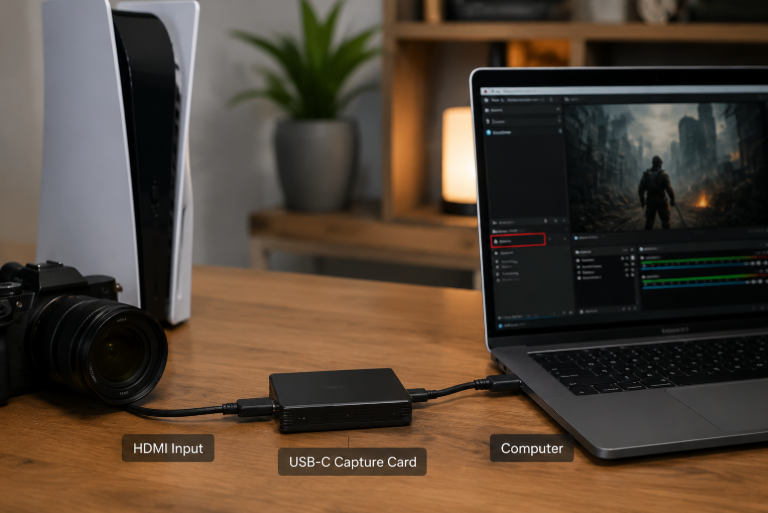
It’s easy to mix it up with similar-looking accessories, but they do very different things:
- USB-C capture card: Brings external video into your computer and converts the signal format.
- USB-C hub/dock: Adds extra ports to your computer. It cannot capture or process video signals.
- HDMI adapter cable: Only changes the physical shape of a connector. It has no processing chip inside.
- Graphics card: Sends video out of your computer to a monitor. It does not handle video input.
1.2 Who Actually Needs One?
You’ll get real value from a capture card if you fall into any of these groups:
- Console gamers who stream or record Switch, PS5, or Xbox gameplay.
- Live streamers and content creators who want to use a DSLR/mirrorless camera for studio-quality video.
- Mobile creators who use a phone or tablet as an on-the-go monitor.
- Professionals and educators who need high-quality video for meetings, lectures, and remote presentations.
- Industrial/technical users working with medical endoscopes, microscopes, or security feeds.
If you only record your computer’s own screen, you can just use free software like OBS Studio — no capture card needed.
1.3 How It Works (Simple Breakdown)
The process is straightforward:
- Your source device (console, camera) outputs video via HDMI.
- The capture card receives the signal and converts it to a standard webcam format.
- The converted signal travels over USB to your computer, phone, or tablet.
- Your streaming, conferencing, or recording software picks it up like any other camera.
1.4 What’s Inside a USB-C Capture Card
Even the cheapest model has the same basic building blocks:
- HDMI/SDI input receiver
- Video processing and scaling chip
- USB controller chip
- Power management circuit
- Heat dissipation (metal shell or small fan on higher-end models)
Better cards use higher-quality chips that produce cleaner color, handle higher resolutions, and run cooler under load.
1.5 USB-C Shape ≠ USB Speed
This is the single biggest trap for new buyers. A USB-C connector is just a reversible plug shape — it tells you nothing about how fast data moves through it.
| USB Standard | Speed | What It Can Handle |
|---|---|---|
| USB 2.0 | 480 Mbps | 1080p at 30fps at best; often choppy |
| USB 3.2 Gen 1 | 5 Gbps | Reliable 1080p 60fps capture |
| USB 3.2 Gen 2 | 10 Gbps | 4K 30fps capture reliably |
| USB4 / Thunderbolt 3/4 | 40 Gbps | 4K 60fps, HDR, and multi-source setups |
Always match the card to your computer’s port speed. A 4K capture card plugged into a USB 2.0 port will never deliver 4K performance.
1.6 External USB-C vs. Internal PCIe Capture
USB-C cards aren’t the only option — desktop users can also install an internal PCIe capture card.
- External USB-C: Works with laptops, easy to move between devices, no tools needed. Limited by USB bandwidth. Best for most people.
- Internal PCIe: Lower latency, more stable for 24/7 use, no USB bandwidth bottleneck. Requires opening your desktop case. Best for full-time studio setups.
1.7 Capture Card vs. Webcam vs. Screen Recorder
All three handle video, but in completely different directions:
- Webcam: Films you from in front of the computer.
- Screen recorder: Captures what’s already on your computer’s display.
- Capture card: Pulls video from outside your computer (consoles, cameras, other devices).
2. Key Specs Explained: Don’t Fall for Marketing Tricks
Product pages love to throw around big numbers. Here’s what actually matters.
2.1 Three Resolutions: Input, Capture, Passthrough
Nearly every “4K capture card” scam relies on mixing up these three terms. Always read the fine print.
- Input resolution: The maximum signal the card can accept. This is the number brands love to advertise — it’s almost meaningless on its own.
- Capture resolution: The actual resolution that gets recorded or streamed to your computer. This is the real spec to care about.
- Passthrough resolution: The resolution sent to your monitor while capturing. Critical for gamers — this is what you see while playing.
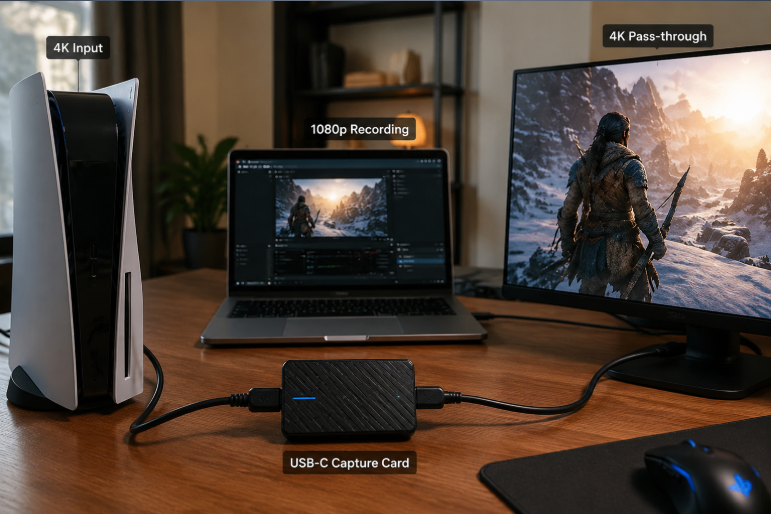
What you need for common use cases:
- Meetings / lecture recording: 1080p 30fps capture; passthrough not needed.
- Switch / casual console streaming: 1080p 60fps capture + 1080p 60fps passthrough.
- Camera streaming / 4K recording: 4K 30fps capture + 4K 60fps HDR passthrough.
- High-refresh esports / pro production: 4K 60fps capture + 4K 120/144Hz VRR passthrough.
2.2 Latency and the “Zero Latency” Myth
You’ll see “zero latency” advertised everywhere. It’s almost never the full story.
- Passthrough latency: The delay between the source and your monitor. On good cards, this is roughly one frame (~16ms at 60Hz) — effectively unnoticeable for gaming. This is what brands mean when they say “zero latency.”
- Capture/stream latency: The delay between the source and what appears on your computer/stream. This is usually 50–100ms on decent cards. Viewers won’t notice, but you can’t play off the captured preview window.
Rule of thumb: If you’re gaming, always buy a card with a dedicated HDMI passthrough port and play off your main monitor — never off the software preview.
2.3 Compatibility
- Operating system support: Cheap no-name cards often only work on Windows. Reputable brands support Windows, macOS, and often Android/iPadOS via UVC standard.
- HDCP: High-bandwidth Digital Content Protection can block capture of copy-protected content like streaming boxes and Blu-rays. Always respect copyright laws.
- Port matching: For stable 1080p 60fps or higher, plug directly into a USB 3.2+ port on your computer. Hubs and docks can cause dropped frames.
2.4 Image Quality: Color and HDR
- 8-bit color: Standard for streaming, video calls, and casual recording. Most viewers won’t see a difference.
- 10-bit 4:2:2: Richer color gradations, better for professional editing and color grading. Overkill for most live streams.
- HDR: Useful for PS5/Xbox Series X gameplay and cinematic camera footage. Not needed for typical webcam-style use.
2.5 Heat and Power
- 1080p-class cards usually run cool enough with just a metal shell for passive cooling.
- 4K high-bandwidth models may include a small fan to prevent thermal throttling during long sessions.
- Almost all USB-C capture cards draw power directly from the USB port — no extra power adapter needed.
2.6 Audio Capture
Virtually all HDMI capture cards carry embedded audio along with video. Many also add a 3.5mm jack for microphone input. Look for:
- UAC (USB Audio Class) compliance for automatic system recognition
- Stable audio-video sync over long recording sessions
- Separate audio mixing options in the companion software
2.7 Encoding: Software vs. Hardware
- Software encoding: Uses your computer’s CPU. Cheaper cards work this way. Fine for short sessions, but can slow down your PC.
- Hardware encoding: The capture card has its own built-in encoder chip. Saves CPU resources, much more reliable for hours-long streams. Common formats include H.264 (universal), H.265 (more efficient for 4K), and AV1 (emerging next-gen standard).
2.8 Cables Make or Break Performance
A great card with a bad cable is a waste of money.
- USB-C cable: Must support data transfer at the required speed. Charging-only cables won’t work at all. Longer cables suffer more signal loss.
- HDMI cable: HDMI 1.4 tops out at 4K 30Hz. HDMI 2.0 handles 4K 60Hz. HDMI 2.1 is needed for 8K or 4K 144Hz. Always match the cable to the card’s specs.
3. Pick the Right Card for Your Use Case
3.1 Budget / Beginners ($20–$50)
Best for: Casual Switch streaming, student projects, occasional Zoom calls with a camera.
- What to look for: 1080p 60fps capture, UVC plug-and-play, metal casing, HDCP-compatible input.
- Reliable brands in this range: StarTech, Anker, UGREEN.
- Avoid: Plastic-bodied 1080p 30fps no-name units — they overheat and drop frames.
3.2 Gaming Streamers & Regular Creators ($50–$150)
Best for: PS5/Xbox streaming, mirrorless camera webcams, part-time Twitch/YouTube creators.
- What to look for: 4K 30fps capture, 4K 60fps HDR passthrough, hardware encoding, solid audio sync.
- Leading brands: Elgato, AVerMedia.
- Watch out: Some cards advertise “4K support” but only for passthrough — confirm the capture resolution meets your needs.
3.3 Pros & High-Refresh Gamers ($150+)
Best for: 4K production, 144Hz esports setups, multi-camera studios, medical/industrial use.
- What to look for: 4K 60fps HDR capture, 4K 120/144Hz VRR passthrough, 10-bit 4:2:2 color, 24/7 reliability.
- Top-tier brands: Magewell, Blackmagic Design.
3.4 Mobile / On-Location Creators
Best for: Outdoor live streaming, on-set monitoring, mobile field recording.
- What to look for: Pocket-sized form factor, UVC driverless, direct phone/tablet compatibility, bus-powered only.
- Skip: Large units that require wall power — they defeat the purpose of mobile work.
4. Common Pitfalls (90% of New Buyers Hit These)
- The $15 “4K capture card” scam. It accepts 4K input but only captures 1080p. Always ask for the capture resolution.
- “Zero latency” deception. That claim almost always refers only to passthrough, not the live stream preview.
- Fake “universal” drivers. Cheap cards may only work on Windows. Verify macOS/Android support before buying.
- HDCP black screens. Protected content won’t capture. Respect copyright and use legitimate sources.
- Plugging into a USB 2.0 port or cheap hub. Bandwidth starvation causes stutter and dropped frames. Always plug directly into a USB 3.2+ port.
- Using a charge-only USB-C cable. It won’t transfer data at all — you’ll get no signal.
- Plastic housing with no cooling. Overheating leads to sudden dropouts mid-stream. Pick metal-bodied models.
- Thunderbolt-only cards in regular USB-C ports. They’ll work but at reduced speed and features.
- Premium card paired with cheap cables. You’ll never hit the advertised specs without certified HDMI and USB cables.
5. 5-Minute Setup Guide
5.1 Hardware Connections
- Plug an HDMI cable from your console/camera into the HDMI IN port on the capture card.
- If your card has passthrough, connect your monitor to the HDMI OUT port.
- Plug the capture card’s USB-C cable directly into a USB 3.2+ port on your computer or mobile device. Avoid hubs whenever possible.
5.2 Software Setup
- Video conferencing (Zoom, Teams, Meet): Go to your app’s camera settings and select the capture card from the dropdown list.
- Streaming / recording (OBS Studio): Add a new “Video Capture Device” source, select your capture card, set the matching resolution, and choose the capture card as your audio source as well.
- Phones and tablets: Use a full-featured USB-C cable. Apps that support UVC will detect the card automatically.
5.3 Quick Performance Tips
- Disable USB selective suspend in your system power settings to prevent random dropouts.
- Use YUY2 or NV12 color format in OBS — avoid MJPEG, which can cause washed-out colors.
- Set all audio devices to 48kHz sample rate to prevent audio drift over long recordings.
6. Troubleshooting Common Issues
- No signal / black screen: Check HDMI cable seating, confirm your source is outputting a supported resolution, verify HDCP status, and try a different cable.
- Choppy / dropped frames: Plug into a native USB 3.2+ port, remove any hubs, check for overheating, and upgrade to a certified high-speed cable.
- Audio out of sync: Adjust the audio offset in your recording software, and make sure all devices use the same 48kHz sample rate.
- Washed-out / wrong colors: Set the color space to Rec. 709 and disable automatic color correction in your capture software.
- Computer doesn’t detect the card: Install the official driver if required, and try a different USB port — preferably one on the back of the motherboard.
7. Frequently Asked Questions
Q: Do I need a capture card to stream Switch gameplay? A: Yes — the Switch doesn’t support built-in streaming to PC software, so a capture card is the standard solution.
Q: Are cheap capture cards any good? A: Reputable budget brands work fine for casual 1080p 60fps use. Ultra-cheap no-name units often have fake specs, bad drivers, and overheating issues.
Q: Can a USB-C capture card connect to a phone or tablet? A: UVC-compliant models work natively with Android, iPadOS, and iPhone 15+. Older iPhones with Lightning require additional adapters.
Q: Why does my “4K” capture card only record 1080p? A: Either it’s a marketing trick (4K input only), or you’re plugged into a USB port that’s too slow.
Q: Will using a capture card add input lag to my gaming? A: If you play off the passthrough monitor, the lag is effectively unnoticeable. The captured stream preview will have slight delay, but that doesn’t affect your gameplay.
Q: Do capture cards require drivers? A: Standard UVC models are plug-and-play. High-end hardware-encoding cards usually include optional software and drivers for advanced features.
Q: Can I record streaming boxes and Blu-ray players? A: HDCP copy protection will block most protected content. Always follow copyright law and terms of service.
Q: Is it normal for a capture card to get warm? A: A mild warmth on a metal shell is normal. If it’s too hot to touch comfortably, the cooling is inadequate and you may see throttling issues.
Q: What’s the difference between a USB-C capture card and an HDMI adapter? A: An HDMI adapter only changes the physical connector shape. A capture card has processing chips that convert the signal into a standard webcam format your computer can use.
Q: Can a USB-C capture card record PS5 in 4K? A: Mid-range and up models support 4K 30fps or 4K 60fps capture, but you’ll need sufficient USB bandwidth and an HDMI 2.0+ cable.
Q: Why is there no signal from my USB-C capture card? A: Check cable connections, HDCP status, source output resolution, USB port speed, and cable quality — those are the most common causes.
Q: Do I need USB4 for a 4K capture card? A: 4K 30fps works reliably over USB 3.2 Gen 2. For 4K 60fps and HDR, USB4 or Thunderbolt gives you more headroom and stability.
8. Pre-Purchase Checklist
Essentials
- Capture resolution matches your needs — don’t buy based on input resolution alone
- Passthrough is included if you’re gaming
- Supports your operating system (Windows, macOS, mobile)
- HDCP handling matches your use case
- You have a USB 3.2+ port available and a proper data cable
Extras to Confirm
- Adequate cooling (metal body or fan)
- Reputable brand with firmware updates and warranty
- Meets relevant safety and compliance certifications
- Price matches your actual use case — no need to pay for features you’ll never use
9. What’s Next for USB-C Capture Cards?
The category is evolving fast, and three trends are shaping the next generation of devices:
First, USB4 and higher-bandwidth connections are becoming standard, enabling smoother 4K 60fps capture and even multi-input cards over a single cable. That said, stability, driver quality, and software ecosystem still matter more than raw bandwidth for most users.
Second, on-board AI features are starting to appear — think built-in noise reduction, automatic background removal, and real-time upscaling, all handled on the card itself instead of eating your CPU.
Third, standalone and cloud-connected models are growing. More cards now work directly with phones and cloud streaming platforms without a full PC in the middle, lowering the barrier for mobile and outdoor live production.
Final Thought: The Best Card Is the One That Fits Your Workflow
You don’t need the most expensive, highest-spec capture card on the market. You need the one that matches what you actually do.
If you’re new, prioritize broad compatibility and rock-solid reliability. If you game, put passthrough quality and low latency at the top of your list. If you create professionally, invest in color accuracy, resolution, and long-term durability.
Pick right the first time, and a good USB-C capture card will quietly do its job for years — no fuss, no dropped frames, just clean video whenever you need it.
Need help narrowing down a specific model for your setup? Feel free to share your use case and budget in the comments.