
Imagine you walk into a store looking for a fast USB cable. The package says “USB 3.2” and you think, “Great, this must be the latest and fastest.” You get home, plug in your external drive, and it feels… not that fast. What happened?
You just walked into one of the most confusing naming messes in consumer tech. The name “USB 3.2” by itself tells you almost nothing about speed. It is not one single speed — it is an entire family of three different speed levels, all sold under the same “3.2” label.
Think of it like seeing a sign that just says “highway” without telling you if it is a two-lane country road, a four-lane interstate, or a ten-lane superhighway. They are all technically “highways,” but you would drive very differently on each one.
The Three Speeds Hiding Under One Name
According to the official USB 3.2 specification from USB-IF (the organization that sets all USB standards), there are exactly three speed classes:
- USB 3.2 Gen 1 = 5Gbps (gigabits per second)
- USB 3.2 Gen 2 = 10Gbps
- USB 3.2 Gen 2×2 = 20Gbps
Here is the sentence worth memorizing:
USB 3.2 Gen 1 is 5Gbps, Gen 2 is 10Gbps, and Gen 2×2 is 20Gbps.
If a product only says “USB 3.2” with no Gen number and no Gbps number, you do not know the speed. It could be the slowest one, the middle one, or the fastest one. Many brands intentionally leave out the Gen label because it makes cheaper, slower products sound newer and fancier than they actually are.
Think of Them Like Roads
The easiest way to understand the difference is to imagine each speed level as a different kind of road.
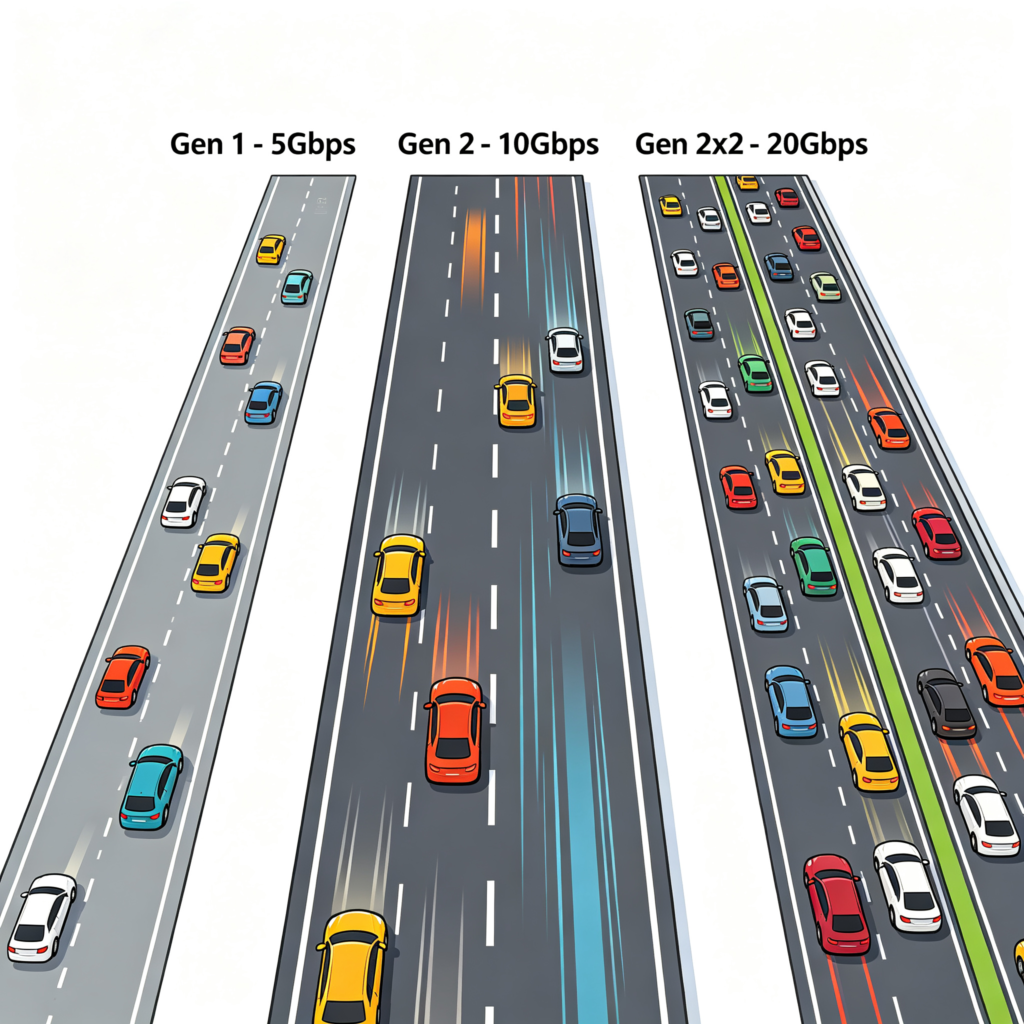
USB 3.2 Gen 1 (5Gbps) is a single regular fast lane. Cars (data) move along at a good pace, but there is only one lane. This is the same speed that used to be called “USB 3.0” back in 2008. It was impressive for its time, but it is the baseline today.
USB 3.2 Gen 2 (10Gbps) is a single wider, faster lane. The cars go twice as fast as Gen 1, but there is still only one lane. More data gets through per second because each packet moves quicker.
USB 3.2 Gen 2×2 (20Gbps) is two fast lanes running side by side. The “x2” is the important part — it means two separate 10Gbps lanes are working together at the same time. Instead of making one lane even faster, they added a whole second lane. The total capacity doubles.
Two lanes sound great, but there is a catch. A second lane only helps if everything along the route supports two lanes. If the highway has two lanes but the bridge halfway across only has one, traffic backs up to one lane at the bridge. The slowest part of the journey sets the overall speed.
In USB terms, every single piece of the chain has to support Gen 2×2 to get the full 20Gbps: your computer port, the cable, and the device itself. If any one piece only supports 10Gbps, the whole connection drops down to 10Gbps.
Why Are There So Many Names for the Same Thing?
If you have ever heard of USB 3.0 or USB 3.1, you might be wondering how they fit in. The short answer is: they got renamed.
The USB standards organization keeps rebranding older speeds under newer family names. It is like how a restaurant might rename “Basic Burger” to “Classic Burger” and then to “Signature Burger” across different menus — it is still the same burger, just printed under a newer menu title.
| Old Name | Later Became | What It Actually Means |
|---|---|---|
| USB 3.0 | USB 3.1 Gen 1 → USB 3.2 Gen 1 | 5Gbps, one lane |
| USB 3.1 Gen 2 | USB 3.2 Gen 2 | 10Gbps, one lane |
| (new with 3.2) | USB 3.2 Gen 2×2 | 20Gbps, two lanes |
So USB 3.0, USB 3.1 Gen 1, and USB 3.2 Gen 1 are all the exact same 5Gbps speed. They just got re-labeled twice.
This is why USB-IF now officially recommends that manufacturers use simple speed-based marketing names like “USB 5Gbps,” “USB 10Gbps,” and “USB 20Gbps” instead of the confusing Gen numbers. The number does the useful work — you always know exactly what you are getting.
Why Gen 2×2 Only Works With USB-C
You will never find USB 3.2 Gen 2×2 on the old rectangular USB-A port. It is physically impossible.
Think of a USB cable as a bundle of pipes inside the plastic casing. Each pipe carries data in one direction. USB-A only has enough pipes inside for one high-speed lane — one pipe sending data and one pipe receiving data back.
USB-C is a newer, smarter connector. It has twice as many data pipes inside, arranged symmetrically. That is why you can plug it in either way and it still works — both sides have the same set of pins. Those extra pins are exactly what make a second data lane possible. Gen 2×2 activates both sets of pins at the same time, doubling the total data flow.
So as a rule of thumb: if it has a USB-A connector, the fastest it can ever be is 10Gbps (Gen 2). Any 20Gbps connection must use USB-C.
Wait, What About USB4 and Thunderbolt?
This is where things get even more interesting, and where the original article fell short.
A few years after USB 3.2 came out, Intel donated its Thunderbolt technology to the USB standards group, and USB4 was born. USB4 starts at 20Gbps and goes all the way up to 40Gbps (and USB4 version 2.0 goes to 80Gbps).
Think of USB 3.2 Gen 2×2 as a small side project that added a second lane to the old USB system. USB4, on the other hand, is a completely rebuilt highway system from the ground up — same 20Gbps starting speed, but a much more advanced design underneath that can handle video, data, and other signals all at once.
The important thing for regular people to know:
- Both USB 3.2 Gen 2×2 and USB4 20Gbps deliver the same 20Gbps data speed
- But they use different underlying technology and are not always compatible with each other
- Many newer computers support USB4 or Thunderbolt but do NOT support USB 3.2 Gen 2×2 specifically
- Thunderbolt 4 is basically the “premium guaranteed” version of USB4 — every Thunderbolt 4 port must hit 40Gbps, no exceptions, whereas USB4 can be sold at either 20Gbps or 40Gbps
In practice, Gen 2×2 has become something of a forgotten middle child. It was released, then USB4 arrived shortly after and overshadowed it. Most new high-end devices go straight to USB4 or Thunderbolt instead of investing in Gen 2×2 support. Apple’s Mac computers, for example, do not natively support USB 3.2 Gen 2×2 at all — they use USB4/Thunderbolt instead.
Why Real-World Speed Is Always Slower Than the Number
You might do the math: 20Gbps divided by 8 bits per byte equals roughly 2.5 gigabytes per second. Then you test a real file transfer and get something closer to 1.8 to 2.2 GB/s, or even less. Why the gap?
Think of the official speed limit as the top speed on a highway sign. On an empty road with a perfect car, you might hit that speed. In real life, you have traffic, on-ramps, slow trucks, and construction zones — all things that slow you down.
Here is what slows down USB transfers:
Protocol overhead (the paperwork). Every chunk of data comes with a little header — like a shipping label on a package. Those labels take up some of the bandwidth, so not every bit carries your actual file. Typically about 10 to 15 percent of the speed goes to this “paperwork.”
The drive itself. A fast USB connection is useless if the storage inside the device cannot keep up. It is like pouring water through a fire hose into a tiny funnel — the funnel sets the speed, not the hose. Cheaper SSDs or old mechanical hard drives cannot fill a 20Gbps link.
The bridge chip inside. Inside every external SSD enclosure, there is a small chip that translates between the USB connection and the SSD itself. Some of these bridge chips are slower than others. A cheap chip can bottleneck an otherwise fast setup.
File size and type. One giant single file transfers faster than a folder full of thousands of tiny files. Each small file requires its own little “start” and “stop” handshake, which adds up.
Heat. Fast SSDs get warm. When they get too warm, they automatically slow down to protect themselves. This is called thermal throttling — imagine a runner sprinting then needing to walk to catch their breath.
Shared bandwidth. If you use a dock or hub with multiple devices connected, they might be splitting the same USB link. More cars on the same highway means everyone goes slower.
Who Actually Needs 20Gbps?
Not everyone does. Chasing the fastest USB speed for no reason is like buying a race car just to drive to the grocery store — you will never use the extra power, and you paid more for it.
| What You Are Connecting | 5Gbps (Gen 1) | 10Gbps (Gen 2) | 20Gbps (Gen 2×2 / USB4) |
|---|---|---|---|
| Mouse, keyboard, printer | Perfect | Overkill | Total overkill |
| Regular USB flash drive | Usually fine | More comfortable | Rarely needed |
| Phone photo backup | Usually fine | Faster backups | Not worth the cost |
| External SATA SSD | Often enough | Often enough | Minimal benefit |
| External NVMe SSD | Will hold it back | Common sweet spot | Best for fast models |
| Large video files, photo editing | May feel slow | Much better | Best if whole chain supports it |
If you mostly transfer documents, photos, or use basic accessories, 5Gbps or 10Gbps is totally fine. The 20Gbps speeds really shine for people who move huge files regularly — video editors, photographers working with raw files, people backing up entire computers to fast external drives.
How to Not Buy the Wrong Thing
The number one rule: never let “USB 3.2” be the deciding detail. Always dig for the actual speed number.
Before you buy, check all of these:
- Does the product page say 5Gbps, 10Gbps, or 20Gbps somewhere? If it only says “USB 3.2” and hides the Gen level, assume it is the slowest one (5Gbps) until proven otherwise.
- Does your computer’s port support that same speed? Check your laptop or motherboard specs. A 20Gbps device on a 10Gbps port only runs at 10Gbps.
- What does the cable say? A cable that only says “USB-C” might only support 5Gbps or 10Gbps. Good cables explicitly print their speed rating.
- If it is an enclosure or dock, does the whole thing support the speed? Some cheap enclosures have a USB-C port on the outside but only 5Gbps electronics inside.
- If it is an SSD, is the drive inside fast enough? A budget SSD inside a 20Gbps enclosure will not hit 20Gbps — the drive is the bottleneck.
And one extra tip: if you are shopping for a 20Gbps device, check whether it uses USB 3.2 Gen 2×2 specifically or USB4. Both hit 20Gbps, but USB4 is the newer, more future-proof standard and has broader support across newer computers.
Summary
USB 3.2 is not one speed — it is a family of three. Gen 1 runs at 5Gbps, Gen 2 runs at 10Gbps, and Gen 2×2 runs at 20Gbps by using two data lanes at once. That “x2” is why Gen 2×2 only works over USB-C — it needs the extra pins inside the connector.
The naming history is messy because older standards like USB 3.0 got rebranded twice under the USB 3.2 umbrella, which is why just seeing “USB 3.2” on a box means almost nothing.
For the fastest speeds today, USB4 and Thunderbolt have mostly taken over from Gen 2×2 at the high end. But regardless of which standard you are dealing with, the safest rule stays the same: look for the Gbps number, not just the version name. And always remember — USB speed is decided by the slowest link in the whole chain, not the fastest one.
Information based on official USB-IF specification documents including the USB 3.2 Language Usage Guidelines, USB4 Specification Language Guidelines, and USB Data Performance Language Usage Guidelines (January 2024).