
When shopping for a USB-C docking station, most people only care about how many ports it has, but overlook one core question: is there enough “road capacity” for data to travel across all those ports? This is what we call the bandwidth allocation mechanism of USB-C docking stations. Understanding it will help you figure out why your external hard drive slows down when you connect a 4K monitor, or why your gigabit Ethernet never reaches its advertised speed — and help you avoid misleading marketing claims when buying a docking station.
1. What Is USB-C Docking Station Bandwidth Allocation?
1.1 What Is Bandwidth?
First, let’s clear up a common misunderstanding: bandwidth is not internet speed.
Think of data transfer as a highway, and bandwidth as the total number of lanes on that highway. More lanes mean more vehicles (data) can pass through at the same time, resulting in higher transfer efficiency.
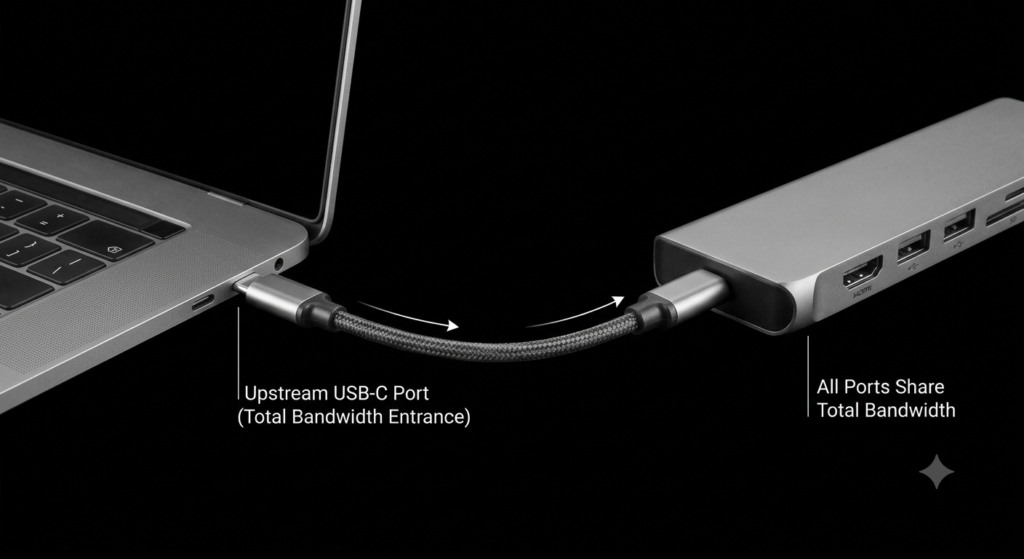
All data from ports on a docking station travels through the same cable and upstream connection to your computer — like all vehicles merging onto one main highway. The total number of lanes on this main road is fixed; this is the docking station’s total bandwidth.
1.2 Why Do We Need Bandwidth Allocation?
A single USB-C port handles many tasks at once: outputting video to an external monitor, transferring files to flash drives and external hard drives, connecting to wired internet, transmitting audio, reading memory cards, and more.
Just like a highway shared by cars, buses, and trucks, the total number of lanes is limited. Lanes must be allocated properly to avoid traffic jams. Bandwidth allocation in a docking station is the system that assigns “lane resources” to different functions.
1.3 How Does Bandwidth Allocation Affect Everyday Users?
How bandwidth is allocated directly impacts your real-world experience:
- The maximum resolution and refresh rate of your external monitor will be limited
- File transfer speeds on external hard drives and flash drives may drop significantly when video output is active
- When multiple USB devices work at the same time, each device’s speed will slow down
- Gigabit or 2.5G Ethernet adapters may not reach their advertised network speeds
2. Where Does the Docking Station’s Total Bandwidth Come From?
2.1 The Upstream Port: The “Highway Entrance” of the Docking Station
All data from the docking station’s ports travels through the single USB-C cable that connects to your computer. This port, which connects to the host computer, is called the upstream port — it is the main entry point for all data going in and out of the docking station.
The protocol supported by the upstream port sets the upper limit of the docking station’s total bandwidth. If the highway entrance only has 4 lanes, no amount of exit ramps will make the total traffic capacity higher than 4 lanes.
2.2 Total Bandwidth of Common Protocols
Common USB-C protocols vary widely in theoretical total bandwidth, as shown in the table below:
| Interface Protocol | Theoretical Total Bandwidth | Common Use Cases |
|---|---|---|
| USB 3.2 Gen1 | 5Gbps | Entry-level docking stations, standard office laptops |
| USB 3.2 Gen2 | 10Gbps | Mainstream thin-and-light laptops, mid-range docking stations |
| USB 3.2 Gen2×2 | 20Gbps | A small number of high-end devices, low market adoption |
| USB4 | 20Gbps / 40Gbps | New thin-and-light laptops, mid-to-high-end docking stations |
| Thunderbolt 3 | 40Gbps | professional creator laptops, high-end docking stations |
| Thunderbolt 4 | 40Gbps | Flagship laptops, premium professional docking stations |
Important note: The values in the table are theoretical peak bandwidths. Real-world usable speeds are lower. Data transfer requires encoding, error checking, and signal processing — just like highways need safety gaps and emergency lanes, which take up some road space. The actual bandwidth available for useful data will always be less than the theoretical maximum.
3. How Is Bandwidth Allocated Inside a Docking Station?
A docking station works like a small traffic hub, with different “control modules” managing and distributing bandwidth resources.
3.1 USB Hub Controller: The Traffic Director for USB Ports
All standard USB-A and USB-C data ports are managed by a USB Hub chip. Flash drives, mice, keyboards, and external hard drives connected to these ports all share the same pool of USB data bandwidth.
When only one high-speed device is active, it can use almost all of the available USB bandwidth. When multiple devices transfer data at the same time, they compete for lane space, and speeds naturally drop.
3.2 Video Output: The Biggest Bandwidth Consumer
Video output is one of the most bandwidth-intensive functions on a docking station. Every second of video requires transmitting huge amounts of pixel data — higher resolution and higher refresh rates require more “lanes”.
Docking stations use DisplayPort Alt Mode to repurpose the USB-C port’s high-speed lanes for video signals. The higher the video quality, the more lanes are used.
3.3 Ethernet, Card Readers: Sharing the Remaining Bandwidth
Features like gigabit Ethernet, 2.5G Ethernet, SD/microSD card readers, USB audio adapters, and webcams all count as peripheral functions. They share whatever USB bandwidth is left after video output takes its share.
If video output already uses most of the bandwidth, there will be fewer resources left for Ethernet and card readers, so their performance will not reach advertised levels.
3.4 Control Chips: The Central Traffic Control Center
Components inside the docking station — the USB Hub chip, video conversion chip, Ethernet controller, and more — work together as a central control system. They coordinate data flow, decide which functions get priority access to bandwidth, and arrange transfers to minimize congestion.
High-end USB4 and Thunderbolt docking stations also support PCIe lanes, which are like dedicated express lanes for high-speed devices, greatly improving concurrent performance.
4. Why Do Video and Data Transfer Slow Each Other Down?
Many people have experienced this: without a monitor connected, an external hard drive transfers files quickly. But once a 4K monitor is plugged in, the drive’s speed drops by half. The core reason is the shared nature of the high-speed lanes.
4.1 The Number of High-Speed Lanes Is Fixed
A standard full-featured USB-C port has 4 high-speed differential pairs — the “main lanes” we’ve been referring to. This number is fixed.
These lanes can be used for either video or USB data, but there are only so many to go around. The more lanes you assign to video, the fewer are left for data transfer.
4.2 Two Common Lane Allocation Modes
DisplayPort Alt Mode typically uses one of two lane configurations, with very different real-world results:
| Lane Allocation Mode | Lane Usage | Video Capability | USB Data Capability |
|---|---|---|---|
| 4-Lane Full Video Mode | All 4 lanes dedicated to video | Supports higher resolution and refresh rates, e.g. 8K 30Hz, 4K 144Hz | Only USB 2.0 speeds; high-speed drives and flash drives slow down noticeably |
| 2-Lane Video + 2-Lane USB | 2 lanes for video, 2 lanes for data | Supports standard high-quality video, e.g. 4K 60Hz | Retains full high-speed USB performance, up to USB 3.2 Gen2 (10Gbps) |
Put simply: if you want maximum video quality, you sacrifice high-speed USB data transfer. If you want both fast storage and video output, you use the 2+2 split mode, which places some limits on video specifications.
4.3 Why High Resolution Slows Down Hard Drives
When using high-end video setups like 4K 144Hz, dual 4K monitors, or 8K displays, bandwidth requirements are so high that 2 lanes are not enough. The docking station automatically switches to 4-lane full video mode.
At that point, USB data transfer is forced onto slower USB 2.0 lanes. Your external SSD or high-speed flash drive will naturally slow down — this is a normal physical limitation, not a defect in the docking station.
5. How Does Bandwidth Change With Multiple Connected Devices?
Many people fill every port on their docking station. When this happens, bandwidth changes follow a clear set of rules.
5.1 Single Device: Near-Maximum Speed
If only one high-speed device is connected — for example, just an external hard drive, with no monitor or other peripherals — nearly all available bandwidth can go to that device. Speed will usually be close to the port’s theoretical rating.
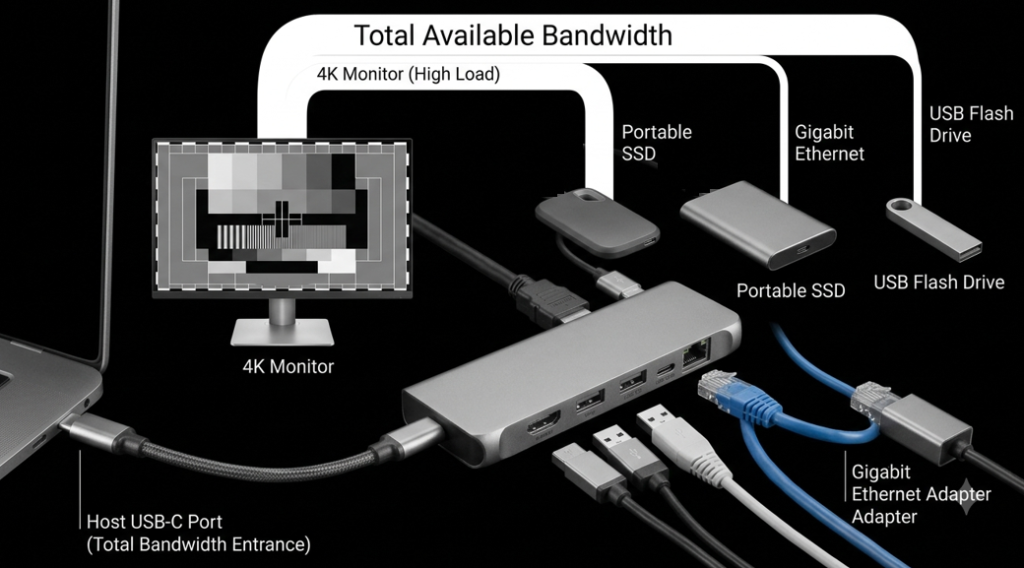
5.2 Multiple Devices Active: Sharing Total Bandwidth
When you connect an external SSD, flash drive, Ethernet adapter, webcam, and video capture card all at once, all devices share the docking station’s total available bandwidth.
The internal controller dynamically schedules data transfers, assigning bandwidth to whichever device needs it at that moment. But total resources are limited: the more devices you have, and the faster each one is, the more overall performance will drop.
5.3 Devices Most Likely to Cause a Bottleneck
Not all devices use a lot of bandwidth. These types of devices are typical “bandwidth hogs” and are very likely to cause bottlenecks when used together:
- High-speed external solid-state drives (SSD)
- Multi-bay external hard drive enclosures
- High-resolution, high-refresh-rate monitors
- Video capture cards and live-streaming capture devices
- 10 Gigabit Ethernet adapters (found only on high-end docking stations)
6. Why Do Docking Stations Have Such Big Performance Differences?
Two docking stations can both be advertised as “10-in-1”, but one works smoothly with every port filled, while the other lags with just two high-speed devices. There are 4 key reasons for this gap.
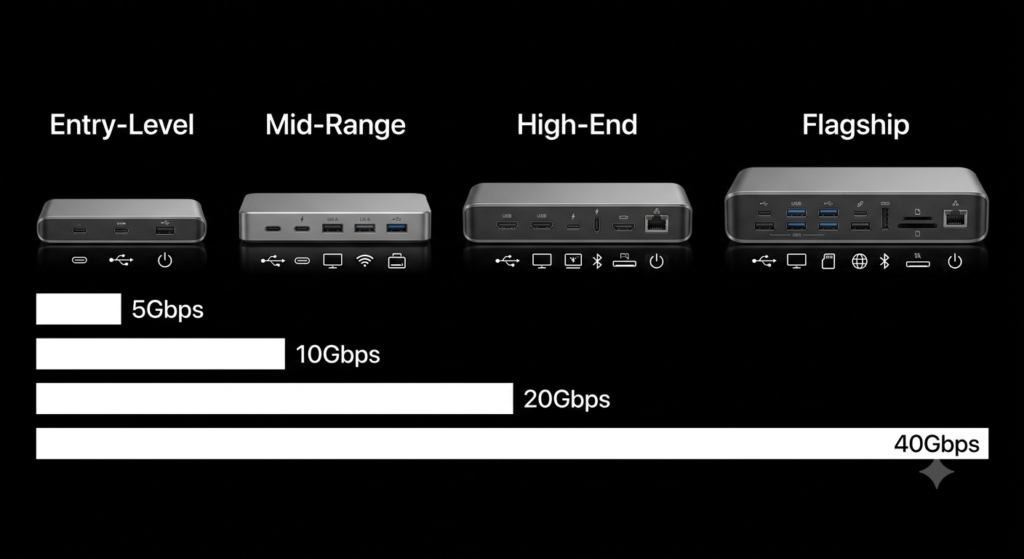
6.1 Different Total Bandwidth Specifications
This is the most fundamental difference. An entry-level 5Gbps docking station has 8 times less total bandwidth than a 40Gbps Thunderbolt 4 docking station. The difference in real-world experience is enormous — like comparing a 4-lane road to a 32-lane highway.
6.2 Different Quality Internal Control Chips
The Hub chip and video conversion chip inside a docking station vary widely in performance and scheduling efficiency. High-quality chips handle scheduling efficiently, with minimal speed loss and lag when multiple devices are active. Cheap chips have poor scheduling ability and cause severe congestion with just a few extra devices.
6.3 PCIe Architecture vs. USB-Only Architecture
Basic USB docking stations cram all functions onto the USB channel. USB4 and Thunderbolt docking stations support PCIe lanes, which assign dedicated channels to Ethernet, storage, and video output — like building separate dedicated lanes for different types of vehicles, so they don’t interfere with each other.
This is the core reason high-end docking stations have much better multi-device performance.
6.4 More Ports Do Not Equal Better Performance
Many shoppers chase “12-in-1” or “15-in-1” docking stations, thinking more ports means better value. But if total bandwidth stays the same, more ports means less average bandwidth per port.
A well-designed bandwidth allocation system matters far more than simply stacking as many ports as possible.
7. How to Tell If Your Docking Station Has a Bandwidth Bottleneck
If your docking station always feels “slower than it should be”, you can check for bottlenecks with these signs and simple troubleshooting steps.
7.1 Common Signs of a Bottleneck
- File copy speeds on an external hard drive are much slower than when plugged directly into the computer
- Your external monitor only works at low resolution or low refresh rate; higher settings cause flickering or stuttering
- Speed tests on your gigabit/2.5G Ethernet never reach the adapter’s advertised speed
- When multiple high-speed devices are connected at once, you experience stuttering or device disconnections
7.2 Simple Troubleshooting Steps
- Test devices one at a time: Unplug all other devices and test just one device to see if speed returns to normal
- Reduce connected devices: Temporarily unplug unused high-speed devices and check if lag goes away
- Try a different host port: Plug the docking station into a higher-spec USB-C or Thunderbolt port on your computer
- Replace the cable: Make sure your USB-C cable supports the required bandwidth. Many low-cost cables only work at USB 2.0 speeds
- Upgrade your docking station: If total bandwidth is fundamentally insufficient, upgrading to a higher-spec docking station is the most reliable fix
8. Choose the Right Docking Station for Your Needs
You don’t need to buy the most expensive model. Picking one that matches your use case gives the best value.
8.1 Everyday Office Use
Recommended: USB 3.2 Gen1 (5Gbps) or USB 3.2 Gen2 (10Gbps) docking station
Typical setup: One 1080P or 4K 60Hz monitor, plus a mouse, keyboard, flash drive, and basic Ethernet adapter
For this kind of use, bandwidth demands are low. A mainstream 10Gbps docking station is fully sufficient and budget-friendly.
8.2 Content Creation Work
Recommended: USB4 or Thunderbolt 3 docking station
Typical setup: Regularly transferring files on high-speed SSDs, using a 4K monitor, plus a memory card reader and wired Ethernet
These scenarios require multiple high-speed devices to run at the same time. Higher total bandwidth and PCIe architecture ensure stable performance when everything is working at once.
8.3 Professional Media & High-Performance Workstations
Recommended: Thunderbolt 4 or full-speed 40Gbps USB4 docking station
Typical setup: Dual 4K monitors, high-speed disk arrays, 2.5G/10G Ethernet, and video capture cards all active simultaneously
Professional work demands extremely high bandwidth. A top-tier docking station eliminates bandwidth bottlenecks and improves overall productivity.
9. Summary
Let’s wrap up the logic of USB-C docking station bandwidth allocation in three key points:
- Ports on a docking station do not each have their own dedicated bandwidth. All data travels through one upstream connection and shares total bandwidth resources.
- Video output, USB data transfer, and network connectivity all split a limited pool of bandwidth. High-end video uses a lot of lane resources, which in turn slows down other devices.
- A docking station’s performance is not determined by how many ports it has. Total bandwidth, internal chips, and system architecture are what matter most. Choosing a product that fits your actual use case is more practical than chasing a high port count.
Once you understand how bandwidth allocation works, you won’t be fooled by “dozens of ports” marketing claims next time you shop for a docking station — you’ll be able to pick the product that truly works for you.