
1. Introduction to USB-C Video Output
1.1 The Multi-Function Nature of USB-C: Charging, Data, and Video Combined
Many people still think of USB-C as just a charging port, but it is actually an all-in-one interface. It can charge phones and laptops, transfer files, and even connect directly to monitors for video output. This “one port for everything” design eliminates the need for multiple cables and connectors, greatly simplifying desk setups and reducing what you need to carry when traveling.
1.2 Core Benefits of USB-C Video Output
The biggest advantage of USB-C video output is the single-cable solution. For example, a laptop only needs one USB-C cable to connect to a monitor, and it can simultaneously deliver video, charge the laptop, and even connect peripherals like keyboards and mice. For thin-and-light laptops, tablets, and phones, this means no more bulky chargers and separate video cables — one cable handles work and entertainment on a big screen.
1.3 How It Differs From Dedicated HDMI/DisplayPort Ports
Ports like HDMI and DisplayPort are purpose-built video interfaces designed exclusively for video signals. USB-C, by contrast, is fundamentally a data interface, and video output works by reusing its high-speed lanes — it is an add-on feature, not a core design. This is why not all USB-C ports are the same: some can drive an 8K display, while others only work for charging. Actual capabilities depend entirely on the device’s hardware and supported protocols.
2. Core Technologies Behind USB-C Video Output
2.1 How Alt Mode (Alternate Mode) Works
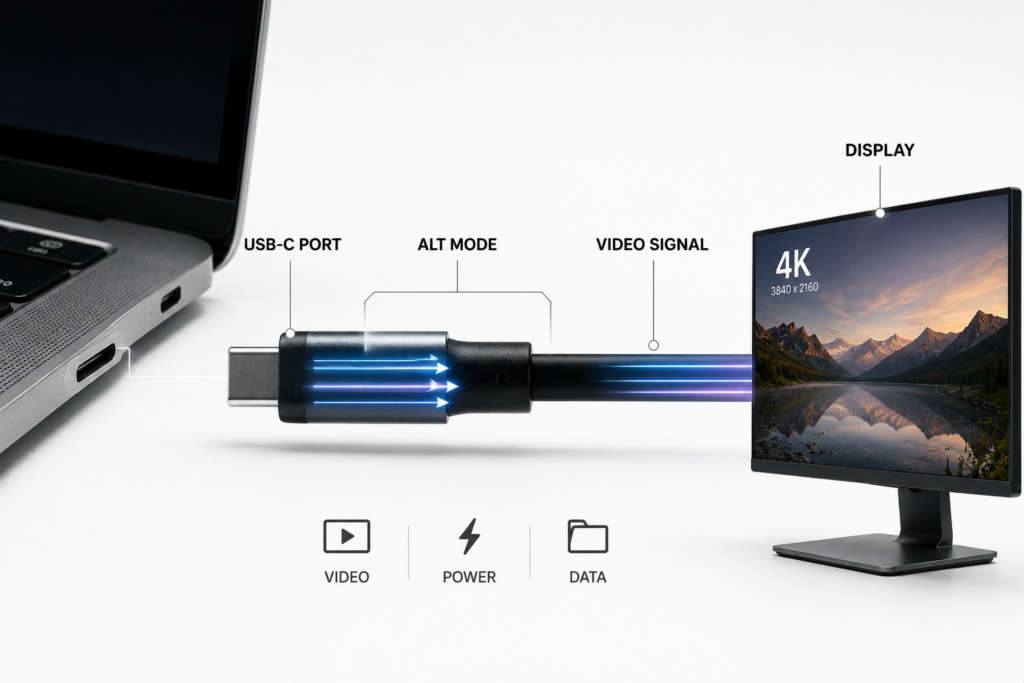
The key to USB-C video output is Alternate Mode (Alt Mode). Think of the high-speed lanes inside a USB-C port as a highway. Normally, those lanes carry data signals. When Alt Mode is activated, the highway is temporarily repurposed as dedicated lanes for video. The device and cable first negotiate automatically to confirm both support the same video mode, then switch the lanes over for video transmission.
2.2 DisplayPort Alt Mode: The Dominant Video Standard
The vast majority of USB-C devices with video output use DisplayPort Alt Mode. Developed jointly by VESA (the Video Electronics Standards Association) and USB-IF (the USB Implementers Forum), it is the universal, most widely compatible standard. From laptops to tablets and phones, nearly all USB-C video runs on DisplayPort signals under the hood.
2.3 HDMI Alt Mode: Current Status and Limitations
In theory, HDMI Alt Mode also exists, carrying native HDMI signals over USB-C. However, this standard was never widely adopted, very few devices support it, and it is effectively obsolete. The USB-C to HDMI adapters you see on the market almost never use native HDMI Alt Mode — they convert DisplayPort signals to HDMI instead.
2.4 Enhanced Video From Thunderbolt and USB4
Thunderbolt and USB4 are the high-end versions of USB-C, with much higher bandwidth and stronger video capabilities. In addition to higher-resolution single displays, they can easily drive two or more monitors while still supporting high-speed data and power delivery. Simply put, a USB-C port with a Thunderbolt or USB4 logo has a much higher video performance ceiling than a regular USB-C port.
3. Performance Specifications of USB-C Video Output
3.1 Resolution and Refresh Rate Limits
There is no universal standard for USB-C video performance — capabilities vary widely across protocol versions. The most common output specifications are shown in the table below:
| Protocol Type | Typical Maximum Output | Common Use Case |
|---|---|---|
| DP 1.2 Alt Mode | 4K@60Hz, 1440p@144Hz | Daily office work, home media |
| DP 1.4 Alt Mode | 8K@30Hz, 4K@120Hz | High-res streaming, casual gaming |
| Thunderbolt 3/4 + DP 1.4 | 8K@60Hz, dual 4K@60Hz | Professional design, multi-monitor work |
| USB4 + DP 2.1 | 8K@120Hz, multi-display high refresh | High-end gaming, professional video production |
3.2 HDR and Color Performance
Beyond resolution and refresh rate, USB-C also supports HDR (High Dynamic Range) and high color depth, delivering richer contrast and more accurate, vivid colors. But this feature requires support from three parts: the source device, the cable, and the display. If any one component does not support HDR, the enhanced picture quality will not be available.
3.3 What Is Display Stream Compression (DSC)?
Many people wonder how 8K video can work over cables that don’t seem to have enough bandwidth. The answer is Display Stream Compression (DSC). It applies visually lossless compression to the video signal — like zipping a large file and unzipping it on the other end with no quality difference the human eye can see. Most modern high-resolution, high-refresh output relies on this technology to save bandwidth.
3.4 Multi-Monitor and Daisy-Chain Support
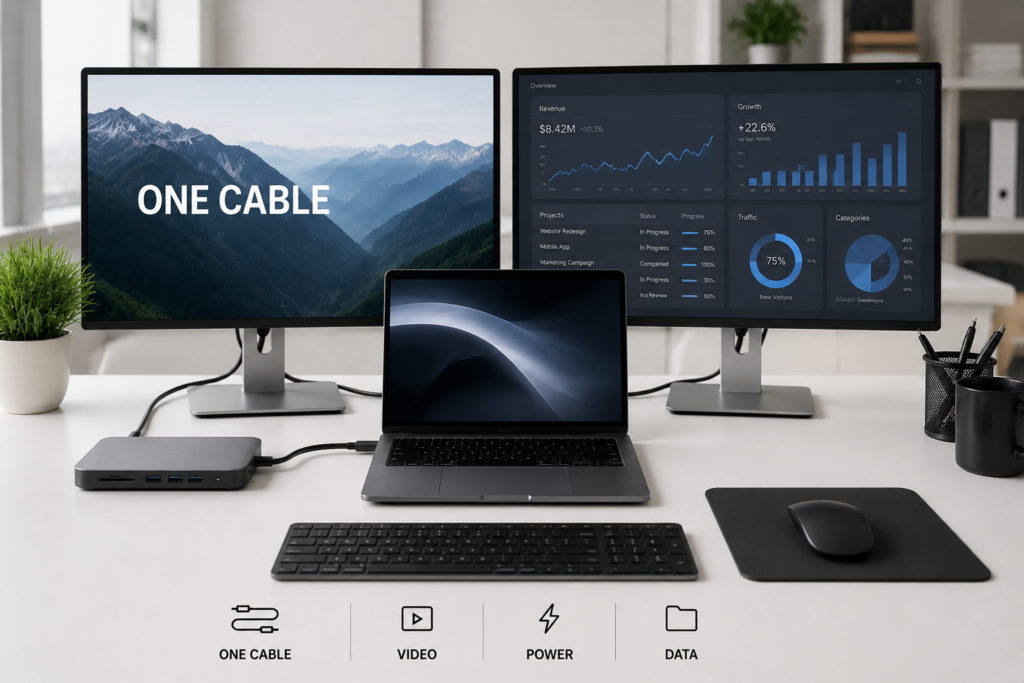
A single USB-C port can run multiple monitors in two common ways: via a multi-port docking station, or through daisy-chaining — connecting monitors one after another in a chain, with the first plugged into the host and the second into the first. This relies on MST (Multi-Stream Transport) technology. Regular USB-C ports may not support it, but Thunderbolt and USB4 ports almost always handle multi-monitor setups easily.
4. Key Accessories That Affect Video Performance
4.1 Types of USB-C Cables and Their Performance Differences
No picture or low refresh rates are often caused by the wrong cable. Not all USB-C cables carry video, and capabilities vary dramatically. The most common cable types are summarized below:
| Cable Type | Video Capability | Power Delivery | Typical Use |
|---|---|---|---|
| Basic charging cable | No video support | Up to ~60W | Charging only, low-speed file transfer |
| Full-featured USB-C cable | 4K@60Hz video support | Up to 100W | Everyday monitor use, basic docking stations |
| Thunderbolt 3/4 cable | 8K and multi-monitor support | 100W–240W | High-end docks, high-speed data transfer |
4.2 The Role of the E-Marker Chip
Any USB-C cable that supports high power and high bandwidth contains an E-Marker chip. It acts as the cable’s “ID card”: when plugged in, it tells the device exactly how much current and bandwidth it can handle, so the device runs at its full capability. Cables without this chip are limited to basic charging and slow data, and cannot support high-resolution video output.
4.3 Passive vs. Active Adapters
USB-C to HDMI/DisplayPort adapters come in two types: passive and active. Passive adapters have no conversion chip — they simply rewire the pins. They are cheap but limited, usually only supporting 4K@30Hz. Active adapters have a built-in signal conversion chip, delivering higher resolutions like 4K@60Hz or even 8K, with better compatibility. They cost more, but deliver much better performance.
4.4 Differences in Docking Station Video Implementations
USB-C docking stations also vary widely in video performance. Budget docks often use compressed converted video, which can cause stuttering or limited resolution when running multiple displays. Mid-range and premium docks use native passthrough or dedicated display chips for stable high-refresh multi-monitor output, while still maintaining high-speed data. For multi-monitor work, always check the dock’s stated video specifications.
5. Real-World Performance on Common Devices
5.1 Laptop Video Output Configurations
Laptops are the most common devices used for USB-C video output. Most thin-and-light laptops support DP 1.4 Alt Mode over USB-C, reliably delivering 4K@60Hz. Models with Thunderbolt 3/4 can usually drive two 4K monitors or a single 8K display. Gaming and creator laptops have even higher specifications, with some supporting 4K@144Hz or higher for esports and creative work.
5.2 Phone and Tablet Desktop Mode Output
Many flagship phones and tablets support USB-C video output, with desktop modes (like Samsung DeX or iPadOS external display) turning them into compact computers. However, limited by performance and power, mobile devices mostly only support single displays, with lower resolution and refresh rate ceilings — typically 4K@30Hz or 4K@60Hz.
5.3 Big-Screen Output for Portable Gaming Devices
Portable gaming devices like the Steam Deck and ROG Ally can also connect to TVs or monitors via USB-C for big-screen play. However, their video output is limited by the device’s own performance. Most max out at 1080p or 1440p, and high-frame-rate gaming may cause resolution drops. They work best for casual play on a regular TV.
5.4 How to Quickly Check If Your Device Supports Video Output
The easiest way is to look for logos next to the port: a lightning bolt (Thunderbolt) or a DisplayPort “D” logo means video output is definitely supported. If you only see a standard USB logo, check the product manual or official specifications. You can also just test it with a full-featured USB-C cable connected to a monitor — if you get a picture, it works.
6. Buying Tips and Common Troubleshooting
6.1 Key Tips for Buying Cables and Docks
You don’t need the most expensive accessories — buy for your actual needs. For everyday 4K office use, a reputable full-featured USB-C cable is enough. For multi-monitor setups and fast data transfer, choose certified Thunderbolt cables and docks. Always go for officially certified products; cheap no-name cables often cause screen flicker, blackouts, or insufficient power.
6.2 Why You Get No Picture or Low Refresh Rates
If there’s no picture at all, check three things first: your USB-C port may not support video output at all, you’re using a charge-only cable that can’t carry video, or your adapter doesn’t support the required specification. If you get a picture but it’s stuck at 30Hz, the cable or adapter almost certainly lacks enough bandwidth — upgrading to a full-featured cable and active adapter will usually fix it.
6.3 Conflicts Between Video, Charging, and Data Transfer
Many people notice that USB file transfers slow down when a monitor is connected. This happens because USB-C has a limited number of high-speed lanes. If all four lanes are used for video, there are none left for high-speed data. Some devices support a 2-lane video + 2-lane data split, which lets both work at the same time — but the maximum video resolution will be lower.
6.4 Step-by-Step Compatibility Troubleshooting
Follow this order to fix most video issues: First, swap in a known-good full-featured cable to rule out a bad cable. Second, try a different USB-C port on your device to rule out a faulty port. Third, make sure you have the correct input selected on your monitor. Finally, update your graphics drivers and operating system to rule out software issues.
7. Future Trends and Key Takeaways
7.1 The Future of USB-C Video Output
USB-C video will keep getting more capable. As USB4 Version 2.0 and DisplayPort 2.1 become mainstream, 8K@120Hz and even 16K output will become widely available. USB-C will also continue to replace other ports on devices. More monitors will ship with built-in USB-C ports, dedicated video ports will become less common, and single-cable setups will be the standard for most users.
7.2 Summary of Key Points
There is no single universal USB-C video capability. Your real-world experience depends on your device’s port, the protocol version, and your accessories working together. For most people, DisplayPort Alt Mode covers all daily office and media needs. For premium multi-monitor or high-refresh gaming, prioritize devices and accessories with Thunderbolt or USB4. Buy according to your needs and look for official certification, and you’ll avoid most common pitfalls.