
Nowadays, USB-C ports can be found on almost every electronic device around us: smartphones, tablets, laptops, wireless earbuds, and more. Many people have encountered this scenario: when your earbuds run out of power on the go, you can top them up with your smartphone; a portable hard drive works right after plugging into your laptop’s USB-C port, no extra power adapter needed. Behind these scenarios is the Reverse Charging feature of USB-C.
Many people are confused about this technology: Why can devices charge each other? What does “reverse charging” mean for a docking station? This article explains the principles, real-world applications, and common myths of USB-C reverse charging in plain language.
1. What is USB-C Reverse Charging?
1.1 What is Reverse Charging?
First, let’s define two basic roles:
- Source (Power Provider): The side that outputs power, acting like a power supply — for example, a wall charger or a fully charged power bank.
- Sink (Power Receiver): The side that receives power, the device being charged — such as a low-battery smartphone or tablet.
In the era of traditional USB ports, these two roles were fixed: chargers were always sources, and devices were always sinks. Power only flowed from chargers to devices.
USB-C breaks this limitation. When two USB-C devices are connected, their source and sink roles can be swapped — power can flow from Device A to Device B, or from Device B to Device A.
We call it “reverse charging” because it reverses the traditional power flow direction: when a device that usually gets charged (like a smartphone) instead supplies power to another device, that is reverse charging.
The key takeaway: USB-C ports do not have a fixed power direction. Devices can power each other.
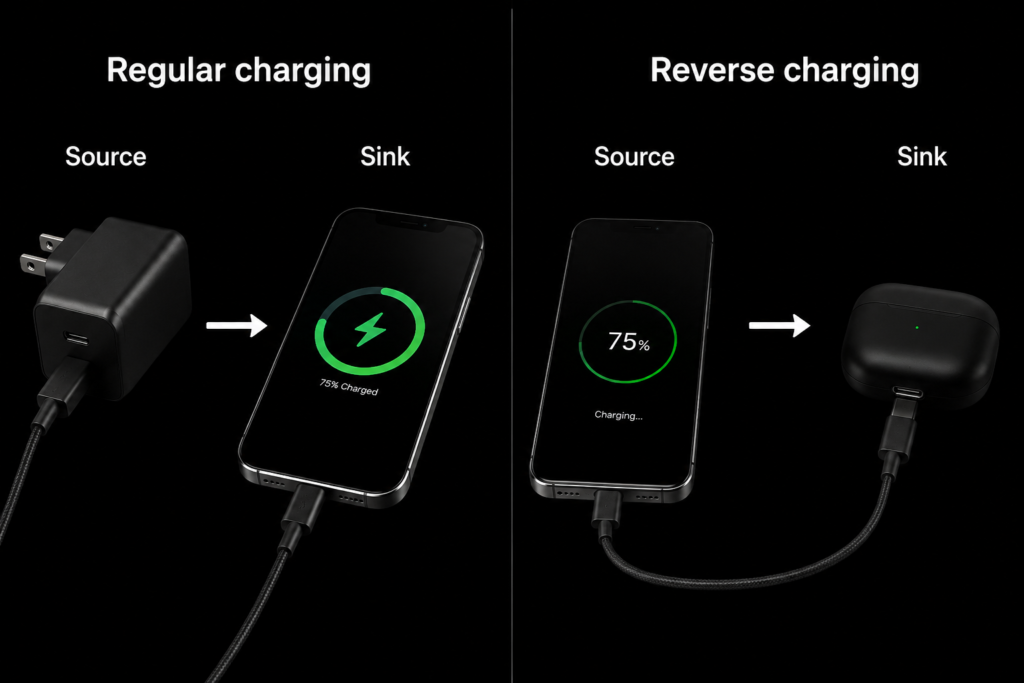
1.2 How Reverse Charging Differs From Regular Charging
Many people mix up data transfer and power delivery, but the two work independently. The table below shows the clear differences:
| Comparison | Regular USB Charging | USB-C Reverse Charging |
|---|---|---|
| Power Flow | Wall charger → Electronic device | Electronic device → Another electronic device |
| Power Roles | Fixed: Charger is source, device is sink | Flexible: Roles can switch dynamically |
| Data Flow | Can transfer data simultaneously | Data direction is independent of power direction |
| Typical Use Case | Charging a phone with a wall adapter | Topping up wireless earbuds with a phone |
In short, regular charging means a power source charges a device, while reverse charging means one device charges another. Power and data run on separate paths, so power flowing from a phone to earbuds does not interfere with data exchange between them.
1.3 Why Can USB-C Do Reverse Charging?
This capability is not an afterthought — it was built into USB-C from the very beginning, supported by three core components:
- Bi-directional hardware design: The pin layout of USB-C supports power flow in both directions, unlike older USB-A ports which only work one way.
- USB Power Delivery (USB PD) protocol: This is a universal set of power communication rules that lets two devices negotiate voltage and current, enabling high-power bi-directional charging.
- CC (Configuration Channel) pins: These are dedicated communication pins inside the USB-C port. After two devices connect, they use the CC pins to identify each other, negotiate power roles and power levels, and dynamically switch roles.
2. How Does USB-C Reverse Charging Work?
The whole process happens automatically, with no manual operation needed. It works in four steps, like two people collaborating on a task.
2.1 Step 1: Detect the Connection
When you connect two devices with a USB-C cable, the CC pins first detect that a device is plugged in. They also identify the cable’s orientation and its capabilities, such as maximum current support.
This step is like a handshake — both sides confirm they are connected and exchange basic information.
2.2 Step 2: Negotiate Power Roles
After detection, the two devices communicate via the CC pins to decide which one acts as the source and which acts as the sink.
The result is not fixed — it depends on the status and capabilities of both devices. For example, when two phones are connected, the one with higher battery level will usually become the source automatically. When a phone connects to earbuds, the phone will always be the source.
Devices that support bi-directional power are called Dual Role Power (DRP) devices, meaning they can act as either a source or a sink.
2.3 Step 3: Negotiate Power Capabilities via USB PD
Once the roles are set, the two devices negotiate the exact power specifications. The source tells the sink what voltages it can provide (such as 5V, 9V, 12V) and the maximum current for each. The sink then picks the most suitable option based on its own needs.
Only after both sides agree does the source start delivering power. This negotiation prevents mismatched voltage or current and protects devices from damage.
2.4 Step 4: Continuous Monitoring During Charging
Power delivery does not just start and stop. Throughout the process, devices constantly monitor voltage, current, and temperature.
If an anomaly occurs — such as overcurrent, overheating, or unexpected disconnection — the source will stop output immediately to prevent safety issues. This is why reverse charging on certified devices is safe and reliable.
3. Which Devices Support USB-C Reverse Charging?
Today, most consumer electronics with USB-C ports support reverse charging to varying degrees. Here are the most common use cases by device type.
3.1 Smartphones Powering Other Devices
This is the most familiar reverse charging scenario, also known as OTG reverse charging on Android devices.
- Emergency top-ups for wireless earbuds, smartwatches, and other small accessories — extremely useful when you forget your earbud charger.
- Emergency charging for another low-battery smartphone, great for urgent situations.
- Powering small accessories like USB fans and desk lamps, convenient for outdoor use.
Most flagship Android smartphones support this feature, and many let you toggle reverse charging on or off in system settings.
3.2 Tablets With Reverse Charging
Tablets have larger batteries than phones, making their reverse charging even more practical:
- They can top up your phone on the go, acting as a backup power bank.
- They power external USB drives and portable SSDs, so you do not need extra power for file transfers.
- They power accessories like styluses and Bluetooth keyboards for mobile productivity and creative work.
3.3 Laptop Reverse Charging
Laptop USB-C ports usually have stronger power output, capable of driving higher-power devices:
- They charge smartphones, tablets, and other portable devices without extra chargers.
- They power 2.5-inch portable hard drives, external optical drives, and other peripherals with no external power needed.
- Some high-performance laptops can even power small USB-C docking stations for basic expansion.
3.4 Power Banks With Reverse Charging
Power banks are inherently power sources. Modern dual-way fast-charge power banks use their USB-C port for both input and output:
- When charging the power bank itself, it acts as a sink.
- When charging other devices, it acts as a source.
- It automatically detects the connected device and switches roles accordingly, making it very user-friendly.
4. Reverse Charging in USB-C Docking Stations (Pass-Through Charging)
Many people see “reverse charging” listed on docking station specs, but there is an important distinction: what is commonly called “reverse charging” for docks is actually PD Pass-Through — a different technology from device-to-device reverse charging.
4.1 What is Docking Station Pass-Through Charging?
Most docking stations have tiny batteries or no battery at all — they cannot act as a power source on their own.
PD Pass-Through works like this: You plug your power adapter into the docking station. The dock then connects to your laptop via a single USB-C cable. Power flows from the adapter, through the dock, and “passes through” to your laptop. At the same time, the dock handles data and video signals.
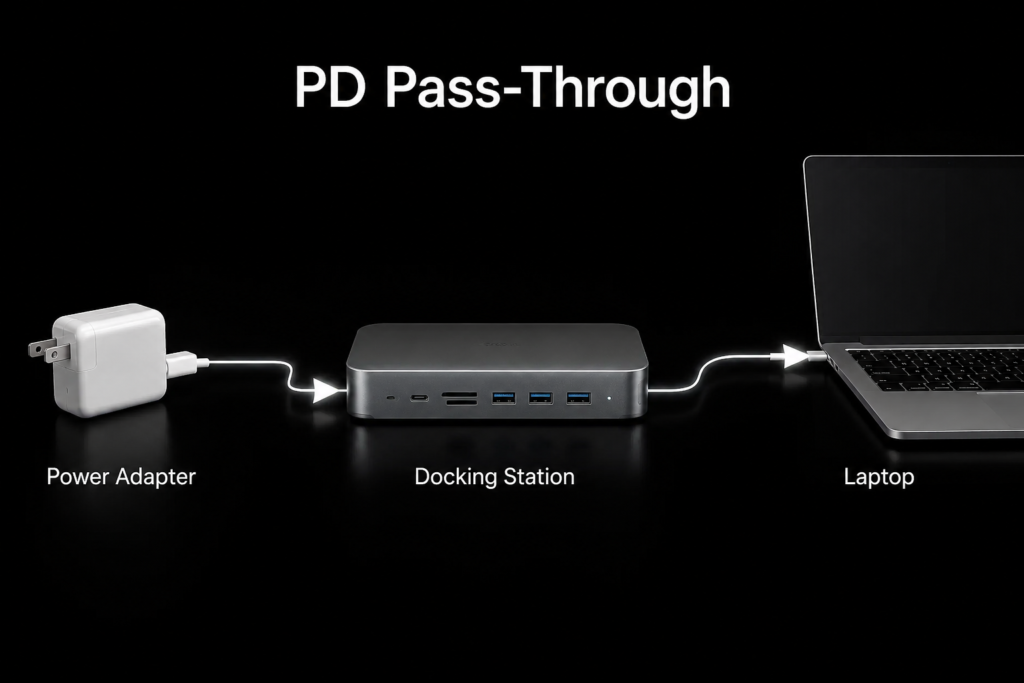
In simple terms: One USB-C cable connects to your laptop, and it does three things at once — charges your laptop, transfers data, and drives external displays. This is the core of the one-cable desktop experience.
Note: Device-to-device power delivery is called Reverse Charging. Power flowing from an adapter through a dock to a host computer is called PD Pass-Through. They are two distinct technical concepts.
4.2 Power Path Inside a Docking Station
The power flow for PD Pass-Through follows a clear path:
Power Adapter → Dock’s USB-C PD Controller → Power Management Chip → Dock’s Upstream USB-C Port → Laptop
Along the way, the dock draws a small amount of power to run its own chips and ports, and passes the majority on to the host device.
4.3 Why Do Docking Stations Lose Some Power?
Many people notice that a 65W charger plugged into a dock does not deliver a full 65W to the laptop. This is normal, and there are simple reasons:
- The dock itself consumes power to run its main controller, network card, HDMI converter, and other internal chips.
- There is also a small amount of energy loss from power conversion circuits.
Generally, a reputable docking station has a power loss of 5W to 15W. For example, a dock with 65W input will typically deliver around 50W to 60W to the laptop.
4.4 Do All Docking Stations Support This?
No — not every USB-C dock supports PD Pass-Through. The table below compares the two types:
| Dock Type | Supports PD Pass-Through | Core Functions | Best For |
|---|---|---|---|
| Basic Data Dock | No | Only expands USB ports, card readers, etc. | Users who only need extra ports, no charging |
| PD Pass-Through Dock | Yes | Expands data, video, and Ethernet, plus charges the host | Desktop one-cable setups, laptop peripheral expansion |
Thunderbolt docking stations almost always include high-power PD Pass-Through, often supporting up to 96W or more. Always check the product specifications before buying to confirm PD Pass-Through support and its maximum input/output power.
5. Real-World Applications of USB-C Reverse Charging
Reverse charging and PD Pass-Through bring a lot of convenience to daily use. Here are the most common scenarios.
5.1 Mobile Office Work
When working away from home with a laptop, you only need one high-power USB-C charger to power your laptop, phone, and tablet — no need to carry multiple chargers.
Paired with a compact PD Pass-Through dock, you can easily connect to displays and peripherals in hotels or cafes while charging your laptop at the same time.
5.2 Business Travel & Trips
On long trips, having too many devices and too few charging ports is a common pain point.
With reverse charging, your phone can top up your earbuds and watch in a pinch. A high-capacity power bank can charge your tablet and phone one after another. You do not need a separate charger for every device, which lightens your luggage significantly.
5.3 Desktop Office
Desktop setups are where PD Pass-Through truly shines.
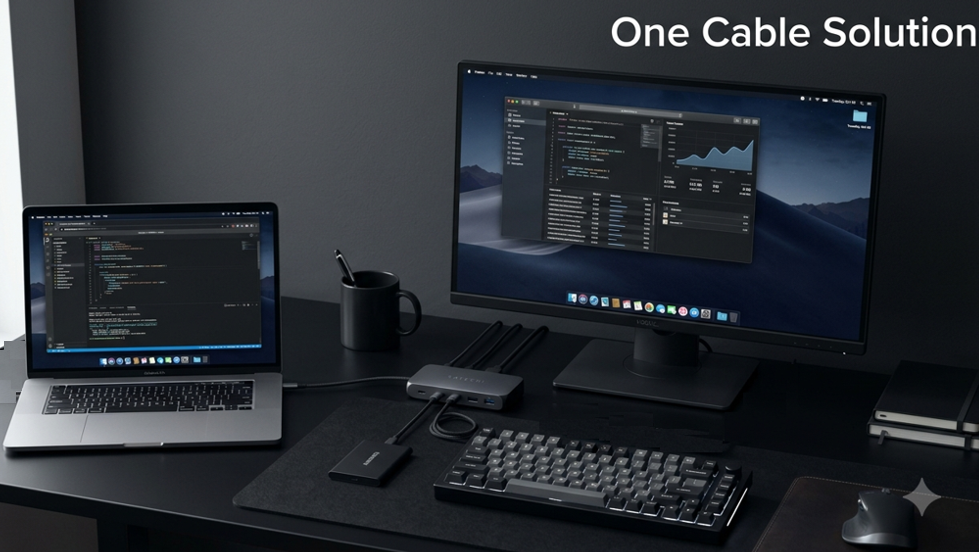
A USB-C monitor or a PD Pass-Through dock only needs one cable to your laptop to deliver power, data, and video all at once. Your desk stays clean and organized. Unplug one cable when you leave, plug it back in when you return — it is fast and efficient.
5.4 Creative Workflows
Reverse charging is also highly practical for photographers and video creators.
When transferring footage to an external SSD, you do not need extra power for the drive. When connecting a camera to a computer, you can transfer photos and charge the camera simultaneously. You can expand to multiple displays while keeping your laptop charged, no extra power cord required.
6. Factors That Affect Reverse Charging Performance
Even with USB-C ports, reverse charging performance can vary widely. Four main factors determine the experience.
6.1 USB Power Delivery Support
Without the USB PD protocol, devices usually only output basic 5V voltage, topping out at 7.5W to 15W — enough only for small devices like earbuds and watches.
With USB PD support, devices can output 9V, 12V, or higher voltages for higher-power delivery, charging phones and tablets much faster.
6.2 USB-C Cable Capability
Cables are an easily overlooked but critical factor. Different cables have very different power capabilities:
| Cable Type | Max Current | E-Marker Chip | Max Power | Best For |
|---|---|---|---|---|
| Standard USB-C Cable | 3A | No | 60W (20V/3A) | Everyday phone charging, low-speed data |
| 5A E-Marker Cable | 5A | Yes | 100W (20V/5A) | Laptop charging, high-power reverse charging |
| 240W PD 3.1 Cable | 5A+ | Yes | 240W | High-performance gaming laptops |
Quick summary: For power levels above 60W, you must use a USB-C cable with an E-Marker chip, otherwise the power will be limited.
6.3 Power Adapter Output Capacity
For PD Pass-Through setups, the power adapter’s wattage sets the upper limit.
If the adapter is underpowered, your laptop will charge slowly, and dock peripherals may also suffer from insufficient power. When multiple devices share power, the total wattage is split, so each device gets less.
6.4 Docking Station Specifications
A dock’s hardware directly determines its PD Pass-Through performance:
- Maximum PD input power: Determines what size charger you can use.
- Maximum PD output power: Determines how much power reaches your laptop.
- Protocol support: Whether it supports the latest PD standards and has good device compatibility.
When buying, choose a model whose output power meets your laptop’s charging needs to avoid underpowered performance.
7. Common Myths About USB-C Reverse Charging
There are many widespread misconceptions about reverse charging. Let’s clear them up.
7.1 Connecting two USB-C devices will always make them charge each other
No, that is not true.
First, both devices must support reverse charging / dual-role power. Second, they have to complete USB PD negotiation and reach an agreement before power flows.
For example, connecting two laptops with a USB-C cable might only establish a data connection, with no charging happening at all.
7.2 All USB-C ports support reverse charging
This is the most common myth. USB-C is just a physical port shape — it does not guarantee every feature.
Some devices only use their USB-C port for data transfer, with no power support at all. Others only support being charged, not powering other devices. Whether reverse charging works depends on the device’s internal design and protocol support, not just the shape of the port.
7.3 All USB-C docking stations support PD Pass-Through
They do not.
Many cheap basic docks only handle data expansion, with no PD Pass-Through circuitry — so they cannot charge your laptop. Some docks do support PD Pass-Through but only accept 65W max input, which is not enough for high-performance laptops.
Always check the product specs for “PD input power” and “PD output power” before buying.
7.4 Higher power always means faster charging
Not necessarily.
Every device has its own charging limit. For example, if a phone supports a maximum of 30W charging, using a 65W power source will not make it charge any faster — it will still charge at 30W.
Devices automatically choose the appropriate charging power based on their battery level and temperature. They will not always charge at maximum power, and a higher-power source will not damage the device.
8. How to Tell If a Device Supports USB-C Reverse Charging
You do not need to take apart devices or test every combination. These methods will tell you for sure.
8.1 Check Product Specifications
The most reliable way is to read the product manual or official spec sheet. Look for these keywords:
- USB Power Delivery (USB PD) support: The foundation for high-power bi-directional charging.
- Reverse Charging: Explicitly states the device can output power to other devices.
- Power Delivery Output: Confirms the port can supply power externally.
- For docking stations: PD Pass-Through: Means it can pass power through to the host computer.
8.2 Check Port Markings
Some devices print icons next to the USB-C port, such as a battery icon, charging symbol, or “PD” label. Ports with these markings almost always support power-related features.
Note: The absence of markings does not mean no support. Always confirm with official specifications.
8.3 Check Official Technical Parameters
For more detailed information, look for these items in the official technical specs:
- Maximum input power: The highest power the device can accept when being charged.
- Maximum output power: The highest power the device can deliver to other devices.
- Dual Role Power (DRP) support: Means the device can switch between source and sink roles.
- USB PD protocol support: Determines if high-power bi-directional charging is possible.
9. Summary
USB-C reverse charging is a major step forward for USB technology. It breaks the old rule that “chargers only charge devices”, allowing devices to flexibly power each other.
- Bi-directional charging relies on three core elements: USB-C’s hardware design, the USB PD protocol, and CC pin negotiation. Together they enable dynamic switching between source and sink roles.
- Smartphones, tablets, laptops, and power banks all support reverse charging to varying degrees.
- The “reverse charging” feature on docking stations is properly called PD Pass-Through. It lets a single cable handle power, data, and video, greatly improving desktop usability.
- Always check official specifications to confirm feature support — do not judge by the port shape alone.
Understanding these points will help you make the most of your USB-C devices, making charging and expansion simpler and more convenient.