
1. Introduction: USB-C Is More Than Just a Charging Port
1.1 From a Mess of Cables to the All-in-One USB-C Era
Just a few years ago, most laptops were lined with separate ports: a charging jack, USB ports, an HDMI port, and a DisplayPort port. Working on the go meant carrying a bundle of different cables — bulky, easy to lose, and always a hassle. With the rise of USB-C, the industry has moved toward a “one port, one cable” future, where nearly every task can be handled through the small, reversible USB-C connector.
1.2 What Is Alternate Mode (Alt Mode)?
By default, USB-C handles charging and data transfer. Alternate Mode (Alt Mode) is a special feature that lets USB-C temporarily reconfigure its pins to carry other types of signals, such as video or Ethernet. Think of it as unlocking side skills for your USB-C port — it can take on jobs beyond its standard role.
1.3 The Core Value of DisplayPort Alt Mode
DisplayPort Alt Mode (DP Alt Mode for short) is the most widely used Alt Mode standard. It enables USB-C ports to output high-definition video. Thanks to this technology, devices don’t need a separate dedicated video port, so they can be made thinner and lighter. For users, a single USB-C cable can handle charging, data transfer, and video all at once — the popular “one-cable solution” experience.
2. Basics: What Exactly Is DisplayPort Alt Mode?
2.1 Official Definition and Standard Background
DisplayPort Alt Mode is an official, universal standard developed jointly by the Video Electronics Standards Association (VESA) and the USB Implementers Forum (USB-IF). It is not a proprietary feature of any single brand. Because it follows a shared industry standard, compatible devices and cables work across different manufacturers.
2.2 How It Relates to Native DisplayPort and USB-C
Native DisplayPort (DP) is a dedicated video interface widely used on monitors and graphics cards, known for high resolution and high refresh rates. DisplayPort Alt Mode does not change the DP video signal itself — it simply carries that same DP signal over a USB-C connector. The video quality is essentially identical to native DP; only the physical connector changes.
2.3 Core Technology: Video via Pin Multiplexing
Inside a USB-C connector are 24 tiny metal pins. By default, some of these pins carry USB data. Pin multiplexing means temporarily repurposing those data pins to carry DP video signals instead. It’s like a single road that carries commuter traffic during rush hour and freight trucks the rest of the day — the physical lanes stay the same, but what they carry changes, so one port can do multiple jobs.
3. How It Works: Sending DP Video Over USB-C
3.1 Negotiation: Device Detection and Mode Switching via CC Channel
USB-C includes dedicated Configuration Channel (CC) pins that act as a communication line between two devices. When you plug a USB-C cable from your laptop into a monitor, the two devices first “talk” over the CC channel: the source checks if the display supports DP video input, the display confirms, they agree on the video settings, and then they switch into DisplayPort Alt Mode. The whole process happens automatically — no manual setup required.
3.2 Lane Configurations: 4-Lane vs. 2-Lane Modes
USB-C has four high-speed signal lanes inside. DP Alt Mode uses them in two common configurations:
- 4-lane mode: All four lanes are dedicated to video, delivering the highest possible resolution and refresh rate. This is ideal when you only need video output.
- 2-lane mode: Two lanes carry video, and the other two carry USB data. You get both video and file transfer at the same time, but the maximum video specs are lower than in 4-lane mode.
3.3 Coexistence Rules: Video, Data, and Power
A common question is whether charging still works while using video output. The answer is yes. USB Power Delivery (PD) charging uses separate power pins that don’t overlap with video or data lanes, so charging always works regardless of which video mode you’re in.
However, high-speed USB data and video share the same high-speed lanes. In full 4-lane video mode, you’ll only get basic USB 2.0 data speeds. If you want USB 3.x high-speed data transfer, you’ll need to use 2-lane video mode — you can’t run both at maximum speed at the same time.
4. Versions and Real-World Display Capabilities
Just like native DisplayPort, DP Alt Mode has evolved over generations, with big differences in resolution and refresh rate support.
4.1 DisplayPort 1.4 Alt Mode Specifications
This is the most common version on the market today, found on most laptops, phones, and monitors. Based on the DisplayPort 1.4 standard with HBR3 high-bit-rate transmission, it covers nearly all everyday office and entertainment needs.
4.2 DisplayPort 2.0/2.1 Alt Mode Upgrade
This is the latest generation of DP Alt Mode, with a huge jump in bandwidth. It’s built for 8K video, high-refresh gaming monitors, and other demanding use cases. Right now it’s only available on premium devices, but it will become more common as hardware updates.
4.3 Supported Resolutions, Refresh Rates, and Extra Features
The table below summarizes what each version can deliver:
| Specification | Maximum Effective Bandwidth | Common Display Modes | Key Features |
|---|---|---|---|
| DisplayPort 1.4 Alt Mode | 32.4 Gbps | 4K@144Hz, 8K@30Hz | HDR support, Display Stream Compression (DSC) |
| DisplayPort 2.0/2.1 Alt Mode | Up to 80 Gbps | 8K@60Hz, 4K@240Hz | Higher color depth, lossless high refresh for pro design and gaming |
5. Hardware Requirements and Accessory Buying Guide
For DP Alt Mode to work, your host device, cable, and display all need to support it.
5.1 Host Side: How to Tell If Your USB-C Port Supports Video
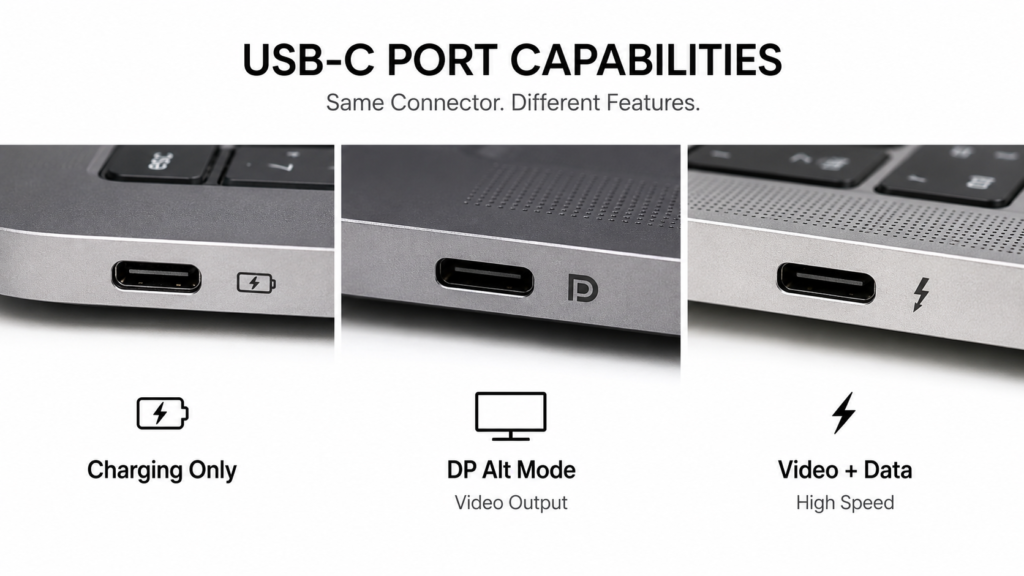
Not every USB-C port outputs video. The easiest way to check is to look for logos next to the port: a DisplayPort logo, a Thunderbolt lightning bolt, or a USB4 logo almost always means video output is supported. When in doubt, check the product manual or official specs page for “video output” or “DisplayPort Alt Mode”.
The table below breaks down common USB-C port capabilities:
| Port Type | Charging | USB Data Transfer | DP Video Output | Typical Use Case |
|---|---|---|---|---|
| Charge-only USB-C | Yes | No | No | Power banks, basic charging ports |
| Standard data USB-C | Yes | USB 3.x | No | Desktop front ports, basic tablet ports |
| DP Alt Mode USB-C | Yes | USB 2.0 / 3.x | Yes | Mainstream thin-and-light laptops, flagship phones |
| Thunderbolt / USB4 | Yes | Ultra-high-speed data | Yes (enhanced performance) | High-end creative laptops, gaming PCs, professional gear |
5.2 Cable Requirements: Passive, Active, and the E-Marker Chip
A basic USB-C charging cable only has power wires and no high-speed data lanes, so it cannot carry video. Video-capable cables come in two types:
- Passive cables: No extra electronics inside. They work reliably for short distances (up to 2 meters) and are affordable — the most common type for everyday use.
- Active cables: Built with signal-amplifying chips. They maintain full video quality over longer distances, ideal for wall wiring or extended cable runs, but cost more.
Most high-spec video cables also include an E-Marker chip. This chip acts as the cable’s “digital ID”: it tells your device what power and bandwidth the cable supports, so your device doesn’t accidentally run at lower speeds.
5.3 Display and Adapter Compatibility
If your monitor has a built-in USB-C video input, you can connect directly with a full-featured USB-C cable.
For standard DisplayPort or HDMI monitors, you’ll need a USB-C to DP / HDMI adapter. Keep in mind that adapters also have version ratings — for example, to get 4K@144Hz, you need an adapter that supports DisplayPort 1.4, otherwise your performance will be limited.
6. How It Compares to Other Video Solutions
DP Alt Mode is often confused with other video standards, but they each have clear differences.
6.1 Pros and Cons vs. Native DisplayPort
Native DisplayPort is a dedicated video interface: it’s stable, lossless, and requires no mode negotiation. But the connector is large, takes up space on your device, and only does video.
DP Alt Mode uses the compact USB-C form factor and adds charging and data capabilities, letting devices be slimmer. The tradeoff is that both your device and cable must support it, so there’s a slightly higher compatibility bar.
6.2 Relationship to Thunderbolt / USB4 Video Output
Thunderbolt and USB4 also deliver video using DisplayPort technology, but in a different way. DP Alt Mode reconfigures the pins directly for video. Thunderbolt/USB4 wraps the DP video signal inside its data protocol and sends it as a “tunnel” alongside other data.
The short version: every Thunderbolt / USB4 port supports DP video output, but not every DP Alt Mode port is Thunderbolt. Thunderbolt/USB4 has much more total bandwidth, so it can run full-resolution video and super-fast data at the same time — no need to choose one or the other like with basic DP Alt Mode.
6.3 Differences From HDMI Alt Mode and Market Reality
There is also an official HDMI Alt Mode standard, but it never caught on. It has lower bandwidth limits and higher licensing costs, so almost no consumer electronics makers use it.
Virtually all USB-C video output on the market today uses DisplayPort Alt Mode. Even when you use a USB-C to HDMI adapter, the port outputs a DP signal first, and the adapter converts it to HDMI internally.
7. Common Everyday Use Cases
DP Alt Mode already powers many of the digital experiences we use every day.
7.1 One-Cable Docking and External Monitors for Laptops
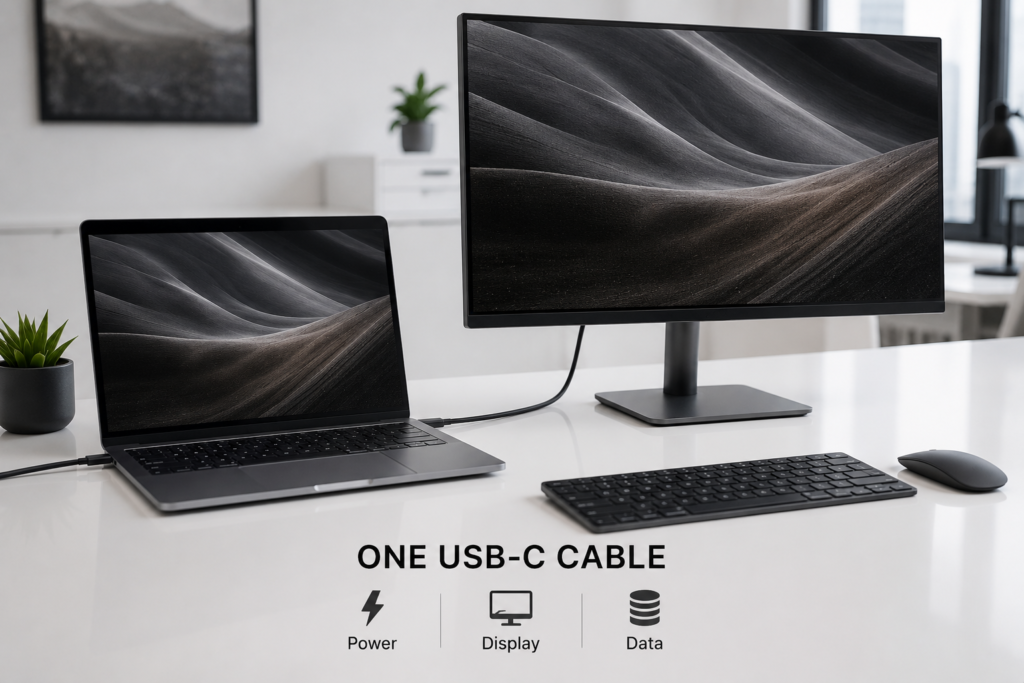
This is the most popular use case. A desk monitor with USB-C input connects to your laptop with just one cable: you get video output, PD charging for your laptop, and access to the monitor’s USB ports for your keyboard, mouse, and flash drive. No more tangled cables on your desk.
7.2 Desktop Mode for Phones and Tablets
Many flagship Android phones and tablets support a desktop mode. Plug in a USB-C video cable to a monitor, and the system switches to a computer-like interface with windowed apps. It’s perfect for quick document editing or web browsing when you don’t have a laptop handy.
7.3 Big-Screen Output for Handheld Consoles and Mini PCs
Handheld gaming consoles and mini PCs are small and often only have a USB-C port. With DP Alt Mode, you can easily connect them to a TV or monitor for big-screen gaming and movies — getting both portability and a large display.
7.4 Multi-Monitor Setups With Docks
For people who work with multiple screens, a single USB-C port connected to a docking station can drive two or more displays via DP Alt Mode. Docks also add Ethernet, extra USB ports, and charging, greatly expanding what your laptop can do.
8. Common Myths and Troubleshooting
8.1 Three Popular Myths Debunked
- Myth 1: All USB-C ports support DP Alt Mode False. Many budget devices include USB-C ports only for charging or basic data, with no video capability. The connector looks identical, but the features can be very different.
- Myth 2: If it supports PD fast charging, it supports video False. Charging and video are separate features. Many phones and tablets have high-power PD charging but cannot output video over USB-C. One does not guarantee the other.
- Myth 3: DP Alt Mode is the same as Thunderbolt False. DP Alt Mode is just a video feature. Thunderbolt is a full-featured standard that includes data, video, and charging. Thunderbolt includes DP video, but DP Alt Mode alone is not Thunderbolt.
8.2 Troubleshooting No Signal or Low Resolution
If your USB-C monitor shows no picture, or you can’t get the resolution/refresh rate you expect, check in this order:
- First confirm your device’s USB-C port actually supports DP video output.
- Swap in a known-good full-featured USB-C cable that supports video, to rule out a bad or low-spec cable.
- If you’re using an adapter or dock, make sure it supports the resolution and refresh rate you’re trying to use.
8.3 Buying Tips to Avoid Headaches
- Before buying a device, always check the specs page for “video output”, “DP Alt Mode”, or “full-featured USB-C”.
- When buying cables, don’t just look for “100W charging”. Look for explicit mentions of video support, 4K@60Hz, or similar video ratings.
- Stick to reputable brands and certified accessories. No-name cables and adapters often cause frustrating compatibility issues.
9. Current State and Future Trends
9.1 Adoption in Consumer Electronics
Today, nearly all new thin-and-light laptops and flagship Android phones include DP Alt Mode. Monitors with USB-C input have also dropped from premium prices to mainstream budgets. DP Alt Mode has gone from a luxury feature to a standard, and it’s the foundation of the all-in-one USB-C experience.
9.2 Integration With the USB4 Ecosystem
As USB4 becomes more common, DP video will become more deeply integrated with USB data. Instead of switching pins between video and data, USB4 can carry both video and data at the same time over the same lanes. There will be no more tradeoffs, the experience will be simpler, and ports will be used more efficiently.
9.3 Evolution for High-Resolution, High-Refresh Displays
As 8K monitors and 240Hz+ gaming displays become more popular, demand for video bandwidth keeps growing. DisplayPort 2.1 Alt Mode will roll out over time, delivering the higher bandwidth needed for gaming, professional design, and AR/VR experiences.
10. Summary and Practical Advice
10.1 Core Value of DisplayPort Alt Mode
DisplayPort Alt Mode is the key technology that turns USB-C from a simple charging-and-data port into a truly universal connector. By using pin multiplexing to add high-definition video, it lets devices get thinner and lighter, and delivers the clean, one-cable experience that defines modern digital life.
10.2 Key Tips for Everyday Users
You don’t need to memorize all the technical details. Just remember three simple rules: check for video support when buying devices, pick full-featured cables that explicitly support video, and troubleshoot in order: port → cable → adapter. That will solve almost every issue you run into.