
1. Introduction: The Practical Benefits of USB-C Charging for Gaming Laptops
1.1 Common Pain Points of Traditional Gaming Laptop Chargers
Most gaming laptop owners are familiar with the struggle: the original power adapter is bulky and heavy, like a brick. It takes up too much space in your bag and adds significant weight when commuting or traveling. What’s worse, chargers from different brands — or even different models from the same brand — use different connectors, so you often have to carry multiple chargers for multiple devices, which is very inconvenient.
1.2 Key Advantages of USB-C Charging
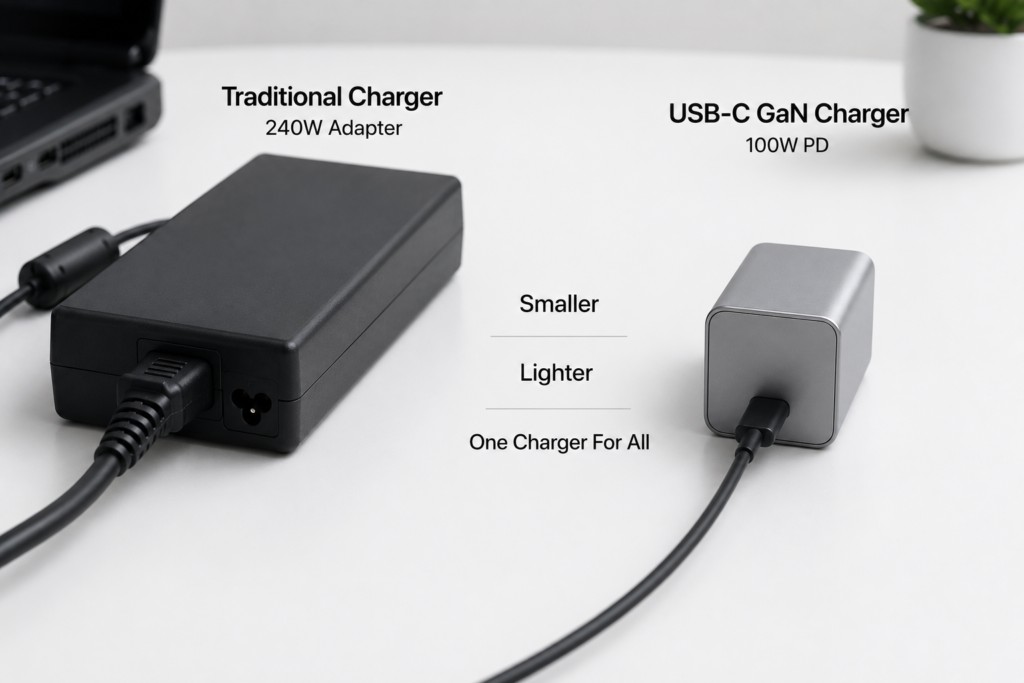
The biggest benefits of USB-C charging are universality and portability. A single compatible USB-C charger can power your phone, tablet, and PD-compatible gaming laptop, so you only need one charger for all your devices on the go.
Thanks to GaN (Gallium Nitride) technology, high-power USB-C chargers are now much smaller and lighter than traditional gaming laptop adapters, making your gaming laptop far more portable than before.
1.3 Scope and Prerequisites of This Guide
This guide is written for everyday gaming laptop users, covering the basics of USB-C charging, how to check compatibility, how to choose accessories, and practical usage tips.
Important note: Not every USB-C port on a gaming laptop supports charging, and USB-C charging cannot fully replace the full performance of your original adapter. We recommend choosing a solution based on your actual usage scenarios.
2. Basics: Understanding USB-C Charging Standards
2.1 USB PD: The Universal Charging Rule
USB PD (short for USB Power Delivery) is the global standard for USB-C charging. Think of it as a shared language: when you plug in a charger, the charger and your laptop “talk” first, agree on a safe voltage and current, then start charging.
As long as both your device and charger support the PD standard, they will match safely — there’s no risk of burning out your device with mismatched voltage.
2.2 Key Power Levels: 65W / 100W / 140W / 240W Explained
Power (measured in Watts, or W) determines charging speed and how much load the charger can handle. Higher power means the charger can support more demanding tasks. Below is a simple breakdown of common power levels for gaming laptops:
| Power Level | Common Devices | Gaming Laptop Usage Scenario |
|---|---|---|
| 65W | Ultrabooks, phones, tablets | Only for standby/offline charging. Will slowly drain during light office work; cannot support gaming. |
| 100W | Mainstream laptops, 2-in-1s | Can maintain battery during web browsing and office work. Not enough for heavy gaming. |
| 140W / 180W | High-performance thin-and-light laptops, entry gaming laptops | Works for daily office use on most PD gaming laptops. Can sustain battery during light gaming. |
| 240W | High-end gaming laptops | Delivers near-original adapter performance for daily use, and handles moderate gaming loads. |
2.3 The Difference Between PD 3.0 and PD 3.1 (EPR)
There are two main PD versions most users need to know:
- PD 3.0: The most widely used standard today, with a maximum power of 100W (20V/5A). It works for most thin-and-light laptops and some lower-power gaming laptops.
- PD 3.1: The newer standard with EPR (Extended Power Range), supporting up to 240W at higher voltages (28V, 36V, 48V). It can power more power-hungry gaming laptops and is the future of USB-C charging.
2.4 How Gaming Laptop Charging Differs From Phones and Thin Laptops
Phones and thin laptops use very little power. A phone charges fast at 25–65W, and a thin laptop works fine at 65W.
Gaming laptops, however, pack high-performance CPUs and dedicated GPUs. Under heavy load, the CPU and GPU alone can draw over 100W — sometimes 200W or more. That’s why gaming laptops need much higher USB-C charging power. Low-power chargers can only top up the battery, not support full-speed gaming.
3. Compatibility Check: Does Your Gaming Laptop Support USB-C Charging?
3.1 Quick Ways to Check: Port Labels and Official Specs
There are two easy ways to tell if your gaming laptop supports USB-C charging:
- Check the port icon: If your USB-C port has a lightning bolt, battery icon, or “PD” / “Power Delivery” label next to it, it almost certainly supports charging. If it only has a USB symbol, it likely only works for data and video.
- Check official product specs: The most reliable method. Go to the brand’s official website, find your exact model, and look under “Ports” or “Power” to confirm USB-C PD input support and the maximum power.
3.2 Support Status Across Major Gaming Laptop Brands
Most gaming laptops released in the last 2–3 years support USB-C PD charging, but the maximum power varies by brand:
- Lenovo Legion series: Most new models support 100W PD input, with some high-end models supporting higher power.
- ASUS ROG / TUF Gaming series: Generally support 100W PD charging, with some flagship models supporting proprietary high-power standards.
- HP OMEN, Dell G-series: Most new models support around 100W PD input.
- Acer, MSI, Xiaomi and other brands also include PD charging on their newer gaming laptops.
3.3 Signs Your Laptop Does NOT Support USB-C Charging
Your laptop probably does not support USB-C charging if:
- It was released before 2020 and is an older model.
- There are no charging or power-related icons next to the USB-C port.
- The official specs state the USB-C port only supports data transfer and video output, no power input.
3.4 How Configuration Differences Affect Compatibility
Even within the same laptop series, support can vary by configuration and model year. For example, a lower-config model with integrated graphics might support USB-C charging, while a top-tier model with a flagship GPU might only use the USB-C port for data.
Always double-check the specs for your exact laptop model before buying accessories.
4. Accessory Buying Guide: Chargers and Cables
4.1 How to Choose a USB-C Charger
Match the Power: More Watts Isn’t Always Better
Many people think the higher the wattage, the better — but that’s not true. Your laptop has a maximum charging power limit. If your laptop only supports 100W PD, a 240W charger will still only charge at 100W, and you’ll just waste money.
Pick a charger that matches or slightly exceeds your laptop’s maximum supported power. There’s no need to chase the highest wattage available.
GaN Chargers: Benefits and Things to Know
Most high-power USB-C chargers today use GaN (Gallium Nitride) technology. Compared to traditional chargers, they are smaller, lighter, more energy-efficient, and produce less heat — perfect for travel.
Note that even GaN chargers will get warm when running at full power. This is normal. Just use them in a well-ventilated area.
Single-Port vs. Multi-Port Chargers
- Single-port chargers: Deliver full power to one device. The most reliable option for gaming laptop charging.
- Multi-port chargers: Can charge your laptop, phone and other devices at the same time. However, when multiple devices are plugged in, the total power is split, so your laptop will get less power. Choose a multi-port charger if you charge multiple devices daily; stick to single-port for gaming laptop priority.
4.2 How to Choose the Right Charging Cable
Many people focus only on the charger and ignore the cable — but the cable is often the bottleneck for charging power.
What Is an E-Marker Chip and Why You Need It
An E-Marker chip is a tiny “electronic ID chip” built into the ends of high-power cables. It tells the charger how much current the cable can safely carry.
100W+ PD charging requires 5A current. Cables without an E-Marker chip can only carry up to 3A (max 60W), so your charger will never reach full speed. For proper fast charging on your gaming laptop, you need a cable with an E-Marker chip.
Cable Requirements for Different Power Levels
| Cable Type | Max Charging Power | E-Marker Required | Best For |
|---|---|---|---|
| Basic USB-C cable | Under 60W | No | Phones and low-power devices |
| 100W PD cable | 100W | Yes | Most PD-compatible gaming laptops |
| 240W EPR cable | 240W | Yes | PD 3.1 high-power gaming laptops |
Basic Cables vs. Full-Featured Cables vs. Thunderbolt Cables
- Basic charging cables: Only charge, no data or video. Cheap, but limited functionality and usually low power.
- Full-featured USB-C cables: Support charging, data transfer and video output all in one. The most practical choice for daily use — works with docks and monitors too.
- Thunderbolt / USB4 cables: Super fast for data and video, but very expensive. Most have the same 100W charging limit as full-featured cables. You don’t need one just for charging.
4.3 Compatibility and Risks of Docking Station Charging
Many users use a USB-C dock to connect peripherals and charge at the same time. Keep two things in mind:
- Power loss: The dock itself uses some power, so the actual power reaching your laptop is lower than the charger’s rated wattage. This can cause insufficient power.
- Compatibility risks: Cheap, low-quality docks may have unstable PD charging, frequent disconnections, or even risk damaging your device.
If you charge through a dock, choose a reputable brand, and pick a charger with 20–30% more power than your laptop needs to make up for the dock’s power draw.
5. Real-World Performance: How USB-C Charging Works in Practice
5.1 Light Office / Standby / Off: Best for Battery Top-Ups
USB-C charging works best when your laptop is off, in sleep mode, or for light tasks like web browsing, documents and streaming video. In these scenarios, your laptop uses very little power, and a 100W charger can charge the battery steadily — nearly as fast as your original adapter. It’s perfect for topping up on the go.
5.2 Moderate Use / Light Gaming: Real-World Charging While Using
For moderate use like presentations, photo editing, or light games like League of Legends or CS2, a 100W+ PD charger will mostly keep your battery level steady, or drain very slowly.
Your laptop may slightly reduce CPU/GPU power compared to the original adapter, but you usually won’t notice the difference in daily use.
5.3 Heavy Load / AAA Gaming: Performance Limits and Power Issues
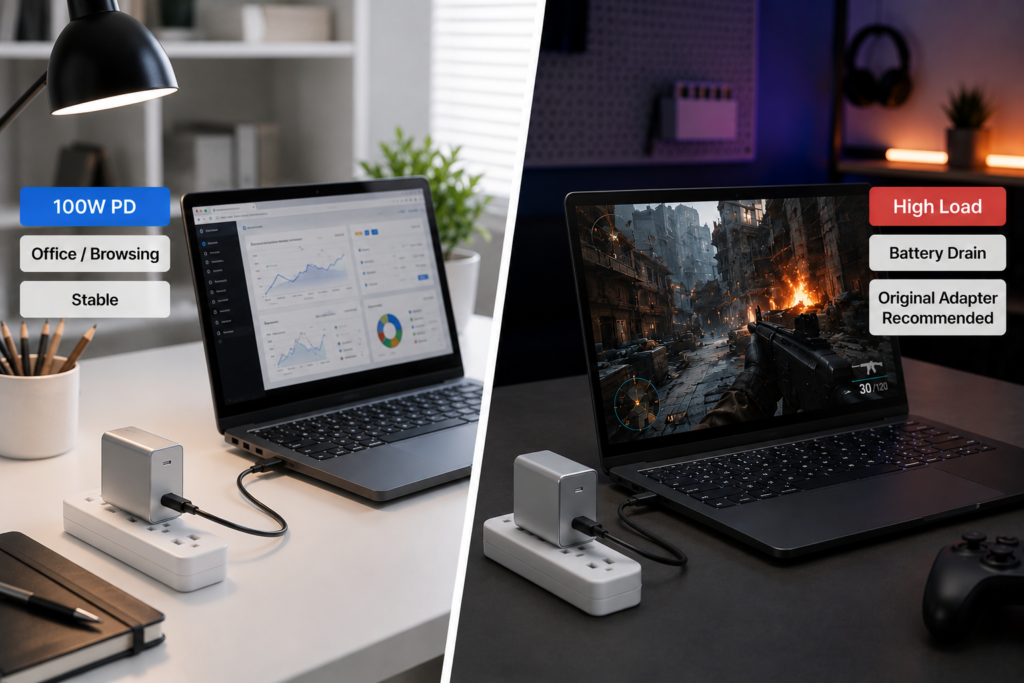
When running AAA games, video rendering or other heavy tasks, your gaming laptop can draw 150W, 200W or more. Even a 100W PD charger can’t keep up.
Your laptop will use both the charger and the battery at the same time — so your battery percentage will still drop while “charging”. Some laptops will also intentionally lower CPU and GPU performance to save power, leading to lower game frame rates.
For heavy gaming, USB-C charging is only an emergency backup. It cannot replace your original adapter.
5.4 USB-C Charging vs. Original Adapter: Pros and Cons
USB-C charging and original adapters each have their strengths and weaknesses. USB-C chargers are far smaller, lighter and work with all your PD devices, making them ideal for travel. Original adapters are bulkier and less versatile, but they deliver full power to unlock your laptop’s maximum gaming performance.
6. Common Mistakes and Troubleshooting
6.1 Common Myths Debunked
Here are 6 of the most common misconceptions about USB-C gaming laptop charging:
- Myth: Every USB-C port can charge my laptop. Fact: Many USB-C ports only work for data and video. You need a port that specifically supports PD power input.
- Myth: Higher wattage = faster charging. Fact: Your laptop has a power limit. Going above that limit won’t speed up charging — it just costs more.
- Myth: USB-C charging damages your battery. Fact: Certified PD chargers and cables communicate safely with your laptop, just like the original charger. They do not damage the battery.
- Myth: My phone fast charger works for my gaming laptop. Fact: Most phone chargers are low wattage and use proprietary fast-charging standards, not the 20V PD standard laptops use. They may charge very slowly or not at all.
- Myth: If it supports PD, it can run at full performance. Fact: PD power is almost always lower than the original adapter. Performance will be limited under heavy load.
- Myth: Thunderbolt ports charge faster than regular USB-C. Fact: Charging speed depends on power and protocol. Thunderbolt is faster for data, but charging performance is the same as a full-featured USB-C port.
6.2 Troubleshooting: No Charge or Slow Charging
If your USB-C charger isn’t working or charges very slowly, follow these steps:
- First, confirm your gaming laptop actually supports USB-C PD input.
- Make sure your charger supports PD and has enough power for your laptop.
- Try a different certified E-Marker cable to rule out a cable bottleneck.
- If using a multi-port charger, unplug all other devices so the full power goes to your laptop.
- Unplug and re-plug the cable, and clean any dust from the port to fix bad contact.
6.3 Why Charging Disconnects or Gets Too Hot
- Frequent disconnections: Usually caused by a loose cable, cheap cables with unstable protocol handshake, or the charger overheating and triggering protection mode.
- Excessive heat: It’s normal for high-power chargers to feel warm. But if it gets too hot to touch, the charger or cable is likely low-quality and may have a short circuit risk. Stop using it immediately and replace it with a reputable, certified accessory.
6.4 Will Third-Party Accessories Damage My Laptop?
Many people worry third-party chargers will break their laptop. In reality: reputable, USB-IF certified PD chargers and cables follow the official standard. They negotiate power with your laptop before charging and never force unsafe voltage — they are perfectly safe.
The real risk comes from cheap, no-name chargers and cables that skip safety protection circuits. Stick to well-known brands, and you have nothing to worry about.
7. Final Recommendations
7.1 Who Should Buy a USB-C Charger for Their Gaming Laptop?
A USB-C charger isn’t for everyone. You’ll get the most benefit if:
- You travel or commute with your gaming laptop often, and mostly use it for work and light tasks.
- You own multiple USB-C devices and want one charger for everything.
- You find the original adapter too heavy and want a lightweight backup option.
If you almost always play heavy AAA games at a desk, USB-C charging won’t add much value — stick with your original adapter.
7.2 Buying Recommendations for Different Needs
- Light office and battery top-ups: Get a 65W–100W single-port GaN charger plus a 100W E-Marker cable. Great value and perfect for everyday travel.
- Moderate gaming and all-around use: If your laptop supports PD 3.1, go for a 140W–240W high-power PD charger with a matching cable to cover more scenarios.
- Heavy gaming users: Don’t rely on USB-C charging. Keep your original adapter as your main charger, and only get a 100W PD charger as a travel backup.
7.3 Simple Battery Care Tips
- Avoid charging while gaming in very hot environments — high heat is the biggest cause of battery wear.
- If you always use your laptop plugged in, turn on the battery conservation mode (built into most gaming laptops) to limit charge to 60–80% and reduce wear.
- Don’t let your battery drain all the way to 0%. Charging little and often is better for battery life.
- Always use reputable, certified charging accessories to avoid safety risks.