
If you’ve ever used USB-C devices, you’ve probably run into these confusing situations:
The same 100W charger charges your laptop blazing fast with the original cable, but takes forever with a spare one you picked up.
You plug your laptop into a USB-C monitor only to get a “no signal” message — but it works perfectly when you borrow a friend’s cable.
USB-C cables look almost identical online, yet some cost a few dollars while others cost over $100, with no obvious difference in appearance.
Many people assume “if it’s USB-C, it all works the same.” But that’s not true. USB-C is just the shape of the connector — like how all round power plugs look similar, but some power a desk lamp and others power an oven. Their capabilities are worlds apart.
What determines the true limits of a USB-C cable isn’t just how thick the copper wires are. The real secret is a tiny chip, about the size of a grain of rice, hidden inside the connector: the E-Marker (short for Electronically Marked Cable). Think of it as the cable’s digital ID card. It quietly dictates how much power your cable can carry, how fast it can transfer data, and whether it can output video.
In this guide, we’ll break down in plain language what an E-Marker is, when you absolutely need one, and how to tell if your cable has it.
1. First Things First: What Does an E-Marker Actually Do?
1.1 How It Works: A Quick Identity Check When You Plug In
Here’s the simple version: when you connect a charger, cable, and device with USB-C, all three introduce themselves to each other first.
Your device uses the CC pin inside the USB-C port to read the information stored on the cable’s E-Marker chip. The whole process takes just milliseconds — you’ll never notice it happening.
After reading the data, your device knows exactly what the cable is capable of, and decides whether to enable high-performance features.
1.2 What Information Is Stored on an E-Marker?
Just like your ID lists your name, age, and address, an E-Marker stores all the key specs of the cable:
- Maximum safe current (standard 3A or high-power 5A)
- Supported data transfer speeds (from basic USB 2.0 to fast USB 3.x)
- Video output support (such as DisplayPort Alt Mode for monitors)
- Compatibility with high-performance standards like USB4 and Thunderbolt
- Support for ultra-high-power 240W charging (USB PD 3.1 EPR)
- Manufacturer and product identification details
1.3 What Happens If a Cable Has No E-Marker?
A cable without an E-Marker isn’t necessarily a bad cable — it’s just one without a digital ID.
To play it safe, your device will automatically switch to a conservative mode: it won’t deliver high current, won’t enable high-speed data transfer, and may disable advanced video features.
Think of it like driving on a highway: the road is built for 75 mph, but if you don’t know how well your car handles high speeds, you stick to 40 mph. It’s safe, but you won’t get anywhere fast.
2. Per Official Standards: These Cables Must Have an E-Marker
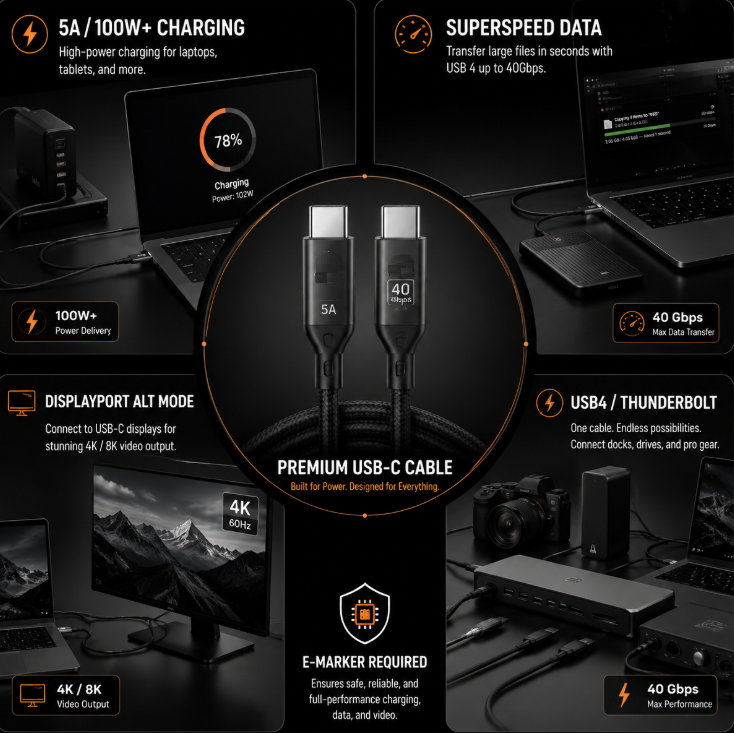
The USB-IF, the organization that sets USB standards, has clear rules: any USB-C cable that meets certain performance specs is required to include an E-Marker chip to be compliant. There are four main categories:
2.1 High-Current Cables (5A, 100W and Above)
This is the most common mandatory use case.
For USB PD charging, 20V/3A (60W) works fine without an E-Marker. But to reach 20V/5A — that’s 100W — an E-Marker is mandatory.
Higher power levels like 140W, 180W, and 240W (USB PD 3.1 EPR) all require an E-Marker as well.
Common uses: Charging high-performance laptops, high-capacity power banks, and handheld gaming consoles.
2.2 Full-Featured Cables for High-Speed Data Transfer
Any USB-C cable that supports SuperSpeed (USB 3.x) data transfer is required by the standard to have an E-Marker.
This applies to 5Gbps USB 3.2 Gen 1, 10Gbps Gen 2, and 20Gbps Gen 2×2 speeds.
Common uses: External NVMe solid state drives, high-speed card readers, video capture devices, and pro camera data cables.
2.3 Full-Featured Cables for Video Output
If you want to connect a monitor or portable display directly over USB-C, or output video through a dock to HDMI or DisplayPort, your cable almost always needs an E-Marker.
Video output uses the high-speed data lanes inside the cable. Your device has to confirm the cable can handle it first — otherwise you’ll get that frustrating “no signal” error.
Common uses: USB-C monitor connections, laptop to portable display setups, and 4K/8K video output.
2.4 USB4 and Thunderbolt Cables
All USB4, Thunderbolt 3, Thunderbolt 4, and Thunderbolt 5 cables are required by standard to include an E-Marker.
These are the highest-performance cables, capable of carrying ultra-high power, blazingly fast data, and high-resolution video all at once. Naturally, they require strict identity verification.
Common uses: Thunderbolt docks, external graphics cards (eGPUs), high-speed storage arrays, and pro audio/video equipment.
3. Why Does the USB-IF Require This Tiny Chip?
It might seem like an extra part that adds cost, but the E-Marker exists to make the entire USB-C ecosystem safer and more reliable.
3.1 Prevent Cable Overload and Safety Risks
High-current charging requires thicker, higher-quality copper wires. If a thin, cheap cable is accidentally used for 100W charging, it can overheat badly and even become a safety hazard.
With an E-Marker, your device instantly knows the cable can’t handle 5A, and automatically limits power to 3A. It prevents overload before it happens.
3.2 Ensure Stable High-Speed Signal Transmission
High-speed data transfer has strict requirements for cable shielding and build quality. Without an E-Marker, your device wouldn’t know the cable’s quality limits. Forcing high speeds could cause dropped connections or corrupted file transfers.
The E-Marker acts as a quality certificate. Your device only enables high-speed mode when it confirms the cable meets the standard.
3.3 Guarantee Cross-Brand Compatibility
Chargers, laptops, and phones from different brands all follow the same USB standard. By reading the standardized E-Marker information, they don’t need proprietary recognition systems to work together.
Buy one compliant cable, and it will work properly with any brand of device. That’s the power of standardization.
3.4 Make the Entire USB-C Ecosystem More Reliable
Before E-Markers, devices had to guess what a cable could do. Guess too conservatively, and you waste performance. Guess too aggressively, and you run into problems.
With standardized E-Markers, there’s no guessing. Devices read the information directly, staying safe while delivering full performance — and making the experience much better for users.
4. When You Don’t Need an E-Marker
E-Markers aren’t required for every USB-C cable. For many everyday uses, a basic cable works perfectly well.
4.1 Everyday Low-Power Charging
Charging phones, wireless earbuds, smartwatches, and tablets usually stays under 60W. You don’t need an E-Marker for normal fast charging at these power levels.
Most phone PD fast chargers — 18W, 27W, 45W — work fine with a basic USB-C cable.
4.2 Low-Speed USB 2.0 Devices
Keyboards, mice, basic flash drives, printers, and wired headphones only need USB 2.0 speeds (480Mbps). No high-speed transfer means no need for an E-Marker.
Many budget USB-C cables only support charging and USB 2.0 data, and that’s totally fine for connecting basic peripherals.
4.3 Proprietary Fast Charging Is a Special Case
Some phone brands have their own private fast charging protocols, like OPPO’s SUPERVOOC or vivo’s FlashCharge. These use their own custom recognition chips.
These chips are not the same as the standard USB E-Marker. Whether they’re required depends entirely on the brand’s own protocol design, not official USB standards.
5. How to Tell If a Cable Has an E-Marker (No Teardown Required)
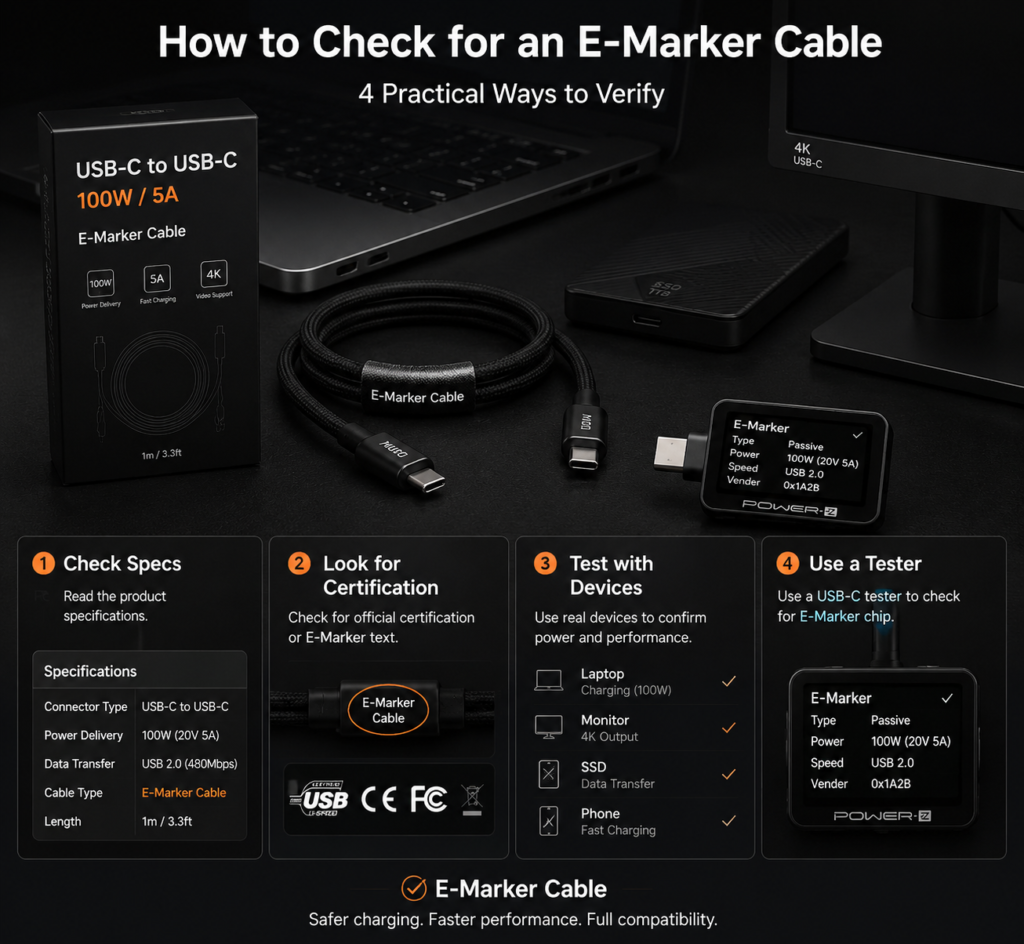
You don’t have to cut open your cable to check. Here are a few simple ways to find out.
5.1 Check the Product Specs
This is the easiest method.
If the listing mentions 5A, 100W, 140W, 240W, USB 3.2, 40Gbps, 80Gbps, USB4, Thunderbolt, or “full-featured cable”, it almost certainly has an E-Marker.
If it just says “PD fast charging” or “USB-C cable” with no specific power or speed ratings, it probably doesn’t.
5.2 Look for Official Certification Logos
Cables with official USB-IF certification or Thunderbolt certification will include an E-Marker if they meet the corresponding specs. These are much more reliable.
5.3 Test It With Real Devices
If you have the right equipment, testing directly is the most accurate way:
- Can it charge a 100W laptop at full power?
- Does it work properly with an external SSD for fast file transfers?
- Can it output video to a USB-C monitor? If any of these work as expected, your cable most likely has an E-Marker.
5.4 Use a Specialized Testing Tool
If you like to tinker, you can buy a USB-C power meter, or use dedicated E-Marker readers and computer software to read cable information.
Most casual users don’t need to buy one — the methods above are more than enough.
6. 4 Common Myths About E-Markers, Debunked
There are a lot of misconceptions about this tiny chip. Let’s clear them up.
6.1 Myth 1: A thicker cable always has an E-Marker
False. A thick cable might just have a thick outer jacket, with thin wires and no chip inside.
Some cheap cables are made to look heavy-duty, but still only support basic specs with no E-Marker.
6.2 Myth 2: If it supports PD fast charging, it has an E-Marker
False. PD fast charging below 60W (like 20W or 45W) works perfectly well without an E-Marker.
Only PD charging that uses 5A current (above 60W) requires one.
6.3 Myth 3: All USB-C to USB-C cables have an E-Marker
Absolutely false. The vast majority of budget USB-C to C cables on the market have no E-Marker. They only support 3A current and USB 2.0 data.
Only higher-spec cables include this chip.
6.4 Myth 4: An E-Marker makes your cable faster
False. An E-Marker is just a spec sheet — it doesn’t improve the cable’s performance on its own.
Your actual charging speed and data speed depend on the weakest link among your charger, cable, and device. The E-Marker just lets your device know the cable’s limits; it doesn’t add extra speed.
7. Quick Reference Table: When Do You Need an E-Marker?
| Usage Scenario | E-Marker Required? | Simple Explanation |
|---|---|---|
| Phone charging (≤60W) | No | Basic fast charging works with standard cables |
| 100W PD laptop charging | Yes | Mandatory for 5A high-current cables |
| USB PD 3.1 EPR (140W–240W) | Yes | Required by ultra-high-power standards |
| USB 2.0 devices (keyboard, basic flash drive) | No | Low-speed transfer needs no chip |
| USB 3.x high-speed data (external SSD, capture card) | Yes | Required by high-speed data standards |
| USB-C video output (monitor, portable display) | Usually Yes | Video needs high-speed data lanes |
| USB4 / Thunderbolt 3/4/5 | Yes | Mandatory for all high-performance cables |
8. Final Tips: How to Choose the Right USB-C Cable
Now that you know how E-Markers work, choosing the right cable is straightforward.
- For Everyday Use, Don’t Overbuy If you’re just charging your phone, earbuds, or watch, or connecting a keyboard and mouse, a basic USB-C cable is all you need. There’s no reason to pay extra for a high-spec E-Marker cable.
- For One-Cable-For-Everything, Go Full-Featured If you want one cable that can charge your laptop, transfer files fast, and connect to a monitor, pick a full-featured USB-C cable with an E-Marker. It handles almost every scenario with one cable.
- Stick to Certified Products From Reputable Brands Look for cables with clear, detailed specs and official USB-IF or Thunderbolt certification. Avoid cheap cables with vague or falsely advertised specs. A compliant E-Marker cable will deliver full performance and keep your devices safe while charging.
Final thought: An E-Marker isn’t a must-have for every USB-C cable. But when you need high-power charging, fast data transfer, or reliable video output, it’s the invisible gatekeeper that keeps everything safe, stable, and compatible.