
1. Introduction: Why Learn About USB-C Charging
USB-C has become the standard port on most modern Lenovo laptops and tablets. It handles charging, data transfer, and video output all in one, making daily use much more convenient. However, many casual users don’t know how to choose a compatible charger, how to check if their laptop supports USB-C charging, or whether third-party chargers will damage their device. This plain-language guide covers everything you need to know to charge your Lenovo device safely and hassle-free.
2. Basics: What You Need to Know About USB-C Charging
2.1 USB-C Port and PD Fast Charging Explained
USB-C describes the oval, reversible port shape – you can plug it in either way up. USB Power Delivery (PD) is the universal fast-charging standard that allows chargers from different brands to work with your laptop, instead of requiring a brand-specific power adapter. In short: USB-C is the physical port, and PD is the universal charging rule.
2.2 Common Power Levels and Use Cases
Charger wattage (measured in W) determines charging speed. Higher wattage charges faster and can support the laptop under heavy use. The table below matches common power ratings to Lenovo devices:
Table 1. Common USB-C Power Ratings for Lenovo Devices
| Charging Power | Device Type | Typical Lenovo Models |
|---|---|---|
| 45W | Entry-level thin & light laptops, tablets | Entry-level Xiaoxin Air, Xiaoxin Pad Pro |
| 65W | Mainstream thin & light / business laptops | ThinkPad X/T series, Yoga 14s, Xiaoxin Pro 14 |
| 100W | High-performance thin & light / all-round laptops | Select ThinkPad workstations, Yoga Pro series, Xiaoxin Pro 16 |
| 140W and above | High-performance gaming laptops, mobile workstations | Latest Legion models, high-end ThinkPad P series |
2.3 What Else Can a USB-C Port Do?
USB-C ports on Lenovo devices do more than charge. Most also support high-speed data transfer and video output. With a single cable, you can charge your laptop, connect an external monitor, and plug in a keyboard or mouse – this is the biggest advantage over traditional charging ports.
3. Does Your Lenovo Device Support USB-C Charging?
3.1 Lenovo Product Lines With USB-C Charging Support
- ThinkPad series: Almost all modern business laptops support USB-C PD charging, with the widest adoption.
- Yoga series: All thin & light and 2-in-1 Yoga models support USB-C charging.
- Xiaoxin / IdeaPad series: Most consumer thin & light laptops support USB-C charging, with exceptions on some older entry-level models.
- Legion gaming series: Most new gaming laptops support USB-C PD charging, but with lower power and limited performance compared to the original barrel adapter.
3.2 3 Simple Ways to Check Compatibility
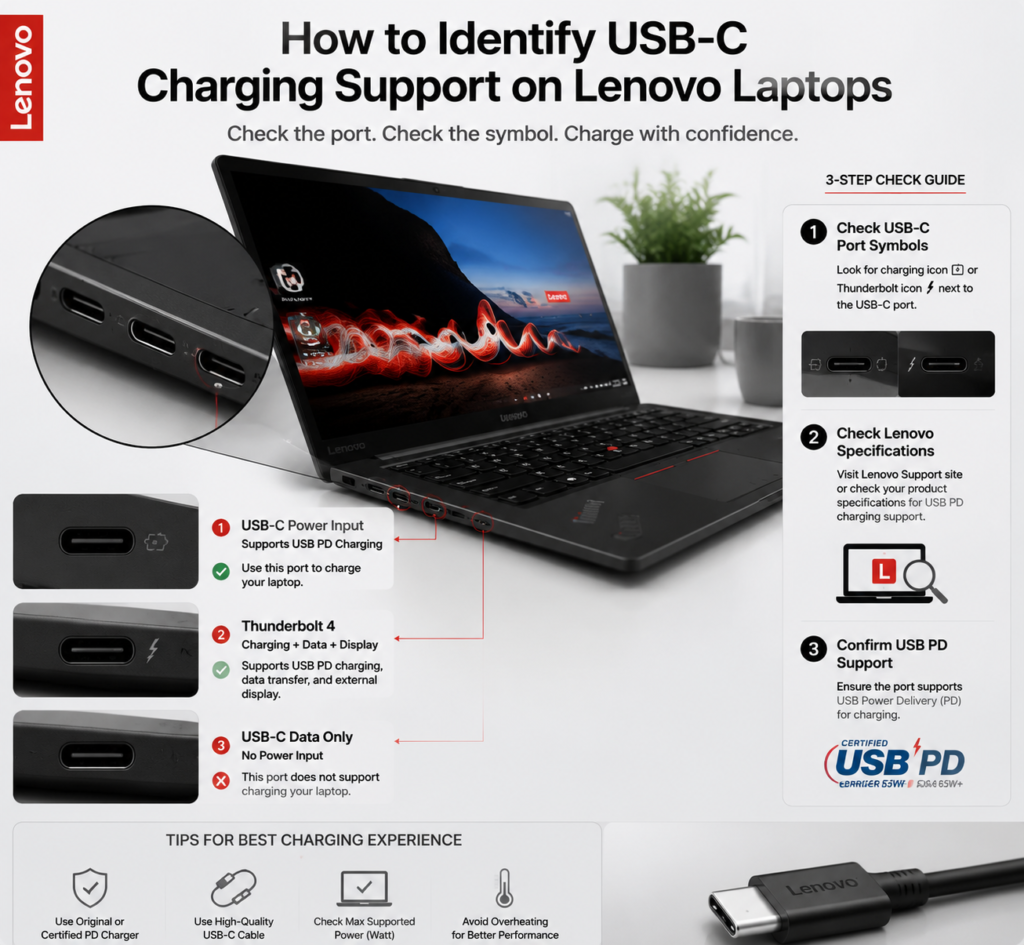
- Check the port icon: A small battery symbol or lightning bolt (Thunderbolt logo) next to the USB-C port means it supports charging.
- Check official specs: Look up your model on the Lenovo website and search for “USB-C PD Input” in the specifications.
- Check with software: Open Lenovo Vantage or Lenovo PC Manager and view power details to confirm charging support.
3.3 Important Limitations and Exceptions
- Some older Lenovo laptops only charge via the traditional square barrel port and do not support USB-C power input.
- Gaming laptops like the Legion series will run at reduced performance when charged via USB-C, especially during heavy gaming.
- On some models, only one specific USB-C port supports charging – not every USB-C port accepts power input.
4. Charger Buying Guide: How to Pick the Right One
4.1 Core Rule: Match or Exceed the Original Power
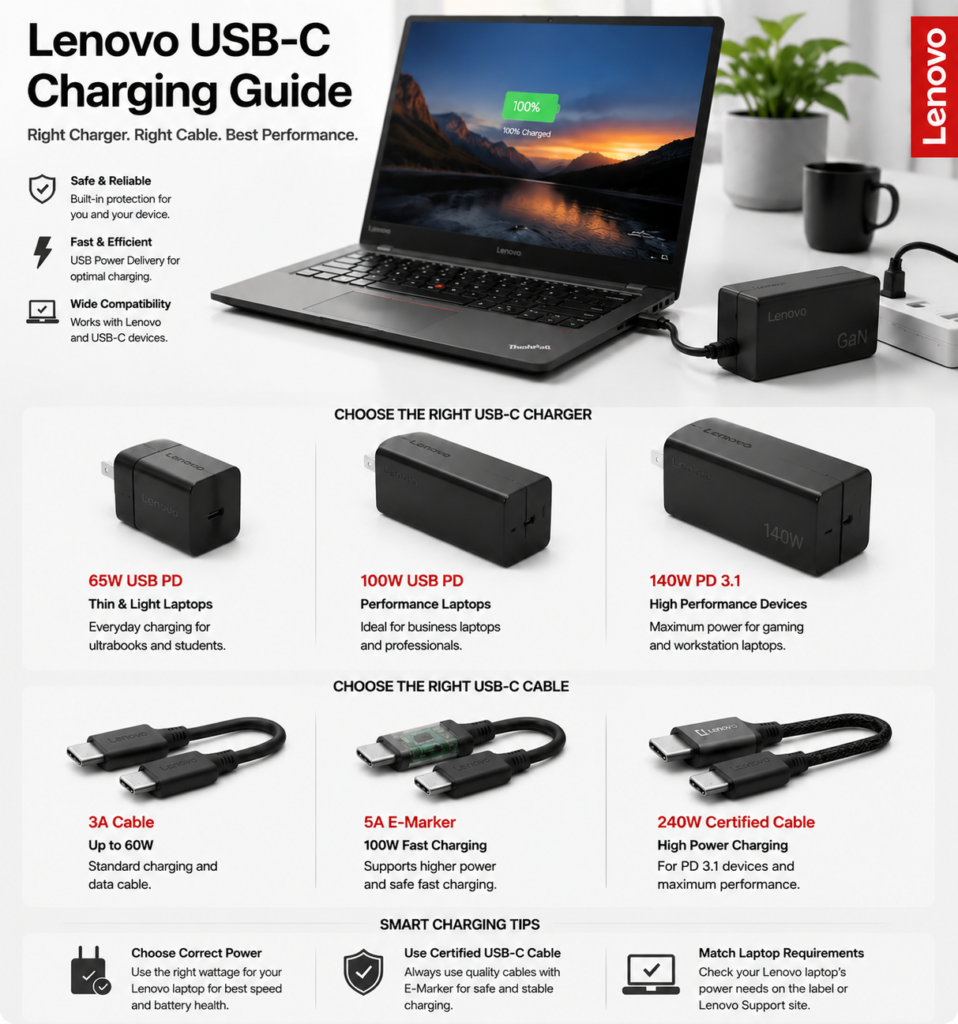
The golden rule is: choose a charger with wattage equal to or higher than your original laptop adapter.
A higher-wattage charger will not damage your laptop – the device will only draw the power it needs. If the charger has lower wattage than the original, charging will be slow, and the battery may even drain while you use the laptop.
4.2 Original vs. Third-Party Chargers
- Original Lenovo chargers: Offer guaranteed compatibility and peace of mind. Options like Lenovo GaN chargers are compact and reliable.
- Third-party chargers: Reputable brands work perfectly well as long as they support USB PD and meet the required wattage. They are often more affordable and offer extra features like multiple ports.
4.3 Benefits of GaN (Gallium Nitride) Chargers
GaN uses newer semiconductor technology. Compared to traditional chargers, GaN models are roughly half the size, lighter, run cooler, and often have multiple ports to charge your laptop, phone, and tablet at the same time. They are ideal for travel and commuting.
4.4 Safety Certifications and What to Avoid
- Always choose chargers with official safety certifications. Look for mandatory 3C certification and, preferably, USB-IF certification for better protocol compatibility.
- Avoid ultra-cheap, no-name chargers. They often have unstable voltage and can damage your port or battery.
5. Don’t Overlook the Cable: Choosing the Right USB-C Cable
5.1 Why Regular Cables Won’t Fast Charge
Many people assume any USB-C cable supports fast charging, but that’s not true. High-power charging requires cables that can carry more electrical current. Cables rated for 100W and above have a small built-in E-Marker chip that communicates with the charger to confirm safe power levels. Basic 3A cables cannot handle high power, so charging automatically slows down.
5.2 Cable Specifications by Power Level
Table 2. USB-C Cable Selection Guide
| Device Charging Power | Required Cable Spec | E-Marker Chip Required? |
|---|---|---|
| 65W and below | 3A USB-C to C cable | No |
| 65W – 100W | 5A USB-C to C cable | Yes |
| Above 100W (140W/240W) | Certified high-power cable | Yes, with dedicated power chip |
5.3 When to Replace Your Cable
Replace your cable if you notice:
- Cracked or peeling outer insulation, or tarnished metal connectors
- Frequent charging disconnections when the cable is moved
- Noticeably slow charging even with a high-power charger
5.4 Risks of Adapter Cables
Cheap USB-C-to-barrel “trick cables” are widely available, but most lack official certification. They can cause unstable voltage and damage your laptop over time. Native USB-C chargers are always recommended for daily use.
6. Charging Solutions for Different Scenarios
6.1 Daily Office & Desktop Use
For desk use, stick with the original charger, or use a 100W multi-port GaN charger to power your laptop, monitor, and phone at the same time. This cuts down on cable clutter and keeps your workspace tidy.
6.2 Travel & On-the-Go
For business trips or travel, pick a 65W or 100W dual-port GaN charger. It’s compact and light, and you can charge both your laptop and phone with one adapter instead of carrying multiple power supplies.
6.3 Charging via Docking Station or Monitor
Many USB-C docking stations and USB-C monitors support power delivery. With one cable, you get charging, video output, and peripheral connectivity. Make sure the dock or monitor delivers enough wattage for your laptop – otherwise charging will be slow.
6.4 Charging Multiple Devices Together
With multi-port chargers, power is shared between ports. For example, a 100W dual-port charger may deliver 65W to one port and 30W to the other when both are in use. This works fine for a laptop plus a phone, but not for two high-power laptops.
7. Battery Care & Safe Charging Tips
7.1 Battery Conservation Mode: What It Does and How to Enable It
Lenovo laptops include Battery Conservation Mode, accessible in Lenovo Vantage or Lenovo PC Manager. When enabled, the battery stops charging at around 55–60% and the laptop runs directly from wall power. This is perfect for laptops that stay plugged in all day, and it significantly extends long-term battery lifespan.
7.2 Using Your Laptop Plugged In Long-Term
You don’t need to constantly plug and unplug your charger. Modern lithium-ion batteries have built-in overcharge protection and stop charging automatically when full. For long-term plugged-in use, just enable Battery Conservation Mode.
7.3 Safe Charging Rules
- Do not use your laptop on a bed, couch, or pillow while charging – these block air vents and cause overheating.
- Never use damaged cables or chargers.
- Unplug your charger during thunderstorms to avoid surge damage.
7.4 Common Charging Myths Debunked
- Reputable third-party chargers do not damage your battery.
- You don’t need to fully drain the battery before charging. Lithium-ion batteries work best with regular top-ups.
- USB-C charging is not inherently worse for your battery than the original barrel charger – they are just different port types.
8. Common Problems & Troubleshooting
8.1 Charger Plugged In But Not Charging
- Make sure both ends of the cable are firmly plugged in.
- Test with a different charger or cable to rule out a faulty accessory.
- Confirm you are using a USB-C port that supports power input (some ports are data-only).
- Update your laptop’s BIOS and power drivers to fix firmware compatibility issues.
8.2 Slow Charging or “Slow Charger” Warning
- Most often caused by a low-wattage charger or an under-spec cable.
- Charging will feel slower when the laptop is under heavy load (gaming, video editing).
- Using a docking station splits power and can reduce charging speed.
8.3 Abnormal Heat While Charging
Mild warmth from the charger and laptop is normal during charging. If it gets too hot to hold comfortably, check that the charger wattage matches your laptop and that the laptop’s air vents are not blocked. Stop using the accessory if overheating continues.
8.4 Other Charging Issues
- If you hear unusual sounds when plugging in, unplug immediately and check the port for debris or bent pins.
- A “charger not recognized” pop-up almost always means an incompatible cable or charger – switch to a certified accessory.
9. Summary
USB-C charging makes using a Lenovo laptop far more convenient, and the basics are easy to follow. First, confirm your device supports USB-C charging. Then pick a PD charger with matching or higher wattage, paired with the correct certified cable. Enable Battery Conservation Mode for long-term plugged-in use, and follow simple troubleshooting steps when issues arise. Stick to these rules, and you’ll enjoy safe, reliable USB-C charging for years to come.