
USB-C is everywhere now — it charges your phone, connects your laptop to a monitor, and transfers files to an external drive. But for most people, it’s still a mystery: why do some USB-C cables only charge slowly? Why can some USB-C ports connect to a monitor and others can’t?
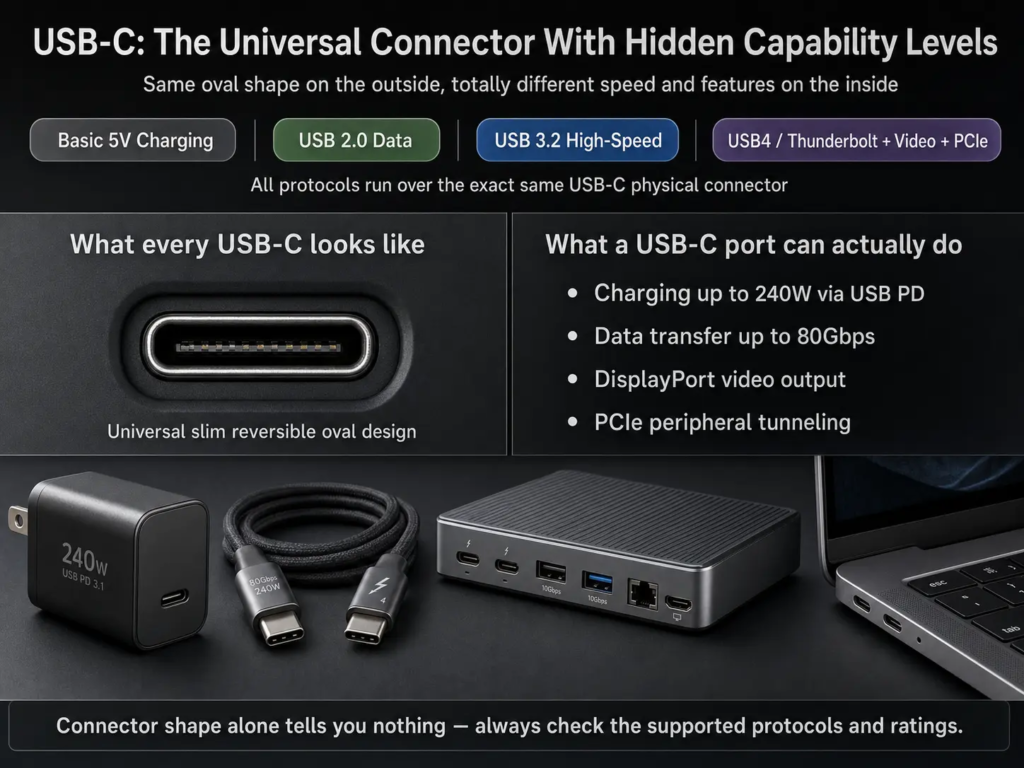
Think of USB-C like a universal plug-and-play socket system. On the outside, every USB-C looks like the same slim oval plug. But on the inside, it’s like a modular highway: some lanes are for power, some for data, some for video — and how many lanes you get, and how fast they run, depends on what the port and cable are actually built for.
This guide breaks everything down with simple real-life analogies, so you’ll never be confused by USB-C again.
1. What Exactly Is USB-C?
1.1 The Basic Definition
USB-C is a connector and cable standard created by the USB-IF group.
- It only defines what the plug looks like and how the pins are laid out — it does not guarantee how fast data moves or how much power it can deliver.
- Think of it like the shape of a power socket: just because two plugs look the same doesn’t mean they can deliver the same amount of electricity.
1.2 USB-C vs. USB: What’s the Difference?
- USB is the set of rules for how devices talk to each other — like traffic laws for data and power.
- USB-C is just the physical shape of the plug and port — like the road surface itself.
USB-C is one of many physical connectors used for USB standards, just like the old big rectangular USB-A or the tiny Micro-USB.
1.3 USB-C ≠ Fast Charging ≠ High-Speed Data
This is the #1 thing beginners get wrong. The same USB-C shape can carry totally different capabilities:
- Basic USB 2.0 speed (slow, like an old country road)
- USB 3.2 speed (fast, like a city highway)
- USB4 / Thunderbolt (super fast, like an express bullet train)
- USB PD fast charging
- DisplayPort video output
What you actually get depends on the device’s internal chip, not the shape of the port.
USB-C capabilities fall into 5 layers:
- Data protocols: USB 2.0 / USB 3.2 / USB4
- High-speed expansion: Thunderbolt 3 / 4 / 5
- Power protocol: USB Power Delivery (USB PD)
- Video protocols: DisplayPort Alt Mode / HDMI Alt Mode
- Tunneling: PCIe Tunneling (direct device-to-device connection)
1.4 Why Is It Called “Type-C”?
USB connectors are named alphabetically by shape:
- Type-A: the big old rectangle you know from computers
- Type-B: the square-ish plug for printers and monitors
- Mini / Micro: the tiny old plugs for old phones
- Type-C: the newest, oval-shaped, reversible design
1.5 Why Was USB-C Invented?
The goal was to build one connector to rule them all:
- Small enough for thin phones and laptops
- Reversible, so you never fumble to plug it in the right way
- Powerful enough to charge everything from earbuds to gaming laptops
- Flexible enough to support new technologies for years to come
- Able to replace charging ports, data ports, and video ports with just one
1.6 Mandatory vs. Optional Features
Just like every phone must make calls, but not every phone has a great camera:
- Mandatory on every USB-C:
- Reversible plug detection
- 24-pin mirrored pin layout
- Basic 5V power delivery (default current depends on the device, up to 3A)
- Optional (not all ports have these):
- High-speed USB 3.2 / USB4 data
- Thunderbolt support
- USB PD fast charging
- DisplayPort / HDMI video output
- PCIe tunneling
2. What Makes Up a USB-C System?
2.1 Receptacle (The Port on Your Device)
- The socket built into your phone, laptop, or charger.
- It has 24 pins inside, arranged in a mirrored top/bottom layout.
2.2 Plug (The End of the Cable)
- The connector you plug in.
- It has contact pads on both sides, so it works either way up.
2.3 The Cable Itself
- Passive copper cable: A regular copper wire — works great for short distances, like the charging cable that came with your phone.
- Active cable: Has tiny signal-amplifying chips built in — needed for long, super-high-speed connections (like a 2-meter Thunderbolt cable).
- E-Marker chip: The cable’s “ID card.”
- It stores info about how much power the cable can handle, how fast it can transfer data, and what it supports.
- Found in all 5A high-power cables and high-speed USB4/Thunderbolt cables.
- It is not the same as an active cable — even a short, passive high-power cable can have an E-Marker.
3. What Does USB-C Look Like?
- Shape: A slim oval with rounded edges, perfectly symmetrical top and bottom.
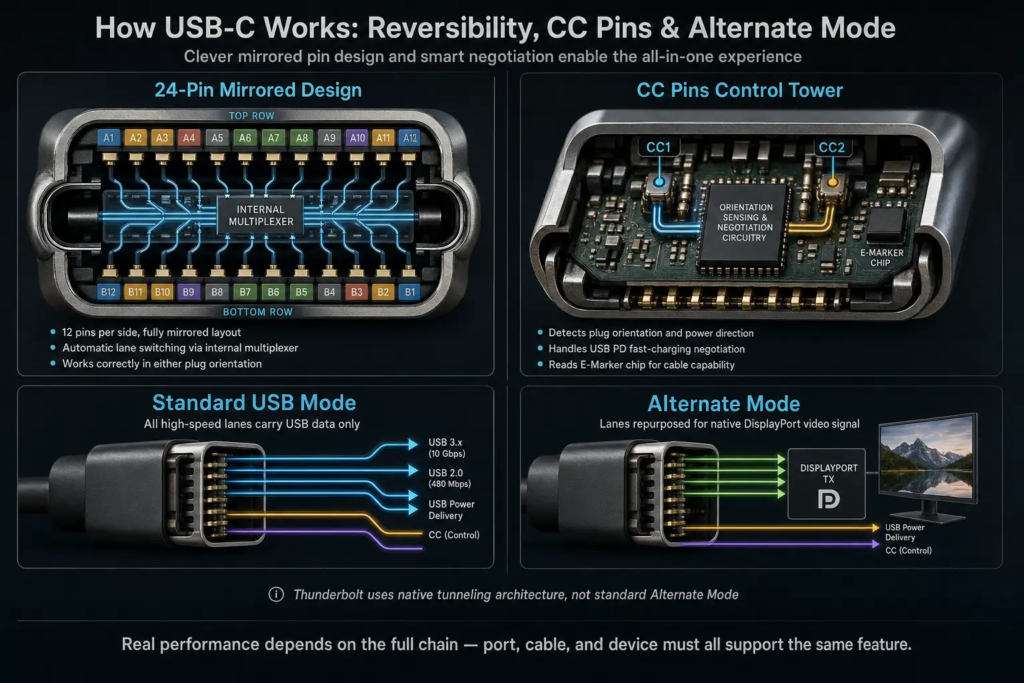
- Pin layout: 12 pins on the top row, 12 on the bottom — exact mirror copies of each other. This is why it works upside down.
- Reversible: No “wrong way” to plug it in.
- Size: About 8.4mm × 2.6mm — way smaller than the old USB-A rectangle.
Think of it like a perfectly symmetric key: it doesn’t matter which side is up, it will always fit and work.
4. How Does USB-C Actually Work?
4.1 The Brain of USB-C: The CC Pins
The real magic happens on two tiny pins called CC1 and CC2 (Configuration Channel). They are the control tower of the whole USB-C system.
Their jobs:
- Detect which direction you plugged the cable in
- Figure out which side supplies power and which side receives it
- Handle all USB PD fast-charging negotiations
- Read the E-Marker chip inside the cable to check its capabilities
- Supply tiny VCONN power to run the E-Marker and active cable chips
Without the CC pins, USB-C would just be a dumb charging port.
4.2 How 24 Pins Work in Both Directions
How does everything still work when you flip the cable? It’s all clever design:
- Power and ground pins: Symmetrically placed on both rows — they always connect, no matter the orientation.
- USB 2.0 data pins: Wired together on the port side, so they always work either way.
- High-speed TX/RX lanes: Switched automatically by an internal multiplexer (like an electronic railway switch) to match the plug orientation.
4.3 How Reversible Plug Detection Works
It’s a simple electrical trick:
- The host side (like your laptop) has small pull-up resistors on CC pins.
- The device side (like your phone) has pull-down resistors.
- When you plug in the cable, only one CC pin forms a complete circuit.
- The port instantly knows the insertion direction and flips the internal signal lanes to match.
It’s like having two door sensors — only one gets triggered when you walk in, so the system knows which door you used.
4.4 What Is Alternate Mode?
Normally, the high-speed pins carry USB data. Alternate Mode lets them carry other signals instead.
Think of it like repurposing a highway lane. Normally all lanes carry regular cars (USB data). After negotiation, some lanes can switch to carry video trucks (DisplayPort signals) directly.
- The most common one is DisplayPort Alt Mode, used for connecting monitors.
- HDMI Alt Mode exists but is almost never used. Almost all USB-C to HDMI adapters convert DisplayPort Alt Mode to HDMI internally.
- Important note: Thunderbolt 3/4/5 is not a standard Alt Mode. It uses the USB-C connector, but runs its own full protocol stack for data, video, and PCIe tunneling.
5. What Can USB-C Actually Do?
5.1 Data Transfer
USB-C can run multiple generations of USB speeds:
- USB 2.0: Up to 480Mbps — slow, good for keyboards and mice. Like a bicycle path.
- USB 3.2 Gen 2×2: Up to 20Gbps — fast, good for external SSDs. Like a multi-lane highway.
- USB4 1.0: Up to 40Gbps symmetric — very fast. Like a high-speed train.
- USB4 Version 2.0: Up to 80Gbps symmetric, and up to 120Gbps in one-way asymmetric mode (mostly used for high-resolution video). Like a next-gen bullet train.
It also supports PCIe tunneling: PCIe signals are wrapped inside USB4/Thunderbolt and sent over the cable. This is what lets you use external GPUs and super-fast SSD docks — it’s like a direct private tunnel between two devices instead of going through regular USB traffic.
5.2 Charging & Power
All based on the USB Power Delivery (PD) protocol:
- SPR (Standard Power Range): Up to 100W (20V / 5A) — enough for most laptops.
- EPR (Extended Power Range): Up to 240W (48V / 5A) — for gaming laptops and workstations. Requires the full chain (charger, cable, device) to support EPR.
- Power can flow both ways — your laptop can charge your phone, or your monitor can charge your laptop.
5.3 Video Output
Important: USB-C itself does not create video signals. It just acts as a pipe to carry video from your device to a screen.
- Mainstream method: DisplayPort Alt Mode
- Can do 4K@120Hz or even 8K@60Hz, depending on the DisplayPort version, cable, and monitor.
- Almost all USB-C to HDMI adapters work by converting DP Alt Mode to HDMI.
- Rare method: Native HDMI Alt Mode
- High-speed method: Video tunnelled over USB4 / Thunderbolt
5.4 Audio
USB-C uses standard digital USB audio.
- The digital-to-analog converter (DAC) can be built into the earphones themselves.
- Or it can live inside a USB-C to 3.5mm adapter.
5.5 One Cable Does Everything
A single full-featured USB-C cable can carry power, data, and video all at once.
The classic example: plug your laptop into a USB-C monitor with one cable — it charges your laptop, sends video to the screen, and connects to all your keyboard/mouse/USB drives through the monitor’s built-in hub.
6. Key Advantages of USB-C
- Tiny size: Fits in thin phones and slim laptops.
- Reversible: No more fumbling, less wear and tear on the port.
- Blazing fast: Up to 120Gbps one-way, enough for professional video and storage.
- Very high power: Up to 240W — charges everything from earbuds to gaming laptops.
- Extremely flexible: Can be repurposed for video, PCIe, and more.
- Dynamic role swapping: Can switch between being a power source and a power receiver, or between host and device.
- Smart power management: Devices negotiate exactly how much power they need — no waste.
7. Where Will You Find USB-C?
- Consumer electronics: Phones, tablets, laptops, handheld game consoles, cameras, drones
- Displays & peripherals: Monitors, docking stations, portable SSDs, external GPU enclosures
- Wearables & VR/AR: Smart watches, earbud charging cases, VR headsets
- Industrial & professional gear: Industrial cameras, medical equipment, IoT devices
8. USB-C vs. Older Connectors
Quick side-by-side
| Interface | Reversible? | Native video? | Standard PD? | Max power |
|---|---|---|---|---|
| USB-A | ❌ No | ❌ No | ❌ No | Very low |
| Micro-USB | ❌ No | ❌ No | ❌ No | Low |
| Lightning | ✅ Yes | Limited | Limited | Low |
| USB-C | ✅ Yes | ✅ Optional | ✅ Optional | Up to 240W |
vs. USB-A
USB-A is big, has a correct plug direction, and has no built-in PD fast charging or Alt Mode. You need an adapter to connect USB-A devices to USB-C.
vs. Micro-USB
Micro-USB has a direction, only lasts ~5,000 insertions, and is very limited in power and speed. It’s basically dead in the consumer market.
vs. Lightning
USB-C is an open universal standard; Lightning is Apple’s proprietary connector. USB-C has far higher speed and power limits, and Apple is already switching new products to USB-C.
vs. HDMI / DisplayPort
HDMI and DP are dedicated video cables — they only do video, and do it very reliably. USB-C can carry video if the port supports it, plus power and data at the same time. For pure video, native HDMI/DP is still more universally compatible.
9. Why Did USB-C Take Over the World?
- Government rules: The EU law (Directive (EU) 2022/2380) requires USB-C as the standard charging port for most consumer electronics by the end of 2024.
- Unified standards: USB PD finally gave the industry one cross-brand fast-charging rulebook.
- Great for product design: Small, reversible, one port replaces many — perfect for thin laptops.
- Better for the planet: One cable works for everything = less electronic waste.
- Future-proof: There’s still plenty of room for faster speeds and higher power in the future. USB-IF is building all new standards around USB-C.
10. How to Tell What a USB-C Port Can Do
Look for logos printed next to the port:
- ⚡ Lightning bolt: Supports Thunderbolt (check specs for exact version)
- USB 5Gbps / 10Gbps / 20Gbps / 40Gbps / 80Gbps: Official USB speed ratings
- PD logo: Supports USB Power Delivery fast charging
- DP logo: Supports DisplayPort video output
Important notes:
- No logo doesn’t always mean no feature — always check the device’s official specs.
- The logo only tells you what the port can do. To actually get those speeds/features, your cable and the device on the other end must also support them. It always runs at the speed of the slowest link in the chain.
11. Common Myths & Mistakes
❌ Myth: All USB-C ports are the same
Fact: Some only do USB 2.0 + basic charging. Some are full-featured with Thunderbolt, video, and 100W+ charging. Same shape, totally different abilities.
❌ Myth: USB-C = USB4
Fact: USB-C is the plug shape; USB4 is a high-speed protocol. Most USB-C ports do NOT support USB4.
❌ Myth: USB-C = Thunderbolt
Fact: Thunderbolt needs a special controller chip. Only some USB-C ports support it. If you see a lightning logo, it’s probably Thunderbolt.
❌ Myth: Any USB-C port can connect to a monitor
Fact: Only ports with DisplayPort Alt Mode, USB4, or Thunderbolt can output video. A basic charge-only USB-C port will not work with a monitor.
❌ Myth: Any USB-C port does fast charging
Fact: Default USB-C tops out at 15W (5V/3A). Higher power requires USB PD protocol support from both the charger and device.
❌ Myth: All USB-C cables are interchangeable
Fact: Cables vary wildly in power rating, data speed, and feature support. A cheap charge-only cable will not give you 40Gbps data or 4K video. Performance is always limited by the weakest piece in the chain.
12. Final Summary
- USB-C is the most universal physical connector standard we’ve ever had.
- It combines charging, data, video, and audio all in one tiny reversible plug.
- Same shape ≠ same performance — always check the device specs.
- It’s already the standard for consumer electronics, and it’s spreading into industrial and professional equipment too.