
Have you ever had this experience: you bought a new portable monitor with a USB-C port, grabbed your phone’s fast charging cable to plug it in, and even though it charges the device, the screen stays black; or you spent a lot of money on a “full-featured Type-C cable”, but when connected to a 4K monitor it only runs at 30Hz, and even dragging windows is laggy. Many people’s first reaction is “the cable is broken”, but in reality, the problem with USB-C video output is far more complicated than just “a broken cable”.
The biggest misconception many people have about USB-C is that “as long as the interface looks the same, the functions are the same”. In fact, USB-C first describes the shape of the interface and plug, just like round power plugs: some can be used for rice cookers, while others can only be used for desk lamps — a unified shape does not mean the same internal capabilities and supported functions. This article will help you understand why USB-C cables can’t output video, and how to quickly find the problem and choose the right cable, from basic knowledge to troubleshooting methods.
Plain Language Principle: How USB-C Video Is Actually Transmitted
You might be curious why some cables can charge but can’t transmit video. Actually, the reason is very simple.
Video and Charging Use Different Sets of Wires
The data volume of video is far greater than that of charging, keyboard/mouse connection, or ordinary USB drive file transfer — for example, a 4K60 video signal requires transmitting tens of gigabytes of data per second, which must be carried by dedicated high-speed differential wire pairs.
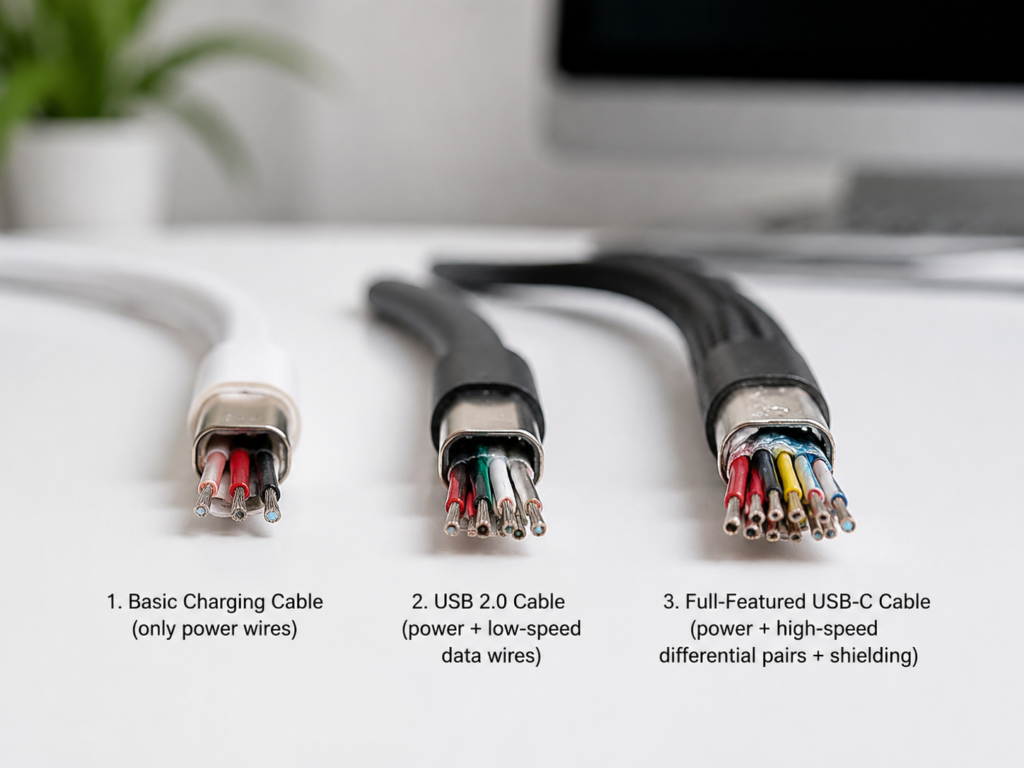
Pure charging cables or USB 2.0 cables usually only have power supply wires and low-speed data wires, without complete high-speed wire pairs, so naturally they cannot carry video signals. Moreover, high-speed signals have very high requirements for cable shielding, impedance control, and connector workmanship. Even if there are high-speed wire pairs, if the workmanship is poor or the cable is too long, the signal will attenuate to the point of being unusable.
This is also why many people encounter the situation of “charging works normally but no video signal” — the charging wire cores are not broken, but the high-speed wire pairs either don’t exist at all or are already damaged.
Video Protocols Are Determined by Devices, Cables Only “Carry” Signals
Many people think that “a cable that supports DP Alt Mode can transmit video”, but they have the order reversed. There are several common USB-C video methods, all of which have their protocols determined by the source device and the display end; the cable is only responsible for providing a physical channel that can carry the signal:
- DP Alt Mode: The most common USB-C video method. The source device switches the high-speed channels in the USB-C port to DisplayPort video signals, used for direct connection to USB-C monitors, or for converting to DP or HDMI output.
- Thunderbolt 3/4/5: Carries video, data, PCIe and other signals simultaneously through the Thunderbolt link, with very high bandwidth. It is commonly used for high-resolution high-refresh monitors and multi-display docking stations.
- USB4: Can transmit video signals through DP tunneling, but whether it can output and what specifications it can support still depend on the implementation of the devices at both ends.
- HDMI Alt Mode: Exists in theory, but almost no products on the market use it. The USB-C to HDMI cables we usually buy almost all have the source device output DP signals, and the chip in the adapter converts DP to HDMI.
So the more accurate statement is: it’s not that “the cable supports DP Alt Mode”, but that “the cable can carry DP Alt Mode signals”. The cable itself does not actively enable any video protocol; it is just a “pipe”. Only when the pipe is thick and sturdy enough can it transmit the video signal output by the device.
4 Common USB-C Video Connection Methods
Different connection methods have different requirements for cables and devices. There are four common ones:
- USB-C direct connection to USB-C monitor: No protocol conversion, the simplest and most direct. Requires the host’s USB-C port to support video output, the monitor’s USB-C port to support video input, and the cable to have sufficient bandwidth.
- USB-C to DP cable/adapter: In most cases, the source device outputs DP Alt Mode signals, and the adapter only changes the interface shape from USB-C to DP, with almost no loss. Requires the source device to support DP Alt Mode, and the monitor’s DP port to support the target specification.
- USB-C to HDMI cable/adapter: The most common and most prone to problems. Since most use a DP to HDMI solution, the chip in the adapter is responsible for signal conversion, so the adapter’s specification directly determines the maximum resolution and refresh rate. Moreover, most of these cables are unidirectional: the USB-C end can only be connected to the host, and the HDMI end to the monitor; they cannot be used in reverse.
- USB-C/Thunderbolt/USB4 docking station: The docking station has a dedicated chip inside responsible for signal distribution and conversion, and can output to multiple interfaces simultaneously (HDMI, DP, USB, Ethernet port, etc.). In this scenario, in addition to the cable, the docking station’s main control chip, bandwidth allocation, firmware, and system compatibility will all affect the final effect.
Don’t Blame the Cable Right Away: These Problems Are Often Mistaken for a Broken Cable
However, when you encounter a no-signal problem, don’t rush to replace the cable — at least half of the cases are not a cable problem at all, but the fault of the device, adapter, or settings. You can first troubleshoot these common “false cable faults” below.
1. The source device’s USB-C port does not support video output at all
This is a point many people overlook: not all USB-C ports can output video.
For example, the secondary USB-C port on some Windows thin-and-light laptops, the front USB-C port on desktop PCs, ordinary USB-C ports on motherboards, many entry-level Android phones, and cheap tablets — their USB-C ports can only charge and transfer data, and do not support video output.
How to check? Go to the device’s official website or manual to find these keywords: DP Alt Mode, DisplayPort over USB-C, Thunderbolt 3/4/5, USB4, external monitor, video output.
Note: Whether there is an icon next to the interface cannot be the only basis; some ports that support video are not marked. Multiple USB-C ports on the same computer may have different capabilities, some support video and some don’t, so it’s best to test them one by one. Phones and tablets especially need to be checked clearly: many USB-C phones only support charging and data, and cannot do wired screen casting at all.
Verification is also simple: try another USB-C port on the same device, or cross-test with a computer that is confirmed to support video output, and you will know if it is the source device’s problem.
2. The monitor’s USB-C port is not a video input port
Many monitors have a USB-C port, but it is not necessarily used for video input. Some monitor USB-C ports are only used to power devices, upgrade firmware, or act as the upstream port of a USB Hub (that is, plug into the host, and then the USB ports on the monitor can be used), and do not support video input at all.
USB-C monitors that support video input usually mark “USB-C video input”, “DP Alt Mode”, or “DisplayPort over USB-C” on the official website or in the manual. In addition, many monitors require manually switching to the USB-C input source in the OSD menu, or enabling high-bandwidth mode or MST multi-display mode, to display normally.
If it is a portable monitor, also pay attention to power supply: if the power supply is insufficient, it may light up briefly and then turn off, or have no signal at all. It is best to use the original power adapter for power supply, and do not rely only on the host’s USB-C port for power.
3. The adapter or docking station has insufficient specifications
If you use an adapter or docking station, they are likely the short board.
- USB-C to HDMI: The upper limit of HDMI 1.4 is basically 4K30Hz, HDMI 2.0 can support 4K60Hz, and HDMI 2.1 supports higher specifications like 4K120 and 8K. However, many low-cost adapters only label “supports 4K” without mentioning the version; they are actually HDMI 1.4 and can only run at 30Hz.
- USB-C to DP: It depends on whether it supports DP 1.2, DP 1.4, or DP 2.x. Different versions have very different bandwidths and support different resolutions and refresh rates.
- Docking station: More complex. It depends on the main control chip, total bandwidth, interface bandwidth allocation, MST multi-display support, Mac/Windows compatibility, and firmware version. You can’t just buy any docking station to connect multiple high-refresh displays.
Also note: the vast majority of USB-C to HDMI/DP cables are unidirectional. They can only have the USB-C end connected to the host to output video to an HDMI/DP monitor, and cannot reverse the signal from an HDMI computer to a USB-C monitor. Of course there will be no picture if plugged in reverse.
4. System settings, driver, and permission issues
Sometimes the hardware is fine, but the system settings are not adjusted properly:
- Windows: It may default to “PC screen only” mode; press Win+P to switch to duplicate or extend mode. In addition, outdated graphics drivers, chipset drivers, or Thunderbolt/USB4 controller drivers may also cause the monitor to not be recognized.
- macOS: Check if the resolution, refresh rate, and HDR are set correctly in Displays settings. In addition, for M1/M2/M3 series Macs, many ordinary MST docking stations can only extend one screen; for multiple displays, you need a docking station with DisplayLink solution. This is a system limitation, not a cable problem.
- Android/tablets: Even if the device supports wired video, some require manually enabling desktop mode, screen casting mode, or upgrading to the latest system version to use.
- Thunderbolt/USB4 docking station: A security prompt may pop up during first use, and you need to manually authorize the device. In addition, outdated BIOS, graphics drivers, Thunderbolt drivers, or docking station firmware may also cause compatibility issues.
5. Minor issues on the display end: input source, power supply, connection
There are also some easily overlooked minor issues:
- If the monitor is not switched to the corresponding input source, it will of course show no signal. First try pressing the monitor’s input source switch button.
- Insufficient power supply to the docking station or portable monitor will cause recognition failure, repeated disconnections, or only low-resolution operation. First try connecting the original power adapter.
- Loose interfaces, oxidized contacts, or plugs not fully inserted will cause screen flickering or intermittent disconnection. Unplug and reinsert firmly, or try cleaning the contacts.
- If the performance differs when inserting the plug right-side up vs upside down, for example one side works and the other doesn’t, it is basically a problem with the contacts, cable, or interface connection.
5-Step Quick Troubleshooting: Determine If It’s a USB-C Cable Problem
After talking about so many causes, you might feel confused. Don’t worry, follow the 5-step quick troubleshooting method below in order, and you will soon find where the problem is.
Step 1: First confirm that the source device’s USB-C port supports video output
This is the most basic premise. Don’t rush to replace the cable as soon as you have a problem. First check the device’s official website or manual, look for keywords like DP Alt Mode, Thunderbolt, USB4, external monitor, to confirm that your device’s USB-C port does support video output.
If the device has multiple USB-C ports, test them one by one, because different ports may have different capabilities. Pay special attention to phones and tablets: many models do not support wired screen casting at all, so don’t waste your time.
Step 2: Confirm that the display end or adapter supports the target specification
- For USB-C direct connection to a monitor: Confirm that the monitor’s USB-C port is a video input port, not a power supply or Hub port, and that it supports the resolution and refresh rate you want.
- For converting to HDMI/DP: Don’t just look at “supports 4K”; check clearly whether it is 4K30, 4K60, or 4K120, and what version of HDMI/DP it supports.
- For a docking station: Find out the maximum supported specifications for single/dual displays, whether it supports MST, whether it works with Mac, and what specification the included cable is.
Step 3: Check the cable’s markings and source
First look at the cable’s packaging or markings on the cable body to make a preliminary judgment on whether it can be used to transmit video:
- Trusted markings: USB4 40Gbps, Thunderbolt 3/4/5 (with certified lightning logo), USB-IF certification, clearly marked 4K60/8K60, full-featured C-to-C with detailed parameters.
- High-risk markings: Only written fast charging, PD, 100W/240W, Type-C, USB 2.0, HD, universal, e-sports, without any rate or video specification information.
Here we need to mention E-Marker: this is a small chip in the cable, used to tell the device information such as the cable’s power supply capability and rate. High-power cables usually have one. But having an E-Marker does not mean it can transmit video. For example, many 100W USB 2.0 charging cables also have an E-Marker, but they have no high-speed wire pairs at all and cannot transmit video.
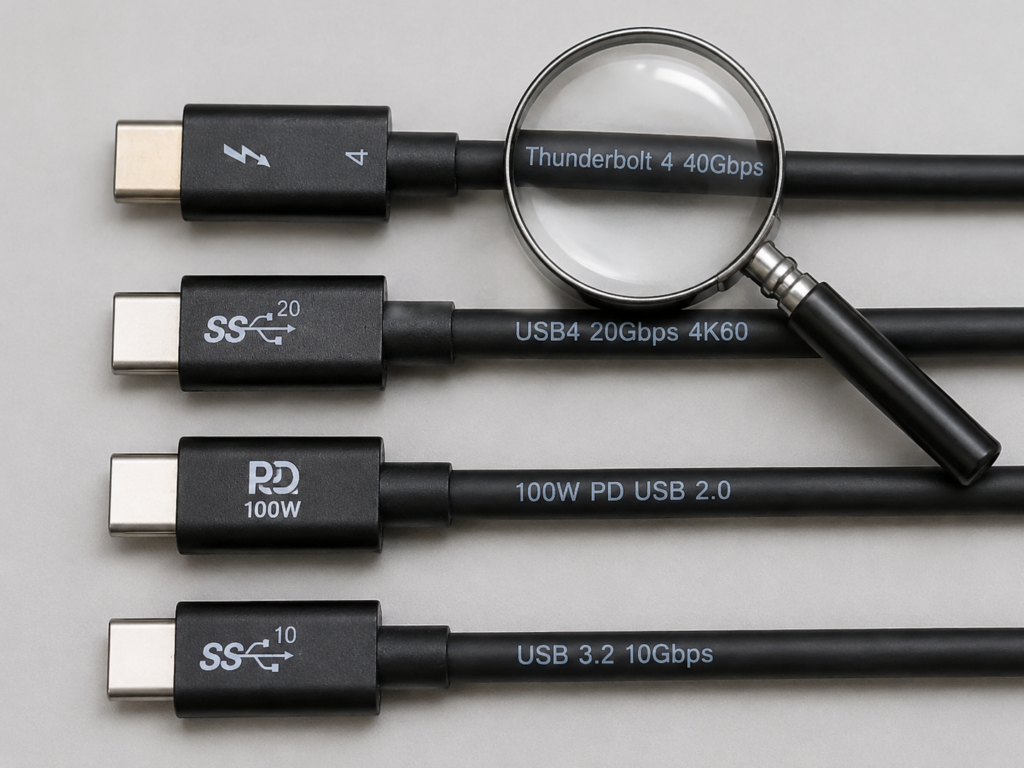
In addition, the thickness of the cable can only be used as a reference. Some cables look thick, but inside they are copper-clad steel, or cut corners on shielding. Ultimately, it depends on the specifications, certification, and actual testing.
Step 4: Fixed-variable replacement test
This is the most accurate troubleshooting method: change only one thing at a time, keep everything else unchanged, and see if the problem disappears:
- Cable replacement test: Keep the host, monitor, and adapter unchanged, only replace with a cable that is confirmed to transmit video normally. If it works after replacement, it is most likely the original cable’s problem; if there is still no picture after replacement, prioritize checking the device, display end, adapter, or settings.
- Host replacement test: Keep the cable, monitor, and adapter unchanged, replace with a host that is confirmed to support video output. If it works normally after replacing the host, then the original device’s USB-C port may not support video, or there is a setting problem; if it still doesn’t work after replacement, continue to check the cable, display end, or adapter.
- Specification reduction test: If there is a picture but the specification is insufficient, for example 4K60 is black screen, then lower the resolution to 1080p, or turn off HDR and lower the refresh rate to try. If it works normally after reduction, it is most likely insufficient bandwidth, which may be a cable problem, or the high-bandwidth settings of the adapter or monitor are not enabled.
Step 5: Quick location by symptoms
You can also compare your symptoms to roughly narrow down the problem range first:
- No response at all, no charging: Most likely the entire power supply chain of the cable, interface, or device is broken.
- Charges but no picture: The most common cause is using a pure charging cable or USB 2.0 cable; next is the source device not supporting video, or the monitor’s USB-C port not being a video input.
- Picture appears but screen flickers/has artifacts: Common causes are poor cable quality, too long cable, loose interface, or too high refresh rate/HDR setting leading to insufficient bandwidth.
- Low resolution works, high resolution fails: Most likely insufficient bandwidth, possibly due to insufficient cable/adapter specifications, too low DP/HDMI version, or DSC not enabled.
- Single display works, dual displays fail: Possibly due to insufficient docking station bandwidth, host not supporting multiple displays, Mac’s MST limitation, or the cable not being a high-bandwidth cable.
- Same cable works on device A but not device B: Basically a difference in the device’s port capability, protocol, power supply, or compatibility, not a broken cable.
Cable Selection Guide: Understand Parameters and Choose the Right USB-C Video Cable
If troubleshooting confirms that it is indeed a cable problem, or you want to buy a reliable USB-C video cable, the cable selection guide below can help you avoid pitfalls.
Define your needs first, don’t blindly buy the most expensive one
The core of cable selection is matching your target video specification, while taking into account power supply, data transmission, docking station, and cable length needs. There is no need to blindly buy the most expensive Thunderbolt cable — after all, if you only connect to a 1080p office monitor, a tens-of-dollars full-featured cable is sufficient, and buying a hundreds-of-dollars Thunderbolt cable is a waste.
Also remember the short board effect: the final capability of the entire video link is determined by the lowest-specification link among the host, cable, adapter, and monitor. For example, if your monitor only supports 4K60, even if you buy a cable that supports 8K, it can only run at 4K60.
Cable Marking Quick Reference Table
For your quick judgment, I have organized common cable markings and their corresponding video capabilities into a table:
| Common Cable Markings | Video Capability Description | Suitable Scenarios |
|---|---|---|
| Only marked Type-C, fast charging, PD, 60W/100W/240W | Can only confirm interface shape or power supply capability, does not guarantee video support | Charging, low-speed device connection |
| Marked USB 2.0 | Only has low-speed data and power supply capabilities, usually cannot output video | Charging, connecting keyboard/mouse/ordinary USB drives |
| Marked USB 3.0/3.1/3.2 5Gbps/10Gbps (full-featured C-to-C) | Standard products have the physical basis for carrying video, requires devices at both ends to support DP Alt Mode | 1080p/2K office work, ordinary high-speed data transmission |
| Marked USB 3.2 20Gbps | Higher bandwidth, can support higher-spec video, still requires device protocol support | 2K high refresh, 4K60 SDR, high-speed data |
| Marked USB4 20Gbps/40Gbps | High bandwidth, suitable for high-spec video and docking stations, video capability still needs to match devices at both ends | 4K high refresh, 8K, Thunderbolt/USB4 docking stations |
| Marked Thunderbolt 3/4/5 (with certified lightning logo) | High reliability, compatible with most high-spec video, multi-display, and docking station scenarios | Professional creation, multi-display office work, high-refresh e-sports, Thunderbolt devices |
| Marked with clear video specifications such as 4K60/8K60 | Video capability is intuitive, need to confirm applicable interfaces, refresh rate, HDR and other conditions | Video output of corresponding resolution |
| Marked E-Marker | Only used to identify cable power supply/partial capabilities, does not equal video support | No independent reference value, need to judge in combination with other markings |
Cable Recommendations for Common Needs
You can choose according to your actual needs:
- 1080p60/2K60 office use: Choose a full-featured C-to-C cable clearly marked to support video output, 10Gbps level is sufficient, provided that the device and monitor support video output.
- 2K144/4K60 SDR: It is recommended to choose a high-speed C-to-C cable clearly marked 4K60, or a USB4 20Gbps/40Gbps cable; if it is a USB-C to HDMI scenario, also confirm that the adapter supports at least HDMI 2.0 level 4K60.
- 4K60 HDR 10bit: It is recommended to choose a USB4 40Gbps or Thunderbolt 3/4 certified cable. At the same time, confirm that the device supports DP 1.4, DSC or sufficient bandwidth, and the monitor also supports the corresponding HDR and refresh rate.
- 4K120/4K144/8K/dual display output: Prioritize certified USB4 40Gbps, Thunderbolt 4/5 cables. Moreover, the docking station, monitor, and host must all support the corresponding specifications; just changing the cable is useless.
- Long-distance scenarios (over 2 meters): For high-spec video, it is recommended to choose certified active cables or fiber optic cables. Pay attention to the directionality, power requirements, and compatibility.
- Portable monitor one-cable solution: Video, power supply, touch, and USB data must be considered at the same time. The cable, the host’s power supply capability, and the portable monitor’s power consumption will all affect stability. It is best to choose a cable clearly marked to support one-cable solution.
5 Questions to Ask Before Buying
Ask yourself these 5 questions before buying, and you basically won’t buy the wrong one:
- Does the USB-C port of my computer, phone, or tablet actually support video output?
- Am I connecting to a USB-C monitor, DP monitor, HDMI monitor, or a docking station?
- What is the target resolution and refresh rate I need? For example, 1080p60, 2K144, 4K60?
- Do I need to enable HDR, 10-bit color depth, multi-display, power supply, high-speed data, and touch at the same time?
- Does this cable have clear specifications, certification marks, cable length description, and the brand’s official parameter page?
Common Misconceptions: Stop Being Fooled by Wrong Claims
Finally, let’s sort out a few of the most common misconceptions to help you avoid 90% of the pitfalls.
Misconception 1: As long as both ends are USB-C, you can cast video
Wrong. USB-C is just the interface shape, which does not mean there are complete high-speed wire pairs inside, nor does it mean the device supports video output.
Correct statement: The source device, cable, and display end must all meet the requirements of the video link at the same time to output pictures normally.
Judgment method: Check the specifications of the device and cable, and test with the replacement method.
Misconception 2: Fast charging cables can definitely transmit video
Wrong. Fast charging relies on power supply wire cores and the PD protocol, while video relies on high-speed signal channels; the two are completely independent.
Correct statement: Even a 100W or 240W fast charging cable may just be a charging cable, and cannot connect to an external monitor at all.
Judgment method: Check if there are video-related markings such as USB4, Thunderbolt, DP, video output, 4K60. Cables only marked with fast charging power are not sufficient.
Misconception 3: USB 3.x high-speed cables can definitely transmit video
Wrong. USB rate only indicates data transmission capability, and does not mean the entire link supports video output.
Correct statement: Standard full-featured C-to-C USB 3.x cables usually have the physical basis for carrying video, but the source device and display end still need to support DP Alt Mode or Thunderbolt/USB4 video output.
Judgment method: Confirm that the cable is a full-featured C-to-C cable, and at the same time confirm that the device supports video output.
Misconception 4: Thunderbolt cables are the only choice for video output
Wrong. Thunderbolt cables do have high specifications, but they are completely unnecessary for ordinary office work or single-screen 4K60, and are a waste of money.
Correct statement: Just choose according to your needs. For scenarios with high refresh, multiple displays, docking stations, or long-distance high bandwidth, then prioritize Thunderbolt or USB4 certified cables.
Judgment method: First determine the resolution, refresh rate, number of displays you want, and whether you need to use a docking station.
Misconception 5: No signal on the monitor must mean the cable is broken
Wrong. The source device’s USB-C port not supporting it, the monitor not switching input sources, insufficient adapter specifications, or incorrect system settings can all cause no signal.
Correct statement: Troubleshoot with the fixed-variable replacement method, don’t blame the cable as soon as you have a problem.
Judgment method: First check the input source and device specifications, then replace with a known good video cable, and finally cross-verify by replacing the device or adapter.
Misconception 6: Being able to transfer high-speed files means you can definitely transmit video
Wrong. Normal high-speed file transfer only indicates that the data link is available, but video also requires protocol matching and sufficient display bandwidth.
Correct statement: Being able to transmit high-speed data mostly indicates that the cable has high-speed channels, but it does not mean it can definitely output the picture of the specification you want.
Judgment method: Try lowering the resolution or refresh rate, or cross-verify with a device that supports video.
Misconception 7: If it says “4K”, it must be 4K60
Wrong. The “4K” written on many low-cost products actually only supports 4K30Hz. When used, dragging windows and scrolling web pages are laggy, and it cannot be used normally at all.
Correct statement: You must see clearly the refresh rate after 4K, and if necessary, also check HDR, color depth, and HDMI/DP version.
Judgment method: Prioritize products that clearly write 4K60, 4K120, and explain applicable interfaces and system conditions.
Real-World Case Studies: Quickly Locate the Cause from Symptoms
I have sorted out 5 of the most common real scenarios, and you can compare your situation to quickly find the cause.
Case 1: Phone connected to monitor via USB-C, charges but no picture
Possible causes: The phone itself does not support wired video output; the cable used is the pure charging cable or USB 2.0 cable included with the phone; the monitor’s USB-C port is not a video input port.
Troubleshooting steps:
- First check the phone’s official website to see if it mentions DP Alt Mode, external monitor, desktop mode (such as Samsung DeX). Many entry-level Android phones do not support wired screen casting at all.
- Try replacing with a full-featured C-to-C cable that is confirmed to transmit video.
- Use a laptop that supports video output to connect to the monitor’s USB-C port, to confirm that the monitor’s USB-C port is for video input.
Conclusion: Not all USB-C phones can do wired screen casting, and being able to charge does not mean being able to output pictures.
Case 2: Laptop connected to 4K monitor, only 30Hz or black screen
Possible causes: The USB-C to HDMI adapter only supports HDMI 1.4 (max 4K30); insufficient cable bandwidth; the monitor has not enabled high-bandwidth mode; incorrect system refresh rate setting.
Troubleshooting steps:
- First confirm whether the adapter clearly supports 4K60 and is marked HDMI 2.0.
- Try replacing with a USB4 or Thunderbolt certified high-speed cable.
- Go to the system’s display settings and manually adjust the refresh rate to 60Hz.
- Open the monitor’s OSD menu to see if there are options for DP version, high-bandwidth mode, or HDMI enhanced mode, enable them and try again.
Conclusion: 4K lighting up does not mean 4K60 can be used stably; it depends on the specifications of the entire link.
Case 3: Docking station fails to connect dual displays, single display works
Possible causes: Insufficient total bandwidth of the docking station; the host’s USB-C port is not Thunderbolt/USB4; Mac does not support ordinary MST dual expansion; the cable is not a 40Gbps high-bandwidth cable; the total specification of the dual displays exceeds the nominal capability of the docking station.
Troubleshooting steps:
- First check the docking station’s manual to see the maximum supported specifications for single and dual displays respectively. Some docking stations can do 4K60 for single display, but only 4K30 for dual displays.
- Confirm whether the computer’s USB-C port is Thunderbolt or USB4; ordinary USB 3.x ports may not have enough bandwidth for dual displays.
- Try replacing with a 40Gbps certified cable.
- Lower the resolution or refresh rate of one of the monitors to see if dual displays work.
Conclusion: Multi-display problems are usually due to bandwidth and protocol limitations of the entire link, not just the cable. Mac users especially should pay attention to the system’s multi-display limitations.
Case 4: Same cable sometimes works, sometimes flickers
Possible causes: Internal damage to the cable; loose interface; too long cable causing signal attenuation; poor shielding; insufficient signal quality at high refresh rates.
Troubleshooting steps:
- Gently shake the connector and the root of the cable to see if the picture flickers or cuts out. If it does, it is most likely a broken cable or loose interface.
- Try replacing with a shorter certified cable to rule out cable length and quality issues.
- Lower the refresh rate and turn off HDR to see if it still flickers. If it stops flickering, it is insufficient bandwidth.
- Clean the contacts of the interface. Usually do not bend the cable too much, to avoid stress on the root of the connector.
Conclusion: Intermittent flickering, black screens are mostly related to signal integrity or physical connection.
Case 5: USB-C to HDMI has no picture, but to DP works normally
Possible causes: Poor compatibility of the USB-C to HDMI adapter chip; insufficient specification of the HDMI cable or the monitor’s HDMI port; the adapter is unidirectional and plugged in reverse; HDCP, HDR, or high refresh settings cause handshake failure.
Troubleshooting steps:
- First confirm the direction: USB-C end connected to the host, HDMI end connected to the monitor. Do not plug in reverse; the vast majority of HDMI conversion cables are unidirectional.
- Try replacing with another HDMI cable, or using another HDMI port on the monitor.
- Lower the resolution to 1080p60 or 4K30 to see if it lights up. If it does, the adapter has insufficient specifications.
- Try replacing with an adapter that clearly supports 4K60, HDMI 2.0 or higher specifications.
Conclusion: USB-C to HDMI has an extra conversion chip compared to DP conversion, so compatibility and specification limitations are more prone to problems. When encountering problems, you can prioritize troubleshooting the adapter.
Summary: Quickly Determine Why a USB-C Cable Can’t Output Video
Finally, let’s string together the core content in a few sentences, which you can quickly go through when encountering problems:
- Check the device: First confirm whether the source device’s USB-C port supports DP Alt Mode, Thunderbolt, or USB4 video output. Don’t blame the cable as soon as you have a problem.
- Check the display end: Whether the monitor, adapter, and docking station support the resolution and refresh rate you want, and whether the input source is switched correctly.
- Check the cable: Whether it is a C-to-C cable that can carry high-speed video, whether it has rate, video, or certification markings, or is just a charging cable.
- Check the needs: 1080p office work, 4K60 movie watching, 4K high refresh, 8K, multi-display — the requirements for cables and links are completely different. Choose according to your needs, and don’t blindly buy expensive ones.
- Do testing: Use the fixed-variable replacement method, replace the cable, replace the device, reduce specifications, and you can quickly judge whether it is lack of video capability, insufficient bandwidth, physical damage, or compatibility issues.
In the final analysis, USB-C cables not being able to output video is rarely due to “wrong interface shape”, and mostly because at least one link among the cable, source device, display end, adapter, and system settings is not supported or has insufficient specifications. Remember three “does not mean”: being able to charge does not mean being able to do video, being able to transfer files does not mean being able to display high specifications, and writing 4K does not mean it is 4K60.
The safest way to choose a cable is to first confirm that your device supports video output, and then according to the resolution and refresh rate you want, choose a full-featured USB-C cable, USB4 cable, or Thunderbolt cable that clearly marks video specifications, rate, and certification.