
1. Introduction: Why You Need to Tell USB 2.0 and USB 3.0 Apart
1.1 Real Problems Everyone Faces
Almost every computer user has experienced these annoying issues: large file transfers and movie copies take forever, progress bars freeze, and file explorers crash. External hard drives randomly disconnect, fail to be recognized, or keep dropping connection. Most people cannot tell fast ports from slow ports, which leads to wasted money on low-quality devices and cables.
All of these problems stem from one simple reason: not knowing the difference between USB 2.0 and USB 3.0. Although the ports look identical, their performance, speed, and power delivery are drastically different.
1.2 Core Question
Why do two USB ports that look exactly the same perform so differently? What is the real gap between USB 2.0 and USB 3.0? How should you choose USB flash drives, external SSDs, cables, and hubs correctly?
1.3 What You Will Learn From This Article
This beginner-friendly guide helps you master USB knowledge without technical jargon:
- Quickly identify USB 2.0 and USB 3.0 ports visually
- Understand the real differences in speed and power supply
- Buy the right USB drives, hard drives, cables, and hubs for your needs
- Avoid merchant marketing tricks and unnecessary spending
2. Basic Knowledge: USB 2.0 vs USB 3.0 Explained
2.1 What is USB 2.0
Release Year: 2000
Positioning: Classic low-speed universal interface
USB 2.0 is a legacy standard that replaced old outdated ports and popularized USB peripherals such as flash drives, keyboards, mice, and printers. It is stable, universally compatible, and low-cost, designed for basic daily low-demand tasks.
2.2 What is USB 3.0 (Critical Anti-Scam Tips)
Release Year: 2008
Positioning: SuperSpeed high-bandwidth USB interface
USB 3.0 is built for high-speed file transfer, 4K video workflow, external solid-state drives, and multi-device docking. It solves the slow speed and insufficient power issues of USB 2.0.
Common Merchant Scam: USB 3.1 Gen1 / USB 3.2 Gen1 are simply renamed versions of USB 3.0. They offer zero performance improvement. Do not pay extra for these new marketing names.
Simply put: “Gen1” only means first-generation revision, not a speed upgrade.
3. How to Identify USB 2.0 / 3.0 Instantly
3.1 Color Identification (Easiest Method)
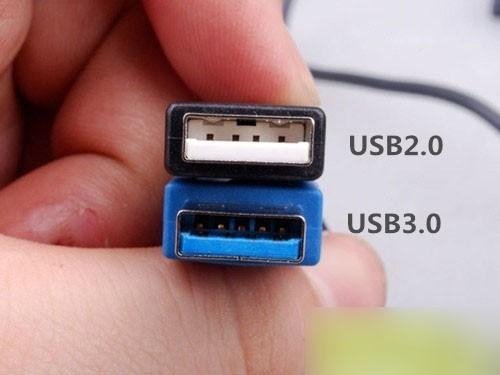
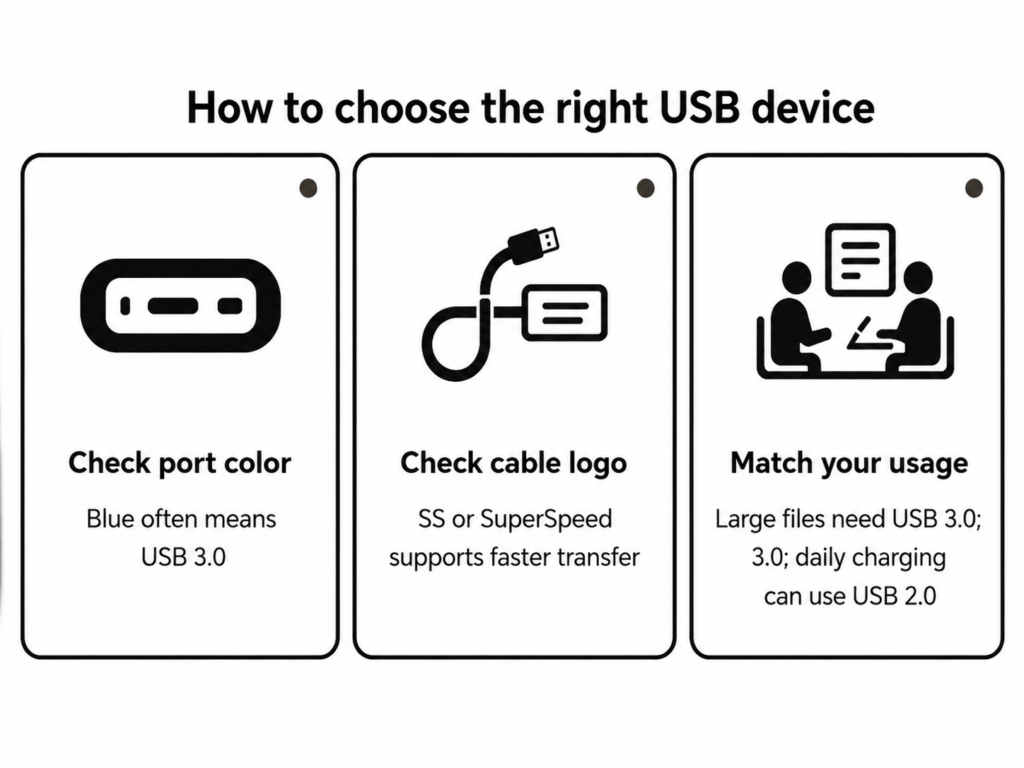
Industry standard rule: USB 2.0 = black or white internal plastic; USB 3.0 = blue internal plastic.
Exception: Some older Lenovo and Dell laptops use black or gray plastic for USB 3.0 ports. Do not rely solely on color for 100% accuracy.
3.2 Pin Contact Identification (Most Accurate)
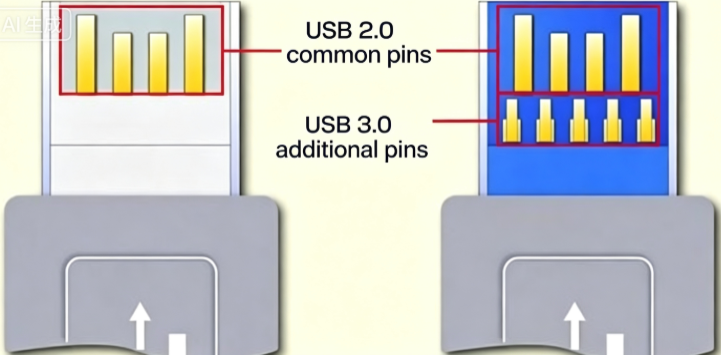
The internal metal pins determine the actual hardware capability:
- USB 2.0: Only 4 metal pins, limited speed and power output
- USB 3.0: 9 metal pins total. The original 4 pins maintain backward compatibility, while the extra 5 pins enable SuperSpeed data transfer.
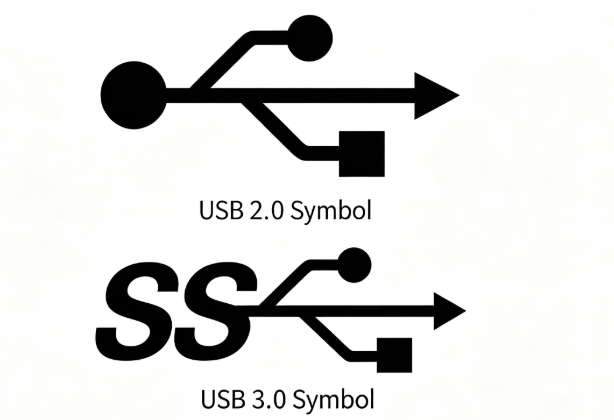
3.3 Logo Identification
- SS logo on ports or cables = USB 3.0 SuperSpeed
- No logo = default USB 2.0 low speed
4. Core Differences: Speed, Transfer Mode & Power
4.1 Transfer Speed (The Biggest Difference)
Unit explanation: Mbps = network speed unit; MB/s = actual file copying speed. 1MB/s ≈ 8Mbps.
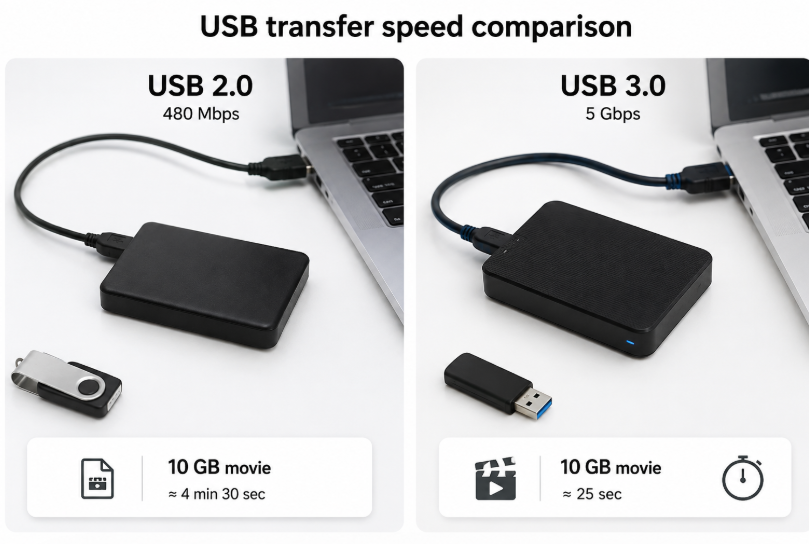
- USB 2.0: Theoretical 480Mbps (60MB/s), real speed only 30–40MB/s
- USB 3.0: Theoretical 5Gbps (500MB/s), real speed 300–450MB/s, roughly 10x faster than USB 2.0
Real-life comparison: Copying a 10GB 4K movie takes 4–5 minutes on USB 2.0, but only 20–30 seconds on USB 3.0.
4.2 Transfer Mode Principle
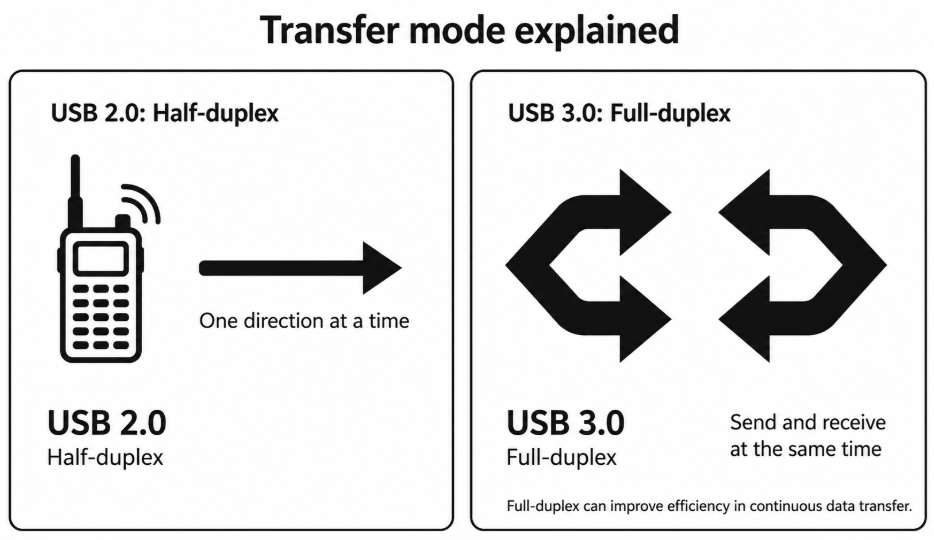
- USB 2.0 Half-Duplex: Walkie-talkie mode. Data can only transfer in one direction at a time. You cannot upload and download simultaneously.
- USB 3.0 Full-Duplex: Phone call mode. Upload and download work at the same time, greatly improving efficiency.
4.3 Power Delivery (Fix HDD Disconnection Issues)
Most external hard drive disconnection and recognition failures are caused by insufficient power supply:
- USB 2.0: Max 500mA (0.5A) weak power output
- USB 3.0: Max 900mA (0.9A), nearly double power
Higher and more stable power prevents hard drive dropout and improves charging stability for peripherals and phones.
5. Compatibility & The Critical Bucket Effect
5.1 Physical Compatibility
USB 3.0 ports are fully backward compatible with all USB 2.0 devices. Plugs and ports are universal and interchangeable.
5.2 The Bucket Effect (Most Common Pitfall)
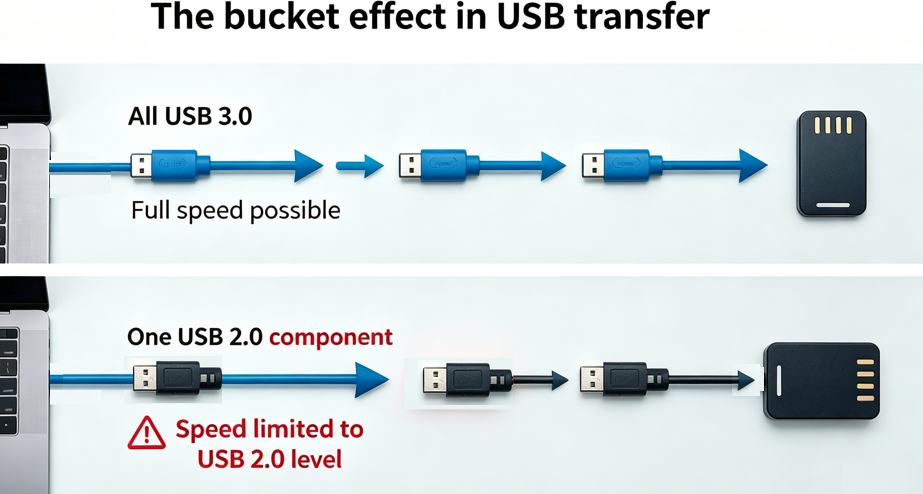
Rule: Your actual transfer speed is determined by the slowest link in the entire chain: computer port + cable + storage device.
- USB 3.0 device + USB 2.0 port = downgrade to USB 2.0 speed
- USB 2.0 device + USB 3.0 port = still USB 2.0 speed
Only way to get full 3.0 speed: Port, cable, and drive all support USB 3.0.
Typical mistake: High-speed SSD + USB3.0 computer port but paired with an old USB2.0 cable results in slow speed and wasted hardware performance.
6. USB 2.0 vs USB 3.0 Full Specification Comparison
| Specification | USB 2.0 | USB 3.0 |
|---|---|---|
| Release Year | 2000 | 2008 |
| Max Theoretical Speed | 480Mbps | 5Gbps (10x faster) |
| Real-World Speed | 30–40MB/s | 300–450MB/s |
| Transfer Mode | Half-Duplex (One-way) | Full-Duplex (Two-way simultaneous) |
| Max Current | 500mA | 900mA (nearly double) |
| Port Color | Black / White | Blue |
| Pins | 4Pin | 9Pin |
| Logo | No special logo | SS SuperSpeed logo |
| Compatibility | Basic peripherals | Backward compatible with USB 2.0 |
7. Pros, Cons & Best Use Cases
7.1 USB 2.0 (Best for Cost-Efficiency)
Best devices: Keyboard, mouse, USB receiver, U-key, printer, scanner, earphones, smart bands
Best scenarios: Office work, small file transfer, simple charging, budget builds
Pros: Cheap, fully compatible, low power consumption, extremely stable
Cons: Very slow for large files, weak power delivery, cannot support high-speed external drives
7.2 USB 3.0 (Best for Efficiency & Creators)
Best devices: High-speed USB flash drive, portable SSD, 4K/8K camera, video capture card, high-speed docking station
Best users: Video editors, graphic designers, content creators, gamers, users who frequently back up large files
Pros: Ultra-fast speed, huge time savings, stable power supply, no hard drive disconnection
Cons: Slightly higher cost, limited compatibility with extremely old devices
8. Common FAQ & Misconceptions
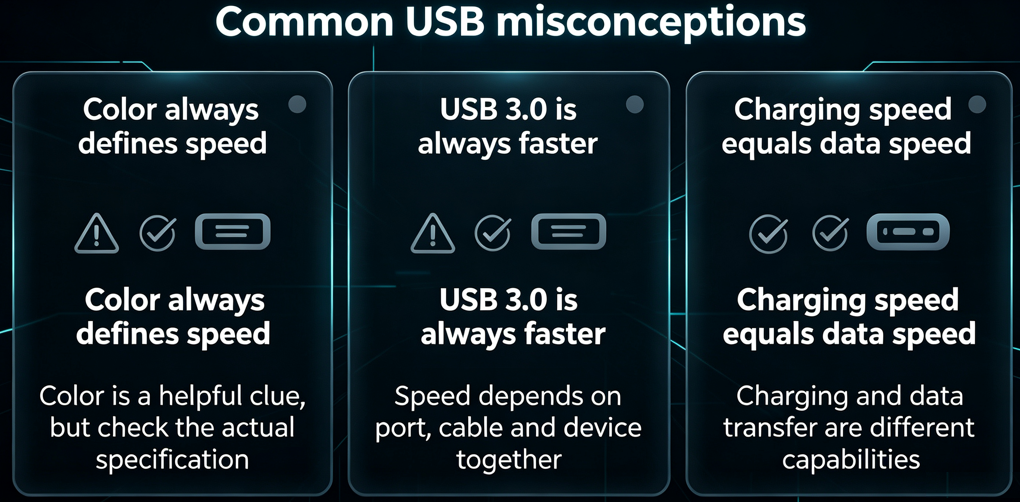
Q1: Are all blue ports USB 3.0?
A: 99% accurate with few exceptions on older laptops. The most reliable method: 9 pins + SS logo.
Q2: Can a USB3.0 cable speed up a USB2.0 port?
A: No. Speed is limited by the port version. High-quality cables will not upgrade old port speed.
Q3: Why can’t USB3.0 reach 500MB/s theoretical speed?
A: Theoretical speed is a lab peak value. Real speed is limited by SSD performance, cable quality, drivers, and file fragmentation.
Q4: What is the difference between Type-C and USB3.0?
A: Type-C = port shape; USB3.0 = data transfer protocol. A Type-C port can be USB2.0, USB3.0, or USB4 speed despite looking identical.
Q5: Do I need USB3.0 for phone charging?
A: Minimal difference for regular phones and earbuds. USB3.0 is mainly beneficial for stable power on external hard drives and high-power devices.
Q6: USB3.2 vs USB3.0 — what’s new?
A: USB3.2 Gen1 = renamed USB3.0 with zero upgrades. USB3.2 Gen2 doubles speed to 10Gbps only for professional high-end SSDs.
9. Final Summary & Buying Guide
9.1 Core Takeaway
The essential gap between USB2.0 and USB3.0 is speed and power delivery. Choose USB2.0 for basic daily use and USB3.0 for large files and high-efficiency tasks.
9.2 User Recommendations
Students & Office Users: USB2.0 is fully enough for keyboards, small documents, and daily charging.
Editors, Designers & Creators: Must use full USB3.0 setup for media assets and large file backups.
9.3 Cable Buying Tips
For high-speed transmission, look for: USB3.0, 5Gbps, SS logo. Avoid no-brand cheap cables to prevent speed limitation and wasted device performance.
9.4 Future Outlook
USB3.2 and USB4 are gradually becoming mainstream, but USB3.0 still satisfies most user needs for many years. There is no need to blindly pursue the newest standard for ordinary daily use.
10. Closing & Discussion
Do you use USB 2.0 or 3.0 devices? Have you ever suffered from slow transfer speeds or random hard drive disconnection? Feel free to share your device experience in the comments!
#USB2.0 #USB3.0 #ComputerTips #TechGuide #DeviceBuyingGuide #TechAvoidScam