
Introduction
Why USB-C Video Is So Confusing
A USB-C port on one laptop may connect to a crisp 4K monitor, while another identical-looking USB-C port on a different device may only charge your phone. The reason is simple: USB-C describes the shape of the connector, not the functions built inside it.
This inconsistency is the source of nearly all USB-C video confusion. Many users encounter unexpected resolution limits, refresh rate drops, or failed monitor connections, and most of the time the issue is not broken hardware — it is mismatched capabilities across the connection chain.
This guide explains how USB-C video works, why identical-looking USB-C connections can behave very differently, and how protocols, cables, and displays interact to deliver the final image. It breaks down technical concepts in plain language to help you understand what to expect from any USB-C vi
1. USB-C Video Basics
1.1 USB-C Looks the Same, But Its Capabilities Are Different
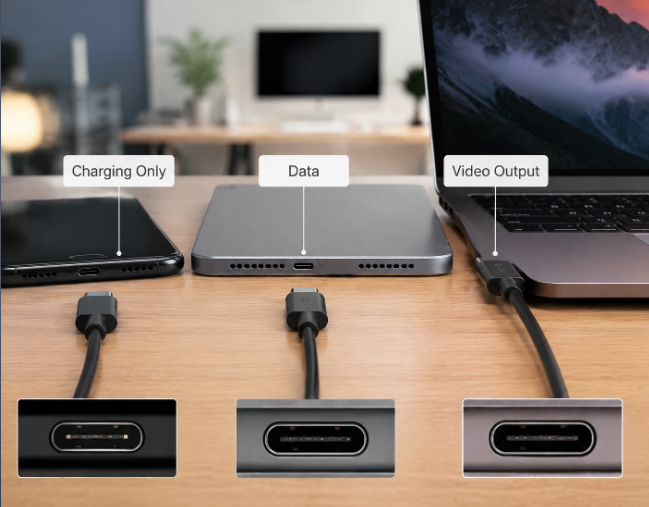
The compact, reversible USB-C shape has become nearly universal across laptops, phones, and accessories — but its appearance tells you almost nothing about what it can do.
Every USB-C connector uses a 24-pin physical design, but manufacturers decide which functions and protocols are actually implemented based on cost, power consumption, and product positioning. This flexible design allows the same connector to be used across everything from budget chargers to high-performance laptops, while keeping manufacturing and user experience consistent.
A cheap charging-focused cable has the exact same plug shape as a high-speed 40Gbps video cable, and many budget devices include USB-C ports that cannot connect to a monitor at all.
There are three common capability levels for USB-C ports:
- Charge-only ports: Only deliver power, with no high-speed data or video support
- Data-focused ports: Support USB file transfers but may have limited or no video output
- Full-featured ports: Support charging, data transfer, and video output simultaneously
1.2 How USB-C Carries Video Signals
USB-C transmits video through a technology called Alternate Mode (Alt Mode).
In simple terms, USB-C can use the same physical connection for different jobs. Alt Mode allows some of those wires to carry video signals instead of regular USB data. Instead of designing a completely new video connector, the Alt Mode standard leverages the existing USB-C physical design to carry established video protocols like DisplayPort, reducing industry fragmentation and manufacturing costs.
Think of USB-C as a highway: the connector is the shape of the road, while internal protocols determine what kinds of “vehicles” (signals) can travel on it.
- DisplayPort Alt Mode: The most common method used by laptops with USB-C video output. It delivers native DisplayPort video directly from your device’s graphics processor.
- HDMI Alt Mode: A once-proposed standard that is rarely implemented in modern devices. Almost all USB-C to HDMI connections use built-in adapter chips rather than native HDMI Alt Mode.
1.3 Three Ways USB-C Delivers Video
| Method | Most Common Use Case | How It Works |
|---|---|---|
| DisplayPort Alt Mode | Direct laptop-to-monitor connections | Sends native DisplayPort signal directly over USB-C pins with near-zero latency |
| USB4 / Thunderbolt | Docking stations and multi-monitor setups | Wraps video, data, and power into one high-speed tunneled connection |
| Adapter conversion | Connecting to HDMI displays and older monitors | Converts native DisplayPort signal to HDMI or other formats inside the adapter |
1.4 How Video Travels From Your Laptop to Your Monitor
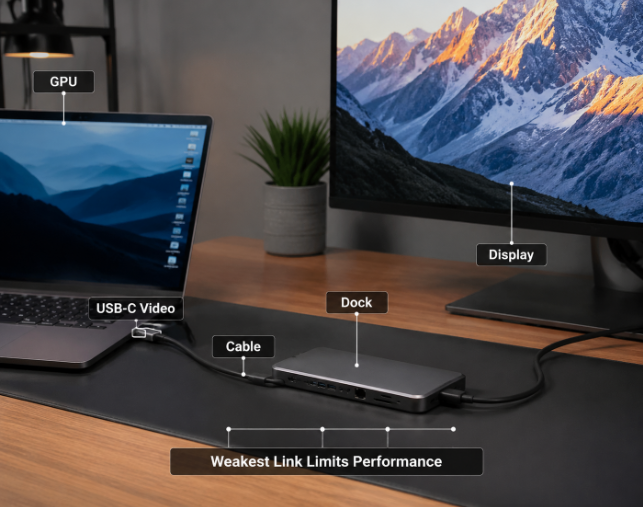
Many users assume video travels directly from their USB-C port to their monitor. In reality, the signal passes through multiple stages, and the weakest link in this chain determines your final video quality.
The full transmission path looks like this:
- Your graphics processor (GPU) generates the image data for your display
- The signal passes through a USB-C controller or multiplexer chip inside your device
- The chip switches the port’s pins into video mode (Alt Mode or tunneling)
- The signal travels through the USB-C cable
- If using a dock or adapter, the signal passes through additional controller chips
- The display’s input panel receives and processes the final signal
This is why even if your cable and monitor support 4K 120Hz, a low-end GPU or controller inside your laptop can limit you to lower specs.
The Weakest Link Rule
This is the single most important principle of USB-C video:
Your final video performance equals the capability of the weakest component in the entire chain.
For example:
- Your laptop supports 4K 120Hz via DP 1.4
- But you use an old USB 2.0 charging-focused cable
- And your dock only supports HDMI 1.4 (4K 30Hz max)
- Result: You will only get 4K 30Hz, no matter how powerful your laptop is.
1.5 How to Tell If Your USB-C Port Supports Video
You can often estimate a port’s capabilities by the logos printed next to it:
- A DisplayPort (DP) logo means the port supports DisplayPort Alt Mode
- A lightning bolt logo means it supports Thunderbolt (and includes video capabilities)
- A USB4 logo indicates high-speed tunneling support with video capabilities
However, many manufacturers do not label USB-C ports clearly, so checking official specifications is still the most reliable method.
To confirm for sure:
- Search your exact device model’s official technical spec sheet for “DisplayPort Alt Mode” or “video output”
- On Windows: Use the System Information tool or Device Manager to check your GPU and USB controller capabilities
- On macOS: Go to About This Mac → System Report → USB / Thunderbolt to see detailed port capabilities
2. What Determines USB-C Video Performance?
2.1 DisplayPort Alt Mode: The Core of USB-C Video
DisplayPort Alt Mode is the foundation of nearly all USB-C video setups. Its performance depends on which version of DisplayPort is implemented, and how many data lanes are assigned to carry video.
What Each DisplayPort Version Supports
| Standard | Typical Use Case | Real-World Capability |
|---|---|---|
| DP 1.2 | Basic 4K office and media setups | Can support 4K 60Hz under standard 8-bit color configurations; dual 1080p monitors |
| DP 1.4 | High-refresh 4K and entry-level 8K | 4K 120Hz+ with DSC support; entry-level 8K displays |
| DP 2.1 | High-end professional and gaming displays | Uncompressed 8K 60Hz with full HDR; 4K at 240Hz and beyond |
Lane Allocation: How Signal Paths Affect Bandwidth
USB-C has four high-speed signal pairs, called lanes. Think of lanes like highway lanes — more lanes allow more video data to travel at the same time.
In Alt Mode, these lanes can be split between video and USB data:
- 4-lane configuration: All four lanes carry video. This gives maximum video bandwidth but leaves no lanes for USB 3.x data transfer (basic USB 2.0 still works).
- 2-lane configuration: Two lanes carry video, and two lanes carry USB 3.x data. This cuts video bandwidth in half but allows simultaneous high-speed data transfers.
Many budget docks and adapters use 2-lane configurations, which is why they often cap out at 4K 30Hz even if your laptop supports higher specs.
2.2 USB4 vs Thunderbolt 4: How They Compare
USB4 and Thunderbolt both use a “tunneling” architecture that wraps video, data, and other signals into one high-speed link. This architecture is what makes single-cable docking stations possible.
They share the same physical connector, but there are important differences in implementation and consistency:
| USB4 | Thunderbolt 4 | |
|---|---|---|
| Maximum speed | Up to 40Gbps for common implementations (higher speeds exist with USB4 Version 2.0) | 40Gbps guaranteed on all certified ports |
| Certification | Optional for manufacturers | Required for all official Thunderbolt 4 products |
| Performance consistency | Varies widely between devices | Strict minimum performance standards on all certified gear |
| Docking capability | Good on high-end implementations | Excellent and consistent across all certified docks |
| Video capability | Depends on manufacturer design | Guaranteed dual 4K 60Hz support minimum when used with a compatible Thunderbolt 4 host, dock, and displays |
The key takeaway: Thunderbolt 4 offers more consistent, predictable performance because of its mandatory certification requirements. USB4 can deliver equivalent performance on premium devices, but capabilities vary more across products.
2.3 How DSC Enables Higher Resolution and Refresh Rates
Display Stream Compression (DSC) is a standard technology that dramatically reduces the bandwidth needed for high-resolution video — without visible image quality loss for most users.
DSC compresses video data in real time so displays can receive more information through limited bandwidth. It uses an algorithm optimized for human vision, removing visual redundancy that your eyes cannot perceive. The compression and decompression happen instantly, adding extremely small latency that is usually unnoticeable in normal use.
The industry defines DSC as visually lossless, meaning under normal viewing conditions, the average person cannot tell the difference between compressed and uncompressed video.
Real-World Performance Impact
DSC makes otherwise unachievable specs practical on existing hardware:
- Without DSC: DP 1.4 tops out at basic 8K 30Hz uncompressed
- With DSC: DP 1.4 can deliver smooth 8K 60Hz with 10-bit HDR
- For gaming: DSC enables 4K 144Hz over interfaces that would otherwise be limited to 60Hz
For professional color-critical work, uncompressed signal may be preferred, but for gaming, office work, and media consumption, DSC is effectively transparent to the user.
3. Understanding 4K, 8K, and Refresh Rate Requirements
3.1 The Simple Rule of Video Bandwidth
Think of video bandwidth like a water pipe. The more image data you try to send every second, the wider the pipe needs to be.
Four factors increase how much bandwidth a video signal needs:
- Higher resolution (more pixels per frame)
- Higher refresh rate (more frames per second)
- HDR and higher color depth (more color data per pixel)
- Full chroma color sampling (full color detail per pixel)
Higher values in any of these categories mean more bandwidth is required. If your connection does not have enough bandwidth, your display will drop resolution, lower its refresh rate, or disable HDR to compensate.
3.2 Key Factors That Affect Bandwidth Needs
- Resolution: More pixels = more data. Jumping from 1080p to 4K quadruples the pixel count and roughly quadruples bandwidth requirements.
- Refresh rate: More frames per second = more data per second. 120Hz requires roughly twice the bandwidth of 60Hz at the same resolution.
- Color depth:
- 8-bit: Standard color for most office and media use
- 10-bit: Required for HDR and professional color work; increases bandwidth needs by ~25%
- Chroma subsampling:
- 4:4:4: Full color detail. Best for reading text, desktop use, and graphic design.
- 4:2:2: Reduced color detail. Good for video content; text may look slightly softer.
For office work, 4:4:4 matters because text looks noticeably sharper. For movies and streaming, reduced chroma is usually completely unnoticeable.
3.3 Common Display Spec Bandwidth Reference
Below are approximate uncompressed bandwidth requirements for common display configurations (standard 8-bit full-color settings):
| Display Spec | Approximate Bandwidth Demand | Typical Use Case |
|---|---|---|
| 1080p 60Hz | Very low | Basic office, media streaming |
| 1440p 144Hz | Medium | Mainstream gaming |
| 4K 60Hz | High | Office productivity, media |
| 4K 120Hz | Very high | High-end gaming, creative work |
| 8K 60Hz | Extremely high | Professional editing, flagship displays |
Ultrawide note: 21:9 and 32:9 ultrawide displays have more horizontal pixels than standard 16:9 screens. A 3440×1440 ultrawide at 144Hz needs roughly 50% more bandwidth than a standard 2560×1440 144Hz screen.
3.4 Clear Signs of Insufficient Bandwidth
If your setup is bandwidth-limited, you will typically see these symptoms:
- Your display defaults to a lower resolution than its advertised maximum
- You cannot select the advertised refresh rate (e.g., stuck at 30Hz on a 60Hz panel)
- HDR or deep color options are grayed out and unavailable
- You experience screen flickering, random blackouts, or washed-out colors
- Adding a second monitor causes the first monitor’s specs to automatically drop
4. Understanding USB-C Cables, Adapters, and Docks
4.1 Common Misconceptions About USB-C Cables
Cables are the most overlooked factor in USB-C video performance. Below are three widespread misunderstandings about how cables affect video:
Misconception 1: All USB-C cables can carry video
Many charging-focused USB-C cables only support USB 2.0 data speeds, which may not be enough for high-bandwidth video. They will charge your laptop perfectly but cannot carry high-resolution video signals. Video capability depends on the internal wiring and shielding of the cable, not just the connector shape.
Misconception 2: A “40Gbps” label guarantees full video performance
A 40Gbps data rating does not guarantee full video performance. Some cables are rated for 40Gbps USB data but do not properly support DisplayPort Alt Mode signaling. Explicit video or DisplayPort Alt Mode support is a separate consideration from raw data speed.
Misconception 3: Cable length does not affect performance
High-bandwidth signals degrade over distance. A cable that works perfectly at 0.5 meters may drop to lower speeds at longer lengths. For very long high-bandwidth connections (especially above 2–3 meters), active or optical cables provide more reliable performance.
4.2 USB-C Cable Labels Explained
Cable packaging uses different labels that describe very different performance characteristics:
| Label | What It Means | Video Capability |
|---|---|---|
| USB 2.0 | Basic charging and low-speed data only | Usually not sufficient for high-resolution video |
| USB 3.2 10Gbps | Improved data transfer speed | Usually supports basic 4K 60Hz video |
| USB4 40Gbps | High-speed data tunneling | Supports high-resolution, high-refresh video |
| Thunderbolt 4 | Certified high all-around performance | Guaranteed high-bandwidth video and docking |
Other key cable details:
- E-Marker chip: USB-C cables that support high-power charging above 3A or high-speed USB4/Thunderbolt operation require an E-Marker chip. This small chip communicates the cable’s capabilities to your device.
- Passive vs active cables:
- Passive cables: No built-in electronics. Low cost, minimal latency, but best for shorter lengths at high speeds.
- Active cables: Include signal booster chips. Maintain reliable performance at longer lengths but cost slightly more.
4.3 How Cable Specs Relate to Video Performance
Higher-spec cables support more bandwidth, which enables higher resolutions and refresh rates. For general use:
- Basic 1080p or 1440p 60Hz video works with most full-featured USB-C cables
- 4K 60Hz requires cables rated for at least 10Gbps data speed with Alt Mode support
- 4K 120Hz or 8K requires 20Gbps+ high-bandwidth cables or certified USB4/Thunderbolt cables, often with DSC support
Length also plays a role:
- Under 1m: Passive cables work reliably for all speed grades
- 1–2m: Most high-quality passive cables maintain 20Gbps+ performance
- Over 2m: Active or officially certified cables generally deliver more stable high-bandwidth performance
4.4 How Adapters Change Video Signals
- USB-C to DisplayPort adapters: Generally pass native Alt Mode signals with almost no overhead. They typically preserve the full performance of your port.
- USB-C to HDMI adapters: Performance depends entirely on the adapter’s internal HDMI controller chip. Many low-cost adapters only support HDMI 1.4 (max 4K 30Hz) even if your port can do much more. Higher-end adapters support HDMI 2.0 or 2.1 for higher resolutions and refresh rates.
DisplayPort connections generally offer more consistent USB-C video performance than HDMI adapters, since they use the native Alt Mode standard built into most full-featured ports.
4.5 How Docks Affect Video Bandwidth
Docks let you connect monitors, USB devices, Ethernet, and charging all through one USB-C cable — but they share the total upstream bandwidth across all their ports. The more peripherals are in use, the less bandwidth remains for video.
Performance differences by use case:
- Office productivity docks: Basic USB-C docks typically work well for 4K 60Hz office use, though budget models may use 2-lane video configurations that limit refresh rates.
- Gaming setups: Direct cable connections generally deliver more consistent performance than docks, since bandwidth sharing and extra processing can affect refresh rate stability.
- Professional workstations: Thunderbolt 4 docks typically provide the most consistent high-resolution video performance alongside high-speed peripheral support.
DisplayLink vs Native Video Docks
Most budget multi-monitor docks use DisplayLink technology. Instead of passing native GPU video, DisplayLink compresses video into USB data packets and decompresses them inside the dock.
- How it differs: It bypasses native GPU display output limits, allowing more monitors than your hardware would natively support
- Tradeoffs: It requires driver software, uses extra system resources, and adds small amounts of latency
DisplayLink works well for general office multi-monitor setups. For low-latency or color-critical use, native video docks are the standard.
4.6 Checking USB-C Video Compatibility
You can use this list to verify whether components will work together for your desired display setup:
- ✅ My USB-C port supports video output (DP Alt Mode, Thunderbolt, or USB4)
- ✅ The cable supports the required bandwidth and video protocol
- ✅ Any adapter or dock in the chain supports my target resolution and refresh rate
- ✅ My monitor’s input port supports the target video specs
- ✅ I have accounted for bandwidth sharing when using a multi-function dock
5. Common USB-C Video Usage Scenarios
5.1 Office and Remote Work
Typical configuration:
- Laptop with USB-C video output
- 4K 60Hz external monitor
- USB-C cable or basic docking station
- Keyboard, mouse, and basic peripherals
Important technical factors:
- 4K 60Hz is achievable on most full-featured USB-C ports with DP 1.2 or better
- Docks with 2-lane video configurations may drop to 4K 30Hz when USB 3.x peripherals are connected
- Full 4:4:4 chroma sampling is important for sharp text in desktop work
5.2 Gaming Setups
Typical configuration:
- Gaming laptop with DP 1.4 or better video output
- High-refresh 1440p or 4K display
- Direct cable connection (no dock) for maximum bandwidth
- DSC support for highest refresh rates
Important technical factors:
- High refresh rates require significantly more bandwidth than standard 60Hz
- DSC enables higher refresh rates with no perceptible quality loss for most gamers
- Docks introduce bandwidth sharing that can reduce refresh rate consistency
5.3 Creative and Professional Work
Typical configuration:
- Thunderbolt 4 or high-end USB4 40Gbps port
- 5K/6K or 4K HDR professional display
- 10-bit color and full chroma sampling support
- Peripherals and storage connected via a Thunderbolt dock
Important technical factors:
- Professional color work requires 10-bit color depth, which increases bandwidth needs
- 5K and 6K displays typically rely on Thunderbolt tunneling to carry the high-bandwidth signal alongside USB hub functions
- Workflows with strict color accuracy requirements may prefer uncompressed signal over DSC
5.4 Multi-Monitor Configurations
Typical configuration:
- Thunderbolt 3/4 port or high-end USB4 port
- Two or more external displays
- Docking station or daisy-chained monitors
Important technical factors:
- Native multi-monitor setups share total video bandwidth across all displays
- Adding a second monitor roughly halves the bandwidth available to each display
- DisplayLink technology can support more monitors by using data compression instead of native video output
5.5 Mobile Device External Displays
Typical configuration:
- Flagship phone, tablet, or handheld gaming console
- External TV or monitor
- Full-featured USB-C cable
Important technical factors:
- Most flagship mobile devices with USB-C support DisplayPort Alt Mode, typically up to 4K 60Hz
- Docked mode performance is limited by the mobile device’s internal graphics hardware
- Handheld consoles generally output up to 1080p or 4K 60Hz, matching their internal rendering capabilities
6. Why USB-C Monitor Setups Fail
Below are the most common USB-C video issues, ordered from most frequent to least frequent. All can be explained by the weakest link principle and the structure of the USB-C video chain.
Always investigate causes in this order for fastest understanding:
- USB-C port video capability
- Cable specification and condition
- Adapter or dock limitations
- Monitor input settings
- Driver and firmware behavior
6.1 No Signal / No Picture at All
This is the most commonly reported issue. It usually occurs for one of these reasons:
- The USB-C port in use does not support video output (charge-only or data-only port)
- The cable does not support high-bandwidth video signals
- The monitor is set to the wrong input source
- The cable is loose, damaged, or not making full contact
- Outdated GPU drivers or system firmware prevent Alt Mode negotiation
6.2 4K Display Stuck at 30Hz
This is one of the most widely reported USB-C video problems. It almost always traces back to one of three causes:
- The dock or adapter uses a 2-lane video configuration, splitting bandwidth with USB 3.x data
- A low-cost HDMI 1.4 adapter is in use, which has a 4K 30Hz maximum
- The port is configured to prioritize USB data speed over video bandwidth
6.3 Cannot Reach the Advertised Refresh Rate
If a monitor’s advertised refresh rate is not available as an option, common causes include:
- The USB-C port or cable does not provide enough bandwidth for the target refresh rate
- The monitor’s input port being used has lower specs than other ports on the same display
- DSC is not enabled, and the uncompressed signal exceeds available bandwidth
- Other peripherals on the same dock are using bandwidth that would otherwise go to video
- An HDMI adapter is limiting refresh rate below what DisplayPort could achieve
6.4 Second Monitor Reduces First Monitor Performance
This is expected behavior for native video setups. Multi-monitor configurations share the total available video bandwidth across all connected displays. Adding a second monitor roughly halves the bandwidth available to each display, which can reduce maximum resolution or refresh rate.
This effect is less noticeable on high-bandwidth Thunderbolt 4 connections, and can also be worked around using DisplayLink technology for additional displays.
6.5 Charging Works But No Video
This extremely common issue almost always has one of three root causes:
- The cable is charging-focused and lacks the high-speed wires needed for video (the most frequent cause)
- The USB-C port being used only supports charging, not video output
- Alt Mode negotiation between the device and display failed; re-plugging the cable or restarting the device usually resolves this
6.6 Screen Flickering, Artifacts, or Random Blackouts
These symptoms are almost always related to signal quality degradation:
- Long or low-quality cables are the single most common cause, as high-bandwidth signals degrade over distance
- Loose connectors or damaged cable ends can cause intermittent signal drops
- Docks or adapters can introduce signal processing issues
- Outdated GPU drivers or monitor firmware can cause handshake errors
- Running high-bandwidth USB devices on the same dock as a display can cause interference or bandwidth starvation
6.7 Five Common Myths Debunked
- Myth: All USB-C ports support video output
Fact: Many ports are charge-only or data-only. Capabilities depend entirely on manufacturer implementation. - Myth: USB4 always delivers better video performance than DP Alt Mode
Fact: USB4 is a transport architecture, not a video standard. Low-end USB4 implementations can have weaker video capabilities than a solid DP 1.4 Alt Mode port. - Myth: A 40Gbps cable guarantees 4K 120Hz
Fact: 40Gbps describes data speed. Video performance depends on DisplayPort Alt Mode support and lane configuration. - Myth: Adapters do not affect video performance
Fact: Almost all adapters introduce limitations. Low-cost HDMI adapters are especially common bottlenecks. - Myth: Poor display quality always means insufficient bandwidth
Fact: Driver bugs, incorrect EDID data, faulty cables, and wrong settings all produce symptoms that look like bandwidth problems. Systematic troubleshooting is needed to identify the real cause.
7. Future USB-C Video Technology Developments
USB-C video technology continues to evolve, delivering higher resolutions and refresh rates using the same familiar connector shape. These upcoming standards will expand what the USB-C form factor can do, as device manufacturers adopt newer protocols.
DisplayPort 2.1 UHBR
DisplayPort 2.1 with Ultra High Bit Rate delivers nearly triple the effective bandwidth of DP 1.4. It enables uncompressed 8K 60Hz with full 10-bit HDR, and supports 4K at refresh rates up to 240Hz and beyond without compression. It is currently rolling out on premium graphics cards and high-end displays.
Thunderbolt 5
Thunderbolt 5 brings 80Gbps symmetric and 120Gbps asymmetric performance to the certified Thunderbolt ecosystem. It will enable professional setups like dual 8K displays and high-refresh multi-monitor gaming configurations. It is currently launching on premium professional platforms and will gradually become more mainstream over the next 2–3 years.
Context for Upcoming Standards
The same USB-C physical connector will remain compatible with these future protocols, meaning the cable shape users are familiar with will continue to support higher performance as devices and accessories are updated. This backward compatibility is one of the core design strengths of the USB-C ecosystem.
Frequently Asked Questions (FAQ)
Can every USB-C laptop connect to a monitor?
No. Some budget laptops include USB-C ports only for charging and data transfer, with no video output capability. Always check your device’s official specifications for DisplayPort Alt Mode or Thunderbolt support to confirm.
Is USB-C better than HDMI for video?
It depends on use case. USB-C is more versatile, as it can carry video, data, and power all in one cable, which is very convenient for laptops and docking. For fixed desktop setups, dedicated HDMI or DisplayPort ports are simpler and avoid compatibility confusion. USB-C offers more functionality; dedicated video ports offer simpler, more predictable performance.
Why does my 4K monitor only run at 30Hz over USB-C?
This is almost always caused by a 2-lane video configuration where half the bandwidth is reserved for USB data, or by a low-cost HDMI 1.4 adapter. 4-lane DisplayPort Alt Mode connections or Thunderbolt docks generally resolve this issue.
Why do different USB-C cables support different video capabilities?
Video performance depends on internal wiring, shielding, and built-in electronics. Charging-focused cables may only include power and basic USB 2.0 data wires, while high-bandwidth video cables include multiple shielded high-speed data pairs, E-Marker identification chips, and better shielding to carry high-frequency video signals without interference.
Do I need Thunderbolt for a 4K monitor?
No. Basic 4K 60Hz works perfectly well over standard DisplayPort Alt Mode on any full-featured USB-C port. Thunderbolt is primarily useful for multi-monitor 4K setups, high-refresh 4K gaming, or single-cable docks with many high-speed peripherals.
Can USB-C run two 4K monitors?
Yes, with a Thunderbolt 3/4 port or high-end USB4 40Gbps port with multi-stream support. Thunderbolt 4 guarantees dual 4K 60Hz as part of its certification requirements when used with compatible hardware. On basic DP Alt Mode ports, dual 4K is usually not supported natively, but can be achieved with DisplayLink technology.
Does DSC compression reduce image quality?
For the vast majority of users and content, no. DSC is defined as visually lossless by industry standards, meaning the average viewer under normal conditions cannot tell compressed and uncompressed video apart. Only very specialized color-critical professional work may require uncompressed signal.
How do I check what video specs my USB-C port supports?
The most reliable method is to look up your exact device model’s official technical specifications from the manufacturer. On Windows, you can use system information tools to inspect your USB controller and GPU capabilities. On macOS, the System Report under About This Mac shows detailed Thunderbolt/USB port information.
Summary
Core Principles of USB-C Video
- The connector shape tells you nothing: USB-C is just a physical form factor. Video capability depends entirely on the internal protocol and manufacturer implementation.
- The weakest link sets the limit: Final video quality is determined by the slowest component in the entire chain — GPU, controller, cable, adapter, dock, and display all play a role.
- DSC expands practical performance: For almost all use cases, visually lossless compression delivers much higher effective performance with no meaningful quality tradeoff for typical viewers.
- Cables have a larger impact than most people realize: A low-spec charging-focused cable can severely limit video performance even on premium hardware.
Practical Understanding of USB-C Video
For everyday use, the most important thing to understand is that USB-C is not a single uniform standard — it is a connector shape that can host many different protocols and capability levels. Two identical-looking ports or cables may have very different video performance.
For high-resolution and high-refresh setups, performance depends on the combined capability of every device in the signal chain, not just the fastest or most expensive component.
Final Takeaway
USB-C’s unified physical design brings enormous convenience, but it also creates confusion because users cannot see the internal differences between ports and cables. By understanding the transmission chain and the weakest link principle, you can predict how any USB-C video setup will perform, and understand why common display issues occur.