
1. Introduction: The Connection Revolution That Changed the World
1.1 Common USB Confusions for Everyday Users
We all face frustrating USB problems in daily life. Copying the same video file takes a few seconds on one USB drive but more than ten minutes on another. Even though all modern phones and laptops use the Type-C port, their transfer speeds can differ by nearly 100 times.
The biggest trap lies in messy USB naming rules. Most ordinary users cannot tell the difference between USB 2.0, 3.0, 3.1, 3.2 and USB4. Merchants often rename old standards as new versions to mislead buyers, causing unnecessary losses.
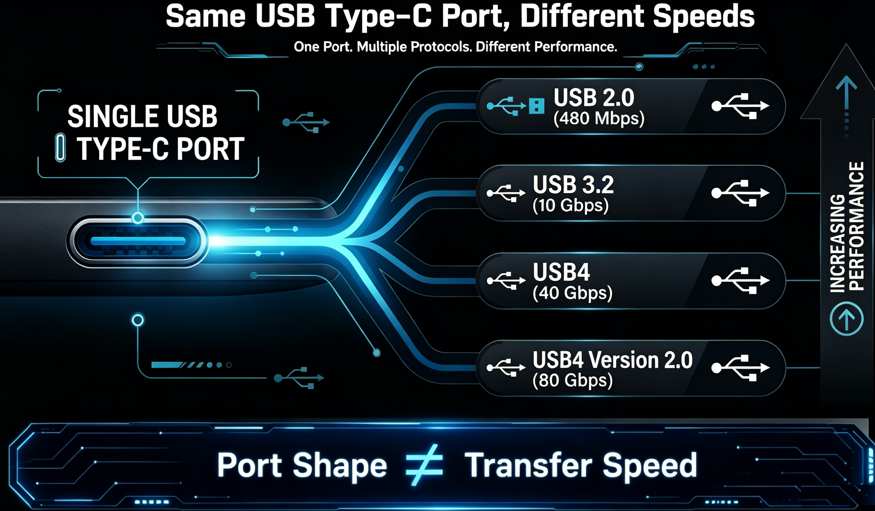
The most critical truth: The same Type-C port does not mean the same speed. Port appearance has nothing to do with data transfer performance.
1.2 The Historical Status of USB
Before USB was invented in the 1990s, computer interfaces were extremely chaotic. Old desktops were equipped with dozens of incompatible ports for keyboards, mice, printers and scanners. Each device needed a unique port, which was complicated and inefficient.
At the end of 1994, tech giants including Intel, Microsoft and IBM jointly proposed the USB standard. Its core goal was simple: one unified interface for all peripheral devices, plug and play, no complicated settings.
Since its official launch in 1996, USB has become the most popular hardware interface standard worldwide, completely revolutionizing digital device connections.
1.3 Value of This Guide
This article explains the full 30-year evolution of USB speed standards in plain language, without professional jargon. You will understand the upgrades, differences and applicable scenarios of each USB version, avoid shopping traps, and make smarter choices when buying USB cables, flash drives and docking stations.
2. Basic USB Knowledge for Beginners
2.1 What Is USB? Who Makes the Rules?
USB (Universal Serial Bus) is a universal standard for data transmission and power supply between electronic devices. All USB specifications are formulated and certified by the USB Implementers Forum (USB-IF) to ensure global compatibility.
2.2 Core Concept: Port Shape ≠ Transfer Speed
This is the most important knowledge for all users. USB has two independent attributes:
1. Physical port shape: Type-A, Type-C, Micro USB, Mini USB — only decides whether the plug fits;
2. Transmission protocol: USB 2.0, 3.0, USB4 — only this decides the actual speed.
In short: A Type-C port may support slow USB 2.0 speed or ultra-fast USB4 speed. Never judge performance by appearance.
2.3 Speed Unit Conversion & Actual Performance
1 Byte = 8 bit. Manufacturers mark speeds in Mbps, while we measure file sizes in MB/s.
Note: All official USB speeds are theoretical maximum values. Due to protocol loss and system limitations, actual speed is only 60%-80% of the nominal speed, which is normal.
2.4 Half-Duplex vs Full-Duplex
– Half-duplex (USB 2.0 and earlier): Data can only be sent or received at one time, low efficiency;
– Full-duplex (USB 3.0 and later): Simultaneous upload and download, double the transmission efficiency.
3. Full Evolution of USB Transfer Speeds
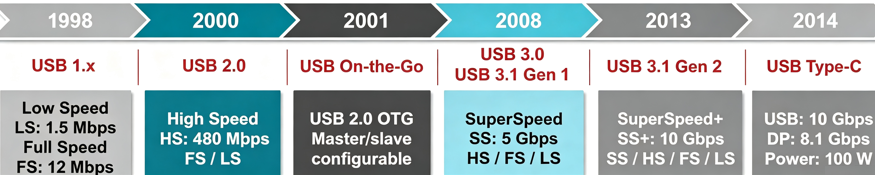
3.1 Founding Era: USB 1.0 / 1.1 (1996-1998)
The first generation of USB solved the problem of interface unity, but the speed was extremely slow by modern standards.
– USB 1.0 (1996): 1.5Mbps, actual speed 0.19MB/s;
– USB 1.1 (1998): 12Mbps, actual speed 1.5MB/s;
– Power supply: 5V/500mA, only for low-power devices like keyboards and mice.
Significance: Ended the chaotic interface era and realized unified peripheral connection for the first time.
3.2 Classic Popular Version: USB 2.0 (2000)
USB 2.0 is the longest-serving USB standard, dominating the market for 20 years and still widely used today.
– Speed: 480Mbps (theoretical 60MB/s), actual 30-35MB/s, 40 times faster than USB 1.1;
– Half-duplex transmission, no fast charging support;
– Added OTG function, allowing mobile phones to connect USB drives and keyboards directly.
It is still the standard for most cheap charging cables, keyboards and mice, sufficient for daily basic use but not for large file transmission.
3.3 High-Speed Upgrade: USB 3.0 (2008)
USB 3.0 officially brought USB into the high-speed era, with a 10-fold speed improvement over USB 2.0.
– Speed: 5Gbps, actual stable speed about 400MB/s;
– Full-duplex simultaneous upload and download;
– Blue internal port with 9 pins for physical identification;
– Upgraded power supply: 5V/900mA, enough for mobile hard drives and high-definition cameras;
– Lower power consumption in idle state.
3.4 Confusing Naming Era: USB 3.1 / 3.2 (2013-2017)
Frequent official renaming caused huge consumer confusion. Here is the clear one-to-one correspondence:
– Old USB 3.0 = USB 3.1 Gen1 = USB 3.2 Gen1, fixed speed: 5Gbps;
– USB 3.1 Gen2 = USB 3.2 Gen2, speed: 10Gbps;
– USB 3.2 Gen2×2, dual-channel speed: 20Gbps, only supports Type-C ports.
Shopping Tip: Ignore version numbers and Gen labels. Only check the specific speed value.
3.5 All-Round Integration: USB4 (2019)
Based on Thunderbolt 3 technology, USB4 realized the integration of data, video and power transmission, becoming a true all-in-one interface.
– Speed options: 20Gbps (basic) / 40Gbps (full speed);
– Only supports Type-C ports, backward compatible with all old USB standards;
– Supports DisplayPort video output and PCIe device expansion;
– Mandatory USB PD fast charging;
– Intelligent dynamic bandwidth allocation for different usage scenarios.
3.6 Latest Peak: USB4 Version 2.0 (2022)
The latest USB standard breaks the speed limit again:
– Symmetric mode: 80Gbps;
– Asymmetric mode: 120Gbps down / 40Gbps up, perfect for 8K/10K high-resolution display and ultra-large file transmission;
– Adopts new PAM3 modulation technology for higher transmission efficiency;
– Matches DisplayPort 2.1 and PCIe 4.0 for professional high-end devices.
4. USB Full Version Speed Comparison Table
| Version | Release Year | Theoretical Speed | Actual Speed | Transmission Mode | Core Feature |
|---|---|---|---|---|---|
| USB 1.0 | 1996 | 1.5Mbps | ~0.19MB/s | Half-Duplex | Original low-speed standard |
| USB 1.1 | 1998 | 12Mbps | ~1.5MB/s | Half-Duplex | First popular USB version |
| USB 2.0 | 2000 | 480Mbps | 30-35MB/s | Half-Duplex | Longest service life |
| USB 3.0 | 2008 | 5Gbps | ~400MB/s | Full-Duplex | Official high-speed start |
| USB 3.1 Gen2 | 2013 | 10Gbps | ~1.0GB/s | Full-Duplex | Low-loss encoding |
| USB 3.2 Gen2×2 | 2017 | 20Gbps | ~2.0GB/s | Dual Full-Duplex | Type-C exclusive |
| USB4 | 2019 | 20/40Gbps | ~4.0GB/s | Tunnel Transmission | Integrated Thunderbolt 3 |
| USB4 V2.0 | 2022 | 80/120Gbps | ~8.0GB/s | Tunnel Transmission | 8K/10K video support |
5. USB Port Types & Speed Limits
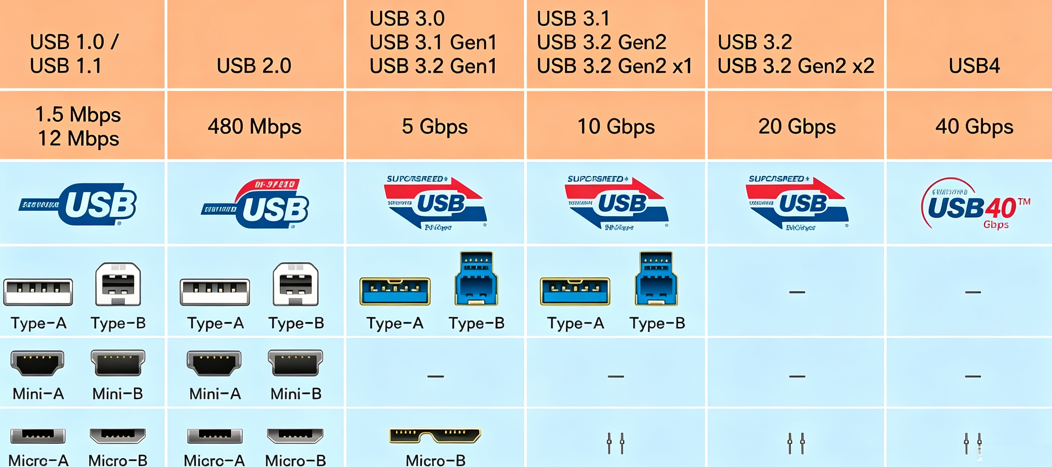
– USB-A: Max 10Gbps, widely compatible for computers and chargers;
– USB-B: Max 5Gbps, mainly for printers, gradually eliminated;
– Mini/Micro USB: Max 480Mbps (USB 2.0), old-generation ports, basically obsolete;
– Type-C: The only universal port, supports all USB speeds up to 120Gbps, the mainstream port for future devices.
6. Why Actual USB Speed Is Lower Than Nominal Speed
USB speed follows the barrel effect — the speed is determined by the worst link in the transmission chain:
1. Storage device performance: HDD < SATA SSD < NVMe SSD;
2. Cable specification: Most free charging cables only support USB 2.0;
3. Main controller and motherboard interface specifications;
4. File type: Bulk small files transmit much slower than single large files;
5. System load and cable signal attenuation.
7. Why USB Naming Is So Confusing
The confusing naming comes from repeated official renaming. To simplify consumer identification, USB-IF launched a new intuitive naming rule: cancel confusing Gen suffixes and use pure speed labels.
– 5Gbps, 10Gbps, 20Gbps, 40Gbps, 80Gbps
Golden Rule: Always trust the speed number, ignore version numbers.
8. USB4 vs Thunderbolt 4
Both technologies share the same origin, with different certification standards:
– USB4: Optional 20/40Gbps speed, loose certification, low cost, cost-effective for daily use;
– Thunderbolt 4: Mandatory 40Gbps full speed, stronger power supply, complete device expansion, strict certification, professional-grade performance.
Suggestion: Choose USB4 for daily office use; choose Thunderbolt 4 for video editing, external GPU and multi-monitor work.
9. USB Device Buying Guide for Ordinary Users
– Keyboards, mice, earphones: USB 2.0 is sufficient;
– Daily USB flash drives: 5Gbps (most cost-effective);
– Mobile hard drives & large file backup: 10Gbps;
– 4K video production: 20Gbps+;
– Professional creation & multi-device expansion: 40Gbps USB4 / Thunderbolt 4.
Note: Charging cables cannot replace high-speed data cables. Only certified high-speed cables support fast data transmission.
10. Future Trends of USB
1. Full popularization of USB4 on mainstream smartphones, laptops and tablets;
2. Gradual commercialization of USB4 V2.0 (80Gbps/120Gbps) for 8K video and high-end creation;
3. Optical fiber USB solves long-distance high-speed transmission attenuation problems;
4. USB PD 3.1 240W high-power supply supports gaming laptops and large displays;
5. High-speed USB interfaces become the standard for AI peripheral devices.
11. FAQ
Q: Is Type-C faster than USB-A? A: No. Speed depends on the protocol, not the port shape.
Q: Does all USB4 support 40Gbps? A: No. There are 20Gbps basic versions and 40Gbps full-speed versions.
Q: Why is the actual speed slower than the official data? A: Restricted by storage, cable, system and file types, which is normal.
Q: Are USB 3.0 and USB 3.1 Gen1 the same? A: Exactly the same, only renamed officially.
12. Conclusion
Over the past 30 years, USB has achieved a leap from 1.5Mbps to 120Gbps, with a speed increase of more than 50,000 times. It has evolved from a single data transmission interface to an all-round integrated solution for data, video and power supply.
For ordinary consumers, the core shopping principle never changes: ignore port appearance and version numbers, and only focus on the actual marked transmission speed.
13. Interactive Discussion
Have you ever been trapped by a slow Type-C port? What USB devices do you use most in daily life? Share your experience in the comments below!