
Introduction
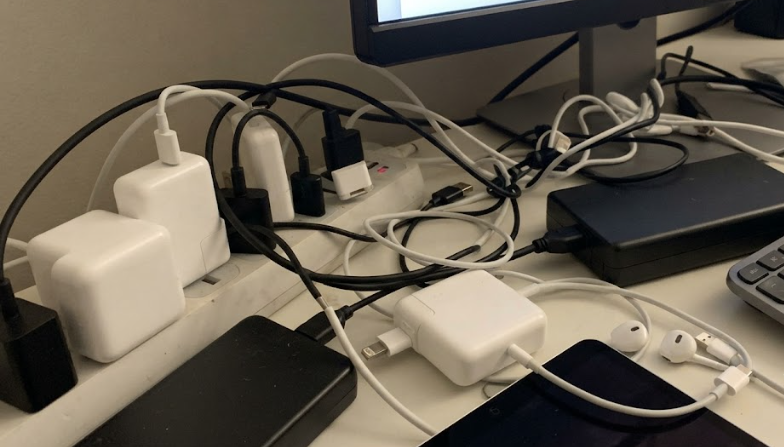
Look at your desk right now. How many chargers do you see? A phone charger here, a tablet charger there, a laptop power brick in the corner, and maybe a wireless charging pad off to the side. Each one takes up a wall outlet. Each one has its own cable. And chances are, those cables have formed a tangled mess behind your monitor.
This is the reality for most people who own multiple devices. Every new gadget comes with its own charger, and before you know it, your desk is covered in adapters, power bricks, and cables. Finding the right one when you need it becomes a daily frustration. Your workspace looks cluttered and unprofessional.
There’s a better way. Desktop charging solutions consolidate everything into one device. One plug into the wall. One neat unit on your desk. Multiple devices charging simultaneously — phones, tablets, laptops, earbuds, smartwatches, all at once — without the clutter.
This guide explains the different types of desktop charging solutions, how they work, and how to set them up for a cleaner, more efficient workspace.
1. What Is a Desktop Charging Solution?
A desktop charging solution is a centralized system that manages charging for all your devices from a single unit. Instead of using multiple chargers and power strips scattered across your desk, you use one device that handles everything.
It replaces the chaos of individual chargers and tangled cables with one organized, streamlined unit. You’ll find them on office desks, home workspaces, shared workstations, study tables, and anywhere else where multiple devices need regular charging. The core idea is simple: one plug for all your devices.
2. Core Benefits
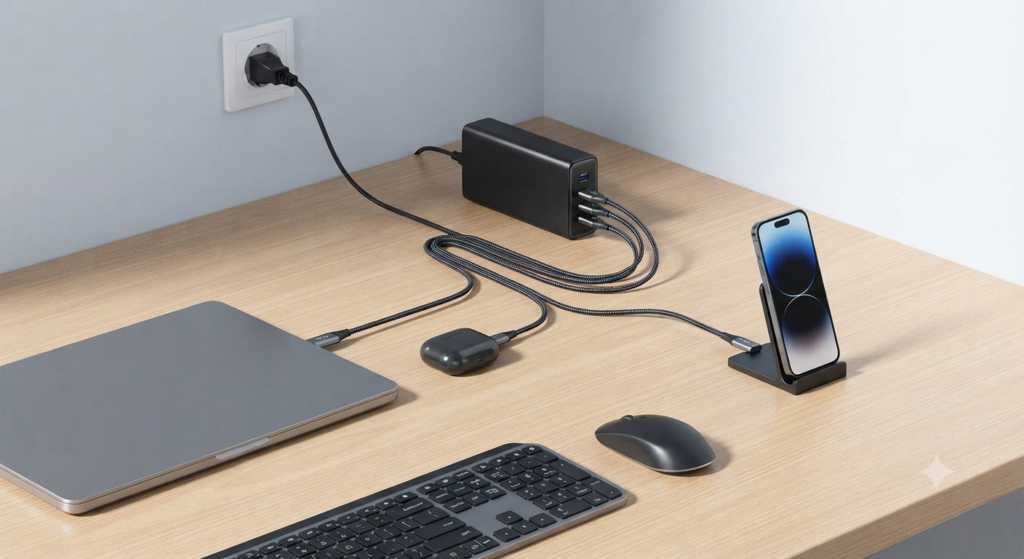
A Cleaner Desk
One device replaces a pile of individual chargers and cables. Fewer power strips, less cable clutter, and a workspace that looks more professional and organized.
More Efficient Charging
Smart power distribution means devices get the power they need when they need it. The charging station automatically directs more capacity to devices that can use it, and less to those that are almost full.
Saves Space
One plug occupies one wall outlet. The charging station itself is generally smaller and more compact than the collection of chargers it replaces, freeing up both desk surface and socket space.
Better Safety
Quality products include multiple layers of circuit protection — overvoltage, overcurrent, short-circuit, and thermal protection. This generally provides more reliable safety than mixing random no-name chargers with inconsistent build quality.
3. Common Types
Multi-Port USB Chargers
The most basic type. These have multiple USB-A or USB-C ports in a compact body. They’re straightforward — plug them in and they provide charging for multiple devices. A practical option for light charging needs.
Wireless Charging Pads and Stands
Place your phone or earbuds on the pad and they start charging — no cable to plug in. Stand-style models keep the phone upright, which is useful for video calls, facial recognition, or watching content while charging.
Desktop Charging Stations
These combine multiple wired ports (USB-C and USB-A) with wireless charging pads in a single unit. Some models include integrated cable management slots and dedicated device stands to keep everything organized.
Magnetic All-in-One Stations
Built around magnetic alignment technology (such as Apple’s MagSafe), these have dedicated spots for phones, smartwatches, and earbuds. Each device snaps into its place automatically, making alignment effortless.
Power Strips with Built-in USB Ports
Traditional power strips that also include USB charging ports. Useful when you need to power both conventional devices (like desk lamps or monitors) and USB devices (phones, tablets) from the same unit.
4. Power and Protocols
Total Power Ratings
- 30W – 45W: Suitable for phones, earbuds, and other small devices
- 65W – 100W: Can simultaneously charge a phone, tablet, and thin-and-light laptop
- 100W – 200W+: For heavy multi-device use, including performance laptops and multiple high-power devices
Smart Power Distribution
When multiple devices are connected, the total available power is divided among them. The distribution isn’t always equal — the charging station may give more power to the device that can use it most. When only one device is connected, it receives the full maximum power. This all happens automatically.
Common Fast-Charging Protocols
- PD (Power Delivery): The most widely supported universal fast-charging standard. Most modern USB-C devices work with it, making it one of the most important protocols to look for.
- QC (Quick Charge): Qualcomm’s fast-charging standard. Common on Android phones, particularly older models.
- PPS (Programmable Power Supply): An advanced feature found in many better PD chargers. It fine-tunes the charging voltage in tiny increments — like turning a dial instead of flipping a switch — which means smoother, more efficient charging for more types of devices.
- Proprietary Protocols: Brands like Apple, Huawei, Oppo, and Xiaomi have their own fast-charging standards. Top speed typically requires using the brand’s own charger or a certified compatible one.
5. Compatible Devices
Phones
Smartphones, backup phones, and basic phones. Support both wired (USB-C / Lightning) and wireless charging.
Tablets
iPads, Android tablets, and other tablets. Typically need 18W–30W for normal charging speed.
Laptops
Thin-and-light laptops need at least 65W. Performance laptops and mobile workstations require 100W or more.
Wearables
- TWS (true wireless) earbuds — charge via their case
- Smartwatches and fitness bands — many support wireless or magnetic charging
Other Devices
- Power banks
- E-readers (Kindle, Kobo, etc.)
- Bluetooth speakers and small desktop accessories
6. Cable Selection
USB-C to USB-C Cables
The standard for PD fast charging. Used by most modern devices as their primary connection.
High-power versions include an E-Marker chip — a tiny chip inside the cable that tells the charger how much current the cable can safely handle. Think of it as a small label on the cable that says “I’m rated for this much power.” Cables without this chip are usually limited to lower current levels.
USB-A to USB-C Cables
Used with older chargers or for basic charging. Does not support high-voltage PD fast charging. Useful for connecting older power banks or legacy USB-A ports.
Lightning Cables
Used with iPhones and some iPads. Apple’s proprietary connector — required for Apple devices that haven’t switched to USB-C.
Magnetic Charging Cables
For MagSafe-compatible devices. Snaps into place automatically — no need to align the plug precisely.
Length Recommendations
0.5–1 meter (1.5–3 feet) is the sweet spot for desk use — long enough to reach comfortably but short enough to avoid clutter. Longer cables tend to coil up and create tangles; shorter cables stay neat and organized.
7. Safety Protection Mechanisms
- Overvoltage Protection: Automatically regulates or cuts power if voltage spikes to unsafe levels, so a sudden power surge won’t damage your devices.
- Overcurrent Protection: Limits current output if it exceeds safe thresholds, preventing cables and device ports from overheating.
- Short-Circuit Protection: If one device short-circuits, that port is automatically isolated so other connected devices keep working normally.
- Thermal Protection: Reduces power output or pauses charging if internal temperature gets too high, preventing component damage and extending the product’s lifespan.
- Foreign Object Detection (wireless models): Stops charging if metal objects (coins, keys, or magnetic items) are detected on the charging surface, preventing dangerous overheating.
- Flame-Retardant Enclosure: Quality products use fire-resistant materials for their housings, adding an extra layer of physical safety.
8. Desktop Layout Tips
Where to Place It
Position the charging station behind your monitor or in a corner of the desk where it’s accessible but not in the way. Keep the main workspace clear for your keyboard, mouse, and paperwork.
Cable Management
Use cable clips, adhesive holders, or Velcro ties to route cables neatly. Each cable should follow a fixed path to avoid crossing over others and creating tangles.
Using Vertical Space
Place the charger under a monitor riser or shelf to keep the desk surface clear. Vertical stands take up less desk area than flat-laying units.
Keep Frequently Used Ports Accessible
Put the port you use daily — typically the one for your phone — in an easy-to-reach position. Cables you rarely unplug can be routed to the back or side of the unit.
Leave Spare Ports
Keep one or two ports available for visitors or temporary devices. Guest phones, loaner power banks, or testing devices will need a spot occasionally, and it’s convenient to have one ready.
9. Common Misconceptions
Myth 1: Higher power always means faster charging
Using the right power level is what matters. A 100W charger won’t charge a phone any faster than a 30W charger if the phone can only accept 30W. The excess capacity simply isn’t used. Choose a power level that matches your actual needs rather than automatically buying the most powerful option.
Myth 2: All ports charge at full speed simultaneously
Total power is shared across all ports. When multiple devices are connected, the available power is divided among them. Full maximum speed is only possible when a single device is using a port alone.
Myth 3: Wireless charging is always slow
Mainstream wireless chargers now deliver around 15W, which is sufficient for daily use. For overnight charging, speed isn’t critical anyway — you wake up with a full battery regardless of whether it took two hours or four.
Myth 4: Cheap unbranded chargers work just as well
Cheap chargers often lack proper safety circuits. They can deliver unstable voltage, overheat, or fail in ways that damage your devices. The savings usually aren’t worth the potential risk to expensive equipment.
Myth 5: All USB-C ports are the same
Different USB-C ports on the same charging station may support different protocols and power levels. One port might support 65W PD fast charging, while another only delivers 10W basic charging. Always check the specifications for each port.
10. Maintenance and Care
Daily Use
- Keep the charging station in a well-ventilated area
- Don’t cover it with papers, cloth, or other items that trap heat
- Store it in a dry place away from drinks and liquids
Cleaning
- Wipe the exterior with a dry cloth as needed
- Clean dust from ports using a dry cotton swab — never use metal objects like pins, tweezers, or paperclips, as they can damage the internal contacts
Cable Inspection
- Check cables regularly for frayed insulation or sharp bends
- Replace cables with loose connections, exposed wires, or cracked insulation
Long-Term Storage
- Unplug the power adapter when the charger won’t be used for extended periods
- Store in a dry, dust-free location, preferably in its original packaging or a protective bag
Important Precautions
- Don’t exceed the total power rating — it’s designed for a specific maximum load
- Keep the unit away from moisture, heat sources, and direct sunlight
- Unplug immediately if you notice unusual sounds, burning smells, or excessive heat that’s uncomfortable to touch
Summary
A desktop charging solution transforms the chaos of multiple chargers into a single, organized system. One unit, one wall plug, multiple devices charged simultaneously — all without the clutter.
Key concepts to remember:
- Match power to your needs — smaller devices need less, laptops need more, and multi-device setups require planning for total capacity
- Smart distribution is automatic — the station handles power allocation on its own
- PD is the universal baseline — it’s one of the most widely supported protocols and a good starting point when choosing a charger
- Safety features matter — overvoltage, overcurrent, thermal protection, and flame-retardant materials contribute to long-term reliability
- Cable quality affects performance — use the right cable for the right port, and replace worn cables promptly
Whether you’re setting up a home office, a corporate workspace, or a shared desk, a desktop charging solution keeps your devices powered and your desk clean — with just one plug.