
Introduction
Modern meeting rooms have a cable problem. Walk into almost any conference room today, and you’ll find a tangle of HDMI cables, VGA adapters, power bricks, USB dongles, and various connectors scattered across the table. Presenters spend the first five minutes of every meeting hunting for the right adapter, plugging and unplugging cables, and asking “Does anyone have a dongle for this?”
It’s frustrating, unprofessional, and wastes valuable meeting time.
USB-C solves this problem. With the right setup, a single USB-C cable can carry video, data, and power all at the same time. Think of it like a single pipe that delivers three things at once: electricity to charge your laptop, video signal for the big screen, and data for internet and file transfers. Participants walk in, plug in one cable, and everything works.
This guide explains how USB-C meeting rooms work, what equipment you need, and what to watch out for.
1. What Is a USB-C Meeting Room Setup?
A USB-C meeting room is a modern way to connect to conference room equipment. Instead of having a different cable for every device, the room uses one unified USB-C connection that handles everything.
When someone sits down to present, they plug one USB-C cable into their laptop. Through that single cable, they get:
- Their presentation on the big screen
- A wired internet connection
- Charging for their laptop
No hunting for the right adapter. No searching for a power outlet. No time wasted.
You’ll find these setups in corporate meeting rooms, presentation halls, training rooms, and co-working spaces. The whole point is simple: make connecting fast, reliable, and effortless.
2. Core Benefits
One-Cable Experience
A single USB-C cable handles video, data, and power at the same time. Sit down, plug in, and you’re ready to present. No need to search for adapters or figure out which cable goes where.
Works With Almost Everything
USB-C works across all brands and operating systems. Laptops, tablets, and even phones can connect — Windows, Mac, Android, and iOS all support it. Whether someone brings a Windows laptop or a MacBook, they can plug in and present without special equipment.
Cleaner, More Professional Rooms
Without piles of cables and adapters cluttering the table, the meeting room looks more organized and professional. No more tangled wires or lost dongles.
Faster Meeting Transitions
When one presenter finishes and the next person takes over, switching is as simple as unplugging one cable and plugging in the next. Nobody needs to ask “how do I connect?” — the answer is always the same.
3. Common Room Types
Small Meeting Rooms (4–6 people)
Simple setup: a small docking station connected to a single screen. Plug your laptop into the dock, and it sends your screen to the display while charging your laptop. Straightforward and affordable.
Medium Meeting Rooms (8–15 people)
These rooms usually have a large interactive screen with built-in USB-C ports in the table. Wireless screen sharing is often available as a backup for guests who can’t plug in directly.
Large Presentation Halls / Training Rooms
Bigger spaces use a central control system with wall connection panels. They support multiple displays and can switch between different sources — laptops, cameras, document cameras — all from one control panel.
Open Collaboration Areas
Universal docking stations at each workspace. Anyone can sit down, plug in, and start working right away. Standardized setups make maintenance easy.
Executive Offices
Premium setups with hidden cables and clean desk designs. Often paired with height-adjustable desks and multiple screens.
4. What Equipment You Need
The Display
The main screen — either a large meeting room display or a projector. Ideally, it accepts USB-C directly. If not, a docking station converts the signal.
The Dock / Hub
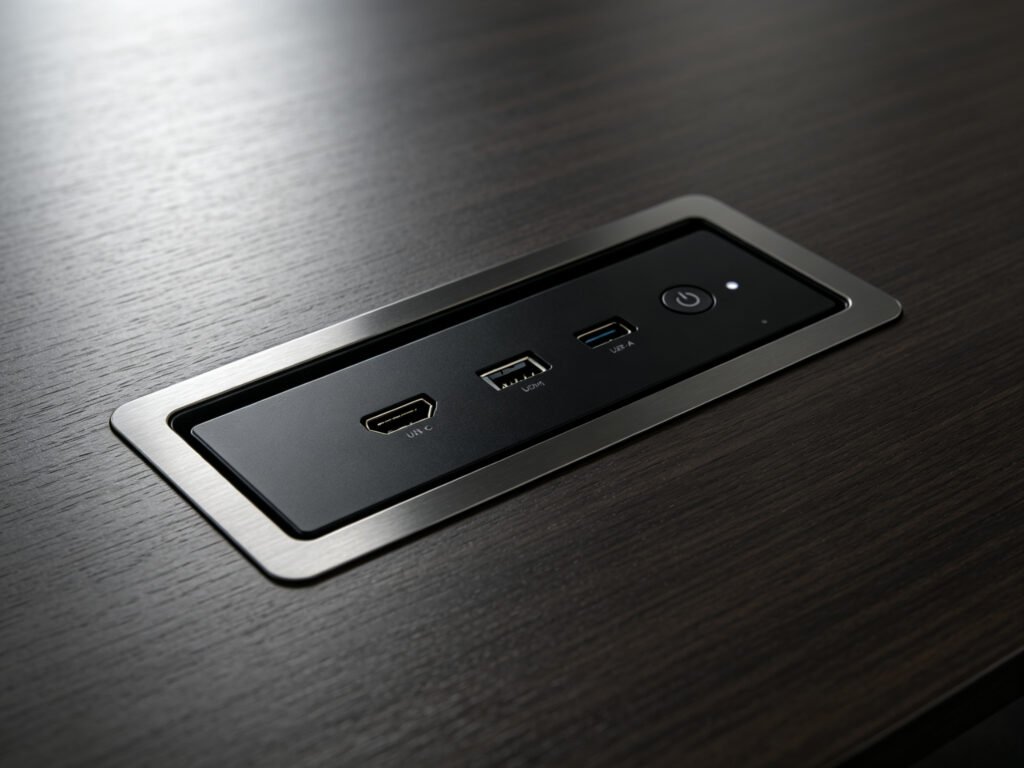
This is the central piece. It connects to the screen, network, and power, and provides one USB-C cable for presenters to plug into. Some rooms have these ports built right into the table surface for a cleaner look.
Cables and Wall Panels
- Pre-installed USB-C cables running through walls or floors
- Wall-mounted connection panels where cables plug in
- For longer cable runs, special fiber-optic USB-C cables maintain signal quality
Central Control System (medium and large rooms)
Think of this as the air traffic controller for your meeting room. When you have multiple screens and multiple devices people might want to present from, the control system routes the right signal to the right display. It’s controlled via a touch panel or tablet app.
Power Equipment
- PoE (Power over Ethernet): Wall panels can get power through the same network cable that carries data — useful when you can’t easily run power cables to every panel.
- UPS (battery backup): Keeps the system running during short power cuts. Recommended for important meeting spaces.
5. How It Actually Works
Video Over USB-C
Not every USB-C port can send video to a screen. Some USB-C ports only charge your phone or laptop — they’re like a water pipe that only carries water. To send video, the port needs a feature called DP Alt Mode (short for DisplayPort Alternate Mode). Think of it like a pipe that can switch what it carries — normally it carries data, but flip a switch and it carries video instead.
For modern meeting rooms, 4K at 60Hz is the standard. In plain terms: the picture is sharp and moves smoothly, not choppy.
Data Transfer
The same cable also carries data — for file sharing, interactive touchscreens, or conference cameras. Faster data speeds mean touchscreens respond quicker and video looks clearer.
Charging
USB-C meeting rooms also charge your laptop through the same cable, using a standard called PD (Power Delivery). It’s the universal “fast charging language” that most modern laptops understand.
- 65W is enough for most regular laptops
- 100W works with more powerful laptops too
Audio
Sound travels through the same USB-C cable, or can be separated out to connect to room speakers or a sound system.
Wired Internet
Good docking stations also include an Ethernet port (the standard wired network plug). This gives a more reliable connection than Wi-Fi — important for video calls and large file transfers.
6. Power Planning
How Much Power Per Port?
- 65W: Works fine for most slim laptops and tablets
- 100W: Compatible with more powerful laptops and some gaming notebooks
- 100W+: Needed for heavy-duty workstations
Total Power Budget
Add up the power needs of everything that might be connected at once. Always leave about 20% extra headroom — like having extra water pressure in reserve, so the system stays stable when everything is running at once.
Power Through Network Cables (PoE)
In some setups, wall panels get their power from the same Ethernet cable that carries the data signal. This is handy for older buildings where running new power wires would be difficult or expensive.
Battery Backup
Important meeting rooms should have a UPS (battery backup). It keeps the system running through short power interruptions so meetings don’t get cut off.
7. Installation and Setup Tips
When to Run Cables
The easiest time to install cables is during a room renovation — you can hide everything inside walls and floors. If you’re updating an existing room, you’ll likely need surface cable tracks or consider wireless options instead.
How Far Can Cables Go?
Think of USB-C cables like water pipes. The longer the pipe, the more pressure you lose along the way.
- Regular copper cables: work well up to about 2 meters (6.5 feet)
- Active cables (with built-in signal boosters): can go up to 5 meters (16 feet)
- Fiber-optic cables: can go 10 meters+ because they use light instead of electricity, which doesn’t degrade over distance
Where to Put the Connection Points
- Wall panels: usually mounted 30–50 cm (12–20 inches) above the table — easy to reach but not in the way
- Table ports: ideally placed in the center of the table so everyone can reach them
Cable Routing Tips
- Keep power cables and data cables separate — power wires can create electrical interference that disrupts data signals, like a noisy pipe rattling the pipe next to it
- Secure cables in trays or conduits so they don’t get stepped on or damaged
Keep Equipment Cool
Docking stations and control systems need airflow. Don’t seal them in closed cabinets without ventilation — trapped heat causes problems and shortens equipment life.
8. Compatibility Things to Know
Not Every USB-C Port Can Do Video
This is the #1 reason people plug in and get nothing on the screen. Some laptops have USB-C ports that only charge — they don’t support video output. The port needs DP Alt Mode or Thunderbolt to send picture to the display.
Different Devices Work Slightly Differently
Windows, Mac, Android, and iOS all work with USB-C, but some features (like touchscreen control or reverse charging) may behave differently across brands. It’s a good idea to test with the actual devices people will use before finalizing a setup.
Older Laptops May Need an Adapter
Laptops that only have HDMI output will need an adapter. It’s smart practice to keep one or two universal adapters in the room for guests with older equipment.
The Cable Matters
A basic charging cable won’t carry video — it’s like a garden hose that can only water plants, not connect to your TV. You need a full-featured USB-C cable or a Thunderbolt cable. Always check cable specs before installing.
Brand Differences
Different brands of docks and laptops can occasionally have compatibility quirks. Testing with real equipment before buying in bulk is the best way to avoid surprises.
9. Common Problems and Fixes
Plugged In But No Picture
- Make sure the laptop’s USB-C port actually supports video (not just charging)
- Try a different cable — cables fail more often than you’d think
- Check that the display is set to the right input source
Picture Works But Laptop Isn’t Charging
- The dock might not deliver enough power for that laptop model
- The cable might not support the required power level
- Check that the dock’s power adapter is plugged in properly
Screen Flickers or Glitches
- The cable might not have enough bandwidth for the current resolution
- Try lowering the screen resolution to see if it stabilizes
- Use a higher-quality cable (especially if the cable is long)
Connection Cuts In and Out
- The cable might be slightly loose — try re-plugging firmly
- The cable might be worn or damaged — inspect and replace if needed
- Check for power fluctuations in the room
No Sound
- The laptop might not have switched its audio output to USB-C automatically
- Check sound settings and select the correct output device
- Make sure the dock’s audio drivers are installed
Slow or No Internet
- The dock’s Ethernet driver might need an update
- Check the network cable and switch port
- Verify the laptop’s network settings (some networks require login)
10. Maintenance and Upgrades
Regular Upkeep
- Clean dust from connectors and panels periodically
- Keep cables organized — tangled cables wear out faster
Cable Checks
- Inspect cables for wear or damage at least twice a year
- Cables at frequently used ports wear out faster and may need replacing sooner
Software Updates
- Docking stations and control systems get firmware updates periodically
- These often fix compatibility issues with newer devices and patch security issues
Equipment Refresh
- Plan to evaluate the setup every 3–5 years
- New USB standards and protocols come out regularly that can improve performance
Spare Parts
- Keep extra full-featured USB-C cables on hand for replacements
- Have a couple of HDMI-to-USB-C adapters available for guests
- For critical rooms, keep a spare docking station ready to swap in if one fails
Summary
A USB-C meeting room replaces the mess of multiple cables and adapters with one simple, unified connection. One cable handles video, data, and power — presenters can focus on their content instead of wrestling with connectors.
Key takeaways:
- Not all USB-C ports are equal — some only charge, others can send video too (DP Alt Mode / Thunderbolt)
- Power matters — 65W covers most laptops, 100W gives broader compatibility
- Cable quality makes a difference — cheap charging cables don’t carry video
- Install during renovations if you can — hiding cables is cleaner and easier
- Test before you buy in bulk — compatibility varies by brand; test with real devices first
When a meeting room is set up properly with USB-C, meetings start faster, the room looks more professional, and no one ever has to ask the question: “Does anyone have a dongle?”