
Preface
Have you ever had this experience: two USB-C cables that look almost identical—one charges your phone quickly and transfers files without issue, while the other only trickle-charges and your computer won’t even recognize your phone?
Or maybe you spent good money on a 100W charger, plugged in a cable to charge your laptop, and it charged as slowly as a turtle crawling?
It’s not that the cable is broken, and it’s not the charger’s fault—the problem is the cable itself.
Cables that look the same on the outside can be worlds apart on the inside—different materials, different structures, different capabilities. Some cables can only charge and can’t transfer data. Some can only run at the painfully slow USB 2.0 speed. Some simply can’t handle high-power devices. Learning to read a cable’s “identity” helps you avoid these pitfalls and spend your money wisely.
This Cable Terminology Dictionary is here to help you make sense of it all.
Chapter 1: Cable Basics
Cable
A cable is what we commonly call a “charging cable” or “data cable.” It has two basic jobs: delivering power (charging devices) and transferring data (moving files and signals between devices).
Wire
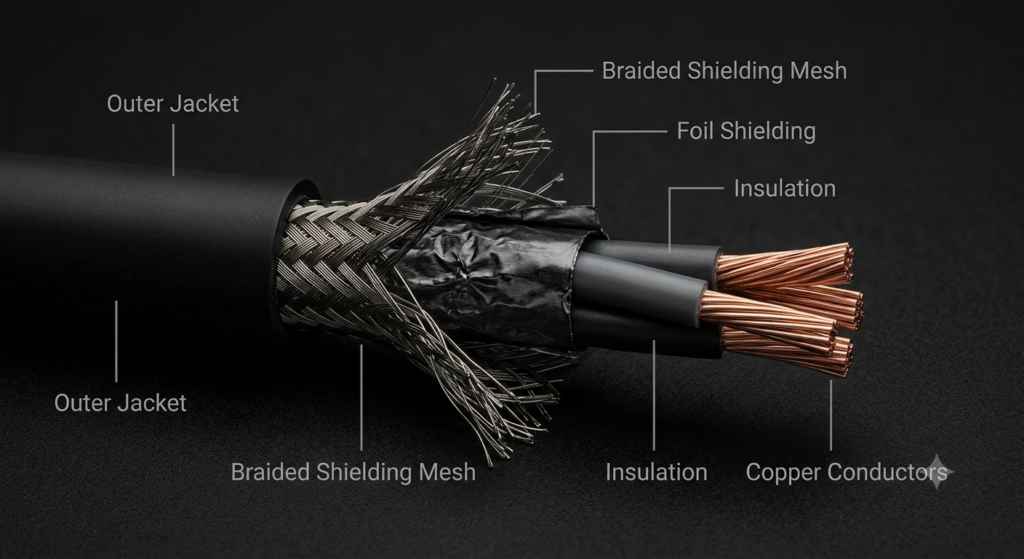
Wires are the metal strands inside a cable that carry electricity. A cable may have a single solid wire or multiple stranded wires twisted together. Stranded wires are more flexible and less likely to break when bent.
Conductor
The conductor is the core of a wire, usually made of copper. Different types of copper directly affect a cable’s performance and price:
- OFC (Oxygen-Free Copper) : High-purity copper with low resistance and excellent conductivity—the standard for quality cables.
- Tinned Copper:Copper plated with a tin coating to prevent oxidation and extend lifespan.
- Silver-Plated Copper:Even better conductivity, but more expensive—typically found in high-end cables.
Insulation
Insulation is the layer of material wrapped around the conductor. Its job is to prevent leakage and short circuits. Common materials include PVC and PE. Without insulation, two bare wires touching each other could fry your device.
Shielding
Shielding is a metallic layer (aluminum foil or braided metal mesh) inside the cable. Its job is to block electromagnetic interference (EMI) —for example, when you place a data cable next to your phone, the phone’s signal could interfere with data transmission inside the cable.
Common shielding types:
- Foil Shielding:A layer of aluminum foil—basic protection
- Braid Shielding:A mesh of braided metal wires—better protection
- Double Shielding:Foil + braid together—maximum protection
Jacket
The jacket is the outermost “skin” of the cable. It determines how the cable feels and how long it lasts.
- PVC:The most common and cheapest material, but relatively stiff and prone to cracking after repeated bending
- TPE:The current mainstream choice—flexible, nice to the touch, and more durable than PVC
- Silicone:Very soft and feels great, but tends to attract dust
- Nylon Braided:The most wear-resistant material, highly durable against pulling and friction—ideal for frequent use and travel
Chapter 2: USB Cable Connector Terms
USB Cable
A USB cable is a connection cable that complies with the USB (Universal Serial Bus) standard—currently the most common way to connect devices.
USB Type-A
The most familiar USB connector shape—flat and rectangular. Most USB ports on computers are Type-A. It only goes in one way—if it doesn’t fit, flip it over.
USB Type-B
A square-shaped connector, typically found on larger devices like printers and scanners. Becoming less common.
Mini USB
A small connector used on many older phones. Now largely obsolete.
Micro USB
Before USB-C came along, this was the most common connector for Android phones. Still found on some older devices.
USB Type-C
The current mainstream connector, first introduced on phones in 2015. Its biggest advantage: reversible—it goes in either way, no more guessing which side is up. Keep in mind that USB-C is just a shape—what speed and what features it supports depend entirely on the cable itself.
USB Type-C to Type-C
Both ends are Type-C. This is the most versatile cable type—supports charging, data transfer, and video output.
USB-A to USB-C
One end is Type-A (plugs into a computer or charger), the other is Type-C (plugs into a phone or device). This is the most common phone charging cable.
USB-C to Lightning
One end Type-C, one end Apple’s Lightning connector—used to charge and sync iPhones and iPads.
USB-C to HDMI / USB-C to DisplayPort
These cables connect a computer or phone’s Type-C port to a monitor, TV, or projector for video output.
Chapter 3: Charging Terms
Charging Cable
A cable that can only charge and cannot transfer data. To save costs, these cables omit the wires needed for data transmission.
Data Cable
A cable that can both charge and transfer data. A data cable can be used as a charging cable, but a charging cable cannot necessarily be used as a data cable.
Charge & Sync Cable
A cable that supports both charging and data functions—this is the everyday cable most people use.
Fast Charging Cable
A cable that supports high-power charging. Fast charging cables typically use thicker, purer copper conductors that can carry more current.
E-Marker Chip
E-Marker (short for Electronically Marked Cable) is a tiny chip inside a Type-C cable connector—essentially the cable’s “ID card”. It tells the charger and the device: how much current can this cable handle? How fast can it transfer data?
Why does this matter? Because the USB-IF requires any cable carrying more than 3A (over 60W) to have an E-Marker chip. In other words:
- A Type-C cable without E-Marker maxes out at 60W charging
- To get 100W, 140W, or even 240W fast charging, the cable must have an E-Marker chip
If you want to use a 100W+ charger to fast-charge your laptop, always check that the cable has an E-Marker chip.
Current Rating
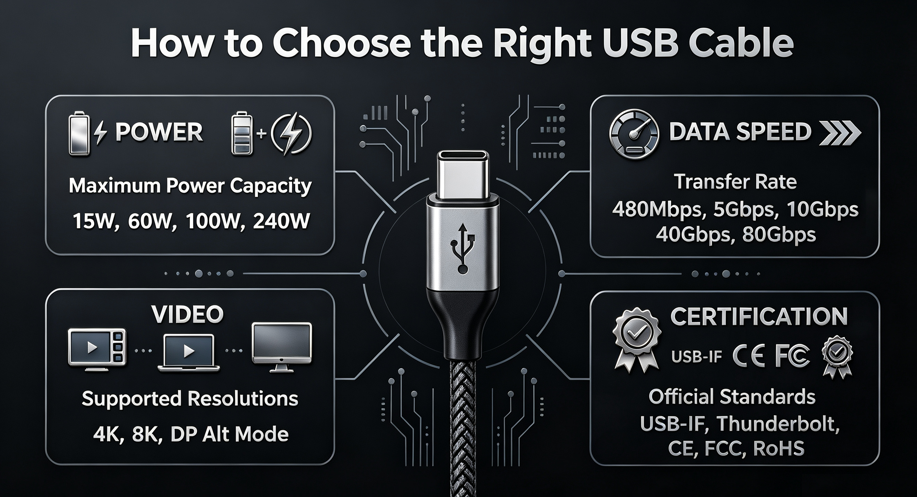
The maximum current a cable can safely carry:
- 2A:Basic charging, about 10-15W
- 3A:About 60W, the limit for most phones
- 5A:100W+, laptop-level fast charging
Power Rating
The maximum power a cable can safely deliver, measured in watts (W):
- 15W, 27W, 45W:Standard phone charging
- 60W:The limit for most Type-C cables without E-Marker
- 100W:Requires E-Marker, can charge most laptops
- 140W, 180W, 240W:High-end fast charging cables with E-Marker, can power gaming laptops and even some desktop components
Chapter 4: Cable Performance Terms
Data Rate
How much data a cable can transfer per second, measured in bits per second (bps). Higher numbers mean faster file transfers.
Bandwidth
Essentially the same as data rate—the “width” of data the cable can carry.
USB 2.0 Cable (480Mbps)
The most basic USB standard, max speed 480 Mbps. Transferring a 10GB movie takes over 3 minutes. Many cheap data and charging cables only support this speed.
USB 5Gbps Cable
Formerly known as USB 3.0 / USB 3.2 Gen 1. Speed jumps to 5Gbps—a 10GB movie transfers in about 15 seconds.
USB 10Gbps Cable
Formerly USB 3.1 / USB 3.2 Gen 2. 10Gbps speed—great for large files and external hard drives.
USB 20Gbps Cable
Formerly USB 3.2 Gen 2×2. 20Gbps speed—ideal for high-speed external storage.
USB4 40Gbps Cable
USB4 standard cable, speeds up to 40Gbps. Can drive 4K or even 8K monitors, and large files transfer in seconds.
USB4 Version 2.0 80Gbps Cable
The latest generation USB4, reaching a stunning 80Gbps. Currently the fastest consumer USB cable standard.
Backward Compatibility
High-speed cables work with slower devices—for example, a USB4 cable plugged into an old USB 2.0 device will work just fine, though speeds will drop to USB 2.0 levels.
Chapter 5: USB-C Special Cable Terms
Full-Featured USB-C Cable
The all-rounder—one cable that does four things:
- Charging:Supports high-power fast charging
- Data Transfer:High-speed file transfers
- Video Output:Connects to monitors for video
- Audio:Transmits audio signals
Charging-Only Cable
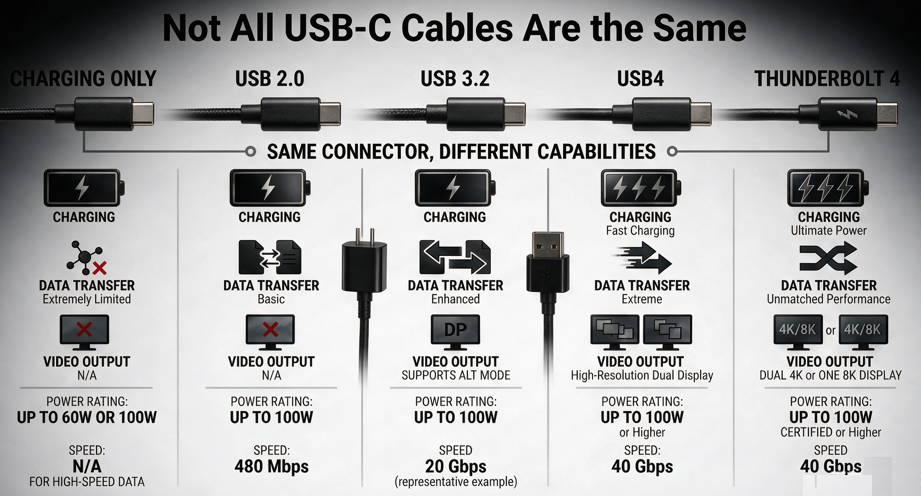
Charges only—no data transfer, no video output. These cables lack the internal wiring needed for high-speed data and video. Cheap, but limited.
USB 2.0 Type-C Cable
A cable with a Type-C connector that only runs at USB 2.0 speeds (480 Mbps). Looks identical to high-end Type-C cables, but performs very differently.
USB 3.x Type-C Cable
A Type-C cable that supports USB 3.x speeds (5Gbps to 20Gbps)—good for both data and charging.
USB4 Cable
A Type-C cable that supports the USB4 standard (40Gbps or higher)—one of the fastest USB cables available.
Thunderbolt Cable
Thunderbolt is a connection standard developed by Intel. Thunderbolt 3 and later use the Type-C connector.
Thunderbolt and USB4 cables look the same, but Thunderbolt certification is stricter. A Thunderbolt 4 cable can maintain 40Gbps speeds at up to 2 meters in length, while a regular USB4 cable typically maxes out at 1 meter.
Cables with the Thunderbolt lightning bolt logo are usually more expensive than regular USB cables.
Active Cable
A cable with built-in signal amplification chips to maintain signal quality over longer distances. Most high-speed USB-C cables over 2 meters are active.
Passive Cable
A regular cable without signal amplification chips. Fine for short distances (under 1 meter), but signal may degrade over longer runs.
DisplayPort Alt Mode (DP Alt Mode)
A “side gig” for the Type-C connector—it allows a Type-C cable to carry video signals like a DisplayPort cable. But not all Type-C cables support this. If you want to connect a monitor with a Type-C cable, make sure the cable explicitly supports video output.
Video Output
A cable’s ability to output video to an external monitor or TV. Cables that support 4K and 8K video have completely different internal structures from basic charging cables.
Chapter 6: Certification & Standards Terms
USB-IF
The USB Implementers Forum—the official organization that defines and manages USB standards. Its core mission is ensuring that USB devices from different brands work together safely and reliably.
USB-IF Certified Cable
A cable that has passed official USB-IF certification, meaning it has undergone rigorous electrical, mechanical, and environmental testing. Certified cables offer better quality and safety.
USB Certified Logo
After passing USB-IF certification, a cable can display the official USB certification logo on its packaging. Seeing this logo is a good sign you’re buying a quality product.
Intel Thunderbolt Certification
Official certification for Thunderbolt technology, managed by Intel. Cables with the Thunderbolt logo deliver guaranteed performance—but part of the price goes toward certification fees.
CE Certification
Mandatory safety certification mark for the European Union. Products sold in Europe must have CE certification.
FCC Certification
U.S. electromagnetic compatibility certification, ensuring the product doesn’t emit harmful electromagnetic interference.
RoHS
A directive restricting the use of hazardous substances—primarily targeting lead, mercury, and six other harmful materials.
REACH
The EU’s regulation on chemical registration, evaluation, authorization, and restriction—covering a broader range of substances than RoHS.
Chapter 7: Materials & Durability Terms
PVC
The most common cable jacket material—low cost but stiff and prone to cracking.
TPE
The mainstream jacket material for mid-to-high-end cables—flexible and nice to the touch.
Silicone
Very soft material that feels great but tends to attract dust.
Nylon Braided
The most wear-resistant jacket material—ideal for frequent plugging/unplugging and travel.
Aramid Fiber
A high-strength, heat-resistant synthetic fiber often used inside cables as a reinforcing layer to prevent breaking when pulled.
SR (Stress Relief)
The reinforced or lengthened section at the base of a cable connector. Its job is to absorb bending stress and prevent the cable from breaking at the connector. The longer and thicker the SR, the more durable the cable.
Bend Test
A standardized way to test cable durability—repeatedly bending the cable to see how many cycles it survives before breaking. Higher numbers mean more durable cables.
Connector Housing
The material of the cable connector shell:
- Plastic:Most common, lowest cost
- Aluminum Alloy:Better feel, better heat dissipation, more durable
- Zinc Alloy:Even stronger, typically found in premium cables
Chapter 8: Common Misconceptions
USB Type-C ≠ USB4
Type-C is just a connector shape; USB4 is a transmission standard. A Type-C cable could be running USB 2.0, USB 3.2, or USB4. They may look the same, but their capabilities are worlds apart.
USB Type-C ≠ Thunderbolt
Type-C is a connector shape; Thunderbolt is Intel’s technology standard. Not all Type-C cables are Thunderbolt cables—only those with the lightning bolt logo.
USB-C cables don’t always support video output
Many people assume all Type-C cables can connect to monitors—wrong. Only full-featured cables or those explicitly marked for video output will work. Charging-only cables can’t transmit video at all.
USB-C cables don’t always support fast charging
A Type-C cable might only support basic charging power (around 15W). For fast charging, check the cable’s power rating.
A 100W cable doesn’t necessarily support 40Gbps data transfer
A cable that can deliver 100W for charging might only support USB 2.0 speeds for data. Charging capability and data transfer capability are two different things—know what you need before you buy.
Can a Thunderbolt cable be used as a regular USB cable?
Yes. Thunderbolt cables are backward-compatible with USB—they work fine with regular USB devices. The reverse isn’t true—a regular USB cable plugged into a Thunderbolt device won’t reach Thunderbolt speeds.
Does a USB4 cable always support 240W fast charging?
Not necessarily. USB4 only specifies data transfer speeds (40Gbps or higher)—charging power is a separate spec. Some USB4 cables only support 60W charging. Always check the power rating before buying.
Why do cheap data cables break easily?
Cheap cables use low-purity copper conductors, cheap PVC jackets, no proper stress relief at the connector, and skimpy shielding. Every penny saved shows up in durability and safety.
Chapter 9: Buying Guide
How to choose a phone charging cable
- Charging only, no data needed → A basic charging cable is fine
- Need fast charging → Make sure the cable supports your phone’s fast-charging protocol (PD, QC, etc.) with at least 27W power rating
- Android phones use Type-C; iPhones use Lightning or Type-C (newer models)
How to choose a tablet cable
Tablets typically need more power—go for a Type-C cable that supports 60W or higher with an E-Marker chip.
How to choose a laptop USB-C cable
Laptops typically need 65W to 100W for charging. Look for:
- At least 100W power rating
- E-Marker chip required
- If you also want to connect an external monitor, choose a full-featured USB-C cable or Thunderbolt cable
How to choose an external hard drive cable
For large file transfers, you need speed:
- Regular mechanical hard drive → USB 3.0 (5Gbps) is sufficient
- SSD external drive → USB 10Gbps or higher
- High-performance external SSD → USB4 or Thunderbolt
How to choose a monitor connection cable
- General office use (1080P / 4K 60Hz) → Full-featured USB-C cable is fine
- High refresh rate or 8K → USB4 or Thunderbolt cable
- Make sure the cable is marked for video output or DP Alt Mode
How to identify a quality cable
- Check certification:Does it have USB-IF certification?
- Check materials:Is the jacket TPE or nylon braided? Is the connector aluminum alloy or plastic?
- Check the SR:Is the stress relief at the connector base long and thick enough?
- Check the labeling:Does the packaging clearly state speed and power?
- Choose reputable brands:Stick with well-known, high-volume brands
How to read specifications on packaging
Packaging might say something like:
“USB Type-C to Type-C, supports 5A current, USB 3.2 Gen 2, 10Gbps”
Translation:
- “Type-C to Type-C” → Both ends are Type-C
- “5A” → Max current 5 amps—typically means 100W+ charging
- “USB 3.2 Gen 2” → USB version, speed 10Gbps
- “10Gbps” → Data transfer speed
Also, starting in 2025, USB-IF has introduced a new labeling system that directly prints “USB 80Gbps,” “USB 40Gbps,” and charging power (e.g., 240W) on packaging—no more confusing terms like “USB 3.2 Gen 2×2”. Reading packaging will get much easier.
Chapter 10: Quick Glossary
Alphabetical for quick reference:
A
- Active Cable:Cable with built-in signal amplification for long-distance transmission
B
- Bandwidth:Data transfer capacity
- Bend Test:A test measuring cable durability
C
- Cable:A connection cable
- Charge & Sync Cable:Cable that supports both charging and data
- Charging Cable:Charging-only cable
- Conductor:The conductive material inside a cable
D
- Data Cable:Cable supporting both charging and data transfer
- Data Rate:Data transfer speed
- DisplayPort Alt Mode:Type-C’s video output mode
E
- E-Marker:Electronic marker chip—the cable’s “ID card”
F
- Fast Charging Cable:Cable that supports high-power charging
- Full-Featured USB-C Cable:Cable that does it all
J
- Jacket:The outermost layer of a cable
N
- Nylon Braided:Nylon braided jacket material
P
- Passive Cable:Cable without signal amplification chips
- Power Rating:Maximum power a cable can deliver
R
- REACH:EU chemical regulation
- RoHS:Restriction of Hazardous Substances directive
S
- Shielding:Protection against electromagnetic interference
- SR (Stress Relief):Reinforced section preventing connector breakage
T
- Thunderbolt Cable:Intel’s Thunderbolt standard cable
- TPE:Thermoplastic elastomer jacket material
U
- USB Cable:Universal Serial Bus cable
- USB Type-A:Standard rectangular USB connector
- USB Type-C:Reversible new-generation connector
- USB4 Cable:USB4 standard cable
- USB-IF:The official USB standards organization
V
- Video Output:Ability to output video signals
W
- Wire:The conductive strand inside a cable
Conclusion
A cable may look unremarkable on the outside, but the technology it carries inside determines how fast your devices charge, how quickly files transfer, and how sharp your display looks.
Buying the wrong cable doesn’t just waste money—it wastes the 100W performance of your charger, the high-speed capability of your external drive, and the crystal-clear quality of your monitor.
Learning these cable terms isn’t about becoming an expert—it’s about not getting ripped off. Next time you buy a data cable, take 30 seconds to check the specs on the packaging: What’s the speed? What’s the power rating? Is it certified? You’ll know exactly whether it’s worth the price.
As USB Type-C, USB4, Thunderbolt, and high-power fast charging technologies continue to evolve, cables will only become more powerful and more complex. But with the basics from this glossary in your pocket, you’ll always make the right choice.