
USB4 is the latest major version of USB, and it works differently from all previous USB generations. Instead of being just a “faster USB port,” USB4 is like a multi-lane highway that can carry different types of traffic — data, video, and power — all through one cable.
If you have a newer laptop with a USB-C port, there is a good chance it supports USB4. But not every USB-C port is USB4, and not every USB4 port has the same features. This guide explains what USB4 actually does, in simple terms, so you can decide if it matters for the way you use your devices.
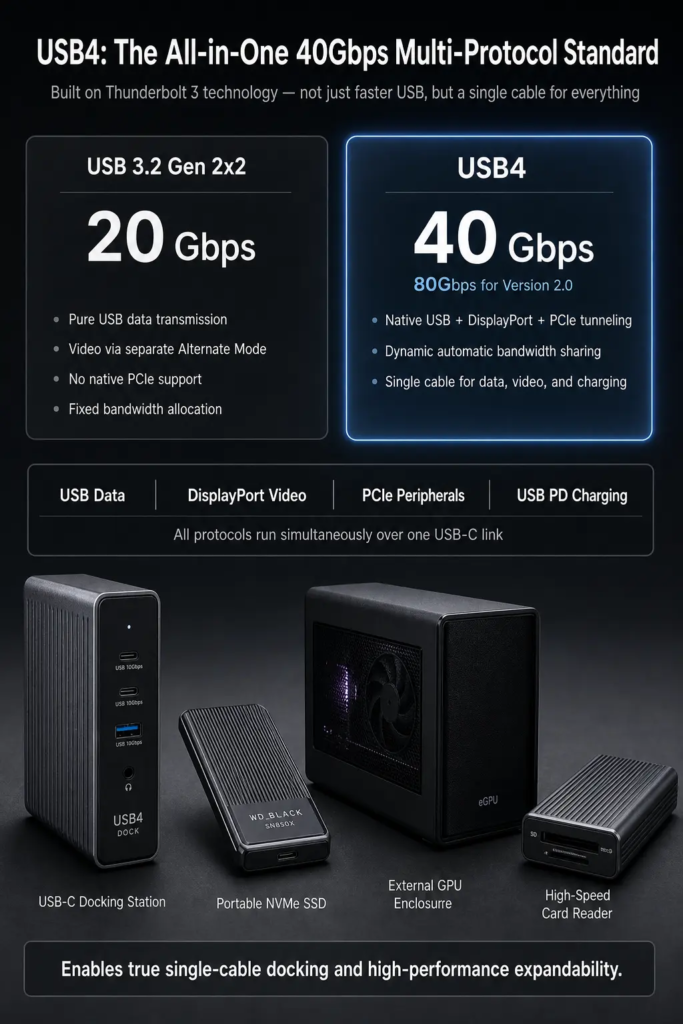
1. What Is USB4, Exactly?
Think of older USB like a single-purpose road. It only carries USB data, and it goes in one direction at a time. USB4 is more like a modern multi-lane highway with different lanes for different types of traffic — some lanes for files, some for video, some for fast storage. All of these lanes share the same cable, and the system automatically adjusts how much space each one gets based on what you are doing right now.
USB4 was released in 2019. It was built using technology from Thunderbolt 3, which Intel donated to the USB standard organization. This is why USB4 and Thunderbolt are closely related — they share the same underlying 40 Gbps architecture.
The most important thing to know: USB4 is not just “USB 3.2 but faster.” It is a completely new way of handling the connection. Speed is part of it, but the bigger change is that one cable can now do many different jobs at the same time.
2. What Makes USB4 Different From Older USB?
| Feature | USB 3.2 (20Gbps) | USB4 (40Gbps) |
|---|---|---|
| Speed | 20 Gbps | 40 Gbps (twice as fast) |
| USB data | Yes | Yes |
| DisplayPort video | Only through Alt Mode | Built-in (tunneled) |
| PCIe (for eGPU / fast SSD) | No | Available on most USB4 ports |
| Dynamic bandwidth sharing | No | Yes — shares bandwidth automatically |
| Connector required | USB Type-C only | USB Type-C only |
The biggest practical difference for most people is the “one cable does everything” experience. With USB4, you can plug a single cable into your laptop and get charging, a display, keyboard, mouse, external drive, and Ethernet all at once. That is why USB4 is often paired with docking stations.
3. How Fast Is USB4, Really?
USB4 Version 1.0 has a raw signaling rate of 40 Gbps. That is the headline number, but it is not the same as the speed you will actually see when copying files.
Here is why: some of that 40 Gbps is used for encoding (packing the data so it can travel reliably through the cable), and some is used for protocol overhead (the instructions that tell the system what each piece of data is for). After accounting for both, the real usable speed is lower — typically in the range of 30 to 35 Gbps equivalent, depending on what is being transferred.
| What you are doing | Approximate real-world speed |
|---|---|
| Copying files to an external NVMe SSD | Roughly 2,500 – 3,200 MB/s |
| Watching a 4K display + copying files at the same time | Both work, but file copying is slower because display uses some bandwidth |
| Using a USB 2.0 mouse or keyboard | No change — it works the same as always |
These numbers are approximate. Real speed depends on the specific drive, the cable quality, the host controller, and whether anything else is using the link at the same time.
Important: USB4 also has a second generation called USB4 Version 2.0 (or USB 80Gbps) that doubles the speed to 80 Gbps. As of 2025, 80 Gbps USB4 is still relatively rare on consumer devices. Most USB4 laptops and accessories today use the 40 Gbps generation.
4. USB4 and Video: DisplayPort, and What About HDMI?
USB4 can carry video to a display. This is one of its most useful features, because it means you do not need a separate video cable — the USB-C cable handles both data and video.
DisplayPort is the video standard that USB4 natively supports. USB4 Version 1.0 supports DisplayPort 1.4a, which is enough for most 4K displays and many high-refresh-rate gaming monitors. USB4 Version 2.0 supports DisplayPort 2.1, which can handle 8K and higher.
What about HDMI? HDMI is not natively carried by USB4. If you need to connect an HDMI display to a USB4 port, you need an adapter or a dock that converts the DisplayPort signal to HDMI. This works fine for most displays, but it is not a native USB4 feature the way DisplayPort is.
The number of displays a USB4 port can drive depends on the specific laptop or device. Some USB4 ports can drive two 4K displays; others are limited to one. Checking the product specifications is the best way to know for sure.
5. USB4 and Charging
USB4 uses USB Type-C, and USB Type-C supports USB Power Delivery (USB PD) for charging. However, USB4 speed and charging power are separate features. A USB4 port might support high data speed but only moderate charging, or it might support very high power charging.
| Power level | What it can do | Common on |
|---|---|---|
| Up to 100W (20V / 5A) | Charges most laptops, phones, and tablets | Most USB-C and USB4 devices |
| Up to 240W (48V / 5A) | Charges gaming laptops and workstations | Higher-end USB4 / Thunderbolt docks and cables |
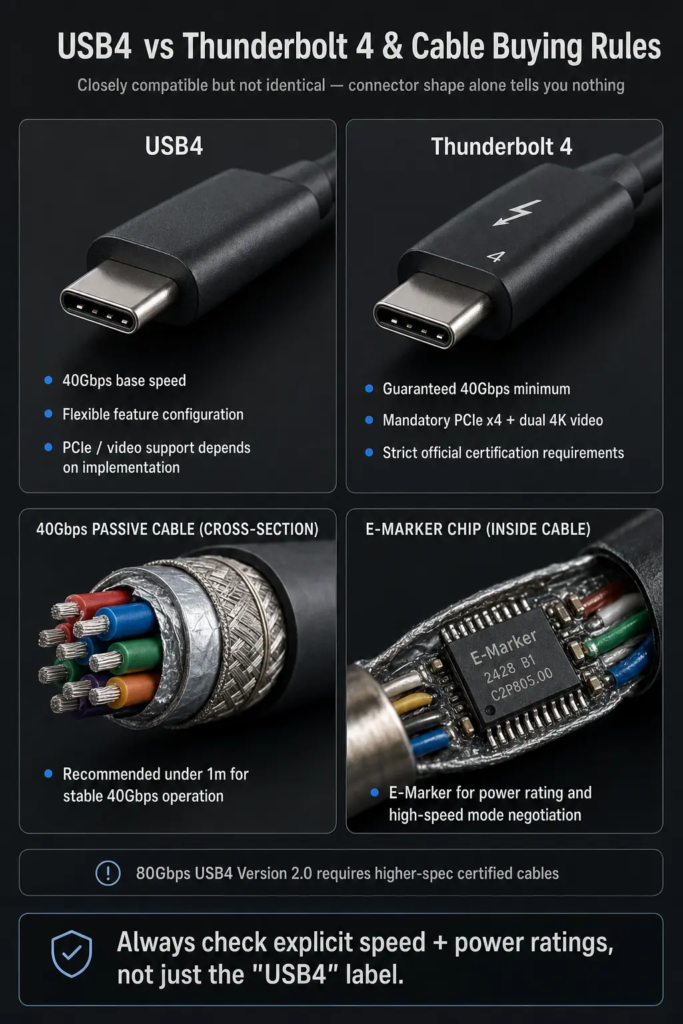
The cable has an “E-Marker” chip inside that tells the system what the cable can handle — both speed and power. The system then uses the highest level that both the cable and the device support.
Simple buying rule: Do not assume a USB4 cable supports 240W charging just because it says “USB4.” Check the printed power rating on the cable packaging. A 40 Gbps data cable might only be rated for 100W, which is fine for most laptops but not for high-power gaming machines.
6. PCIe: The “Secret” Feature That Makes USB4 Special
One of the most powerful things about USB4 is something most people have never heard of: PCI Express, or PCIe for short.
PCIe is the same fast internal connection that your computer uses for its graphics card and its main SSD. USB4 can “tunnel” PCIe through the cable, which means external devices can be nearly as fast as if they were plugged directly into the motherboard.
This is what enables:
- External NVMe SSDs — small pocket-sized drives that are almost as fast as the drive inside your computer
- External GPU enclosures — plug in a desktop graphics card for gaming or creative work
- High-speed Ethernet — 10 Gigabit Ethernet adapters that work at full speed
- Professional audio/video gear — interfaces that need very low latency and high bandwidth
One important note: PCIe support is common on USB4 but not guaranteed on every single USB4 port. Most modern laptops with USB4 do include PCIe tunneling, but if PCIe is specifically what you need — for an external GPU, for example — it is worth checking the product specs to confirm.
7. USB4 vs Thunderbolt: Are They the Same Thing?
This is one of the most common questions, and the short answer is: they are closely related and mostly compatible, but not identical.
USB4 was built using Thunderbolt 3 technology. They use the same 40 Gbps physical layer and the same connector (USB-C). A Thunderbolt device will generally work in a USB4 port, and a USB4 device will generally work in a Thunderbolt port.
The difference is in minimum requirements. Thunderbolt 4 has a strict set of minimum features that every Thunderbolt 4 port must support — things like PCIe x4 bandwidth, dual display support, and certain charging capabilities. USB4 is more flexible: a manufacturer can enable exactly the features they want, which means not every USB4 port has the same capabilities.
Think of it this way: Thunderbolt 4 is like a car that always comes fully loaded. USB4 is like the same car, but the manufacturer can choose which options to include. The base engine (40 Gbps) is the same, but the exact feature list varies.
| USB4 (typical) | Thunderbolt 4 | |
|---|---|---|
| Speed | 40 Gbps | 40 Gbps |
| Connector | USB-C | USB-C |
| PCIe support | Available on most, but not guaranteed | Always required |
| Video support | Flexible — depends on implementation | Must support dual 4K or single 8K |
| Compatible with each other? | Yes — works with Thunderbolt devices | Yes — works with USB4 devices |
For most everyday use — external drives, docks, displays — you probably will not notice a difference between USB4 and Thunderbolt 4. The difference matters more for specialized uses like external GPUs or when you need the absolute maximum guaranteed feature set.
8. What Kind of Cable Do You Need?
This is where things get confusing, because not all USB-C cables are the same. A cable might look identical but support completely different speeds and power levels.
For USB4 40 Gbps, you need a cable that is specifically rated for 40 Gbps. These cables are usually labeled “USB4” or “Thunderbolt 3” or “Thunderbolt 4” on the packaging.
| Cable type | Data speed | Charging | Typical length |
|---|---|---|---|
| Basic USB-C charging cable | USB 2.0 only (480 Mbps) | Often up to 60W or 100W | 1-2 meters |
| USB 10Gbps cable | 10 Gbps | Often 100W | 1-2 meters |
| USB4 40Gbps passive cable | 40 Gbps | Usually 100W, some 240W | 0.8 – 1 meter |
| USB4 40Gbps active cable | 40 Gbps | Varies | 2 meters or more |
Passive vs active cables: A passive cable is just wires — simple, cheap, but limited in length for high speeds. An active cable has a small electronic chip inside that boosts the signal so it can go farther. For 40 Gbps at lengths beyond about 1 meter, you generally need an active cable.
Quick buying tip: If you want one cable that does everything, look for a cable labeled “USB4 40Gbps” with “240W” or “EPR” power rating. That gives you the highest speed and the highest charging power in a single cable.
9. Who Actually Needs USB4?
USB4 is great, but it is not necessarily something you need to go out of your way to get. Here is who benefits the most:\
You will benefit from USB4 if:
- You use a laptop with a docking station and want a single-cable setup
- You work with large files — video editing, photography, large datasets — and need fast external storage
- You use multiple high-resolution displays through a dock
- You want an external GPU for gaming or creative work
- You frequently transfer very large files between computers
USB4 is probably overkill if:
- You mainly use your computer for web browsing, email, and streaming video
- Your external drive is a basic USB flash drive or a regular portable hard drive
- You only need USB for charging, a mouse, and a keyboard
For many people, USB 10Gbps is already more than enough. USB4 is worth paying extra for when you actually need the speed and the multi-function capability.
10. Common Myths and Misconceptions
Myth: “All USB-C ports are USB4.”
No. USB-C is the connector shape. USB4 is the speed and protocol standard. There are USB-C ports that only do USB 2.0, USB 5Gbps, USB 10Gbps, or USB 20Gbps — none of which are USB4. Always check the specs.
Myth: “USB4 means the port can charge my laptop.”
Not necessarily. Data speed and charging power are separate features. A USB4 port might or might not support charging, and the maximum power level varies.
Myth: “USB4 can do HDMI natively.”
No. USB4 natively tunnels DisplayPort, not HDMI. HDMI output requires conversion through an adapter or dock.
Myth: “A longer cable is just as fast.”
Not for 40 Gbps. High-speed USB4 signals degrade quickly over distance. Passive cables longer than about 1 meter may not reliably run at full 40 Gbps speed.
Myth: “USB4 replaces Thunderbolt.”
Not really. They are siblings, not competitors. Thunderbolt 4 sets a higher minimum bar for features, while USB4 offers more flexibility. Both are part of the same ecosystem and work together.
Summary
USB4 is the most capable USB generation yet. Built on Thunderbolt technology and introduced in 2019, it brings 40 Gbps of bandwidth to a standard USB-C connector, and it can carry USB data, DisplayPort video, PCIe traffic, and USB power delivery — all at the same time through one cable.
For most people, the biggest benefit is the single-cable docking experience: plug one cable into your laptop and get charging, display, keyboard, mouse, storage, and Ethernet all at once. For power users, the PCIe tunneling capability enables fast external SSDs and even external GPUs.
The most important things to remember are these: USB4 is not the same as USB-C (it is a specific speed and feature level), it is closely related to Thunderbolt but not identical, and the cable you use matters a lot — always check both the speed rating and the power rating before you buy.