
Have you ever had this experience: you spend a lot of money on a “full-featured USB-C cable”, get home, plug it into a portable SSD and find the speed is only a few dozen MB, plug it into a monitor and it only runs at 1080P, and plug it into a Thunderbolt dock and it doesn’t even get recognized? In fact, the problem usually comes from not distinguishing the differences between USB-C, USB4, and Thunderbolt — these three terms are often mixed up and sold by merchants, but they are not the same thing at all.
If you’re in a hurry, read the core conclusions and comparison table first, then go through the details later.
30-Second Quick Conclusions
To clarify their positioning in one sentence:
- USB4 cables are a universal high-speed choice for average users, with focus on speed, power, length, and USB-IF certification, offering higher cost-effectiveness;
- Thunderbolt cables are more suitable for scenarios like Thunderbolt docks, Mac ecosystem, external GPUs, professional capture cards, and high-speed storage arrays, with stricter certification standards and lower chance of encountering issues;
- The two are not completely incompatible: officially certified Thunderbolt 4/5 cables are usually compatible with USB4, USB 3.x/2.0, DP video carrying, and USB PD power delivery, but the final effect still depends on whether the host, peripherals, and charger support the corresponding specifications; conversely, if a USB4 cable is plugged into a device clearly marked with “Thunderbolt” requirements, it may work but does not guarantee stable operation of all Thunderbolt functions, so priority should be given to purchasing according to the device instructions;
- The most common pitfall: USB-C is just the shape of the plug, it does not represent speed, video, charging, or Thunderbolt capabilities, so don’t buy a cable just by looking at the plug.
Quick Comparison Table
| Comparison Item | USB4 Cable | Thunderbolt Cable |
|---|---|---|
| Interface Shape | Usually USB-C male-to-male | Usually USB-C male-to-male |
| Common Speeds | 20Gbps, 40Gbps, 80Gbps | Thunderbolt 3/4: 40Gbps; Thunderbolt 5: 80Gbps bidirectional (up to approx. 120Gbps unidirectional in specific display scenarios) |
| Certification Mark | USB-IF official speed/power logo | Lightning icon + 3/4/5 generation number |
| Power Delivery Capability | Depends on USB PD standard and E-Marker chip (a built-in identification chip in the cable used to declare its supported current, speed and other specifications), ranging from 60W to 240W | Also depends on USB PD and E-Marker, no inevitable relationship with whether it is Thunderbolt |
| Video Capability | Provides bandwidth support, final effect is jointly determined by host, dock, and monitor | Provides bandwidth support, stricter certification requirements, more stable compatibility expectations |
| Price | Cheaper at the same grade | More expensive at the same grade, but lower troubleshooting cost |
| Suitable For | General charging, portable SSDs, daily expansion | Thunderbolt docks, professional peripherals, multi-screen high refresh rate, Mac ecosystem users |
After reading this article, you will be able to figure out: What are the core differences between USB4 and Thunderbolt cables? Can USB4 cables replace Thunderbolt cables? Is it necessary to buy Thunderbolt 4 or Thunderbolt 5 cables? Which cable should you choose for different scenarios and devices? How to avoid marketing pitfalls like “high-speed cable” and “8K cable” on packaging.
First, Clarify the Boundaries: USB-C, USB4, and Thunderbolt Are Not the Same Thing
Many people make mistakes when buying cables, the first step is wrong because they confuse these three terms, in fact they are concepts at completely different levels:
- USB-C only represents the flat, round, reversible interface shape, and has nothing to do with speed, video output, fast charging power, or Thunderbolt capabilities. Cables with the same USB-C plug, some can only charge, some can run at 40Gbps high speed, the difference is huge.
- USB4 cable is a high-speed USB-C cable standard developed by USB-IF (USB Implementers Forum), with common speed grades of 20Gbps, 40Gbps, and 80Gbps. 80Gbps is mainly for USB4 v2/USB 80Gbps new devices, it only makes sense when the host, peripherals, and cable all support it. A regular USB4 interface does not automatically support 80Gbps, and it is positioned as a universal high-speed connection for general users.
- Thunderbolt cable is a high-speed Type-C ecosystem led and certified by Intel. Thunderbolt 3 and Thunderbolt 4 have a common specification of 40Gbps, Thunderbolt 5 has 80Gbps bidirectional, and supports up to approximately 120Gbps unidirectional bandwidth enhancement in specific display scenarios (namely Bandwidth Boost, a function of Thunderbolt 5 that temporarily allocates more bandwidth to unidirectional video transmission under specific display loads), and is positioned as a highly reliable certified cable for professional expansion scenarios.
Many people are curious, why can USB4 and Thunderbolt often be used interchangeably? In fact, the USB4 specification was developed based on the open technology foundation of Thunderbolt 3, so the two have similarities in underlying designs such as high-speed channels and protocol tunneling, but their positioning differences are clear: USB4 is a more universal high-speed standard with higher cost-effectiveness; Thunderbolt 4/5 is a high-end ecosystem with stricter certification requirements, especially emphasizing the compatibility and stability of docks, displays, and PCIe tunneling (which can be understood as directly connecting devices such as external GPUs and professional capture cards like high-speed devices inside a computer).
From the perspective of compatibility rules, officially certified Thunderbolt 4/5 cables can usually be used as USB-C cables, and are compatible with USB4, USB 3.x/2.0, DP video carrying, and USB PD power delivery; but for old or second-hand Thunderbolt 3 active cables, you need to check the instructions separately, some early products may only guarantee Thunderbolt high speed and do not fully support USB 3.x devices. Of course, whether the corresponding speed can be achieved, video output or power can be reached still depends on whether the host, peripherals, and charger support the corresponding protocol or grade. Conversely, USB4 cables may work normally on some Thunderbolt devices, but because they have not passed Thunderbolt certification, there is no guarantee that all Thunderbolt-exclusive functions will operate stably.
For average users, it is particularly important to distinguish these three concepts: today’s USB-C cables often serve multiple purposes, charging, transferring files, connecting monitors, and connecting docks all use the same one, so the cable can easily become a performance bottleneck. The consequences of buying the wrong cable range from only being able to charge but not transfer high-speed data, and portable SSD speed dropping, to monitor black screen, dock disconnection, and Thunderbolt devices not being recognized at all. Understanding these, you will be able to read the parameters on the packaging, choose the right cable according to your own devices and scenarios, and avoid wasting money.
Unify the Caliber Before Comparison: Don’t Blame the Cable for the Device’s Fault
Before the formal comparison, we must first clarify a core principle, otherwise it is easy to have misunderstandings: A cable is just a “water pipe”, only responsible for carrying signals and power, and does not itself have functions like video output, external GPU, or multi-screen expansion. The final usage effect is determined by the lowest-specification link in the entire chain, which is often called the “barrel effect”.
What Are We Comparing
The comparison in this article is mainly aimed at the specifications of the cable itself, and does not attribute the capabilities of computer ports, docks, hard drive enclosures, or monitors to the cable. The default comparison benchmark is: 40Gbps grade, about 1 meter long, USB-C male-to-male, regular brand, cable with clear specification marks — after all, it makes no sense to compare a 2-meter no-name cable with a 0.5-meter certified cable.
Core Principle: The Lowest Specification Determines the Final Capability
- Speed: Determined by the slowest one among the host port, peripherals, cable, and controller. For example, if you use a 10Gbps hard drive enclosure, even if you plug in a 40Gbps Thunderbolt cable, the maximum speed can only reach the 10Gbps upper limit; conversely, if a 40Gbps hard drive enclosure uses a charging cable that only supports USB 2.0, it may only be recognized at low speed, or even not recognized at all.
- Power Delivery: Determined by the USB PD grade jointly supported by the charger, cable, and device. It’s not that if the cable supports 100W, it can charge the computer at 100W; the computer and charger must also support it.
- Video: Jointly determined by the host’s graphics card capability, whether the port supports video output, dock specifications, monitor parameters, and cable bandwidth. No matter how good the cable is, it can’t save a USB-C port that doesn’t support video output.
- Thunderbolt Functions: Both the host and peripherals must support the Thunderbolt protocol, and a compliant cable must be used to give full play to all Thunderbolt capabilities.
5 Key Variables Affecting Cable Performance
Cables also called USB4 or Thunderbolt may have very different actual performance, mainly depending on these variables:
- Speed Grade: USB4 has three grades: 20/40/80Gbps, Thunderbolt 3/4 are mostly 40Gbps, Thunderbolt 5 is 80Gbps bidirectional, and supports up to approximately 120Gbps unidirectional bandwidth enhancement in specific display scenarios; the larger the number, the higher the chain upper limit, but there is actual benefit only when the entire chain of host, peripherals, and cable supports the corresponding specification, and the process requirements for the cable are also higher.
- Cable Type: Passive cables have no signal amplification chip, are cheap and stable over short distances; active cables have signal processing chips, can run at full high speed over long distances, but are more expensive, and some have direction requirements.
- Cable Length: The higher the speed, the easier the signal attenuates, and the more dependent it is on short cables and certification. A 40Gbps passive cable is generally most stable at about 0.8 meters, if it exceeds 1 meter, you need to check whether it is rated for full speed, and full-speed cables over 2 meters are basically active or specially certified.
- Certification Mark: Officially certified logos and clearly marked Gbps/W numbers are much more credible than vague marketing terms like “high-speed cable” and “full-featured cable”.
- Device Ecosystem: It is more cost-effective to use USB4 cables for ordinary USB-C/USB4 devices; for scenarios like Thunderbolt professional devices, Mac Thunderbolt ecosystem, and external GPUs, it is more worry-free to prioritize Thunderbolt-certified cables.
Cable Grade Quick Reference Table
For your quick correspondence, we have sorted out common USB-C cables by grade:
| Cable Grade | Typical Speed | Core Application Scenarios |
|---|---|---|
| Ordinary USB-C Charging Cable | Mostly USB 2.0 (480Mbps) | Charging, low-speed data synchronization (e.g. connecting headphones, keyboards) |
| USB 3.x Cable | 5Gbps/10Gbps/20Gbps | Ordinary USB flash drives, portable hard drives, light expansion |
| USB4 20Gbps Cable | 20Gbps | General high-speed transmission, light expansion, lower price |
| USB4 40Gbps Cable | 40Gbps | Portable SSDs, USB4 docks, single/multi-screen display (top choice for universal cost-effectiveness) |
| USB4 80Gbps Cable | 80Gbps | New generation USB4 v2 devices, high-refresh multi-screen, high-end expansion (requires full chain support) |
| Thunderbolt 3 Cable | 40Gbps | Old Thunderbolt devices (some early active cables have limited USB compatibility) |
| Thunderbolt 4 Cable | 40Gbps | Thunderbolt docks, professional devices, high compatibility requirements |
| Thunderbolt 5 Cable | 80Gbps bidirectional (up to approx. 120Gbps unidirectional for specific displays) | New high-end laptops, multi-screen high refresh rate, professional expansion, high-end storage |
Focus on Core Differences
After reading the grade table, you may ask: since both are 40Gbps, what is the difference between USB4 and Thunderbolt cables? The core differences can be condensed into three points: First, for the same 40Gbps grade, USB4 cables and Thunderbolt 3/4 cables have similar theoretical link speeds, and the difference is mainly in certification standards and compatibility expectations; second, power delivery capability is only related to USB PD specifications and E-Marker, it’s not that Thunderbolt cables are naturally better at charging; third, video and professional expansion capabilities are jointly determined by the device chain, and the advantage of Thunderbolt-certified cables is that they reduce troubleshooting costs and have more predictable stability.
3-Second Identification Method: Check Marks, Read Parameters, Distinguish Authenticity
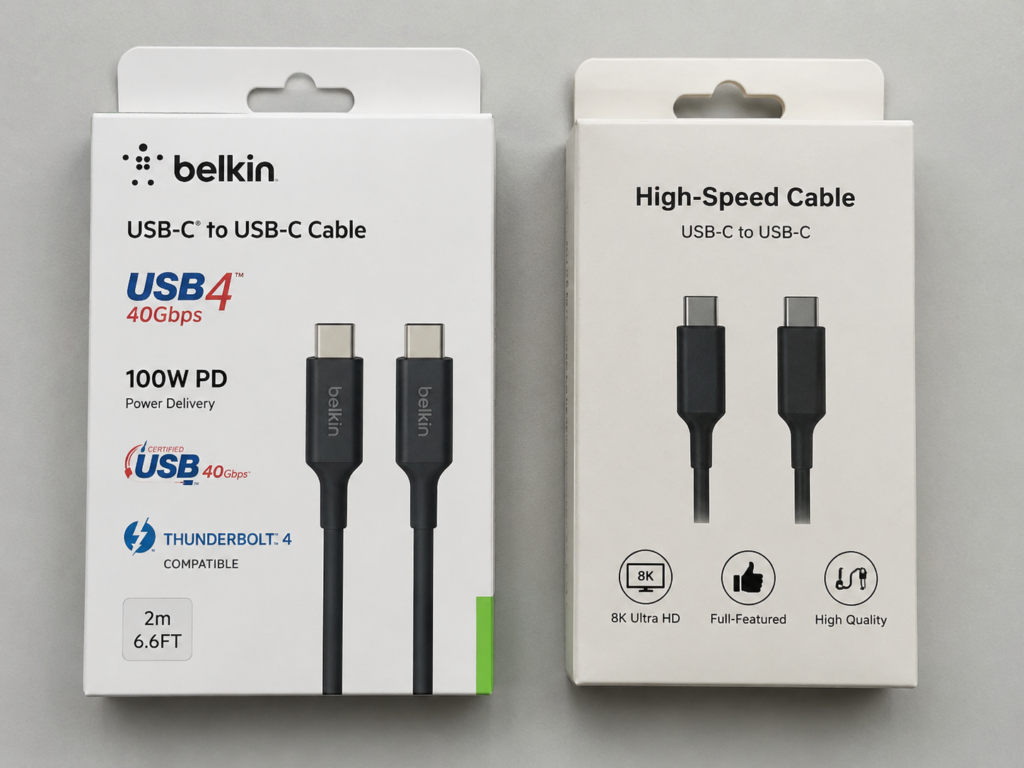
Nowadays, there are too many marketing terms on cable packaging, such as “high-speed cable”, “full-featured cable”, and “8K cable” flying everywhere. In fact, as long as you learn to look at a few key marks, you can judge pretty accurately in 3 seconds.
How to Read Official Certification Marks
The most credible are always official certification logos:
- USB-IF Certification: Look for official speed/power marks, such as “USB 20Gbps”, “USB 40Gbps”, “USB 240W”, these are unified marks of USB-IF with clear specification standards.
- Thunderbolt Certification: Look for the lightning-shaped logo, the number 3/4/5 next to it represents the Thunderbolt generation, not the speed number. For example, Thunderbolt 4 is 40Gbps, Thunderbolt 5 is 80Gbps.
Credibility ranking from high to low: Official certification logo > clearly marked Gbps/W parameters > brand’s own test instructions > marketing terms like “high-speed cable”, “full-featured cable”, “8K cable”.
If the packaging only says “USB-C”, “Type-C”, “fast charging cable”, “high-speed transmission”, without any specific parameters or certification marks, you can basically default to an ordinary low-speed cable, don’t have too high expectations.
Correct Way to Read Packaging Parameters
Even without official certification, as long as the parameters are clearly written, they can be used as a reference:
- Protocol: Only those clearly marked “USB4”, “Thunderbolt 4”, “Thunderbolt 5” are corresponding specifications. “Compatible with Thunderbolt” does not mean it has passed Thunderbolt certification, it may just be able to be plugged in and used.
- Speed: Those clearly marked 20Gbps, 40Gbps, 80Gbps are much more credible than “high-speed transmission” and “extreme speed experience”.
- Power: 60W, 100W, 240W only represent power delivery capability, not data speed or video capability. Don’t think it’s a full-featured cable just because you see 100W.
- Video: Descriptions like 4K, 8K, DP Alt Mode (a working mode that allows USB-C ports to directly output DisplayPort video) can only be used as a reference, and whether it can be used in the end depends on whether the host and peripherals support it.
- Length: The longer the high-speed cable, the more you need to confirm whether it is an active cable, whether it has certification, and whether it is rated for full speed. Don’t casually buy 40Gbps no-name cables longer than 2 meters.
Quick Judgment of False Marking and Fake Marks
When encountering these situations, be extra vigilant about false marking:
- Abnormal Price: Under the same length and specification, 40Gbps, 80Gbps, 240W cables whose price is far lower than mainstream brands are most likely falsely marked.
- Overloaded Parameters: Simultaneously claiming 240W, 80Gbps, 8K, full compatibility, but no brand, no certification, no test instructions, is basically a trap.
- Confused Marks: The title says “Thunderbolt cable”, but the detail page only mentions USB-C or fast charging; there is a lightning symbol on the picture, but no description of Thunderbolt certification.
- Distorted Reviews: Reviews are full of “can charge”, “good workmanship”, without actual test content like hard drive speed test, dock compatibility, multi-screen stability, so the reference value is very low.
Method to Verify Actual Capability After Receipt
After buying it home, don’t just test whether it can charge, you can verify the actual specifications of the cable in a few simple steps:
- macOS: Open “System Information”, check the “Thunderbolt” or “USB” section, and you can see the currently connected protocol and link speed.
- Windows: Open Thunderbolt Control Center, USB4 settings, or Device Manager to check connection specifications; for Thunderbolt devices, also pay attention to system authorization, security settings, and whether driver firmware is updated.
- Data Actual Test: Use a high-speed portable SSD with speed test software to see if the speed is close to the device’s rated upper limit.
- Video Actual Test: Connect to a monitor, check whether resolution, refresh rate, and HDR can meet expectations, and test stability for multiple screens.
- Charging Actual Test: Check the system’s power information, or use a power meter to detect, confirm whether the expected charging power is achieved.
Scenario-Based Buying: Choose According to Needs, Don’t Waste Money
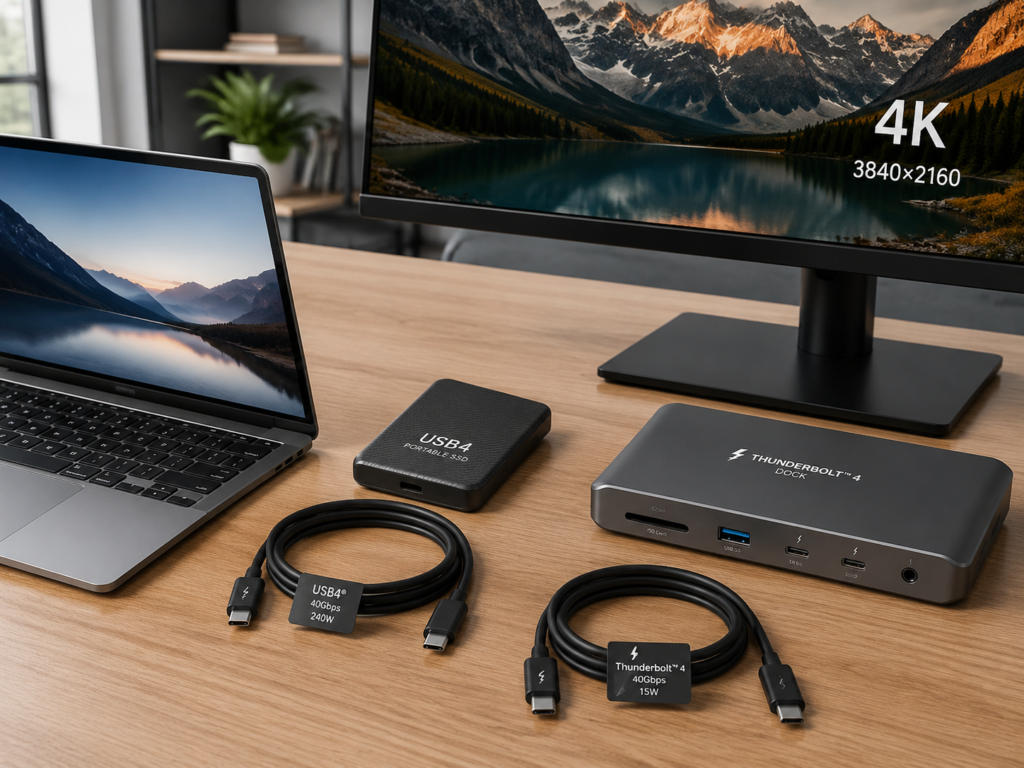
The core of choosing a cable is not “the more expensive the better”, but “matching your devices and needs”. We give you clear buying suggestions according to the most common usage scenarios.
Pure Charging Scenario: No Need to Spend Extra for High Speed
If it’s only used for charging, there’s no need to buy high-speed USB4 or Thunderbolt cables at all:
- Mobile phones, tablets, headphones: Ordinary compliant USB-C PD cables are fine, focus on durability, length, and power matching.
- 60W/100W thin and light laptops: For 60W thin and light laptops, generally choose a PD cable marked 3A/60W; 100W usually requires a 5A cable with E-Marker chip; if the cable only marks fast charging and does not mark A/W numbers, you cannot default to supporting full laptop power.
- High-power devices such as 140W/180W/240W: Choose cables that support USB PD 3.1 EPR (a high-power expansion grade of USB PD that supports charging power exceeding 100W), and confirm that the computer and charger also support the corresponding grade. 240W is only the upper limit of the cable’s capability, and the actual charging power is still determined by the negotiation of the charger, device, and cable.
Pitfall reminder: Many low-cost fast charging cables only have USB 2.0 data speed, cannot be used to connect high-speed portable hard drives or high-spec docks, so read the parameters clearly when buying.
Daily Office/General Expansion: USB4 40Gbps Has the Highest Cost-Effectiveness
If your needs are laptop charging, file transfer, connecting one monitor, and connecting to an ordinary dock, USB4 40Gbps cable is currently the most cost-effective choice. Choose 100W or 240W power according to your device, and prioritize a length of about 1 meter for the best stability.
The premise is to confirm that your host’s USB-C port supports video output, and the dock and monitor also support the resolution and refresh rate you want. If you use a Thunderbolt dock, Mac Thunderbolt ecosystem, or professional Thunderbolt peripherals, it is more worry-free to directly choose a Thunderbolt 4 cable, to avoid compatibility problems later.
High-Speed Storage: First Check the Hard Drive Enclosure Upper Limit, Then Choose the Cable
When buying cables for high-speed storage, don’t blindly pursue high specifications, first check what speed your hard drive enclosure supports:
- 10Gbps hard drive enclosure: USB 3.2 10Gbps cable is enough, no need to buy USB4 or Thunderbolt cables.
- 20Gbps hard drive enclosure: Just choose a cable rated 20Gbps or higher.
- USB4/Thunderbolt hard drive enclosure: Choose USB4 40Gbps or Thunderbolt 4 cable, prioritize short cables for better stability.
- Professional storage array: If the device clearly requires Thunderbolt, prioritize Thunderbolt-certified cables.
If long-distance connection is required, if it exceeds 1 meter, you need to check whether the cable is rated for full speed. For full-speed cables over 2 meters, prioritize active or clearly certified long cables.
External Monitor: Don’t Just Trust “8K Cable” Marketing Terms
For cables connecting to monitors, don’t be fooled by terms like “8K cable” and “HD cable”, choose according to your display needs:
- Single 4K 60Hz: USB4 40Gbps or compliant full-featured USB-C cables are usually sufficient, but the premise is that the host port supports video output.
- 4K high refresh rate, dual 4K, 5K/6K/8K: Prioritize USB4 40Gbps or higher or Thunderbolt 4/5 certified cables, and at the same time confirm that the dock, monitor, and host graphics card all support the corresponding specifications. If you run multiple screens, network port, and high-speed hard drive through the dock at the same time, these data will share the link bandwidth. If necessary, you need to reduce the refresh rate, reduce peripherals, or upgrade to a USB4 80Gbps/Thunderbolt 5 device chain.
- Multi-screen office: Use Thunderbolt 4/5 dock with Thunderbolt-certified cable, compatibility is more predictable, and problems like screen flickering and low refresh rate are less likely to occur.
If you encounter black screen, screen flickering, or insufficient refresh rate, first check the specifications of each link: host, dock, monitor, cable, then judge whether it is a cable problem, don’t change the cable right away.
Professional Expansion: Choose Thunderbolt Cable If the Device Requires Thunderbolt
If you use professional devices such as external GPU (eGPU), Thunderbolt dock, professional capture card, professional audio interface, high-speed storage array, daisy-chained devices, as long as the device manual clearly requires Thunderbolt, prioritize the corresponding version of Thunderbolt-certified cable.
The reason is simple: these scenarios have high requirements for PCIe tunnel bandwidth, latency, stability, and system compatibility. Thunderbolt-certified cables can reduce a lot of uncertainty, saving you from spending a lot of time troubleshooting disconnection, speed drop, and recognition failure problems later. If it’s just an ordinary USB4 dock, there’s no need to force buy a Thunderbolt cable.
Quick Correspondence for Users of Different Devices
- Mac Users: First check the port specifications of your specific model, confirm whether it is USB4, Thunderbolt 3/4, or Thunderbolt 5; when connecting to Thunderbolt docks, Studio Display, high-speed storage, prioritize the corresponding version of Thunderbolt-certified cable; for ordinary charging and connecting ordinary peripherals, just use ordinary PD cables or USB cables.
- Windows Thin and Light Laptop Users: First check the mark next to the interface, confirm whether it is ordinary USB-C, USB4, or Thunderbolt port, then choose the cable according to expansion needs; when using Thunderbolt peripherals, pay attention to the system’s Thunderbolt authorization, BIOS security settings, and driver firmware updates.
- Android Phone/Tablet Users: Most do not need USB4 or Thunderbolt cables, unless your device clearly supports high-speed video output, desktop mode, or high-speed external storage.
- High-End iPad Users: Subject to the official website parameters of the specific model; iPad Pro marked as supporting Thunderbolt/USB4 can use USB4 or Thunderbolt cables to exert high-speed expansion capabilities; for other iPads with USB-C interface, most can choose cables according to ordinary charging, data synchronization, or basic display needs, no need to blindly buy high-speed cables.
Advanced: Active vs Passive Cables, Misconceptions, and Troubleshooting
If you want to understand more deeply, or often encounter cable-related problems, this part of the content can help you avoid a lot of detours.
How to Choose Between Active and Passive Cables
Passive cables do not have signal amplification/retiming chips, have simple structure, low price, and good short-distance compatibility; active cables have built-in signal processing chips, suitable for maintaining 40Gbps/80Gbps full-speed transmission over longer distances, but are more expensive, and some products have direction requirements or compatibility restrictions.
After understanding the basic differences, you can directly judge according to these standards when buying:
- For high-speed connections within 1 meter, prioritize certified short passive cables, which have the highest cost-effectiveness and best compatibility; if you need more than 2 meters and must run at full 40Gbps/80Gbps, prioritize long cables clearly marked as active or officially certified. Don’t be greedy for cheap and buy no-name long cables, most likely they won’t run at full speed.
- When buying active cables, pay attention to the product description: some active cables have direction requirements for host end/device end, and inserting them backwards may prevent full speed; old Thunderbolt 3 active cables and second-hand cables without clear specifications must be verified whether they support common protocols such as USB 3.x, to avoid the situation of “only runs Thunderbolt, USB devices can’t be used”.
Correction of 5 Common Cognitive Misconceptions
- Misconception: Thunderbolt cables are definitely faster than USB4 cables
Correction: The theoretical speeds of the same grade (e.g. both 40Gbps) are almost the same, the difference is mainly in certification standards and compatibility in professional scenarios, not that Thunderbolt cables themselves are faster. - Misconception: All Type-C ports can run at full speed
Correction: Type-C is just the interface shape. The port, cable, and peripherals must all support the target specification to run at the corresponding full speed, no link can be missing. - Misconception: Marked 100W means it’s a full-featured cable
Correction: 100W only represents power delivery capability, does not indicate data speed or video capability. Many 100W cables only have USB 2.0 speed. - Misconception: Marked 40Gbps means it can definitely connect multiple screens
Correction: Multi-screen capability is jointly determined by host, graphics card, DP version, dock, monitor, and cable, the cable is just one of the links. - Misconception: USB4 cables cannot connect to any Thunderbolt devices
Correction: USB4 cables can also be used in some Thunderbolt scenarios, but because they have not passed Thunderbolt certification, there is no guarantee that all functions are stable. For professional scenarios, still choose Thunderbolt cables according to device requirements.
Quick Attribution of Common Faults
When encountering cable-related problems, don’t panic, first troubleshoot according to these common causes:
- Only charges, does not recognize hard drive: Most likely it’s a low-speed charging cable, it may also be that the port does not support data, the cable is damaged, or there is poor contact.
- Hard drive recognized but very slow: It may be that the cable’s speed specification is insufficient (e.g. only USB 2.0/5Gbps/10Gbps), or the device negotiated a speed reduction. First replace with a short, known high-speed cable for testing.
- Monitor black screen / refresh rate can’t go up: Check whether the host port supports video output, and whether the dock, cable, and monitor all support the target resolution and refresh rate.
- Dock disconnection / unstable network port / screen flickering: Prioritize replacing with a short USB4 or Thunderbolt-certified cable to rule out insufficient bandwidth and signal integrity problems.
- Thunderbolt device not recognized: Confirm whether the host has a Thunderbolt port, whether the Windows system has completed Thunderbolt device authorization, whether Thunderbolt devices are allowed in BIOS/security settings, whether drivers and firmware are up to date, and whether the cable is a Thunderbolt-certified cable.
Standard Troubleshooting Sequence
If you encounter complex problems, troubleshoot in this order for the highest efficiency:
- First check the icon and official specifications of the computer port, confirm whether it is ordinary USB-C, USB4, or Thunderbolt port;
- Then check the peripheral’s manual or parameter page, confirm whether it clearly requires Thunderbolt cable;
- Replace with a short, clearly certified cable for testing, first rule out cable problems;
- Reduce resolution/refresh rate, or connect only one device, judge whether it is insufficient bandwidth;
- Finally check system settings, drivers, firmware, dock power supply, and the fault of the device itself.
Cable Purchase Acceptance Checklist
When buying a cable, check against this list, and you basically won’t encounter pitfalls:
- Protocol: Clearly marked USB4, Thunderbolt 4, or Thunderbolt 5, not just USB-C;
- Speed: Clearly marked 20Gbps, 40Gbps, or 80Gbps;
- Power: Clearly marked 60W, 100W, or 240W, high-power cables must have descriptions of 5A/E-Marker/PD 3.1 EPR;
- Length: Meets your high-speed needs, long cables must be marked as active or certified full speed;
- Video: If you have video needs, confirm that the device chain supports video output and the cable meets bandwidth requirements;
- Certification: Prioritize products with USB-IF or Thunderbolt certification;
- Actual test: After receiving, test charging, data, video, and expansion stability, don’t just test whether it can charge.
Summary: 3 Steps to Choose the Right Cable for You
Overall, USB4 and Thunderbolt 4/5 cables are not in a relationship of one replacing the other, but two types of products with different positioning: USB4 follows the universal cost-effective route, suitable for most average users; Thunderbolt follows the professional certification route, suitable for users with professional expansion needs who don’t want to spend time troubleshooting compatibility.
If you want to quickly match according to budget, you can refer to this priority:
- Charging only: Choose compliant USB-C PD cable, just choose according to power
- Transferring photos / ordinary USB flash drives: USB 3.x cable is sufficient
- Portable SSD / ordinary dock: Prioritize USB4 40Gbps cable
- Thunderbolt dock / eGPU / professional devices: Choose Thunderbolt 4/5 certified cable
- 8K / high-refresh multi-screen / new high-end devices: Then consider USB4 80Gbps or Thunderbolt 5 cable (requires full chain support)
Finally, here is a 3-step quick cable selection method, follow it and you basically won’t go wrong:
- Check device interface: Ordinary USB-C port, buy according to charging/USB 3.x/video needs; USB4 port, prioritize USB4 40Gbps cable; Thunderbolt port, when connecting Thunderbolt peripherals, prioritize the corresponding version of Thunderbolt-certified cable.
- Check core needs: Charging only, choose PD cable; transferring photos, using ordinary USB flash drives, choose USB 3.x cable; portable SSD, ordinary expansion, choose USB4 40Gbps cable; Thunderbolt dock, eGPU, professional devices, choose Thunderbolt-certified cable; high-refresh multi-screen, new high-end devices, then consider USB4 80Gbps or Thunderbolt 5.
- Check length and budget: USB4 40Gbps cables within 1 meter have the highest cost-effectiveness; for full-speed needs over 2 meters, prioritize certified active cables; if budget is limited, first meet the necessary functions, don’t blindly pursue 80Gbps, 240W, or Thunderbolt 5.
The core of choosing a cable is never “the more expensive the better”, but “exactly matching your devices and needs”. Understand the two basic principles: USB-C is just the interface shape, and capability is determined by the lowest specification of the device chain, then you can easily read parameters, choose the right cable, and quickly troubleshoot problems in order when encountered.