
Many people only bring one USB-C charger when going out, wanting to power their phone, tablet, and laptop at the same time — after all, almost all new laptops these days come with a USB-C port. But sometimes after plugging in the cable, there is either no response at all, or it shows “plugged in” but the battery level does not rise, and it even drops while charging. Many people’s first reaction is “the computer is broken”, but in reality, many USB-C charging issues stem from accessories, settings, or misunderstandings about USB-C, and are not necessarily hardware failures of the computer.
This article will start with the most basic concepts, first helping you understand the basic logic of USB-C charging, then pinpoint the causes corresponding to different fault symptoms, and finally provide troubleshooting steps from easy to difficult, so you can follow along even if you know nothing about technology.
First, Get the Basics Straight: Just Because a USB-C Cable Fits Doesn’t Mean It Can Charge
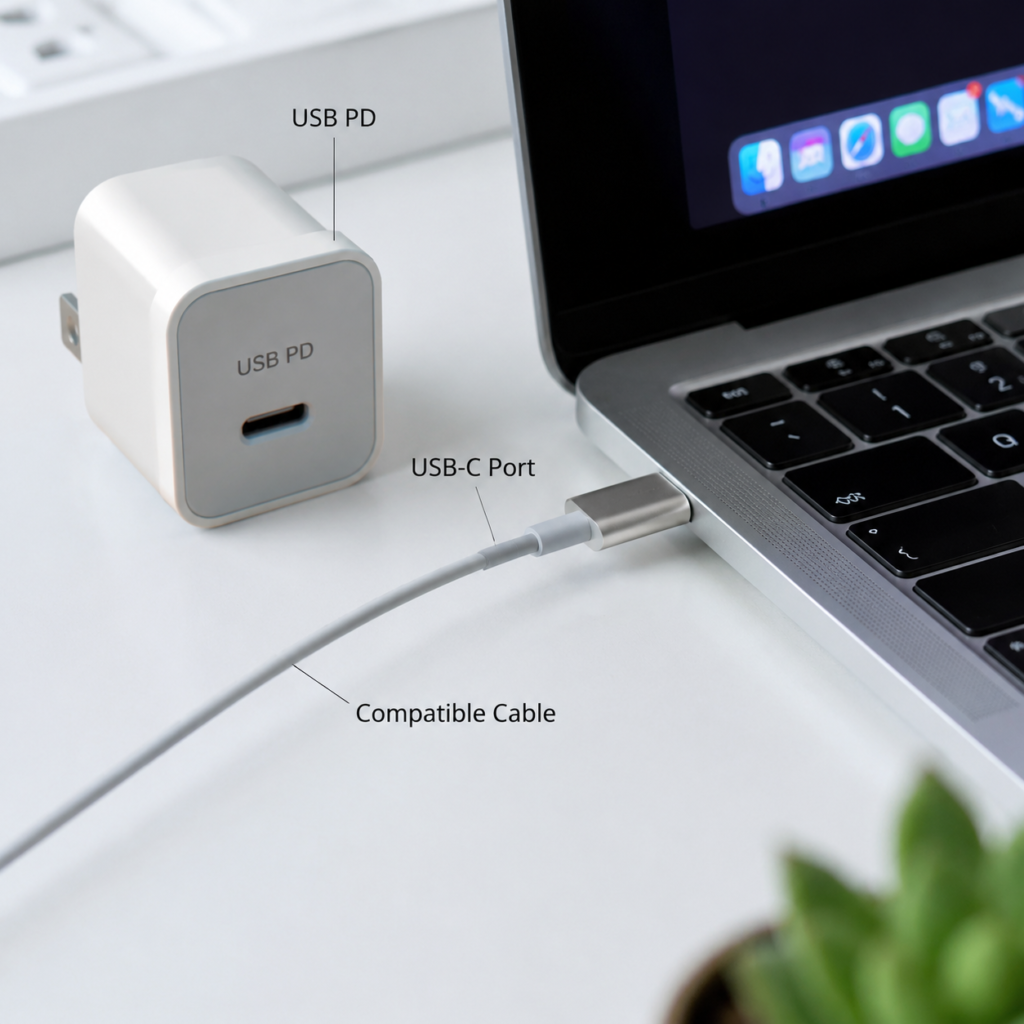
The biggest misunderstanding many people have is that they assume a USB-C port can charge by default. In fact, USB-C is first and foremost just a port shape, like whether a plug is round or square. Whether this port can charge depends on whether it has a charging circuit connected internally and whether it supports the corresponding power delivery protocol.
Does Your Laptop Actually Support USB-C Charging?
You can quickly confirm this with three methods:
First, check the markings next to the ports on the body. If there are icons related to battery, plug, “PD”, or charging, it most likely supports charging; but note that a lightning-shaped icon usually represents a Thunderbolt high-speed interface, which does not necessarily mean it can charge on its own, and you still need to judge combined with other information.
Second, check the official website or user manual. Look for these keywords: USB-C charging, Power Delivery, PD charging, DC-in via USB-C, USB4/Thunderbolt charging. As long as it clearly mentions support for USB-C charging input, it’s fine.
Third, check the original adapter. If the original charger has a USB-C interface, the computer almost certainly supports USB-C charging; if the original has a round port, square port, or magnetic port (such as older gaming laptops, mobile workstations), it most likely does not support USB-C charging, or can only use low-power trickle charging, and cannot charge at full normal speed.
It should be noted that the judgment methods we mentioned are mainly for consumer-grade Windows laptops, MacBooks, and common thin and light office laptops. The power supply logic of industrial computers, servers, and special ruggedized devices is different, and these general rules do not apply.
What’s the Difference Between USB-C, USB PD, Thunderbolt/USB4?
Many people confuse these concepts, but in plain language it’s very simple:
USB-C is the shape of the interface, which solves the problem of “what the plug looks like and whether it can be inserted”;
USB PD is a set of universal power delivery protocols, which solves the problem of “how the device and charger negotiate voltage, current, and power”. Almost all laptop USB-C charging relies on this protocol;
Thunderbolt and USB4 are high-speed data + video transmission standards, which happen to also use the USB-C interface shape. Many models with Thunderbolt/USB4 also support PD charging, but in the end it depends on the manufacturer’s specifications. The Thunderbolt/USB4 mark only indicates high-speed interface capability; whether it can be used as a charging input is still subject to the USB-C charging/Power Delivery description on the official website specification page or user manual.
In one sentence: for a laptop to charge via USB-C, you can’t just look at the interface shape; it must meet several conditions at the same time: interface function, PD protocol, power level, and cable specification — none can be missing.
4 Conditions That Must Be Met Simultaneously for Normal Charging
Specifically, for a normal USB-C charge, none of these four links can have problems:
First, the laptop side: the USB-C port you plug into must support charging input, and you must not plug into the wrong port — many computers have two or three USB-C ports, which may have different functions.
Second, the charger side: it must support the USB PD protocol, and can provide the voltage level and sufficient power required by the laptop.
Third, the cable side: the charging cable must be able to carry the corresponding current and power, and also support power negotiation. High-power cables will have a special identification chip inside.
Fourth, the status side: the computer’s system, battery, temperature, and BIOS/firmware do not restrict charging. For example, if battery protection mode is enabled, charging will stop when the upper limit is reached.
Of course there are exceptions: some laptops can use a low-power USB-C charger to stay powered on, but cannot significantly recharge the battery; some gaming laptops support USB-C charging, but will limit performance while charging, and only the original dedicated power supply can achieve full performance.
Plain Language Explanations of Several Key Terms
Several common terms will be mentioned later, so let’s explain them clearly in plain language first to avoid confusion later:
- Power negotiation: After plugging in the charger, the computer and charger will first “have a chat” to confirm how much voltage and current the computer needs, and how much the charger can provide. They will only officially supply power after reaching an agreement, and will not force power through.
- USB PD: The universal power supply standard mentioned just now. Laptop charging basically relies on it. Chargers that only support proprietary fast charging for mobile phones most likely cannot charge laptops.
- E-Marker chip: A small chip in high-power USB-C cables, equivalent to the “capability ID card” of the cable. It tells the devices at both ends “what’s the maximum current I can handle” to avoid overload.
- PD 3.1 EPR: An extended USB-C power supply standard for over 100W, such as 140W, 180W, 240W charging. It requires the computer, charger, and cable to all support this standard; if any one is missing, high power cannot be achieved.
- PD passthrough: Commonly found in USB-C docks and monitors, it is the function of passing the power from a charger plugged into the dock/monitor on to the laptop.
- Charging threshold/battery care mode: To extend battery life, many computers can set a charging upper limit, for example, stopping charging at 60% or 80%. At this time, it will show “plugged in, not charging”, which is not a fault.
How Much Power Do Different Laptops Need?
Many people have slow charging or can’t charge, which is actually because the charger power is insufficient. Different types of laptops have very different requirements for charging power. Here is a reference range for you:
| Laptop Type | Common Minimum Charging Power | Notes |
|---|---|---|
| Small-screen thin and light laptops / low-power office laptops | 30W-45W | Charging is more stable with a 65W charger |
| Mainstream office laptops / 13-14 inch thin and light laptops / MacBook Air | 45W-65W | It is recommended that third-party charger power is not lower than the original |
| High-performance thin and light laptops / discrete graphics office laptops | 90W-100W | Insufficient power may only maintain operation or cause battery drain |
| Gaming laptops / mobile workstations | May require 100W, 140W or higher; many models only support low-power USB-C trickle charging | Full-performance operation usually requires the original dedicated power supply, subject to official website specifications |
The core principle of judgment is: first look at the nominal power marked on the original adapter, and the instructions on the official website. If the power of a third-party charger is not lower than the original, it will be more stable, but don’t worry about “too much power burning the computer” — because of power negotiation, the computer only takes the power it needs, and won’t take the extra.
It should also be reminded here that a lit screen or lit keyboard lights does not mean the battery is being charged. It may just be that the external power supply barely maintains the computer’s operation, and the battery is not actually charging, or even draining.
First, Match Your Symptom: What Kind of Charging Fault Do You Have?
Now that you understand the basic logic, next we can match your fault to the corresponding type — different symptoms correspond to completely different causes, and the priority of troubleshooting is also different.
The first type is no response at all: after plugging in the cable, the system has no prompt of external power supply, the charging indicator light on the body does not light up, and the battery bar doesn’t move at all. In this case, the first thing to suspect is not that the computer is broken, but that the port does not support charging, you plugged into the wrong port, the charger does not support PD, the cable is unsuitable, or there is severe poor contact. The fastest verification method is to unplug all intermediate docks and adapters, and use a confirmed good PD charging cable and charger to directly plug into the computer’s USB-C port to test.
The second type is shows connected but battery level doesn’t rise: the system can recognize the external power supply and has a charging icon, but the battery percentage stays still. In this case, priority suspects are charging threshold limit, temperature protection, insufficient power, or system display abnormality. You can first use the battery below the charging upper limit, place it in a room-temperature environment, and let it stand by at low load for 10 to 30 minutes to see if the level rises.
The third type is battery drains while in use: there is a charging icon, but the battery level gets lower instead, especially when playing games, holding video conferences, or connecting multiple screens. This is mostly because the input power is lower than the computer’s current total power consumption. For example, a multi-port charger is connected to other devices at the same time and splits the power, or the dock itself consumes part of the power. A little trick to judge: turn off high-load tasks, only open a document or stand by. If it can recharge, then it’s insufficient power supply, not a broken computer.
The fourth type is intermittent charging: the charging icon flashes repeatedly, it disconnects as soon as you touch the cable, and the status bar frequently switches between charging and not charging. In this case, it is most likely that the cable is internally broken, the plug is oxidized, the port is loose due to dust accumulation, or the dock is repeatedly negotiating, or the multi-port charger is switching power. Note that if the port is already loose or has a burnt smell, don’t wiggle the cable to test anymore, as it can easily damage the motherboard or the port.
The fifth type is can only charge when off, won’t charge or charges very slowly when on: leaving it off for one or two hours will increase the battery level, but after turning it on, it doesn’t rise, or rises very slowly. This is usually because the charger’s power is just at the minimum requirement line. When off, power consumption is low, so it can charge; when on, power consumption is high, so it’s not enough. For example, using a 30W mobile phone PD charger to charge an office laptop that needs 65W may charge when off, but will drain during a video conference.
Most Charging Problems Are Caused by External Accessories: Prioritize Checking These Three Categories
After matching your symptom, don’t rush to tinker with the computer first, because the vast majority of USB-C charging problems are caused by external accessories, and they are also the easiest to troubleshoot.
Charger Problems
The first common problem is not supporting USB PD. Ordinary 5V charging heads, chargers that only support proprietary fast charging for certain mobile phones, cannot complete PD negotiation with the laptop, so naturally they can’t charge.
The second is insufficient power. If the charger’s power is lower than the laptop’s minimum requirement, there may be situations such as complete refusal to charge, slow charging, charging when off but not when on, or draining while in use under high load.
The third is mismatched voltage levels. Most laptop USB-C charging requires a 20V voltage level. If the charger only has 5V, 9V, 12V levels, even if the total power is marked high, it cannot charge the laptop normally.
The fourth is multi-port power splitting. Many people like to use multi-port chargers to charge their phones, tablets, and headphones at the same time. But when a multi-port charger is connected to multiple devices at the same time, the power of a single port will drop; plugging and unplugging other devices will also trigger re-negotiation, resulting in a brief disconnection of charging.
Here’s how to read the charger’s parameters: regular chargers will mark output levels. For example, a common 65W mark is “20V=3.25A”, 100W is “20V=5A”, 140W is generally “28V=5A” and will be marked as supporting PD 3.1. It should be reminded that when buying a multi-port charger, don’t just look at the total power on the package. Be sure to check the “maximum single-port output” and “power distribution when multiple ports are used at the same time”. Otherwise, no matter how high the total power is, it’s useless if the single port is not enough.
Charging Cable Problems
Not all USB-C cables can charge laptops. Power carrying capacity is the key: for charging within 60W, an ordinary 3A cable is enough; for 100W charging, a 5A cable with an E-Marker chip is usually required; for PD 3.1 EPR charging over 100W, a cable that specifically supports EPR is also needed.
There is also the problem of cable type: USB-A to USB-C cables usually cannot meet the PD input requirements of laptops, because PD negotiation requires a C to C cable; some poor-quality magnetic adapters and non-standard adapters may damage the stability of power negotiation, resulting in failure to charge or intermittent charging.
In addition, charging cables that are frequently bent, pulled, or crushed may have internal broken cores, but look completely fine on the outside. This situation is also very common. Oxidized plugs, lint in the port, and loose cable ends can all cause poor contact and intermittent charging.
The fastest verification method is to try replacing it with a C-to-C cable that is clearly marked with the corresponding power and confirmed to be good. If it works normally after replacement, then the problem is the cable.
Here we also need to correct a misunderstanding: it’s not that the thicker the cable, the faster the charging. What really determines the charging capability is the specification of the cable core, whether there is an E-Marker/EPR chip, and the overall quality. Some cables look thick, but only have a thick outer sheath, and the inner cable core is very thin, which is actually not good.
Dock, Adapter, and Monitor Link Problems
Many people use a dock or USB-C monitor, thinking that as long as they plug the charger into the dock/monitor, they can power the computer, but that’s not necessarily the case. First, some docks’ USB-C ports are only used to connect to the computer or transfer data, and have no PD passthrough function at all, so they can’t power the computer. Second, even with PD passthrough, the dock itself consumes power, about 10W to 20W. The more peripherals connected, the less power left for the laptop. Third, poor-quality docks, magnetic heads, and A-to-C adapters may cause PD negotiation failure or instability.
As for USB-C monitors, being able to transmit images does not mean their PD output power is sufficient to charge the laptop — many monitors’ USB-C ports only have 15W, 27W, 45W, which can only charge phones and tablets, and are not enough for a 65W office laptop.
The core principle for troubleshooting such problems is: first unplug all intermediate devices, let the charger and cable be directly plugged into the laptop’s USB-C port that supports charging. If direct connection works normally, the problem lies in the intermediate devices.
Laptop-Side Problems: From “False Faults” to Hardware Failures
If external accessory problems are ruled out, then look at the reasons for the laptop itself — most of these are not hardware failures either, but problems with protection mechanisms or settings.
The Most Common “False Faults”
First, troubleshoot the most common “false faults”, which means the computer is not actually broken, but normal protection mechanisms make you think it can’t charge.
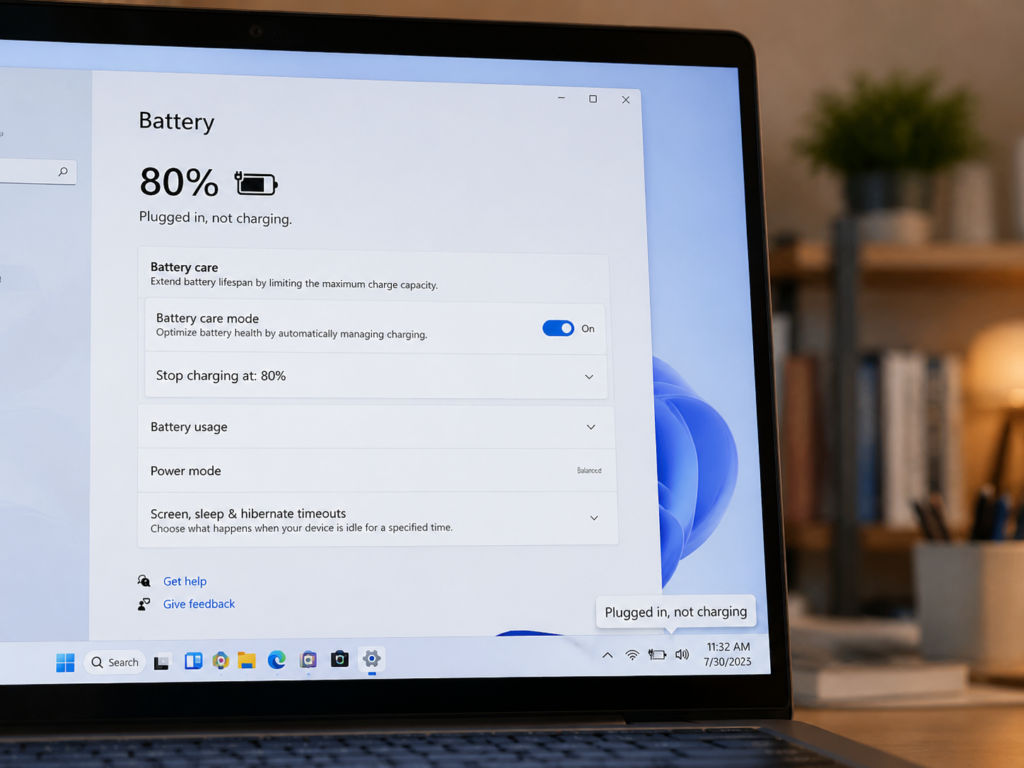
The first is charging threshold limit, which is the battery care mode mentioned earlier: when the battery reaches the preset upper limit (commonly 60%, 80%, or a custom value), charging will stop, showing “plugged in, not charging”, which is a normal design to extend battery life. Mac’s “Optimized Battery Charging” also follows the same logic, which will delay charging to 100% according to usage habits, and is not a fault. Each Windows brand has corresponding power management software, such as Lenovo Vantage for Lenovo, Dell Power Manager for Dell, MyASUS for ASUS, HP Support Assistant for HP, all of which can view and adjust battery protection settings.
The second is temperature protection. The normal charging temperature of lithium batteries is roughly between 0°C and 45°C. If the computer is very hot after just running a large game, or placed in a sub-zero environment in winter, temperature protection will be triggered and charging will be suspended. It will automatically resume when the temperature returns to the normal range.
The third is temporary abnormality of the power management chip. Sometimes the computer’s power management will glitch. At this time, you can do a power reset (also called EC reset): shut down, unplug all peripherals and chargers, long press the power button for 15 to 30 seconds to discharge the residual power of the motherboard, then turn it on and try again. Some models have a dedicated pinhole reset button, which depends on the brand’s official instructions.
Another situation is that the indicator light is not obvious when charging while off, so many people think it’s not charging, but it actually is. You can charge it while off for 30 minutes, then turn it on to see if the battery level has risen, which can rule out display problems.
USB-C Port Usage or Contact Problems
If it’s not a false fault, then check the usage or contact problems of the USB-C port.
The first is plugging into the wrong port. Many computers have two or three USB-C ports, some of which can only transfer data or connect to monitors, and only specific ports support charging input. Naturally, you can’t charge if you plug into the wrong one. You can confirm by referring to the official website instructions or checking the markings next to the ports.
The second is dust or foreign objects in the port. Lint and dust accumulated in the port will prevent the plug from being fully inserted, resulting in poor contact. You can use a dry soft brush or compressed air to gently blow it out. Never use a metal needle or toothpick to pry the pins inside the port, as it can easily cause a short circuit or damage the port.
If the plug wiggles a lot when inserted, and you need to bend it to a certain angle to charge, then the port may be loose, or the solder joints on the motherboard are desoldered. This is a hardware fault, don’t tinker with it yourself.
Battery and Hardware Failures
If the battery is aged, it may also cause abnormal charging. Windows users can generate a system battery report to compare the design capacity and the current full charge capacity; Mac users can directly see the battery health and cycle count in the battery options of System Settings. Generally speaking, if the health is below 80%, or the system prompts “service recommended”, or the battery level jumps severely, it means the battery is aged. But this also needs to be judged in combination with accessory testing, and you can’t directly conclude that it’s a battery problem.
If you replace the charger and cable with confirmed normal ones, try all USB-C ports that support charging, and rule out software setting problems, but still can’t charge, then it is most likely a hardware failure of the USB-C charging module or the motherboard.
Here are a few special warning signs to remind you of: if the battery is swollen (for example, the bottom cover is warped, the trackpad can’t be pressed), the USB-C port has a burnt smell or sparks, the computer has been exposed to liquid (even if it looks dry on the outside, don’t plug it in to test by yourself), or after dropping, squeezing, or obvious impact, there is inability to charge, loose port, abnormal heating of the body or port, etc., stop using it immediately, unplug the power, and send it for repair directly. Don’t test it yourself anymore to avoid danger.
System, Drivers, and Firmware: Easily Overlooked Compatibility Issues
There are also some charging problems caused by compatibility of the system, drivers, or firmware, especially problems that occur after updating the system or BIOS, which should be considered in this regard.
Beginner-Checkable System Settings
Beginner users should first check these simple system settings: first confirm whether battery protection mode is turned on, which we mentioned earlier; then try restarting the computer, unplug the charger and peripherals, wait 10 to 30 seconds and plug them back in. Sometimes it’s just a temporary system glitch; also, if charging is not recognized after waking from sleep, restart first, then update the system patches to the latest stable version pushed by the official. Remember to save work files before updating.
Windows Drivers and Device Manager
If it’s a Windows computer, you can check if there are any abnormalities in Device Manager. Open Device Manager, and check if there are devices with yellow exclamation marks under “Universal Serial Bus controllers”, “Batteries”, and “System devices”. If there are, there may be a driver problem.
Note here: drivers must be downloaded from the official website of the computer brand according to your exact model, such as chipset drivers, USB/Thunderbolt drivers, BIOS/firmware updates. Don’t use third-party driver tools of unknown origin, they are unsafe and unstable. If it’s a battery-related driver abnormality, such as “Microsoft ACPI-Compliant Control Method Battery”, you can reinstall it under official guidance. Before operation, be sure to save your work and ensure the computer has power.
BIOS/UEFI and Firmware Compatibility
Before updating BIOS/firmware, save all files first, ensure the battery has sufficient power and is connected to a reliable power source; if the current USB-C power supply is unstable, prioritize using the original adapter for power before operating, or wait for after-sales guidance.
If your BIOS version is too old, there may be compatibility issues with USB-C PD, Thunderbolt, USB4, or battery management, for example, new PD chargers are not recognized. You can go to the brand’s official website, download BIOS/UEFI, Thunderbolt firmware, USB-C dock firmware updates according to your full model, operate strictly according to the official instructions, and do not flash unofficial firmware.
BIOS rollback is risky. Only do it when the official explicitly supports it or under after-sales guidance. Don’t try it randomly by yourself. In addition, some models have options in the BIOS such as battery shipping mode, USB-C charging switch, Always On USB, battery protection, etc. If they are turned on or off by mistake, it will also affect charging performance.
Security Policy Restrictions on Enterprise Devices
If you use a company-issued laptop, there may be security policies restricting third-party chargers, docks, or Thunderbolt devices. The characteristics to judge are: the original charger works normally, all third-party PD chargers cannot be used, system settings are locked by the administrator, and Thunderbolt devices require IT authorization to use. In this case, just contact the company’s IT department to confirm, don’t try to bypass the enterprise’s security configuration.
Why Can’t You Charge in Special Scenarios: Power Bank, Monitor, Car, High Load
In addition to regular charging scenarios, there are several common charging problems in special scenarios, which we will talk about separately.
Can’t Charge Laptop with Power Bank
The most common reason is insufficient power: thin and light laptops need at least 45W PD output to be relatively stable, mainstream office laptops are recommended to have 65W or above, and many power banks cannot reach this output power. Then there is wrong port insertion: some power banks’ USB-C ports only support input (that is, charging the power bank itself), or only one of the USB-C ports supports high-power output, so be sure to read the manual. Also, when the power bank’s own battery level is very low, it may not be able to maintain high-power output, and will also fail to charge. In addition, protocol mismatch is also a common problem: many power banks are labeled “fast charging”, but only support proprietary fast charging protocols for mobile phones, and do not have a 20V PD output level, so they can’t charge laptops either.
Can’t Charge Laptop with USB-C Monitor
First is insufficient PD output power: the monitor’s USB-C port may only have 15W, 27W, 45W, and some have 65W, 90W, 100W. Be sure to check the specification page for details, don’t take it for granted. Then there is wrong port direction: the monitor’s upstream USB-C port is used to connect to the computer, and the downstream USB-C port is used to connect peripherals. The downstream port generally cannot power the computer. There is also cable limitation: the same cable needs to transmit video and PD power at the same time. In high-power scenarios, it is recommended to use the monitor’s original cable or a regular certified cable, otherwise the power may not reach the required level. A very typical judgment method: if the image transmission is normal, but the battery level doesn’t rise, it is mostly because the monitor’s PD output is insufficient, or the cable does not support the corresponding power.
Can’t Charge Laptop with Car USB-C Port
The vast majority of USB-C ports in cars have very low power, mainly used to charge mobile phones, and cannot meet the requirements of laptops, so it’s normal that they can’t charge. A few new energy vehicles or car inverters support 60W, 100W or even higher PD output, which can charge thin and light laptops. Also note: when the vehicle starts or turns off, the voltage will fluctuate, which may cause charging re-negotiation or even disconnection. Don’t rely on unstable car power supply when you have important work.
Battery Drains While Charging in High-Load Scenarios
If you are playing games, holding video conferences, compiling and rendering, connecting multiple external screens, plugging in multiple hard drives, or turning the screen to maximum brightness, these will greatly increase the computer’s power consumption. If your charger’s power is just at the critical value, it can recharge at low load, but when the input power is not enough under high load, it will drain while charging. This situation is not a fault, it’s just insufficient power. The solution is either to replace with a higher-power PD charger and a compliant cable, or reduce the number of docks and peripherals, or directly use the original high-power adapter.
Follow These Steps to Locate the Problem: 6-Step Troubleshooting Method from Easy to Difficult
After saying so much, you may still not know where to start. It’s okay, you can try step by step in this order from easy to difficult. You don’t need to understand technology, just follow the steps and you can find the cause.
Step 1: Spend 5 minutes ruling out “false faults”.
First confirm whether protection mechanisms such as charging threshold and optimized charging are triggered (you can refer to the previous methods to adjust and then test); then check if the body temperature is too high or the ambient temperature is too low, move to a room temperature environment of 10-30°C and try again; then restart the computer, unplug the charger and all peripherals, wait 10 seconds and plug them back in; if there is still no improvement, do a power reset (EC reset) according to the brand’s instructions; finally, you can charge while off for 30 minutes then turn on to check the battery level, to rule out the possibility of system display abnormality.
Step 2: Do a minimal system test.
Unplug all external devices — docks, adapters, monitors, external hard drives, mobile phones, unplug all of them. Only use the charger plus USB-C cable, directly plugged into the laptop’s USB-C port that supports charging. Also change to a different wall socket or power strip jack to rule out the problem of poor socket contact. If it works normally after direct connection, then the problem must be in the intermediate dock, monitor, adapter, or multi-device power splitting; if direct connection is still abnormal, continue to check further.
Step 3: Check the parameter labels of accessories.
Take out your charger and see if there is a USB PD mark on it, and if there are corresponding output levels. For example, if a thin and light laptop needs 45W/65W, look for a level of 20V=2.25A or 20V=3.25A; for 100W demand, check if there is 20V=5A, and the cable must also support 5A; for 140W or above, check if there is a PD 3.1 EPR mark, such as 28V=5A, and the cable must also support the corresponding EPR power. If it’s a multi-port charger, be sure to check the “maximum single-port output” and “power distribution when multiple ports output simultaneously”, don’t just look at the total power.
Step 4: Cross-replace to locate accessory problems.
If the parameters look okay, use the replacement method to test one by one: first replace the cable without changing the charger, use a confirmed good, sufficiently powerful C-to-C cable. If it works after replacement, the problem is the cable; then replace the charger without changing the cable, use a charger with sufficient power that supports PD levels. If it works after replacement, the problem is the charger; then try another USB-C port that supports charging. If the other port can charge, the problem is a single port; finally, you can also plug your charger and cable into another laptop or tablet that supports PD charging to test. If there is also a problem, then it’s the charger or cable.
Step 5: Troubleshoot system, drivers, and firmware.
If all accessories are fine, then check the software level: first confirm whether functions such as battery care mode and optimized charging are turned on; Windows users go to Device Manager to check if there are abnormalities in USB, Thunderbolt, and battery-related devices; Mac users check the battery health and optimized charging status in System Settings; then go to the brand’s official website to update the chipset, USB/Thunderbolt drivers, BIOS/firmware. Be sure to use official ones, don’t flash unofficial ones. If the fault occurs after a system or BIOS update, prioritize checking the brand’s official website for relevant announcements and known issues. Rollback operations must be carried out under official guidance.
Step 6: Determine whether repair is needed.
If you have tested with a confirmed normal PD charger and cable via direct connection, tried all USB-C ports that support charging, and also checked system settings and drivers, but still can’t charge, then it is recommended to send for repair. If the warning signs mentioned above appear, stop using immediately and send for repair.
Before sending for repair, it’s best to record the following information: the full model of the computer, system version, BIOS version; the specific type of fault (no charging at all, plugged in not charging, draining while in use, etc.); the power of the tested charger, PD levels, rated power of the cable; whether there was a direct connection test, whether it passed through a dock/monitor, which USB-C ports are abnormal; and the trigger event of the fault, such as dropping, liquid exposure, system update, new accessories replaced, etc. This way, after-sales can locate the problem faster.
Semi-Expert Improvement: Pitfall Avoidance, Boundary Judgment, and Safety Red Lines
If you not only want to solve the problem, but also want to avoid pitfalls in the future, and even help friends troubleshoot, you should remember the content of this part well.
The 6 Most Common Cognitive Misconceptions
- Any USB-C port can charge: interface function, PD protocol, power, cable, and system status must all be satisfied at the same time
- A high-power charger will burn the laptop: regular PD chargers negotiate power supply, and the computer only takes the power it needs
- You must use the original charger: regular third-party PD accessories that meet the standards are fine; high-performance models require the original for full performance
- Being able to turn on means it’s charging: it may only be maintained by external power, and the battery may not be recharging
- A monitor that can transmit images must be able to supply power: video and PD power supply are independent capabilities, subject to product specifications
- The thicker the cable, the faster the charging: charging capability depends on cable core specifications, E-Marker/EPR support, and has nothing to do with appearance
Core Judgment Logic for Replacing Accessories
For chargers, they must support the USB PD protocol, and the power is recommended to be no lower than the nominal power of the original adapter; if it’s a multi-port charger, be sure to check the maximum single-port output and power distribution when multiple ports are used at the same time, don’t just look at the total power.
For common 65W scenarios (mainstream office laptops, thin and light laptops), choose a PD charger that supports about 20V=3.25A, paired with a C-to-C cable of 60W or above is enough; for 100W scenarios (high-performance thin and light laptops, discrete graphics laptops), choose a PD charger that supports 20V=5A, paired with a 100W 5A E-Marker cable; for high-power scenarios above 140W, be sure to confirm that the computer, charger, and cable all support PD 3.1 EPR. Buying only a high-power charger is useless.
For cables, prioritize choosing those with reliable brands and clear parameter markings. Don’t buy ones that are too long. Overly long cables are more prone to voltage drop and contact problems.
For docks, don’t just look at its input power, look at its PD passthrough output power — that is, the input power minus the dock’s own consumption, the rest is for the laptop. For example, a 65W charger plugged into a dock that consumes 15W only gives 50W to the computer, which may not be enough.
What Conditions Will Change the Conclusion of “Whether It Can Charge”
For example, load changes: can charge at low load, drains at high load, mostly because the power is just at the critical value, not a fault.
For example, port differences: different USB-C ports on the same computer may have different functions, some can charge and some can’t.
For example, link changes: can charge with direct connection, can’t charge through a dock, mostly because the dock’s capability is insufficient or there is power loss.
For example, multi-device splitting: after a multi-port charger is connected to other devices, the single-port power for the laptop will decrease.
For example, firmware version: updates to the system, BIOS, Thunderbolt/USB4 firmware may fix compatibility issues, but may also introduce new problems. If problems occur after updating, prioritize thinking about this aspect.
For example, battery strategies: battery protection, optimized charging, enterprise security policies will all cause “plugged in but not charging”, which is normal and not a fault.
Safety Red Lines That Must Be Remembered
If you encounter the following situations, please immediately cut off the power and stop using, contact official after-sales or professional repair:
- Battery swelling, case being pushed up, trackpad lifting
- USB-C port sparking, blackening, having a burnt smell
- Do not plug in or continue testing after the computer has been exposed to liquid. Even if it looks dry on the outside, you should first cut off the power and send it for repair and inspection
- If inability to charge, loose port, abnormal heating, etc. occur after dropping, squeezing, or obvious impact, immediately cut off the power, stop continuing plugging/unplugging tests, and send for repair
- Cable or charger is abnormally hot, or the case is damaged
- The port is severely loose but you still repeatedly bend the cable to adjust
Final Summary
After reading this article, you should be able to independently troubleshoot the vast majority of laptop USB-C charging problems. The core thing to remember is: first distinguish the fault symptoms, then proceed in the order from easy to difficult: “rule out false faults → minimal system test → check parameters → cross-replace → troubleshoot system → determine repair need”. You don’t have to suspect hardware damage at the beginning; when buying accessories, look for the USB PD protocol, corresponding power levels, and compliant cables, which can avoid most pitfalls; when encountering dangerous situations such as battery swelling, burnt port smell, liquid exposure, abnormalities after dropping or impact, stop using immediately and send for repair.
In fact, the logic of USB-C charging is very simple: if the four links of port, charger, cable, and system status all meet the standards, it can charge normally. When there is a problem, verify one by one from the easiest link to troubleshoot, and you will quickly find the cause.