
Have you ever had this experience: looking at two identical oval USB-C ports on your computer, one can connect to a monitor and transfer data to a high-speed hard drive, while the other can only charge? Or you spent a lot of money on a “Thunderbolt portable hard drive”, but when plugged into your phone, its speed is no different from a regular USB flash drive? Or even you bought a USB-C to HDMI cable, plugged it in and got no response at all, thinking the cable was broken?
The core of these problems is confusing “the shape of the USB-C port” with “the actual function of the port”. Many people have heard of “Thunderbolt”, but always think it and USB-C are two completely different ports, or assume all USB-C ports support Thunderbolt — in reality, the relationship between the two is far from that simple.
This article will start from the most basic concepts, step by step help you distinguish the differences between USB-C, USB 3.2, USB4, and Thunderbolt 3/4/5, understand the gaps in speed, charging, video output, and expansion capabilities, and finally let you judge for yourself whether ports, cables, docks, and monitors are compatible. Whether you are a regular office user or a creator who needs to process large materials, you can find the purchasing logic that suits you.
1. Beginner’s Guide: First Understand the Essence of Both, Don’t Mistake Port Shape for Function
Many people fall into a misconception when first contact USB-C and Thunderbolt: thinking they are two completely different ports. In fact, as long as you first understand the difference between “port shape” and “protocol”, you can instantly clarify the relationship between the two.
1.1 What is USB-C: It Is First a “Port Shape”, Not a Speed Grade
You can think of USB-C as a “socket shape”: it’s that small oval port that can be plugged in either way up, which is now found almost everywhere on phones, tablets, laptops, and chargers.
By standard definition, USB-C mainly specifies the physical shape of plugs and sockets, pin definitions, and plugging/unplugging methods. It itself is not directly equivalent to high-speed transmission, video output, or fast charging.
What a USB-C port can actually do is determined by several sets of rules behind it:
- Data protocol: Determines how fast files are transferred. For example, common USB 2.0, USB 3.2, USB4 have speeds ranging from hundreds of Mbps to tens of Gbps.
- Video capability: Determines whether a monitor can be connected. For example, whether it supports DP Alt Mode (a mode that transmits DisplayPort video through the USB-C port, equivalent to temporarily switching the USB-C port to a video port), or transmits video through USB4 or Thunderbolt protocols.
- Power delivery capability: Determines whether it can charge and how much power it can deliver. For example, whether it supports USB PD fast charging, whether it is 15W or 100W.
- Expansion capability: Determines whether it can connect to high-performance peripherals. For example, whether it supports Thunderbolt protocol, PCIe tunneling, device daisy-chaining, etc.
This is where confusion is most likely to arise: even though they all look like USB-C, some ports can only be used for charging, some only have USB 2.0 file transfer speed, some can connect to 4K monitors, and some can run Thunderbolt to connect to high-speed hard drives. For example, the USB-C cable included with your phone is most likely only capable of charging and transferring USB 2.0 level data, and even if plugged into a Thunderbolt port on a computer, it will not deliver high-speed performance.
1.2 What is Thunderbolt: A Combination of High-Speed Protocol, Certification System, and Expansion Capability
If USB-C is the “socket shape”, then Thunderbolt is a set of “high-speed transmission rules and certification standards”. It was led by Intel, and later deeply integrated with the USB ecosystem, integrating data, video, power delivery, and even the high-speed expansion channels inside the computer into the same USB-C port. The high-speed expansion channel mentioned here (also called PCIe tunneling) can be simply understood as extending the high-speed slots on the computer motherboard for graphics cards and solid-state drives to the outside through Thunderbolt cables, which is why it can drive devices that ordinary USB cannot, such as external graphics cards and high-speed disk arrays.
You can understand it this way: an ordinary USB-C port may only have one or two of the functions of “charging, file transfer, and monitor connection”, while Thunderbolt packages all these functions, plus higher bandwidth requirements and unified certification standards, to ensure compatibility and a minimum level of experience between different devices.
The core advantages of Thunderbolt are high bandwidth and unified certification requirements, which can support many high-performance devices that ordinary USB-C cannot run, such as high-speed NVMe portable hard drives, professional docks, broadcast-grade capture cards, high-speed disk arrays, and even external graphics card docks. It is commonly found on mid-to-high-end laptops, Macs, professional monitors, and creative peripherals.
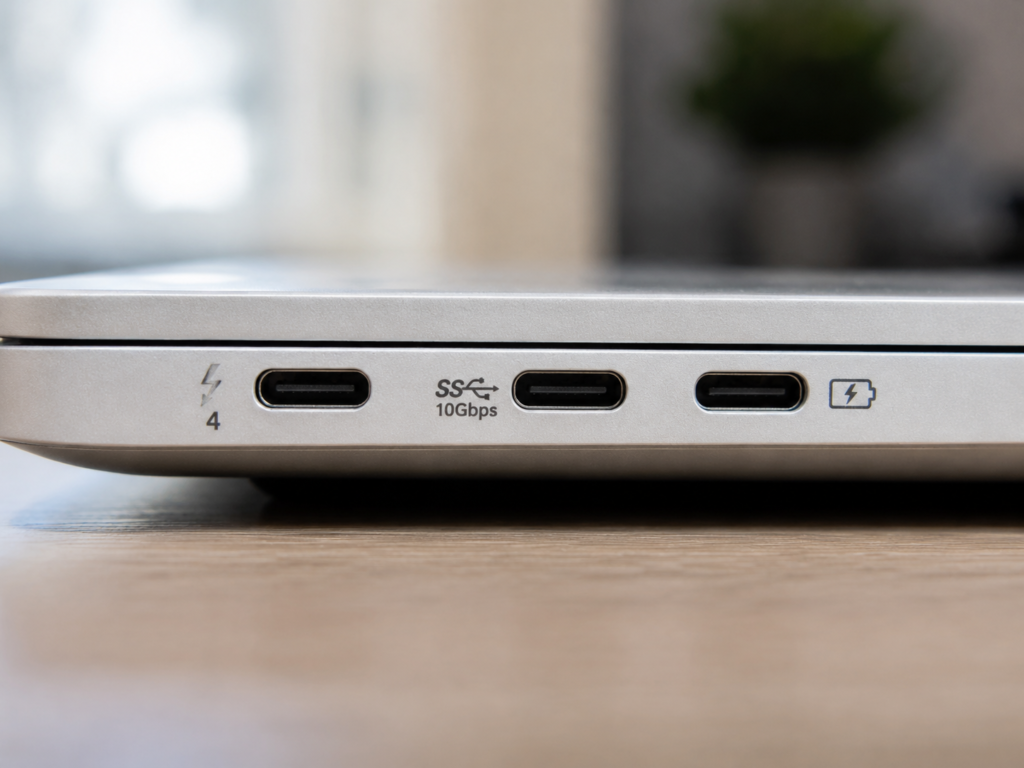
Here’s a key point to note first: current Thunderbolt 3/4/5 ports look exactly like ordinary USB-C ports, so you can’t tell them apart just by looking at the shape; but conversely, not all USB-C ports support the Thunderbolt protocol.
1.3 The Relationship Between the Two: USB-C Is the “Shape of the Door”, Thunderbolt Is the “High-Speed Channel Behind the Door”
To use a more vivid metaphor: USB-C is the shape of the door, which determines whether you can plug the plug in; Thunderbolt is the highway behind the door, which determines how fast cars can go and how much cargo they can carry behind the door.
There are several key boundaries to clarify first:
- Early Thunderbolt 1 and Thunderbolt 2 used the Mini DisplayPort (Mini DP) shape, not USB-C. They cannot be directly plugged with ordinary USB-C cables, require a dedicated adapter, and functional compatibility also depends on device support.
- Starting from Thunderbolt 3, Thunderbolt switched to the USB-C port shape, so Thunderbolt 3/4/5 ports look exactly like ordinary USB-C ports, which is also the most confusing point.
- In terms of inclusion: Thunderbolt 3/4/5 ports must be USB-C shaped, and all are compatible with ordinary USB devices (for example, ordinary USB flash drives and charging cables can be used when plugged in); but ordinary USB-C ports do not necessarily support Thunderbolt, nor do they necessarily support video output, high-speed data, or fast charging.
Many people also confuse the relationship between USB4 and Thunderbolt: USB4 does absorb part of the technical foundation of Thunderbolt 3, but USB4 is not equal to Thunderbolt 4. The specific capabilities of USB4 devices are uneven: some are 20Gbps, some are 40Gbps, some support video output and PCIe tunneling, and some only support pure data; only USB4 devices clearly marked “Thunderbolt compatible” or certified by Thunderbolt will have an experience close to Thunderbolt.
Finally, here’s an easy-to-remember formula:
USB-C = Port shape
USB 3.2 / USB4 = Data transmission standard of the USB system
Thunderbolt = Higher-specification high-speed connection protocol + certification ecosystem + multi-function expansion capability
2. Must-Read Before Comparison: Unified Standards and Boundaries to Avoid Random Comparisons
Now that we understand the basic concepts, let’s unify the standards and rules for comparison, otherwise it’s easy to have unfair situations like “comparing a phone’s USB-C with a computer’s Thunderbolt”, and it can also prevent you from buying the wrong things after reading.
First, our comparison objects:
The first category is ordinary USB-C ports, that is, ports that look like USB-C but do not support the Thunderbolt protocol. They may support one or more of USB 2.0, USB 3.2, USB4, USB PD fast charging, and DP video output, depending on the manufacturer’s design.
The second category is Thunderbolt ports, that is, ports that adopt the USB-C shape and support the Thunderbolt 3/4/5 protocol. As mentioned earlier, older Thunderbolt 1/2 use Mini DP ports and are not within the scope of this article’s comparison.
Here we also need to specifically mention USB4: if a USB4 device is clearly marked “Thunderbolt compatible” or has passed Thunderbolt certification, its experience will be very close to Thunderbolt; but if it only says “USB4” without the Thunderbolt logo, you still need to carefully check its specific capabilities — for example, whether it has video output, whether it supports PCIe, and whether the speed is 20G or 40G.
In addition, there are several basic principles for comparison, and all subsequent content conforms to these rules:
- We only discuss consumer-grade computers, phones, docks, monitors, and cables; industrial-grade custom ports will not be covered.
- All nominal speeds are theoretical upper limits. The actual usable speed is mainly determined by the lowest specification among the host port, cable, and peripheral — this principle is very important, we call it “the lowest of the three ends”. For example, if you have a 40Gbps Thunderbolt hard drive but plug it into a 10Gbps ordinary USB-C port, the maximum speed you can get is only 10Gbps. In addition to these three core links, system drivers, device heat dissipation, file types (for example, the transfer speed of a large number of scattered small files will be much lower than that of a single large file), and bandwidth sharing among multiple devices will also affect actual performance, but “the lowest of the three ends” is the core principle that ordinary users can most easily judge.
- “Being able to plug in” does not equal “being able to run full functions”. Physical compatibility is only the first step. Whether it can transmit high-speed data, connect to a monitor, or fast charge depends on whether the protocols match. Many people buy a cable, plug it in and get no response, thinking the cable is broken, but in fact it is most likely a functional mismatch.
We will also not focus on engineering details such as proprietary fast charging and proprietary screen casting protocols of phone manufacturers, as well as chip design and protocol debugging, after all, ordinary users do not need to understand these.
3. Item-by-Item Comparison of Core Dimensions: From Parameters to Real Experience
Now that we have clarified the basic concepts and comparison rules, we will compare the real differences between ordinary USB-C and Thunderbolt item by item from the six core dimensions of appearance, speed, video, power delivery, expansion, and cost, to help you establish clear judgment criteria.
3.1 Appearance and Physical Compatibility
In terms of appearance, Thunderbolt 3/4/5 and ordinary USB-C are exactly the same, both with an oval, reversible design. You can absolutely not tell which is Thunderbolt just by looking at the port shape with the naked eye.
Many people worry that “plugging cables of different specifications randomly will burn the device”. In fact, as long as the cables and ports meet the standards, there is no need to worry about this: Thunderbolt cables can be plugged into ordinary USB-C ports, and ordinary USB-C cables can also be plugged into Thunderbolt ports. Normal use will not damage the device, but the final function will run at the lowest specification supported by both parties.
The specific functional compatibility logic is also very simple:
- When a Thunderbolt port is connected to an ordinary USB device, it will automatically downgrade to USB mode and run at the highest specification supported by the USB device and cable. For example, an ordinary USB flash drive plugged into a Thunderbolt port will have the same speed as when plugged into an ordinary USB-C port.
- When an ordinary USB-C port is connected to a Thunderbolt device, there are two outcomes: if the Thunderbolt device supports “USB fallback mode”, it can be downgraded to an ordinary USB device for use; if it is a pure Thunderbolt professional device that does not support USB mode, it will not be recognized at all when plugged into an ordinary USB-C port.
Take the most common example: most Thunderbolt portable hard drives on the market support USB fallback, and when plugged into an ordinary USB-C port, they can be used as ordinary portable hard drives, just with lower speed; but some professional Thunderbolt capture cards and disk arrays are pure Thunderbolt design, without USB mode, and will have no response at all when plugged into an ordinary USB-C port.
Finally, another boundary: older Thunderbolt 1/2 use the Mini DP shape, not USB-C. They must use a dedicated adapter to connect to USB-C devices, and functional compatibility also depends on the support of specific devices.
3.2 Data Transfer Speed: Nominal Gbps Does Not Equal File Copy Speed
Many people value “speed” the most when buying ports, but note: the Gbps marked on the packaging is the theoretical upper limit of the protocol, not your actual file copy speed, and there will be various losses in between. Let’s first sort out the common speed levels of ordinary USB-C and Thunderbolt, and also explain the usage scenarios corresponding to each level.
The data speed range supported by ordinary USB-C is very wide. From slow to fast, there are mainly these levels:
- USB 2.0: Up to 480Mbps, commonly found in charging cables included with phones, keyboards, mice, and low-end peripherals. Transferring large files will be very slow, and it is basically only used for charging or connecting low-speed devices.
- USB 3.2 Gen 1: Up to 5Gbps, suitable for ordinary USB flash drives and mechanical portable hard drives, fully sufficient for daily transfer of documents and photos.
- USB 3.2 Gen 2: Up to 10Gbps, suitable for most SATA solid-state drives and entry-level NVMe external SSDs. It is currently the most cost-effective universal speed level.
- USB 3.2 Gen 2×2: Up to 20Gbps, relatively common on Windows devices, less supported by the Mac series, and its ecosystem popularity is not as good as the 10Gbps and 40Gbps levels.
- USB4: Commonly available in 20Gbps and 40Gbps specifications. The new version of USB4 v2 can reach up to 80Gbps, but currently there are very few devices that support it.
Thunderbolt’s speed levels are overall higher, and certification requirements are stricter:
- Thunderbolt 3: Up to 40Gbps. However, early Thunderbolt 3 ports on some computers may only have fewer PCIe lanes, so actual expansion capability will be discounted.
- Thunderbolt 4: The maximum speed is still 40Gbps, but the minimum capability requirements for hosts and devices are clearer. For example, the lower limits are higher in terms of PCIe data bandwidth, dual 4K display, sleep/wake, and dock compatibility; actual performance still depends on the host, peripherals, cables, and system, and the overall stability when using a dock and multiple devices simultaneously is usually better than Thunderbolt 3.
- Thunderbolt 5: Up to 80Gbps bidirectional, also supports video bandwidth enhancement mode, which can achieve up to 120Gbps unidirectional transmission, mainly for high-end creation and multi-screen high-refresh professional scenarios.
Many people wonder: why is the actual file copy speed of my 40Gbps hard drive far below the nominal? This is because in addition to being limited by the “lowest of the three ends” principle, actual throughput speed is also affected by many factors such as protocol overhead, SSD controller, flash memory particles, hard drive enclosure heat dissipation, number of small files, bandwidth sharing among multiple devices, and system drivers. For example, a Thunderbolt hard drive enclosure with a nominal 40Gbps, if it contains a low-speed SSD, or overheats and throttles after long-term transfer, its actual speed may be worse than a 10Gbps ordinary USB hard drive.
Another common perception: in pure data transmission scenarios, the difference between 40Gbps USB4 devices and Thunderbolt 3/4 is actually not large; but if you need to use a dock, multiple screens, and high-speed peripherals at the same time, Thunderbolt’s certification and unified specifications will be more stable.
3.3 Video Output Capability: Whether You Can Connect a Monitor Depends Not Only on the USB-C Port Shape
Many people buy USB-C docks and adapter cables, and the most commonly used function is to connect a monitor, but they often encounter the problem of “no response when plugged in” — this is most likely not a broken cable, but that your USB-C port simply does not support video output.
First, let’s talk about the necessary conditions for an ordinary USB-C to connect to a monitor: this USB-C port must support DP Alt Mode (that is, let the USB-C port temporarily assume the DisplayPort video output function), or transmit video through the USB4/Thunderbolt protocol. If this port only supports charging or pure USB data, then plugging in a monitor or HDMI adapter cable will have no response at all.
Even if it can connect to a monitor, the final supported resolution and refresh rate are not determined solely by the port. They also depend on the DP version, graphics card performance, cable specifications, dock capability, monitor parameters, and whether DSC is enabled (a display signal compression technology that can transmit higher resolution or refresh rate images under the same bandwidth, with almost no visible image quality loss).
The video performance of ordinary USB-C is basically sufficient for daily office work: single-screen 1080p, 2K, 4K 60Hz are all very common; but if you want dual screens, 4K high refresh rate, or 8K, you need higher bandwidth and clear specification support, which many entry-level thin and light laptops’ ordinary USB-C ports cannot do.
Now look at Thunderbolt’s video capability: Thunderbolt ports usually mandatorily include video transmission capability, but how many monitors can be connected and what specifications are supported are still limited by the computer’s chip, graphics card, system, and dock, it’s not that having a Thunderbolt port means you can connect multiple screens. Specifically for each generation of Thunderbolt:
- Thunderbolt 3: Commonly supports dual 4K 60Hz, but the implementation varies greatly between different computers. Some low-end thin and light laptops’ Thunderbolt 3 may only output to a single screen.
- Thunderbolt 4: Hosts that meet the minimum requirements of the Thunderbolt 4 platform commonly support dual 4K 60Hz or single 8K level output, with a much more stable lower limit than Thunderbolt 3, but the specifics still need to be checked against the computer’s parameter description.
- Thunderbolt 5: Higher bandwidth, more suitable for multiple high-resolution, high-refresh-rate monitors, such as 8K screens and multiple 4K high-refresh creative screens, for professional users.
Here we also need to remind you of a common pitfall in advance: even if some Macs have Thunderbolt/USB4 ports, the number of external monitors is limited by the chip. For example, base model M1/M2 Macs can only connect to one external monitor even with Thunderbolt 4, so you absolutely cannot judge just by the port name.
3.4 Power Delivery and Charging Capability: Thunderbolt Does Not Equal Faster Charging
Many people think that Thunderbolt ports must charge faster than ordinary USB-C, but this is actually a misconception. First of all, it is necessary to understand: USB-C is only the carrying port for charging, and what really determines the fast charging capability is the USB PD protocol — this is a set of universal fast charging negotiation rules, where the charger and device will negotiate with each other and charge at the highest power supported by both.
The power delivery levels of ordinary USB-C are very rich:
- Common basic powers are 15W, 30W, 45W, 65W, 100W, covering most needs from phones to thin and light laptops.
- The higher-specification USB PD 3.1 EPR standard can be expanded to high powers of 140W, 180W, 240W, which can charge gaming laptops and high-performance notebooks, but the host, charger, and cable must all support it to achieve the corresponding power, none can be missing.
- Generally speaking, charging over 60W requires cables that support 5A current. High-power cables usually have an E-Marker chip (a small chip hidden in the cable, used to tell the device how much current and speed it supports, to avoid overload).
The power delivery of Thunderbolt ports is also essentially based on the USB PD protocol: Thunderbolt ports are usually compatible with USB PD negotiation, but whether they can charge the computer and how many watts they can charge depends entirely on the computer manufacturer’s design, it’s not that Thunderbolt necessarily charges faster. For example, some gaming laptops’ Thunderbolt ports only support data and video, not charging the computer; some thin and light laptops’ Thunderbolt ports support 100W PD charging, no different from ordinary USB-C high-power PD ports.
Common Thunderbolt docks generally provide 60W, 85W, 96W, 100W or even higher reverse charging power for laptops; the Thunderbolt 5 ecosystem, because of its higher bandwidth, is also easier to cover high-power devices, but it absolutely cannot be simply understood as “Thunderbolt 5 ports necessarily support 240W”, it still depends on the specifications of specific devices.
Here we also need to specifically distinguish two easily confused concepts: input power and output power. Input power refers to the power at which the computer charges itself through this USB-C/Thunderbolt port. For example, “100W PD charging” means the computer can accept up to 100W input; output power refers to the power at which the computer supplies power to peripherals such as phones, hard drives, and headphones through this port, which is usually only about 5W or 15W, not the same as input power. Don’t see that a port supports 100W charging and think it can output 100W to peripherals.
3.5 Expansion and Multi-Device Connection Capability
If you only connect a USB flash drive or charge, you may not feel the expansion difference between the two, but if you need to connect a dock, multiple devices, or high-performance peripherals, the gap is obvious.
The expansion of ordinary USB-C is more suitable for daily light needs: for example, expanding USB-A ports, card readers, Ethernet ports, HDMI, single-screen office work, it is completely sufficient. But its problem is that when multiple devices work at the same time, they share the total USB bandwidth — for example, if you copy large files with an external hard drive while connecting to a monitor, the hard drive speed may slow down, or the monitor’s refresh rate may not go up. If you want to connect dual screens, it also depends on whether the port supports DP Alt Mode, MST (DisplayPort’s multi-screen splitting technology, which allows one video port to output signals to multiple monitors), and the design of the system and dock. Many entry-level thin and light laptops’ ordinary USB-C ports do not support dual screens.
Thunderbolt’s expansion capability is much stronger, which is also one of its core values: it is suitable for connecting high-performance peripherals such as Thunderbolt docks, high-speed NVMe hard drive enclosures, professional capture cards, professional audio interfaces, 10G Ethernet adapters, and high-speed disk arrays. The PCIe tunneling mentioned earlier is the foundation of these high-performance peripherals — it is equivalent to leading the high-speed expansion slots inside the computer to the outside, able to run devices that ordinary USB cannot.
In addition, Thunderbolt also supports daisy-chaining: theoretically, multiple Thunderbolt devices can be connected in series without each being plugged into the computer, but the premise is that each device supports the Thunderbolt daisy-chain function, and all devices share the total bandwidth. The more devices connected in series, the lower the speed each device can get.
Here we also need to talk about the external graphics card (eGPU) that everyone is very concerned about: Thunderbolt 3/4 is currently the main connection basis for eGPU, but whether you can use eGPU depends on whether the computer supports it, whether the system driver is compatible, and whether the graphics card dock and graphics card are compatible. It’s not that you can use it just because you have a Thunderbolt port. Especially Macs with Apple Silicon series do not support eGPU at all, even if they have a Thunderbolt port it’s useless, don’t buy this type of Mac for external graphics cards.
3.6 Cost, Popularity, and Stability
From the perspective of popularity and cost, the gap between the two is also very obvious.
Ordinary USB-C is now the well-deserved universal port: from small ones like headphones and phones to large ones like laptops, monitors, and chargers, it can be found on almost all consumer electronic devices, with extremely high popularity. The corresponding cables and docks are also very cheap, you can buy a usable USB-C cable for more than ten yuan, but its biggest problem is chaotic specifications — also called “Type-C cable”, some can only charge, some can transmit high-speed data, some can connect to monitors, and if you are not careful when buying, you will fall into a trap.
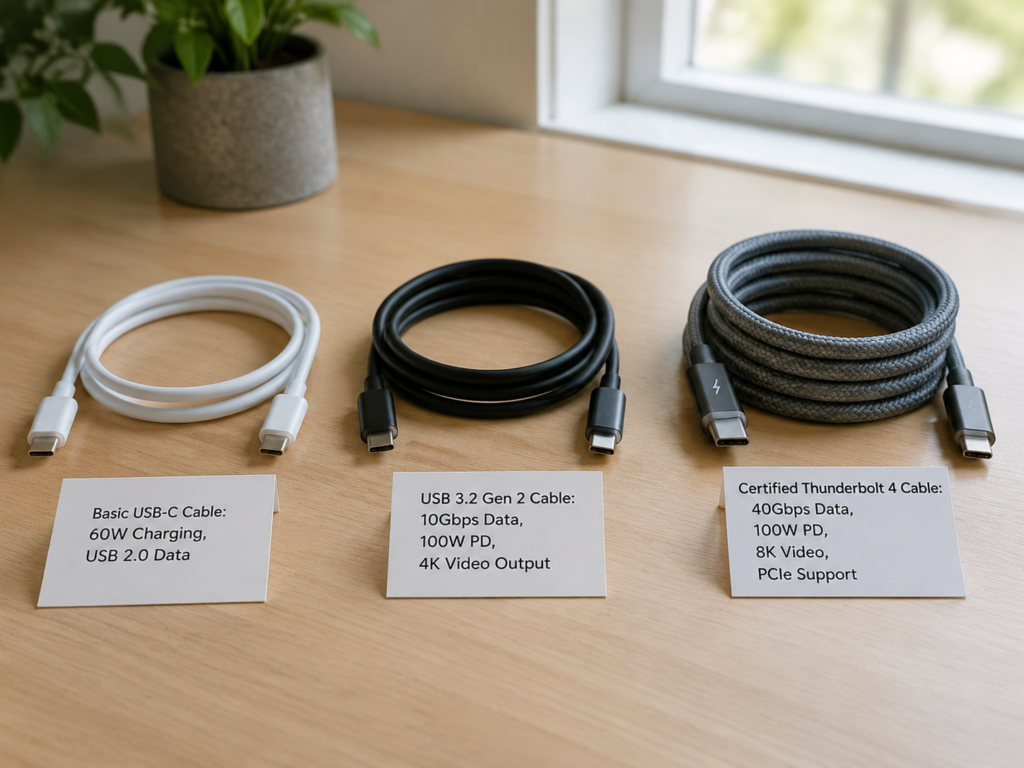
Because Thunderbolt requires higher-specification port controllers, certified cables, and supporting chips, whether it’s the device itself or peripheral accessories, the price is much higher than ordinary USB-C: a certified Thunderbolt 4 short cable may cost tens to hundreds of yuan, and the price of a Thunderbolt dock is several times that of an ordinary USB-C dock. It currently mainly appears on mid-to-high-end laptops, Macs, professional monitors, and creative peripherals, targeting users who have higher requirements for bandwidth and stability.
Of course, Thunderbolt’s certification system is not just for show: devices that pass official certification have a much lower probability of false specification labeling and chaotic compatibility, and the minimum experience is more predictable, but this does not mean that all Thunderbolt device combinations can run at full speed unconditionally. Actual speed may still be significantly lower than the theoretical upper limit due to SSD, heat dissipation, file type, system driver, or multi-device bandwidth sharing. The specifics still depend on the specification matching of the host, cable, and peripheral.
Simply put: ordinary users pay for “just enough functions”, while professional users pay for “saving time, fewer failures, a cleaner desktop, and future bandwidth headroom”.
4. Quick Identification Tips: Tell USB-C, USB4, and Thunderbolt Apart in 10 Seconds
After talking about so many differences, you may ask: how do I know if the port I have is ordinary USB-C or Thunderbolt? In fact, there are several very simple methods, the fastest can tell them apart in 10 seconds.
4.1 Look at the Markings Next to the Port
This is the fastest method: look at the icon next to the port.
If there is a lightning icon with an arrow next to the port, marked with the number 3/4/5 or directly written with the word Thunderbolt, it can usually be judged as a Thunderbolt port; note that ordinary charging icons also often use the lightning symbol, and the two are easily confused in appearance, so you cannot judge just by a lightning symbol. In addition, not all devices will clearly print the marking on the body, especially some Macs and thin and light laptops with minimalist design, the final judgment should still be based on the official website parameter page, manual, or system information.
If it is an ordinary USB port, the speed may be marked next to it, such as 5Gbps, 10Gbps, 20Gbps, 40Gbps, or use the old SS (SuperSpeed) marking.
If there is only a lightning or battery icon, it may only mean that this port supports charging, not necessarily Thunderbolt, don’t confuse it.
Here’s a very common pitfall: many thin and light laptops have several USB-C ports, but each port has different capabilities — for example, the two on the left are Thunderbolt 4, the one on the right is just an ordinary USB-C charging port, or the left ones can charge and support Thunderbolt, while the right one can only transfer data. So don’t see one USB-C port is Thunderbolt and think all are, check the markings one by one.
4.2 Check the Official Website Parameter Page and Manual
If there is no marking next to the port, or you want to confirm more detailed capabilities, the most reliable method is to check the computer’s official website parameter page or manual.
When searching, you can look for these keywords: Thunderbolt 3, Thunderbolt 4, Thunderbolt 5, USB4, DP Alt Mode, Power Delivery (PD), DisplayPort.
Be sure to note: check the parameters for each port one by one, don’t just look at vague descriptions like “equipped with USB-C port”, that’s like saying nothing.
Here are some common parameter writing references for you:
- If it says “USB-C 10Gbps”: it is usually just an ordinary USB data port, may not be able to connect to a monitor, you need to look for video-related descriptions.
- If it says “USB-C with DisplayPort” or “supports video output”: then this port can connect to a monitor.
- If it says “USB4 40Gbps”: the speed is very high, but you still need to confirm whether it is compatible with Thunderbolt devices, and whether it has video and PCIe support.
- If it says “Thunderbolt 4”: then it is basically certain to be a Thunderbolt port, and its capabilities will not be too bad.
4.3 Look at Cable Markings
Besides ports, cables are also easy to buy wrong. Let’s teach you how to check the specifications of cables.
Thunderbolt cables usually have a lightning marking and the numbers 3, 4, 5, and the packaging will say “Thunderbolt Certified”. Thunderbolt certified cables are the safest choice, making it easier to guarantee the speed, video, and expansion compatibility of the corresponding Thunderbolt version; some cables clearly marked USB4 40Gbps/80Gbps with matching specifications may also reach the corresponding speed in USB4 or Thunderbolt compatible scenarios, but when purchasing, you still need to carefully check the certification, length, power, and protocol support range.
Ordinary USB-C cables are more chaotic. You must see clearly three parameters: what is the data speed in Gbps, what is the charging power in W, and whether it supports video output.
Here are a few typical pitfalls that many people have fallen into:
- Some 240W high-power charging cables only have USB 2.0 data speed, can only charge, transfer files very slowly, and cannot connect to monitors.
- Some 10Gbps data cables may only have 60W charging power, unable to fully charge high-power laptops.
- Cables that can charge may not be able to connect to monitors, and cables that can connect to monitors may not be able to run high-speed data.
So when choosing a cable, don’t just look at the words “Type-C cable”, be sure to see clearly “how many Gbps + how many W + whether there is certification/video support”, and buy according to your needs.
4.4 Active Cables, Passive Cables, and Length
Many people ignore length when buying cables, but in fact, high-speed cables are very sensitive to length.
Simply put, there are two types of cables: passive cables and active cables.
Passive cables do not perform active retiming or amplification on high-speed data signals, have a relatively simple structure, and are very cost-effective over short distances. Here’s a point that is easy to confuse: many high-power supported passive USB-C cables also have an E-Marker chip to identify capabilities such as current and speed, which is not the same as the high-speed signal processing chip in active cables. But the higher the speed, the shorter the length that passive cables can stably transmit — for example, a 40Gbps passive cable is generally only about 1 meter at most, and longer lengths are prone to speed drops or disconnections.
Active cables have built-in dedicated high-speed signal conditioning/retiming chips, which can repair and amplify attenuated signals, so they can run at full speed over longer distances, suitable for scenarios where the computer and monitor are far apart. But active cables are more expensive, and compatibility also depends on whether they have certification.
There is also a type of optical fiber Thunderbolt cable, which uses optical fiber to transmit signals, can run long distances of tens of meters without speed loss, but is very expensive, and generally cannot supply high power to devices, mainly used in professional scenarios such as conference rooms and studios.
Here’s a practical purchasing suggestion: for short cables (0.5-1 meter) within 40Gbps, prioritize certified passive cables for the highest cost-effectiveness; if you need to stably run high speed over 1 meter, prioritize certified active cables; if it’s ultra-high speed like Thunderbolt 5 or USB4 80Gbps, be sure to strictly choose certified cables, don’t buy no-name brands for cheap.
4.5 Confirm with System Tools
If you have already plugged the device into the computer and want to confirm whether it is running in Thunderbolt mode, you can also check with the system’s built-in tools.
Windows users can check if there is a Thunderbolt controller in “Device Manager”, or find Intel’s “Thunderbolt Control Center” software, which will display connected Thunderbolt devices and speeds. Some brand computers also have their own management software, which can also check port specifications.
macOS users have it even easier: click the Apple icon in the upper left corner, select “About This Mac”, then click “System Report”, and find the “Thunderbolt/USB4” or “USB” item inside, you can see the specifications of each port and information about connected devices.
Linux users can use command-line tools such as boltctl, lsusb, and lspci to assist in judgment, but for ordinary users, it is more convenient to prioritize checking the manufacturer’s specification page.
5. Real Scenario Experience Differences: When You Can Feel the Difference
Now that you understand how to identify ports and cables, you may still ask: in my usual computer usage scenarios, is it really necessary to get Thunderbolt? Below we will talk about the real experience differences between ordinary USB-C and Thunderbolt according to the most common usage scenarios, to help you quickly judge which situation you belong to.
5.1 Daily Office Work/Study
Ordinary USB-C can fully cover the needs of daily office work and study: connecting keyboards, mice, USB flash drives, wired Ethernet ports, headphones, ordinary 1080p/4K 60Hz office monitors and chargers, processing documents, taking online classes, holding video conferences, and transferring ordinary files are all very smooth. As long as the ordinary USB-C port of many thin and light laptops supports PD charging and video output, a single cable connected to the monitor can realize charging and image transmission at the same time, which is completely sufficient for daily use.
The advantage of Thunderbolt is mainly reflected in scenarios with many desktop peripherals: if your desktop is connected to a dock, high-speed hard drive, multiple monitors, and other peripherals at the same time, Thunderbolt’s high bandwidth and unified certification will be more stable, there will be no speed drops, disconnections, or functional limitations when multiple devices work at the same time, and the one-cable desktop experience is more worry-free, no need to repeatedly plug and unplug cables.
Judgment criteria: if you only do light office work such as documents, online classes, and meetings, ordinary USB-C is completely sufficient, there is no need to spend extra money on Thunderbolt; if your desktop has only one port and you need to connect a dock, multiple monitors, and high-speed peripherals at the same time, and want a more stable one-cable experience, then consider Thunderbolt.
5.2 Content Creation: Photography, Editing, Design
Ordinary USB-C is prone to bottlenecks in content creation scenarios: if you often need to transfer a large number of RAW format photos, 4K/8K video materials, or are used to directly editing high-bitrate materials with an external SSD, low-speed USB-C below 10Gbps will significantly slow down the speed, transferring tens of GB of materials takes a long time, and there may be stuttering or frame drops during editing.
Thunderbolt’s high bandwidth and low latency just match creative needs: Thunderbolt 4/5 or clearly 40Gbps+ USB4 solutions can stably support the simultaneous operation of devices such as high-speed NVMe external hard drives, professional capture cards, color calibrators, and professional color grading monitors, no need to repeatedly plug and unplug devices to switch ports, which can save a lot of waiting time, and the stability of multi-device parallel operation is also better.
Judgment criteria: if you often process tens of GB to hundreds of GB of materials, or need to connect external devices such as capture cards and professional monitors, prioritize Thunderbolt 4/5 or USB4 solutions clearly marked with 40Gbps+ and supporting video and PCIe.
5.3 Multi-Screen Desktop
Ordinary USB-C is basically fine for single-screen office work, but if you want to connect dual screens or 4K high-refresh monitors, there will be many limitations: the port needs to support DP Alt Mode, MST multi-screen splitting, DSC compression, and also depends on the support of the computer’s graphics card and system. Many entry-level thin and light laptops’ ordinary USB-C ports can only drive a single screen, dual screens either stutter or are directly unrecognizable, and 4K high refresh is even harder to achieve.
Thunderbolt has more sufficient bandwidth and is more suitable for multi-screen and high-refresh scenarios: with a Thunderbolt dock for a one-cable desktop, plugging in one cable can simultaneously supply power, transmit data, and drive dual 4K or even more monitors, making the desktop cleaner and the stability of multi-screen simultaneous work better. Here we also remind again: even for Macs with Thunderbolt ports, the number of external monitors is limited by the chip. For example, base model M1/M2 Macs can only connect to one external screen, you cannot judge the number of supported screens just by the port name.
Judgment criteria: if you need more than two monitors, 4K high refresh, or 8K monitors, prioritize Thunderbolt or high-specification USB4, and be sure to check the number of screens actually supported by the computer’s graphics card and ports before buying.
5.4 Gaming and External Graphics Cards
Ordinary USB-C is completely fine for connecting ordinary gaming peripherals: connecting gamepads, headphones, small capture boxes, and ordinary monitors is very smooth, but it is basically not suitable as a channel for external graphics cards (eGPU), the bandwidth is insufficient to support the transmission needs of high-performance graphics cards, and the experience will be very poor.
Thunderbolt 3/4 is currently the main connection basis for external graphics card docks. Some thin and light laptops on the Windows platform can use Thunderbolt to connect external graphics cards to improve graphics performance for gaming or creation, but the actual experience is limited by many factors: the computer needs to have eGPU support enabled, have enough PCIe lanes, and also be paired with a compatible graphics card dock and drivers, and there will be a certain performance loss. Special note: Macs with Apple Silicon series do not support eGPU at all, even if they have a Thunderbolt port it’s useless, don’t buy this type of Mac for external graphics cards.
Judgment criteria: if you have a Windows thin and light laptop and want to connect an external graphics card for gaming or creation, at least confirm that the computer has a Thunderbolt 3/4 port, supports eGPU, and the graphics card dock is compatible, and also consider performance loss; if you only connect peripherals like gamepads and ordinary monitors, ordinary USB-C is enough.
5.5 Mobile Business Travel and Charging
Ordinary USB-C is the cost-effective first choice for mobile business travel: if you only bring a charger, phone, and computer on a business trip, a reliable USB-C PD cable is enough. It is cheap, has high compatibility, and can be adapted to any power bank or hotel charger, fully meeting the needs of charging and light data transmission.
The advantage of Thunderbolt certified cables is high speed and expansion, not charging, and the price is much more expensive than ordinary PD cables. If you only charge and transfer small files on a business trip, you can’t use Thunderbolt’s capabilities at all, and carrying an expensive Thunderbolt cable is a waste. Only when you often need to bring high-speed portable hard drives and portable monitors, and need to transfer large files or high-specification video output, will the value of Thunderbolt/USB4 cables be reflected.
Judgment criteria: if you only bring a charger, phone, and computer on a business trip, just buy a reliable PD cable; if you often need to bring high-speed hard drives and portable monitors, and need high-speed data or high-specification video output, then consider USB4 or Thunderbolt cables.
5.6 Professional Device Connection
Ordinary USB-C often encounters problems when connecting professional devices: many professional devices such as professional sound cards, broadcast-grade capture cards, high-speed disk arrays, 10G Ethernet adapters, and Thunderbolt monitors either require extremely high bandwidth or rely on Thunderbolt’s PCIe tunneling function. Ordinary USB-C ports either have insufficient bandwidth to fully run the device’s performance, or are directly unrecognizable, completely unusable.
Thunderbolt is the standard connection method for this type of professional device: officially certified Thunderbolt devices have better compatibility, can run at the full nominal performance of the device, will not have functional missing or unstable situations, and can meet the strict requirements of professional scenarios.
Judgment criteria: if your peripheral’s manual clearly states “requires Thunderbolt port”, don’t force it with ordinary USB-C, otherwise either it won’t work, or the performance will be greatly reduced.
6. Common Misconceptions and Troubleshooting
We have sorted out the most common misconceptions and troubleshooting methods for common faults to help you avoid pitfalls.
6.1 Port Cognition Misconceptions
- Misconception: USB-C is Thunderbolt. Correction: USB-C is the port shape, Thunderbolt is a high-speed protocol and certification system. Thunderbolt uses the USB-C port shape, but USB-C is not necessarily Thunderbolt.
- Misconception: USB4 is Thunderbolt 4. Correction: USB4 and Thunderbolt 4 have technical intersections, but Thunderbolt 4 has stricter minimum requirements and more standardized certification. USB4’s specifications are uneven, and it may not achieve the experience of Thunderbolt 4.
- Misconception: Thunderbolt 4 is twice as fast as Thunderbolt 3 in file transfer. Correction: both have a maximum of 40Gbps. Thunderbolt 4’s improvements are in minimum specification requirements, stability, and expansion capability, and pure file transfer speed will not double.
- Misconception: All USB-C ports can connect to monitors. Correction: They must support DP Alt Mode or USB4/Thunderbolt video output. Ports that only support charging/data cannot connect to monitors.
- Misconception: If the port can be plugged in, it will run at full speed. Correction: The final speed and function are determined by the lowest specification end among the host, cable, and peripheral. Being able to plug in is only physical compatibility, not representing full functionality.
6.2 Cable Purchasing Misconceptions
- Misconception: All USB-C cables can run Thunderbolt. Correction: Thunderbolt high-speed transmission requires certified cables or cables clearly marked as compatible with Thunderbolt specifications. Ordinary USB-C cables may only run USB 2.0 or 10Gbps.
- Misconception: The higher the power, the faster the data speed. Correction: Charging power and data speed are two completely independent parameters. A 240W cable may only have USB 2.0 speed, don’t confuse them.
- Misconception: Expensive cables must be good. Correction: Whether a cable is good depends on certification markings, speed, power, and applicable protocols. Expensive ones may just be long or have high power, not necessarily suitable for your needs.
- Misconception: Long cables must be more convenient. Correction: High-speed cables are very sensitive to length. The longer they are, the harder it is to maintain stability. Ultra-high-speed long cables require active cables or optical fiber cables, which are much more expensive. Think about how long you need before buying.
6.3 Usage Scenario Misconceptions
- Misconception: Ordinary USB flash drives will be faster when plugged into Thunderbolt ports. Correction: The speed limit of the USB flash drive itself is low. Even if plugged into a Thunderbolt port, it will not exceed the speed of the USB flash drive itself. The bottleneck is the USB flash drive, not the port.
- Misconception: Thunderbolt docks are necessary for everyone. Correction: If you only connect keyboards, mice, single screens, and ordinary USB flash drives, an ordinary USB-C dock is sufficient and much cheaper. There’s no need to spend money on Thunderbolt functions you don’t use.
- Misconception: USB-C monitor one-cable connection will definitely charge the computer at full power. Correction: The monitor’s power delivery may only be 45W, 65W, or 90W, which may not reach your computer’s full charging power. Check the monitor’s PD output power before buying.
6.4 Troubleshooting Sequence
If you encounter a problem, don’t rush to replace the device. Troubleshoot in this order, and most problems can be found:
- No response/unrecognized when plugged in: First confirm whether this device requires specific function support (such as a Thunderbolt device plugged into an ordinary USB-C port), then try a reliable cable, another port, another peripheral, and finally update drivers, firmware, or the system.
- Cannot connect to monitor: First check whether this USB-C port on the computer supports video output (DP Alt Mode/USB4/Thunderbolt), then check whether the cable supports video, and finally check whether the monitor’s input source is selected correctly.
- Slow speed: First check the specifications of the host port, cable, hard drive enclosure, and SSD to see if one end is holding back; then test with a single large file (small files are inherently slow), then check if the hard drive enclosure is overheating and throttling, and if there are other background tasks taking up bandwidth.
- Slow charging: First check the charger’s power, the current supported by the cable, and the computer’s input power limit, then confirm whether the PD protocol is used (some proprietary fast charging is not compatible).
- Frequent disconnections: Prioritize replacing with a shorter certified cable, reduce the number of devices connected to the dock (reduce load), update the firmware of the dock or device, and try not to use no-name adapters.
7. Purchasing and Decision-Making Logic: Spend Money According to Needs
Finally, we have sorted out the purchasing logic for different scenarios for you. You don’t need to memorize parameters, just choose according to your own needs.
7.1 How to Choose Ports When Buying a Computer
- Ordinary office users: At least 2 USB-C ports, one of which supports charging and video output is very practical. There’s no need to insist on Thunderbolt, the money saved is better spent on more memory or a better screen.
- Students and light office users: The combination of USB-C 10Gbps + PD charging + video output is completely sufficient. It can connect to monitors, transfer data to external SSDs, and charge, meeting the vast majority of needs.
- Content creators: Prioritize at least 1 Thunderbolt 4 or USB4 40Gbps+ port, preferably with clear support for external multi-screen and high-speed PCIe devices, which will be convenient for connecting high-speed hard drives and capture cards in the future.
- Professional workstation users: Choose according to the requirements of the professional devices you will use (capture cards, disk arrays, monitors). Prioritize Thunderbolt 4 or Thunderbolt 5 to ensure compatibility.
- Gamers: If you have a need for external graphics cards, be sure to confirm Thunderbolt support, platform compatibility, and graphics card dock adaptation; if you only connect external monitors, focus on the graphics card’s output capability and display specifications, no need to insist on Thunderbolt.
7.2 How to Choose Cables When Buying
- Charging only: Just choose a USB-C PD cable clearly marked with the power you need (60W, 100W, 140W, 240W), match it according to the device power, no need to buy too expensive ones.
- Charging + ordinary data: Choose a USB-C 10Gbps + 100W cable, which covers the vast majority of daily needs, can fast charge and transfer files, with the highest cost-effectiveness.
- High-speed SSD: Prioritize USB4 40Gbps cables or Thunderbolt 3/4 certified cables, which can better exert the performance of high-speed hard drives; 4K high-refresh monitors: in addition to sufficient cable specifications, you must also confirm the video capability of the computer port, DP version, graphics card, monitor, dock, and DSC compression support. High refresh problems cannot be solved just by changing the cable.
- Thunderbolt dock/eGPU/multi-screen: Choose Thunderbolt 4 or Thunderbolt 5 certified cables. If longer than 1 meter, prioritize active cables to ensure stable full speed.
- Pitfall avoidance list: When buying cables, be sure to check the port protocol, speed, power, length, and certification markings at the same time, don’t just look at the words “Type-C cable”.
7.3 How to Choose Docks When Buying
- Ordinary USB-C dock: Suitable for users who only need to expand USB-A, HDMI, Ethernet, SD card, and single-screen office work. It is cheap and completely sufficient.
- USB4 dock: Suitable for users who want higher bandwidth but have a lower budget than Thunderbolt docks. Before buying, be sure to see clearly whether it supports video output, what the PD reverse charging power is, and the specific speed specifications.
- Thunderbolt dock: Suitable for users who need dual screens, high-speed hard drives, multiple devices working simultaneously, and a one-cable desktop. It has better stability and expandability, but is more expensive.
- Key parameters to check: specifications of the upstream port (whether it is USB-C or Thunderbolt, what the speed is), number and type of downstream ports, display output limit (how many screens can be connected, what the resolution and refresh rate are), PD reverse charging power, whether bandwidth is shared, and whether an external power supply is needed.
7.4 Priorities When Budget Is Limited
If your budget is limited, spend money in this order for the highest cost-effectiveness:
- First priority: First ensure that the computer’s ports meet your core needs, such as whether it can charge, whether it can connect to a monitor, and whether the number of USB-C ports is sufficient — this is the foundation, otherwise buying more peripherals is useless.
- Second priority: Buy reliable cables with clearly marked specifications to avoid situations like “can charge but can’t transfer” or “can transfer but can’t do video”. Cables are the most easily overlooked but experience-affecting link.
- Third priority: Buy a dock according to the devices you actually use, don’t spend extra money on Thunderbolt functions you don’t use. For example, if you only connect keyboards, mice, and a single screen, just buy an ordinary dock.
- Fourth priority: Professional device users prioritize ensuring compatibility. Don’t force Thunderbolt devices with ordinary USB-C, otherwise it will be a waste of money if they don’t work.
7.5 Three-Question Method for Quick Decision-Making
If you’re still undecided, ask yourself three questions and you can quickly judge:
- Do I often need to use multi-screen, high-speed large file transfer, external high-speed SSD, capture card, eGPU, or professional dock?
- Does the corresponding USB-C port on my computer clearly support Thunderbolt or high-specification USB4?
- Am I willing to pay extra costs for certified cables, Thunderbolt docks, and high-specification peripherals?
If the answer to all three questions is “yes”, then prioritize the Thunderbolt solution, the experience will be much better; if you only need charging, single screen, and ordinary peripherals, ordinary USB-C is completely sufficient; if it’s somewhere in between, for example, you want high-speed data but don’t need much expansion, you can choose a 40Gbps USB4 solution, which is more cost-effective.
Summary
In fact, the relationship between USB-C and Thunderbolt is, to put it bluntly, the difference between “shape” and “function”, just like we said at the beginning: USB-C is the shape of the door, Thunderbolt is the highway behind the door. USB-C is that oval port that can be plugged in either way up, and is the carrier of all functions; while Thunderbolt is a set of higher-specification high-speed connection protocols and certification ecosystem, which can provide faster speed, more stable expansion, and more complete functions, it just happens to also use the USB-C port shape.
You just need to remember three core judgment principles:
First, looking at the port shape can only judge whether it can be plugged in, not whether it can be used or run at full speed.
Second, the final experience at any time is determined by the lowest specification end among the host, cable, and peripheral.
Third, spend money according to your needs. There’s no need to superstitiously believe in Thunderbolt for ordinary office work, and don’t force professional expansion with ordinary USB-C.
After reading this article, you should already be able to distinguish the relationship between USB-C, USB 3.2, USB4, and Thunderbolt 3/4/5, judge whether a port can connect to a monitor, fast charge, or connect to a high-speed hard drive, understand the parameters on cables, and choose ports, cables, and docks according to your own usage scenarios. In the future, when you encounter problems like port incompatibility, slow speed, or no video, you can also troubleshoot them in order by yourself.