
Have you ever had this experience: you bought a USB flash drive labeled “USB 3.0”, plugged it into the blue port on your computer, but transferring a movie was as slow as a snail; or you spent a lot of money on a Type-C fast charging cable, only to find it’s as slow as an old cable from years ago when you connect it to your computer to transfer files? In fact, most of the time the device isn’t broken — you just don’t understand the difference between USB versions and port shapes, which is the most common point of confusion between USB 2.0 and 3.0.
Prerequisite for Beginners: Understand the Essence First, Don’t Confuse It with Port Shape
When many people first encounter USB 2.0 and 3.0, they confuse them with port shapes like Type-A and Type-C — this is the most basic and common misconception.
Core Attribute of Both: They Are Transmission Standards, Not Port Shapes
In fact, the core attribute of USB 2.0 and 3.0 is transmission standard, which is equivalent to the grade of a road — whether it’s a country road or a highway, it determines the maximum transmission speed it can support. The Type-A, Type-C, Micro USB we often talk about are port shapes, equivalent to the shape of a plug, which only determines whether it can be physically inserted, and has no direct relation to speed.
To put it more plainly: the shape determines “whether it can be plugged in”, the version determines “how fast it can run after being plugged in”, and the final actual speed is determined jointly by the device, cable, and port — the slowest link will limit the final speed.
According to official standards, the speed grade of USB 2.0 is called High Speed (high-speed USB), with a nominal speed of 480Mbps; the speed grade of USB 3.0 is called SuperSpeed (super-speed USB), with a nominal speed of 5Gbps. Let’s give you a heads-up here: USB 3.0 was renamed several times by the standards organization later — sometimes called USB 3.1 Gen 1, sometimes USB 3.2 Gen 1, and the packaging may also say “SuperSpeed USB 5Gbps”. Don’t be fooled by the fancy names; the core speed is all 5Gbps, and it’s essentially what we commonly call USB 3.0.
Why Ordinary Users Need to Understand the Difference Between the Two
Some people might say, it’s just the speed of file transfer, a little difference doesn’t matter? In fact, for ordinary users, understanding the difference between the two is very practical:
First, the experience gap in large file transfer is huge. For example, backing up dozens of GB of mobile phone photos, transferring 4K movies, or copying video materials may take one or two hours with USB 2.0, but only about ten minutes with USB 3.0.
Second, there is a difference in peripheral stability. Devices such as portable mechanical hard drives, video capture cards, and high-speed cameras not only require bandwidth but also have requirements for power supply. When plugged into a USB 2.0 port, they may frequently disconnect or even fail to be recognized.
Finally, you won’t be easily scammed when buying things. For example, many merchants sell “Type-C port” products as “high-speed”, but in fact, many Type-C cables only have USB 2.0 transmission speed — they may charge quickly, but data transfer is ridiculously slow.
The Most Common Beginner Misconception: Equating Port Shape with Transmission Version
We must clarify the most common pitfall here: port shape is not equal to USB version. A Type-C port may only support the 480Mbps speed of USB 2.0, or it may support higher speeds of USB 3.0, 3.2, or even USB4.
Take the most common example: the original Type-C cables of many mobile phones support 65W or even higher fast charging, but data transfer only has USB 2.0 speed — because charging and data transfer are two independent paths that do not affect each other. We will talk specifically about how to distinguish them later; for now, just remember this core logic.
Small Agreement Before Comparison: Unify the Caliber to Avoid Invalid Comparisons
Before we officially start the comparison, let’s unify a few small premises to avoid us not being on the same page in the later discussion:
First, all comparisons are based on the official standards of USB-IF (the USB standard-setting organization) and mainstream compliant products on the market. Inferior products with false labels, shoddy workmanship, and non-standard fast charging are not within the scope of discussion.
Second, all theoretical speeds and power supply parameters are standard upper limits. Actual use will be affected by the computer, cable, device, system, and even file type, so it is impossible to reach the theoretical value every time.
Third, we only cover content needed by ordinary users and slightly advanced users. We will not go into details that only engineers care about, such as underlying coding and circuit wiring. It’s enough to be able to judge and avoid pitfalls.
Finally, it should be reminded that port color and markings can only be used for preliminary judgment. Ultimately, you need to look at product parameters, system connection speed, or actual speed test results, and you can’t draw conclusions just by looking at the appearance.
Item-by-Item Comparison of Core Practical Dimensions
Next, let’s break down the actual differences between USB 2.0 and 3.0 item by item, starting with the speed that everyone cares about most.
Transmission Speed Comparison: The Most Core Difference
Speed is the most essential difference between the two, and it is also the focus of most people’s attention. But many people have misunderstandings about the conversion of speed units, so let’s start with the basics.
How to Convert Official Nominal Speed
Many people see Mbps in merchant parameters and directly calculate it as MB/s, the file size unit we usually talk about — this is a common misunderstanding. Mbps is “megabits per second”, and MB/s is “megabytes per second”. 8 bits equal 1 byte, so to convert Mbps to MB/s, you divide by 8.
Calculated according to this rule:
- USB 2.0 has a nominal speed of 480Mbps, which is theoretically converted to about 60MB/s;
- USB 3.0 has a nominal speed of 5Gbps (that is, 5000Mbps), which is theoretically converted to about 625MB/s.
It should be noted that this theoretical value includes protocol overhead, encoding overhead, and the occupation of control signals. The actual file copy speed will definitely be lower than the theoretical value, just like the maximum speed limit on a highway is 120km/h, but you can’t drive at the speed limit all the time in practice.
Common Speed Range in Actual Use
So how fast can it actually run? We take “continuous transmission of a single or a small number of large files, where the device itself does not become an obvious bottleneck” as the reference standard:
- The stable speed of USB 2.0 is generally around 30~40MB/s. Good quality ones may be close to 50MB/s, but rarely reach the theoretical upper limit of 60MB/s.
- The speed of USB 3.0 varies widely, depending entirely on what device you connect: low-end USB 3.0 USB flash drives may only have 50~150MB/s, mainly depending on the quality of flash memory particles and the main controller; 2.5-inch portable mechanical hard drives generally have 100~160MB/s, which is the physical upper limit of the mechanical hard drive itself; if it is an external SSD with SATA protocol, it can reach 300~450MB/s, which is close to the practical upper limit of USB 3.0.
There are two easily overlooked points to note here:
First, small file transfer is an exception. For example, thousands of documents, photo thumbnails, and cache files will slow down a lot whether using 2.0 or 3.0, because the bottleneck at this time is random read/write and file system processing speed, not port bandwidth.
Second, there is a difference between read and write speeds. Many USB flash drives have very high read speeds, but write speeds may be only half or even lower than read speeds. When buying, you can’t just look at the “maximum read speed” marked by the merchant.
Speed Is Always Determined by the Slowest Link
Many people think that as long as the device and port are both USB 3.0, they will definitely run at full speed — but that’s not the case. USB transmission speed is always determined by the slowest link in the entire chain, which is what we often call the “barrel effect”.
The core bottleneck links include: computer port version, cable specification, mobile device port version, and actual read/write speed of the storage device. Intermediate hubs, docking stations, adapters, front panels, and card readers will also limit speed.
In addition, file size, system cache, remaining disk space, background antivirus scanning, hard drive health status, and file system format will all affect the actual transmission speed.
In What Situations You Can’t Feel the Advantage of USB 3.0
Of course, USB 3.0 does not have obvious advantages in all scenarios, for example:
- Low-speed peripherals such as mice, keyboards, ordinary headphones, and 2.4G wireless receivers require extremely low bandwidth, so there is no difference between using USB 2.0 and 3.0;
- Devices such as ordinary printers, scanners, and low-speed sensors have very small data volumes, and 2.0 can fully meet the requirements;
- If you only occasionally transfer small files within 10MB or a few pictures, you won’t feel the speed difference;
- If the device itself is very slow, such as a low-end USB flash drive that costs a dozen yuan, even if it is plugged into a USB 3.0 port, the write speed may only be more than ten MB/s, no different from 2.0.
Examples of Real-Scenario Experience
Maybe you don’t have a clear concept of speed numbers. Let’s take a few daily scenarios as examples to make it clear:
- Copying a 1GB video file: USB 2.0 takes about 25~35 seconds, while USB 3.0 with a good-speed external SSD only takes 3~5 seconds — basically, the transfer is done right after you click copy.
- Backing up 100GB of photos or video materials: USB 2.0 takes about 45 minutes to 1 hour, enough for you to come back after a meal and it’s still not finished; USB 3.0 with an SSD only takes 5~10 minutes. Of course, if there are especially many small files, the time will be slightly longer, but it’s still much faster than 2.0.
- Importing camera materials from an SD card: the advantage of USB 3.0 is only obvious if the card reader, SD card, and computer port all support high speed. If the SD card itself is low-speed, changing to a 3.0 card reader is useless.
Appearance Identification Method: How Beginners Can Make Preliminary Judgments
After talking about speed, you must want to ask: How do I know if my port is 2.0 or 3.0? Is there a way to tell at a glance? Yes, but it can only be a preliminary judgment, not 100% certain. Let’s talk about different port shapes.
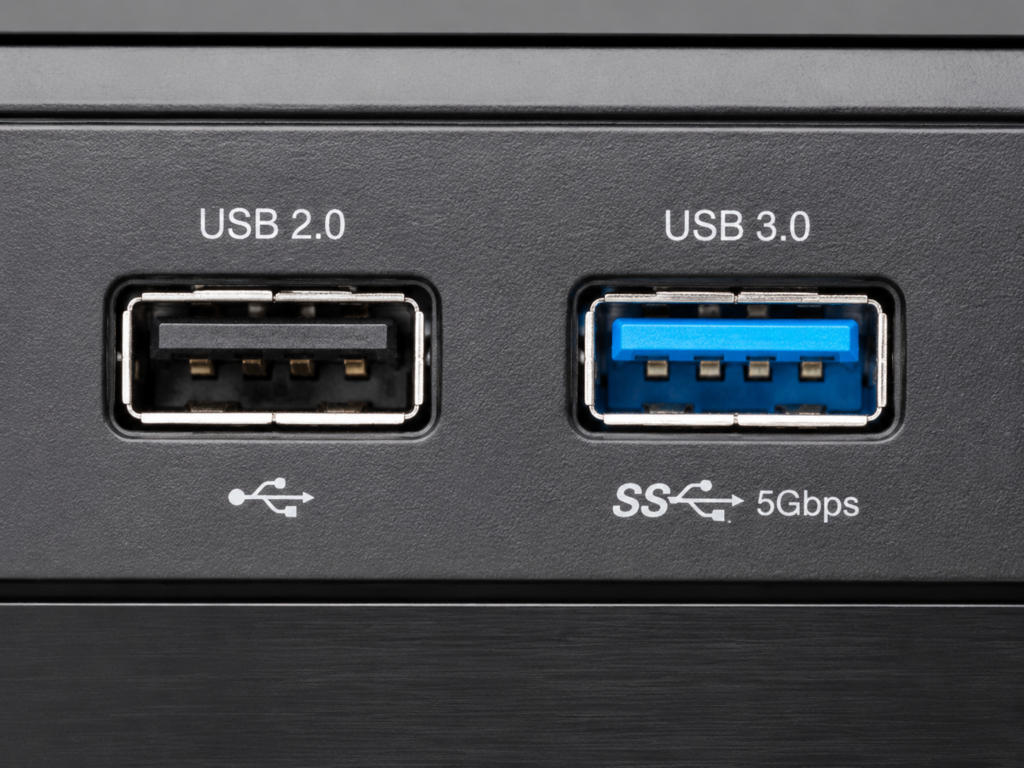
Type-A Port Identification
The most common is the old-fashioned Type-A port, the flat and long port we usually use to plug in USB flash drives.
- Look at the color: the inner tongue of USB 2.0 is generally black or white, and that of USB 3.0 is usually blue — this is the most intuitive judgment method. But note that blue is just an industry convention, not a mandatory standard. Some manufacturers make fast charging ports blue but they are actually 2.0, and some manufacturers make 3.0 ports other colors.
- Look at the pins: these are the metal contacts inside the port. USB 2.0 Type-A generally has only 4 contacts, while USB 3.0 has 9. The extra 5 are used to transmit high-speed signals, and you can see an extra row of contacts inside when you hold it up to the light.
- Look at the markings: if there are words like “SS”, “SuperSpeed” or “5Gbps” next to the port, it is basically USB 3.0 level.
Let’s add here: red, yellow, and orange ports generally represent support for always-on power (can charge even when the computer is off) or fast charging, and are not necessarily USB 3.0 — don’t confuse them.
Micro USB Port Identification and Compatibility
Micro USB is a small port commonly used in old Android phones and old power banks. The difference in shape between the two is very obvious:
- USB 2.0 Micro-B: narrow port, only one row of contacts, commonly found in old mobile phones, old power banks, and old Bluetooth devices.
- USB 3.0 Micro-B: wide port, composed of a normal Micro-B area plus an additional high-speed contact area, commonly found in old portable hard drives.
Pay attention to the compatibility relationship: the USB 3.0 Micro-B female port (the port on the device) can be inserted with a USB 2.0 Micro-B cable, it works but only runs at USB 2.0 speed — many people lose the cable for their old portable hard drive, find a random old mobile phone Micro USB cable to plug in, and find it works but is slow, that’s the reason. The reverse is not possible: the USB 3.0 Micro-B male plug (the plug on the cable) is wider and cannot be inserted into a USB 2.0 Micro-B female port.
Type-C Port Identification
The key point is the most popular Type-C port now. Many people think Type-C is USB 3.0, or even a synonym for high speed — this is completely wrong. Type-C is just a port shape, and has nothing to do with speed grade.
You can’t judge whether it’s USB 3.0 by the fact that it’s reversible, the port is small, or the cable is thick. Many original mobile phone Type-C cables and cheap fast charging cables only support USB 2.0 data speed, but may support very high charging power, because charging and data transmission are separate paths.
The accurate judgment method is to look for the words “USB 3.0/USB 3.1 Gen 1/USB 3.2 Gen 1/5Gbps” on the packaging or parameters. If it only says “fast charging cable” or “Type-C cable” and does not mention data rate, it is most likely USB 2.0. The most reliable method is still system query or actual speed test.
Markings Next to the Port for Auxiliary Judgment
In addition to color and pins, the small markings next to the port can also help you judge:
- Only the two letters “SS”: usually means SuperSpeed, that is, 5Gbps USB 3.0 level;
- “SS 10”: usually means 10Gbps, which is one level higher than the USB 3.0 we are talking about today, and is not within the scope of this comparison;
- Only lightning, battery, or charging icons: means support for fast charging or sleep power supply, not necessarily USB 3.0.
Power Supply and Charging Capability Comparison
Next, let’s talk about the power supply and charging issues that everyone is also very concerned about. Many people think that USB 3.0 charges faster than 2.0, but this statement is not entirely correct. Let’s talk about it by situation.
Standard Data Port Power Supply Parameters
First is the standard power supply of ordinary data ports on computers, which is clearly specified by USB standards:
- Default power supply upper limit under USB 2.0 standard: 5V/0.5A, about 2.5W;
- Default power supply upper limit under USB 3.0 standard: 5V/0.9A, about 4.5W.
Note that this refers to the standard power supply of the computer motherboard or ordinary data ports, which is not the same as mobile phone fast charging, charger output, or USB PD power — don’t confuse them.
Actual Charging Difference Depends on the Scenario
So is the difference big when actually charging? It depends on the device:
- Low-power devices such as Bluetooth headsets, smart watches, and wireless mice have very low charging currents themselves. Using a USB 3.0 port may be a little more stable, or slightly faster, but the difference will not be particularly big. It mainly depends on the device’s own current limit.
- The charging speed of mobile phones and tablets is mainly determined by USB PD, QC, BC 1.2, manufacturer proprietary protocols, and the current carrying capacity of the cable, and has no direct relation to the USB 2.0/3.0 transmission version. For example, many Type-C cables that support 100W PD fast charging only have USB 2.0 speed for data transmission, but they charge not slowly at all.
So stop saying “USB 3.0 charges faster” — this is a common misconception. Fast charging capability and data version are not necessarily related.
Impact on Peripheral Power Supply
Although charging is not necessarily faster, USB 3.0 has stronger power supply capability, which has a considerable impact on peripheral stability:
- 2.5-inch portable mechanical hard drives do not require additional power supply and rely entirely on the USB port for power. When plugged into a USB 3.0 port, the power supply is usually more sufficient, while old USB 2.0 ports may have insufficient power supply problems.
- Devices such as video capture cards, high-speed cameras, and USB gigabit network cards not only require higher bandwidth but may also require more stable power supply, so using a USB 3.0 port will be more stable.
- For devices such as mice, keyboards, ordinary USB flash drives, and printers, USB 2.0 power supply is usually sufficient, and there is no need to plug into a 3.0 port.
Common Manifestations of Insufficient Power Supply
How to judge if there is insufficient power supply? There are several common manifestations:
- The device light is on but the system does not recognize it;
- The portable hard drive starts repeatedly, makes abnormal sounds, or disconnects frequently;
- Large file transfer is interrupted, the device drops out, and multiple devices on the Hub fail at the same time.
When encountering this situation, you can first try plugging the device into the rear USB 3.0 port of the computer (front ports often have insufficient power supply); or replace it with a shorter high-quality cable (the longer the cable, the greater the loss); if you need to connect multiple devices, try to use a Hub with independent power supply, do not use a cheap passive Hub, and do not connect multiple high-power devices to the same Hub.
Compatibility Comparison: Can It Be Plugged In, Can It Be Used, How to Calculate Speed
Many people who buy USB 3.0 devices worry about whether they can be plugged into old USB 2.0 ports. The answer is basically yes. Let’s talk about the compatibility rules in detail.
Core Compatibility Rules
The most core compatibility rule is: USB 3.0 is usually backward compatible with USB 2.0. Specifically:
- A high-version port connected to a low-version device runs at the low-version speed;
- A low-version port connected to a high-version device can only run at the low-version speed.
Of course, this rule has prerequisites: it must be compliant devices, compliant cables, and a standard power supply environment. Inferior cables, non-standard fast charging, and damaged ports are not within the scope of guarantee.
Common Compatibility Scenarios
Let’s take a few scenarios that everyone often encounters:
- USB 2.0 USB flash drive plugged into a USB 3.0 computer port: fully usable, the speed is still USB 2.0 or the speed of the USB flash drive itself, it will not be faster;
- USB 3.0 portable hard drive plugged into a USB 2.0 TV port: generally can read files, but the speed is slow, and the TV’s USB port may have insufficient power supply, so the portable hard drive may not be recognized or disconnect frequently;
- USB 2.0 mouse plugged into a USB 3.0 port: works normally, will not be faster or slower, no difference at all.
Special Compatibility Issues
However, there are also several special compatibility issues that many people have encountered but don’t know the reason for:
- Very old USB 1.1 devices (such as old mice and keyboards from more than ten years ago) may be recognized abnormally on some USB 3.0 controllers — either no response or frequent disconnection. Just plug them back into a USB 2.0 port and it will be fine.
- The high-frequency signal of USB 3.0 may interfere with 2.4GHz wireless receivers, manifested as wireless mouse lag and shorter receiving distance. In this case, just plug the receiver into a USB 2.0 port, or use an extension cable to stay away from USB 3.0 devices.
- Windows 7 system does not have a built-in universal USB 3.0 driver, so you need to install the driver from the motherboard or chipset manufacturer; if you plug a keyboard, mouse, or USB flash drive into a USB 3.0 port during system installation, it may not be recognized. Now new computers basically use Windows 10/11, so this problem is rare, but you should pay attention when installing Win7 on old computers.
Easily Overlooked Compatibility Traps
There are also several easily overlooked compatibility traps that many people have fallen into:
- If the front USB 3.0 port of a desktop computer is not connected to the 19-pin/20-pin USB 3.0 header on the motherboard, it may not work as USB 3.0 at all. It looks like a blue port, but it’s actually just USB 2.0 or even useless.
- A USB 2.0 Hub will make all devices connected to it limited by the USB 2.0 upstream bandwidth, even if the devices are 3.0, it’s useless.
- Inferior USB 3.0 Hubs may cause speed drops and disconnections due to poor signal integrity or insufficient power supply, and may even be less stable than 2.0 ones.
- Type-C to USB-A adapters also have version differences. Cheap adapters may only support USB 2.0 data. Don’t think that you can run at 3.0 speed with any random adapter.
Cable Requirement Comparison: Don’t Buy the Wrong Cable
Many people’s USB 3.0 devices don’t run fast, and the problem is with the cable. And it’s especially easy to be scammed when buying cables. Let’s specifically talk about the differences between cables.
Cable Structure Differences
The internal structure of USB 2.0 and 3.0 cables is completely different:
- USB 2.0 cable: at least includes a power line and a set of USB 2.0 data lines. High-quality cables may also have a shielding layer;
- USB 3.0 cable: on the basis of USB 2.0 cables, adds SuperSpeed high-speed differential line pairs and more grounding/shielding designs, so they are usually thicker, stiffer, and more expensive.
This is why some Type-C cables cost a few yuan, while others cost dozens of yuan — they look the same in shape, but the number of inner cores and shielding layers are completely different, so the speed is naturally much different.
Passive Cable Length and Stability
Many people like to buy long cables because they think it’s convenient, but USB 3.0 cables are not the longer the better:
- For USB 2.0 passive copper cables, the common standard length upper limit can be understood as 5 meters. Beyond that, identification may fail or be unstable;
- USB 3.0/3.x passive copper cables have higher requirements for signal quality. The common recommendation for consumer grade is within 1~3 meters. The longer the cable, the more it depends on the cable quality. Cheap long cables are likely not to run at full speed, or even disconnect frequently.
If you really need long-distance connection, don’t buy ordinary passive long cables. Use active extension cables, powered Hubs, optical USB cables, or industrial-grade cables, otherwise it will definitely be unstable.
How to Judge Whether the Cable in Your Hand is USB 2.0 or USB 3.0
There are several ways to judge the cable version, with reliability from low to high:
- Look at the markings: if there are words like “SS”, “SuperSpeed”, “5Gbps” on the cable body or packaging, it is usually USB 3.0 level;
- Look at the port: if the Type-A end has a blue inner tongue and extra contacts, it is most likely 3.0, but this is not absolute. Some unscrupulous merchants make 2.0 cables blue;
- Look at product parameters: those that clearly state “data transmission 5Gbps” are much more reliable than those that only say “fast charging cable”;
- Actual test verification: use a known USB 3.0 high-speed device (such as an external SSD) to transfer large files of 1GB or more. If the stable speed is around 30~40MB/s, it is basically a USB 2.0 bottleneck; if it can exceed 100MB/s, it means the link is at least USB 3.0 level.
Common Cable Buying Misconceptions
Finally, let’s talk about the most common pitfalls when buying cables:
- “Fast charging cable” is not equal to “high-speed data cable”. Many fast charging cables only have USB 2.0 data capability — they charge quickly, but transfer files slowly;
- “Type-C cable” is not equal to “USB 3.0 cable”. Type-C is just a shape, and has nothing to do with speed;
- “Supports 5A/100W” indicates power supply capability, not equal to supporting 5Gbps data;
- Just looking at the port color is not enough. It’s best to also look at the speed parameters, certification, and actual measured speed in reviews.
Typical Application Scenario Comparison
After talking about so many differences, some people may ask: when should I use USB 2.0 and when should I use USB 3.0? Let’s talk about it by scenario. Just choose according to your needs, and don’t blindly pursue high versions.
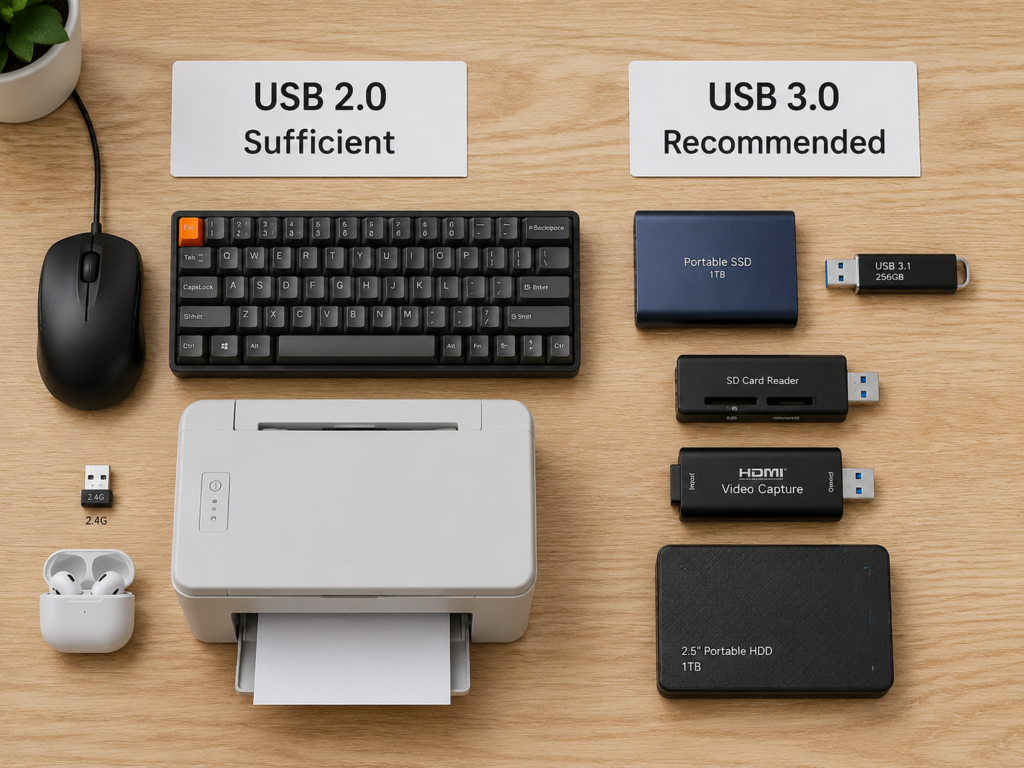
Scenarios Where USB 2.0 Is Sufficient
USB 2.0 is completely sufficient for these scenarios, there’s no need to spend more money:
- Low-speed peripherals such as mice, keyboards, 2.4G wireless receivers, ordinary speakers, and ordinary USB headphones;
- Ordinary printers, scanners, low-speed sensors;
- Occasional transfer of small files or office documents;
- Charging low-power devices such as Bluetooth headsets, watches, and wireless mice;
- Scenarios that do not require high-speed data, such as printer, keyboard, and mouse extension cables.
Scenarios Where USB 3.0 Is Clearly Recommended or Necessary
It is recommended to prioritize USB 3.0 for these scenarios, and the experience improvement will be obvious:
- Large file transfer: movies, photo libraries, system images, game installation packages, video materials;
- Storage devices: portable hard drives, high-speed USB flash drives, high-speed card readers, external SSDs;
- High-bandwidth peripherals: 1080p 60fps and above cameras, video capture cards, USB gigabit network cards;
- Peripherals with high power supply requirements: 2.5-inch portable hard drives, Hubs shared by multiple peripherals.
Tips for Scenario Judgment
Here are two quick judgment tips for you:
First, look at the “transmission rate” or “port requirements” in the device manual. If the nominal rate exceeds 480Mbps, you should not rely on USB 2.0;
Second, for storage devices, prioritize the actual read/write speed. The port version only represents the upper limit, and what you can actually use is the real read/write speed;
Third, if you are not sure and the price difference is small, prioritize USB 3.0 or higher, but there’s no need to force it for low-speed devices.
Core Parameter Comparison Table
For your quick reference, I have organized the core parameters of the two into a table:
| Comparison Item | USB 2.0 | USB 3.0 |
|---|---|---|
| Official Speed Grade | High Speed (high-speed USB) | SuperSpeed (super-speed USB) |
| Nominal Speed | 480Mbps | 5Gbps |
| Theoretical Converted Speed | About 60MB/s | About 625MB/s |
| Common Actual Large File Speed | About 30~40MB/s | About 50~450MB/s (depends on the device) |
| Common Type-A Port Color | Black/White | Blue (more common) |
| Number of Type-A Contacts | 4 | 9 |
| Standard Data Port Power Supply | 5V/0.5A, about 2.5W | 5V/0.9A, about 4.5W |
| Cable Characteristics | Fewer cores, usually thinner | More cores, higher shielding requirements |
| Common Passive Cable Length Upper Limit | About 5 meters | About 1~3 meters (depends on cable quality) |
| Suitable Scenarios | Mouse, keyboard, printer, small file transfer | Portable hard drive, SSD, card reader, capture card |
Intermediate Improvement: Common Misconceptions and Naming Traps
If you have already understood the basic content above, let’s go a step further next. We’ll talk about the most common cognitive misconceptions and the naming word games that merchants love to play, to help you avoid 90% of the pitfalls.
7 Most Common Cognitive Misconceptions
First misconception: Blue ports must be USB 3.0. Blue is just an industry convention, not a mandatory standard. Some manufacturers make 2.0 fast charging ports blue, and some make 3.0 ports other colors. The correct approach is to judge by combining pins, SS markings, device parameters, and actual measured speed, not just by color.
Second misconception: Type-C ports are USB 3.0. Let’s emphasize again: Type-C is a shape, not a speed grade. Many mobile phones’ Type-C ports and original cables only support USB 2.0 data, but they can charge quickly — don’t confuse them.
Third misconception: USB 3.0 devices plugged into USB 3.0 ports will definitely run at full speed. Any link in the entire chain — port, cable, Hub, device itself, system — can become a bottleneck. For example, even if a portable mechanical hard drive is plugged into a USB 3.0 port, it only reaches 100~160MB/s, and can’t reach the 5Gbps upper limit at all, because the mechanical hard drive itself is only that fast.
Fourth misconception: USB 3.0 must charge faster than USB 2.0. The power supply of standard data ports is indeed higher for 3.0, but the fast charging speed of mobile phones and tablets is determined by the fast charging protocol, and has nothing to do with the data version. Many PD fast charging cables only have USB 2.0 data speed, but they charge not slowly at all.
Fifth misconception: USB 3.0 has only advantages. In fact, USB 3.0 cables are usually thicker, stiffer, more expensive, and harder to stabilize over long distances; moreover, the high-frequency signal of USB 3.0 may interfere with 2.4G wireless devices; for low-speed peripherals like mice and keyboards, 3.0 bandwidth is a complete waste.
Sixth misconception: With a USB 3.0 Hub, all devices can run at USB 3.0. If the upstream of the Hub is plugged into a USB 2.0 port, then all devices can only run at 2.0 speed. Even if the upstream is 3.0, when multiple high-speed devices are used at the same time, they will share the upstream bandwidth and power supply, and the speed will be reduced.
Seventh misconception: USB 2.0 is completely obsolete. For scenarios like mice, keyboards, printers, ordinary receivers, and low-power charging, USB 2.0 is completely sufficient, and it has lower cost, softer cables, and does not interfere with 2.4G devices. The correct approach is to leave the precious USB 3.0 ports for devices that really need them, such as high-speed storage and high-bandwidth peripherals, and don’t waste them.
The Word Game of USB Version Naming
Many people get confused by various names when buying things, like USB 3.0, 3.1, 3.2, Gen1, Gen2 — in fact, these are all word games played by standards organizations and merchants.
Why USB 3.0 Has So Many Names
The USB standards organization USB-IF especially likes to rename things: the original USB 3.0 was renamed USB 3.1 Gen 1 in 2013; in 2017, it was renamed again to USB 3.2 Gen 1. Don’t be fooled by the multiple name changes — the core speed is all 5Gbps, and it’s essentially the same thing. The packaging may also write “SuperSpeed USB 5Gbps”.
Don’t Confuse Different Speeds
Merchants often deliberately confuse these names, selling 5Gbps products as 10Gbps ones, so you must be clear about the speeds corresponding to different names:
- USB 3.0 / USB 3.1 Gen 1 / USB 3.2 Gen 1: all are 5Gbps, which is what we commonly call USB 3.0;
- USB 3.1 Gen 2 / USB 3.2 Gen 2: are 10Gbps, twice as fast as 5Gbps;
- USB 3.2 Gen 2×2: is 20Gbps, usually requires a Type-C port to support.
What we are comparing today is USB 2.0 and the 5Gbps level USB 3.0. Higher 10G and 20G are not within the scope of this discussion.
Common Merchant Marketing Phrases
There are several common marketing phrases used by merchants, pay special attention:
- Only writing “USB 3.2” without specifying which Gen — most likely Gen1 at 5Gbps, which is the original USB 3.0, not the faster 10Gbps;
- Only writing “USB 3.0 port” but not the actual read/write speed — especially for USB flash drives, it’s very likely that low-speed flash memory particles are used, and the actual speed is similar to 2.0, just the port is 3.0;
- Only writing “high-speed fast charging Type-C cable” without mentioning data rate — basically USB 2.0, only fast charging, slow data transfer.
Pitfall Avoidance Tips
Avoiding these pitfalls is actually very simple, remember three tips:
- When buying cables, look at the “data rate”: whether it’s 480Mbps, 5Gbps, or 10Gbps. Don’t just look at the port shape, and don’t just look at the charging power;
- When buying storage devices, look at the “actual read/write speed”: for example, read 300MB/s, write 100MB/s — this is much more useful than just looking at the “USB 3.0” marking;
- When buying docking stations and Hubs, look at the “upstream port rate” and “specifications of each downstream port”. Don’t buy just because there are many ports. Many docking stations look like they have many ports, but they are actually all 2.0, or the upstream only has 2.0 bandwidth.
Practical Method: 3 Steps to Quickly Judge Device, Port, and Cable Versions
After talking about so much theory, some people may still feel unsure: how do I quickly judge whether the device, port, and cable in my hand are 2.0 or 3.0? I’ll teach you 3 steps, from preliminary judgment to final confirmation, step by step.
Step 1: Make a Preliminary Judgment by Looking at Hardware Markings
First look at the markings on the hardware to make a preliminary judgment:
- Port: look at the color, number of contacts, and whether there are SS/5Gbps markings;
- Cable: look at the printed words on the cable body, packaging parameters, and number of port contacts;
- Device: look at the shell markings, manual, and official website specification page.
But remember, appearance can only be used for preliminary judgment, not as final evidence. After all, there are too many false labels and counterfeits now.
Step 2: Check Connection Speed in the System
Checking the actual connection speed of the device in the system is much more reliable than looking at the appearance:
- Windows system: you can open Device Manager to view the properties of USB controllers and corresponding devices; you can also use small tools like “USB Tree Viewer” to see the connection speed of each device more clearly.
- macOS system: open “System Information” (also called System Report), find “USB” on the left, select the device you want to view, and the “Speed” field on the right will be displayed. 480Mb/s corresponds to USB 2.0, and 5Gb/s corresponds to USB 3.0 level.
- Linux system: you can use the
lsusb -tcommand to check the mounting rate of the device. 480M is usually USB 2.0, and 5000M is usually USB 3.0.
It should be noted here that you must look at the current connection speed of the specific device, not just whether the computer has a USB 3.0 controller — even if the computer has a 3.0 port, if you plug it into a 2.0 port or use a 2.0 cable, the speed is still 2.0.
Step 3: Actual Test with Large Files
The most reliable method is actual speed testing, let the results speak:
Prepare a storage device with known fast speed (such as an external SSD or high-speed USB flash drive), connect it with the port and cable to be tested, copy a single large file of 1GB or more, and observe the stable read/write speed.
If the stable speed is around 30~40MB/s, it is basically a USB 2.0 bottleneck; if it can exceed 100MB/s, it means the entire link is at least USB 3.0 level.
Notes during testing: don’t test with a very slow old USB flash drive, otherwise the bottleneck is the USB flash drive itself, and the test will be inaccurate; close programs that obviously occupy the disk in the background, such as antivirus scanning and cloud sync; it’s best to test both read and write, to avoid only testing the faster side.
Troubleshooting: Why USB 3.0 Devices Don’t Reach USB 3.0 Speed
Many people buy USB 3.0 devices but find that they don’t reach 3.0 speed, and don’t know where the problem is. Don’t worry, follow the steps below to troubleshoot one by one, and you can basically find the reason.
Check If the Port Is Plugged Correctly
First, check if you plugged into the wrong port:
- Whether it is plugged into a black/white USB 2.0 port;
- For desktop computers, check if the front USB 3.0 port is correctly connected to the USB 3.0 header on the motherboard. Many are not connected during assembly, and the blue port on the front is actually 2.0;
- Prioritize testing the rear USB 3.0 port on the motherboard, because the rear port is directly soldered to the motherboard, with the best signal and power supply, which can eliminate the influence of front panel cables and case workmanship.
Check If the Cable Meets Requirements
If the port is fine, next troubleshoot the cable:
- Whether you used a cable that only supports USB 2.0, or a cable that only has charging function and no data cores;
- Whether the cable is too long, too thin, of poor quality, or has poor contact;
- The simplest verification method is to replace it with a short cable known to support 5Gbps for testing. If the speed increases after changing the cable, then it’s the original cable’s problem.
Check the Device’s Own Speed Upper Limit
If both the port and cable are fine, you need to see if the device’s own speed upper limit is just that high:
- Low-speed USB flash drives, mechanical hard drives, and low-speed SD cards may not reach the upper limit of USB 3.0 themselves — this is the hardware limitation of the device itself;
- When buying devices, don’t just look at the “USB 3.0” marking. Look at the actual read/write speed marked by the official. The port bandwidth is only the upper limit, and what you can actually use is the real read/write speed of the device.
Check Intermediate Devices
If there are intermediate devices such as Hubs, docking stations, and adapters connected, they also need to be troubleshooted:
- Whether you used a USB 2.0 Hub, low-speed docking station, or low-spec adapter — these will all slow down the speed;
- Even if it’s a USB 3.0 Hub, it may not reach high speed due to insufficient power supply, or multiple high-speed devices sharing bandwidth when used at the same time;
- You can try plugging the device directly into the computer’s USB 3.0 port, skipping intermediate devices. If the speed is normal when plugged directly, then it’s the intermediate device’s problem.
Check System, Drivers, and Settings
If all hardware is fine, you need to check the system, drivers, and settings:
- Whether the corresponding USB 3.0 driver is installed on Windows 7 system. If not installed, the 3.0 port either can’t be used, or can only run at 2.0 speed;
- Whether there is a yellow exclamation mark in Device Manager. If there is, there is a problem with the driver;
- Whether the USB-related settings in BIOS/UEFI are abnormal, for example, accidentally changed to USB 2.0 mode;
- Background antivirus software, sync software, disk indexing, etc., will all occupy disk read/write speed, resulting in slower measured speed. It’s best to temporarily turn them off during testing.
Check Interference and Contact Issues
Finally, you also need to troubleshoot interference and contact issues:
- Whether the USB 3.0 device or cable is too close to the 2.4GHz wireless receiver, causing interference. Not only will wireless devices lag, but sometimes it will also affect the stability of USB devices;
- Whether the port is loose, oxidized, or has too much dust, causing poor contact, slower speed, or even disconnection;
- If the portable hard drive disconnects frequently, you also need to consider whether it’s insufficient power supply. Try changing to a rear port, a shorter cable, or a powered Hub.
Purchase Decision Guide: How to Choose Without Wasting Money and Still Be Sufficient
Finally, let’s talk about purchasing. Many people struggle between choosing 2.0 or 3.0 when buying, afraid that choosing the lower one will be insufficient, and choosing the higher one will waste money. In fact, it’s very simple — just follow your needs.
Situations Where USB 2.0 Is Sufficient
USB 2.0 is completely sufficient for these situations, there’s no need to spend more money:
- Low-speed peripherals such as mice, keyboards, ordinary wireless receivers, ordinary speakers, and printers;
- Low-capacity, low-price USB flash drives only used for transferring office documents;
- Extension cables for low-speed devices, such as printer extension cables, keyboard and mouse extension cables;
- Extremely low budget, and clearly not used for transferring large files.
Situations Where USB 3.0 Is Recommended
It is recommended to prioritize USB 3.0 for these situations, and the experience improvement will be obvious:
- Storage devices such as portable hard drives, high-speed USB flash drives, card readers, and external SSDs;
- Scenarios where video materials, photo libraries, system backups, and game files are frequently transferred;
- High-bandwidth peripherals such as high-definition cameras, video capture cards, and USB gigabit network cards;
- Multi-device Hubs or docking stations, especially when storage devices are connected.
Purchase Suggestions for Different Users
There are also different suggestions for different user groups:
- Ordinary office users: USB 2.0 is sufficient for mice, keyboards, and printers; prioritize USB 3.0 for USB flash drives and portable hard drives;
- Student and home users: choose USB 3.0 for photo, video, and game backup devices, it’s worry-free to use;
- Content creators: external SSDs, card readers, and docking stations should start with at least USB 3.0. If the budget allows, you can consider 10Gbps and above for more efficient material transfer;
- Gamers: USB 3.0 or higher is recommended for portable game libraries, installation package migration, and backup drives — it’s fast for installing games and transferring saves.
General Decision Principles
Finally, here are a few general decision principles. Write them down and you won’t choose wrong:
First, there’s no need to pursue USB 3.0 for low-speed peripherals — it wastes money and wastes ports;
Second, prioritize USB 3.0 as a starting point for storage devices. Now the price difference of 3.0 USB flash drives is very small, and the cost-effectiveness is very high;
Third, if you are not sure which to choose, and the price difference is small, prioritize cables, Hubs, and card readers that clearly mark 5Gbps — you won’t have to buy again if you need it later;
Fourth, pay attention to allocating the computer’s port resources. Leave USB 3.0 ports for devices that really need them, such as high-speed storage and high-bandwidth peripherals, and use USB 2.0 ports for low-speed devices like mice, keyboards, printers, and receivers — don’t waste them.
Summary
By now, you should have a relatively comprehensive understanding of the differences between USB 2.0 and 3.0. Finally, let’s recap — after reading this article, you should at least master these four things:
First, be able to distinguish USB versions and port shapes. USB 2.0 and 3.0 are transmission standards that determine the speed upper limit; Type-A, Type-C, and Micro USB are port shapes that determine whether it can be plugged in. Type-C is not equal to USB 3.0, and blue ports are not necessarily USB 3.0 — don’t confuse them anymore.
Second, be able to judge speed bottlenecks. USB 2.0 has a theoretical speed of 480Mbps, and the actual common speed is 30~40MB/s; USB 3.0 has a theoretical speed of 5Gbps, and the actual speed depends on the device, ranging from dozens to hundreds of MB/s. The final speed is always determined by the slowest link — don’t just look at one link.
Third, be able to avoid purchasing misconceptions. When buying cables, look at the data rate, not just the port shape and charging power; when buying storage devices, look at the actual read/write speed, not just the USB version; fast charging capability and data speed are two different things, and should be judged separately.
Fourth, be able to handle the problem of USB 3.0 not running fast. Troubleshoot step by step in the order of port, cable, device itself, intermediate devices, system drivers, power supply, and interference. Use known high-speed devices and large files for actual testing to find the bottleneck as quickly as possible.
In fact, there’s no need to blindly pursue the highest USB version. It’s good if it suits your usage scenario and is sufficient — after all, the suitable one is the best.