
When buying charging cables or replacing digital devices, do you often hear terms like “Micro USB”, “USB-C”, and “Type-C”? Many people think that the C port is better than the old Micro USB, supporting fast charging, fast file transfer, and screen casting. But when they actually buy it home, they find that some C ports charge slower than the old Android port, and some C ports can’t even recognize a USB flash drive, let alone cast screens.
Actually, many people mix up one thing: the shape of the interface does not equal its performance. An interface that looks like a C port does not necessarily have high performance; the seemingly outdated Micro USB is not necessarily completely insufficient. In this article, we will thoroughly explain the differences between the two interfaces from various dimensions such as appearance, charging, speed, compatibility, and durability, to help you understand when to choose Micro USB and when to choose USB-C, so you can avoid wasting money.
1. First, Clarify the Concept: Interface Shape Does Not Equal Performance
Many people’s misunderstanding of USB interfaces essentially equates “what the interface looks like” with “what the interface can do”. Before the formal comparison, let’s sort out the basic concepts first, so that we won’t be fooled by marketing rhetoric later.
1.1 What is Micro USB
Micro USB is an interface standard commonly used in the previous generation of small consumer electronics, also often called “Micro-B” or “old Android port”. It was widely used on Android phones between around 2010 and 2018.
Its design goal is to make the interface small while ensuring basic functions, to adapt to the increasingly thin and light mobile phones and small digital devices at that time. Now, in addition to existing old devices, it is mainly used on low-cost, low-power small devices, such as old power banks, cheap Bluetooth headsets, desktop small fans, electric toothbrushes, IoT sensors, etc.
1.2 What is USB-C (Type-C)
USB-C is also called Type-C, and many people simply call it “C port” for short. It is the current new generation of universal interface shape. Its design goal is to create an “all-in-one” small interface, unify the interface standards of different devices, and reduce the types of interfaces.
Nowadays, new mobile phones, tablets, thin and light laptops, cameras, monitors, docking stations and other devices basically use USB-C interfaces. It can be used for charging, data transfer, video output, and connecting docking stations. In theory, one interface can replace the role of several interfaces in the past.
1.3 These Four Concepts Should Be Separated
To understand USB interfaces, you must separate four completely different concepts and don’t confuse them:
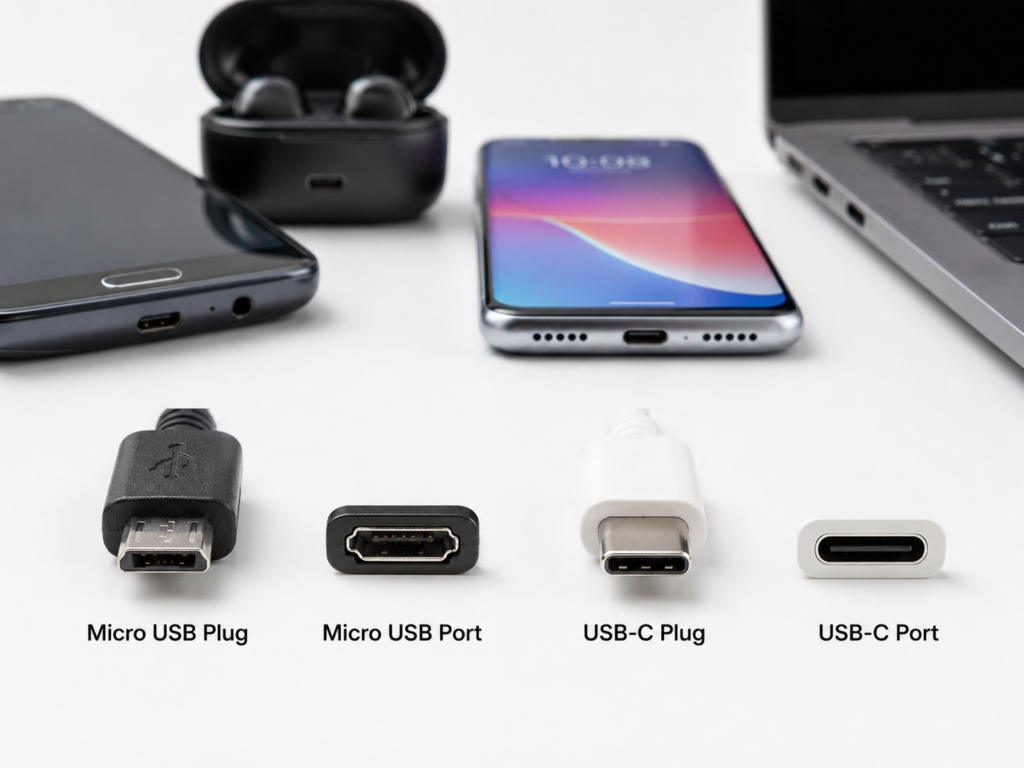
The first is interface shape: it is the appearance of the interface that we can see with the naked eye. For example, Micro USB is trapezoidal, USB-C is oval, and USB-A is the most common rectangular large port. These all refer to shape, and have no direct relationship with performance.
The second is USB transmission standard: it determines the speed of data transmission, such as USB 2.0, USB 3.2, USB4, with speeds ranging from dozens of MB per second to several GB. There is no inevitable connection with the interface shape – it is not that C ports must be high-speed, and Micro USB must be low-speed.
The third is charging protocol: it determines the charging power and how the device and charger “communicate” to match the power, such as PD protocol, QC protocol, with power ranging from a few watts to hundreds of watts. Similarly, there is no inevitable connection with the interface shape.
The fourth is video/expansion protocol: it determines whether the interface can output video, connect to a docking station, and support Thunderbolt high-speed transmission, such as DP Alt Mode, Thunderbolt 3/4. These are also additional capabilities, not inherent to an interface of a certain shape.
In short: the interface shape is just a “shell”. What standard is installed inside and what functions it supports are the key to determining performance.
1.4 Comparison Boundaries of This Article
To avoid making things more and more complicated, the comparison scope of this article has two boundaries:
First, we only discuss common interfaces on ordinary consumer-grade devices, such as mobile phones, tablets, laptops, power banks, headphones, small home appliances and other devices that ordinary people use daily. We do not discuss special scenarios such as industrial custom interfaces, vehicle-specific interfaces, and military-grade interfaces.
Second, our comparison is based on the daily use scenarios of ordinary users, and will not involve too in-depth circuit design or underlying protocol principles. We focus on content that everyone can directly use and directly judge.
2. Quick Understanding: Core Positioning and Most Intuitive Differences of the Two Interfaces
If you don’t want to read too detailed parameters, we can start with the core positioning and the most easily felt differences in daily life to quickly establish an overall understanding of the two interfaces.
2.1 Core Positioning of Micro USB
Micro USB was designed from the beginning to serve low-cost, miniaturized devices, with the core goal of “usable, small enough, and cheap enough”.
It can meet basic charging needs and basic data transmission needs, and is completely sufficient for devices with low power consumption and no need for high-speed transmission. Now it is no longer the interface of mainstream flagship devices, and mainly appears on existing old devices and low-priced small devices, occupying the low-end market with low cost and mature industrial chain.
2.2 Core Positioning of USB-C
USB-C is a new generation of interface designed for general scenarios, with the core goal of “unification, multi-function, and high performance”.
It has a very wide coverage, from Bluetooth headsets to laptops, even monitors, docking stations, and desktop peripherals, all can use USB-C interfaces. But note that not all USB-C supports high performance – many low-end USB-C devices only use the shape of the C port, and their actual capabilities are similar to ordinary Micro USB. You can’t default that as long as it’s a C port, it must be fast and have full functions.
2.3 The 4 Most Intuitive Daily Differences
For ordinary users, the most intuitive differences between the two interfaces are mainly reflected in four aspects, which can be felt without looking at parameters:
The first is plugging and unplugging experience: USB-C has a symmetrical design, can be plugged in both front and back, no need to find the direction, and can be plugged in even in the dark; Micro USB has a trapezoidal one-way design, must be aligned with the direction to plug in, it is easy to plug wrong when the lights are off at night or when holding things in hand, and it will be particularly troublesome when plugging and unplugging frequently.
The second is charging capability: the charging upper limit of USB-C is much higher than that of Micro USB, supporting from tens of watts for mobile phones to hundreds of watts for laptops, but this is not inherent to the C port. The premise is that the device, charger, and cable all support the corresponding protocol and power, and the three must match to achieve the highest speed. The charging upper limit of Micro USB is generally not high, but it is not completely unable to fast charge, and a few old devices can also support old fast charging protocols.
The third is data transmission speed: the highest transmission speed that USB-C can achieve is much higher than that of Micro USB, but it may also be just the low-speed level of USB 2.0. The speed upper limit is not determined by the interface shape, but by the device’s USB controller and cable specifications.
The fourth is function richness: Micro USB can basically only charge and transmit basic data, while USB-C can carry multiple functions such as charging, data, video, and expansion, but the specific functions depend on the design of the device itself, not all C ports are all-round.
2.4 The Conclusion Is Not Absolute
Many people like to say “C port is better than Micro USB”, but this conclusion is not absolute. Low-end USB-C devices, such as a few-dollar C port desk lamp, may have the same charging speed and functions as ordinary Micro USB; while the old Micro USB 3.0 mobile hard drive may have a faster transmission speed than a cheap C port USB flash drive. The final experience always depends on whether the device, cable, and protocol match, just looking at the interface shape doesn’t mean anything.
3. Tell at a Glance: Shape, Aliases, Common Devices and Confusing Points
Many people often confuse different interfaces, or get dizzy when hearing various aliases. In fact, as long as you master a few key points, you can distinguish the two interfaces at a glance, and won’t be confused by various terms.
3.1 Shape and Common Devices of Micro USB
The shape of Micro USB is a trapezoid with a narrow top and a wide bottom, with a clear front and back direction. It must be inserted with the front side up. If inserted backwards, it either can’t be inserted or is easy to damage the interface.
The ordinary Micro USB 2.0 interface has a single row of pins inside, and the plug is relatively small, which is also the most common “old Android port” we see. There is also a variant called Micro USB 3.0 (also called Micro-B 3.0), whose plug is wider than ordinary ones, with an extra row of pins and faster speed. It was often used on mobile hard drives before, and is now relatively rare.
The Micro USB devices seen in daily life are mainly old Android phones, low-end Bluetooth headsets, cheap power banks, desktop small fans, electric toothbrushes, old camera accessories, etc., most of which are low-cost or early-released devices.
3.2 Shape and Common Devices of USB-C
The shape of USB-C is a symmetrical oval, symmetrical up, down, left and right, with no front or back direction. It can be inserted no matter how you plug it, which is also its most recognizable feature.
Its interior has a double-sided contact design, with pins on both front and back, so it can ensure good contact even when plugging blindly. Nowadays, new mobile phones, tablets, thin and light laptops, cameras, monitors, docking stations, high-speed mobile hard drives and other devices basically use USB-C interfaces, covering a very wide range of devices.
Here is a special reminder: an interface that looks like a C port does not necessarily support fast charging, high-speed transmission or video output. Many cheap small devices only use the shape of the C port, and actually only have basic charging and low-speed data functions. Be sure to check the parameters when buying, don’t just look at the interface shape.
3.3 30-Second Quick Distinction Method
No need to memorize parameters, just look at three places, you can distinguish the two interfaces in 30 seconds:
The first is look at the shape: if the interface is oval and symmetrical with no front or back, it is USB-C; if it is trapezoidal with clear front and back, it is Micro USB. This is the most intuitive judgment method, and basically won’t be wrong.
The second is look at the device era: mainstream digital devices released in the last two or three years, such as new mobile phones, tablets, and laptops, are basically USB-C; old devices released earlier, or low-priced small devices costing a few or a dozen yuan, are most likely Micro USB.
The third is look at the logo: some devices have capability logos next to the interface, such as PD (fast charging), DP (video output), Thunderbolt (lightning logo), etc. These logos represent the capability of the interface, not the shape of the interface. Generally, only USB-C interfaces have these logos, and Micro USB basically does not.
3.4 Easily Confused Concepts
Regarding USB interfaces, there are several concepts that are often confused, let’s clarify them at once:
- USB-C vs USB-A: They are completely different interface shapes. USB-A is the most common rectangular large port, that is, the large USB port on computers and chargers; USB-C is a small oval interface, the two have different shapes and cannot be directly plugged into each other.
- USB-C vs Type-C: They are the same thing, no difference at all. USB-C is the abbreviation, the full name is USB Type-C, so when people usually say Type-C or C port, they all refer to USB-C.
- USB-C vs Lightning: Completely different interfaces. Lightning is a dedicated interface that Apple used on iPhones and iPads before, which can also be plugged in both front and back, but its shape and protocol are different from USB-C. Now Apple’s new devices have gradually switched to USB-C.
- Interface shape vs protocol capability: This is the most easily confused point. The interface shape is just the physical appearance, and the protocol capability is the function it can actually achieve. There is no inevitable connection between the two. You can’t default that a C port supports fast charging, high speed, and video output when you see it. Be sure to check the specific parameters.
4. Item-by-Item Comparison of Core Dimensions
After understanding these basic concepts, we will disassemble and compare the two interfaces item by item from 7 core dimensions that are most concerned about in daily use, to help you clearly perceive where their actual differences are.
4.1 Appearance and Plugging/Unplugging Experience
Micro USB adopts a trapezoidal asymmetric design with a narrow top and a wide bottom. When inserting, it must be aligned with the front direction, and it can’t be inserted even a little off. If it is in a dark environment, operated with one hand, or in a hurry, it is easy to plug it backwards, and it takes several attempts to succeed. The experience will be relatively poor in scenarios of frequent plugging and unplugging.
USB-C is an oval design that is completely symmetrical up, down, left and right, with no front or back. Pick it up and plug it in casually, it can be in place. Even if it is dark or you are holding something in your hand, you can plug it successfully at one time. The advantage is particularly obvious in high-frequency use.
From the perspective of size design, Micro USB was designed for extreme miniaturization back then, and the overall plug is flatter and narrower; while USB-C is not large in size, because it needs to integrate more pins and double-sided contact structure, the internal space is more abundant, which is more suitable for carrying multiple functions.
Of course, this experience gap also depends on the scenario: if it is a device that is plugged into a desk lamp or router and not unplugged once for half a year, the plugging and unplugging frequency is extremely low, and the experience difference between the two can be almost ignored; but if it is a mobile phone or power bank that needs to be plugged several times a day, the advantage of blind plugging will be very prominent.
4.2 Charging Capability
First, clarify a basic understanding: the charging capabilities of the two interfaces have no fixed value, and the gap between the upper and lower limits is very large. The core depends on the charging protocol of the device itself, the output specification of the charger, and the carrying capacity of the cable, not determined by the interface shape.
The common configuration of Micro USB is 5V1A (5W) or 5V2A (10W), mostly used in low-power small devices and old mobile phones. A few old flagship phones that support early QC (Qualcomm Quick Charge, a fast charging standard commonly used in Android phones in the early years) fast charging protocol can also reach a charging power of about 18W at the highest, but such devices are now rare. Limited by the number of pins and structural design, the charging power upper limit of Micro USB is generally not high, and there are few consumer-grade devices exceeding 20W.
The charging capability of USB-C has a very large span: the C port on low-end small devices may only have basic charging capability of 5V1A, no different from the most ordinary Micro USB; while the C port of mainstream flagship phones can support fast charging of tens of watts to hundreds of watts, the C port of thin and light laptops can even support 65W to 100W PD (USB Power Delivery, one of the most common fast charging standards at present) charging, and some gaming laptops can even achieve 240W power supply.
Here is a special reminder: don’t default that a C port can fast charge when you see it. The C port of many low-priced small toys and no-name small appliances only uses the shape of the C port, and the actual charging power is only 5W, even worse than old Micro USB fast charging phones. To judge the charging speed, be sure to look at the charging power and supported protocols marked on the device, not the interface shape.
4.3 Data Transmission Speed
Like charging capability, data transmission speed has no inevitable connection with interface shape. The core depends on the device’s USB controller, transmission standard, and supporting cable specifications.
The vast majority of Micro USB we usually see are USB 2.0 standard, with a nominal theoretical upper limit of 480Mbps, which is converted to about 60MB/s, but actual copying is often lower than this number due to protocol overhead, storage speed and cable quality, commonly only about 30-40MB/s. It is no problem to transfer photos and documents, but it will be very slow to transfer large files of tens of GB. A few old mobile hard drives use Micro USB 3.0 (also called Micro-B 3.0), which can reach a speed of 5Gbps, more than ten times faster than ordinary USB 2.0, but this kind of interface is now rare.
There are more transmission standards corresponding to USB-C: the cheapest C port may still be USB 2.0, with the same speed as ordinary Micro USB; most mainstream new devices are USB 3.2 Gen1 (5Gbps) or Gen2 (10Gbps), which is much faster for transferring large files; high-end devices may also support USB4 or Thunderbolt 3/4. Common USB4 devices are mostly marked with 20Gbps/40Gbps, and USB4 v2 specification can reach 80Gbps, which is no problem for connecting high-speed hard drives and capture cards. The specific speed is subject to the device and cable markings.
Many people buy C port USB flash drives or mobile hard drives, and find that the file transfer is very slow when they get home. Most likely, the device itself is USB 2.0 standard, just using the shape of the C port. Be sure to check the transmission speed in the parameters when buying, don’t just look at the interface shape.
4.4 Function Richness
The functions of Micro USB are relatively single. The vast majority of devices are only used for charging and basic data transmission. A few devices that support OTG (a function that allows devices to directly connect to USB flash drives, mice and other peripherals without going through a computer) can connect to USB flash drives, mice and other peripherals through adapters, but that’s all, and it can’t carry more complex functions.
The functions of USB-C are much richer. In addition to basic charging and data transmission, it can also support video output, audio output, docking station connection, reverse power supply, Thunderbolt high-speed expansion and other functions. In short, a full-featured USB-C port can replace the roles of several ports in the past, such as charging port, data port, video output port, headphone port, etc. This is why thin and light laptops now like to use C ports – it can greatly reduce the number of ports on the body and make the computer thinner and lighter.
But again: not all USB-C has so many functions. The C port of many devices only supports charging and data, has no video output capability, and cannot be connected to a docking station; some C ports can only charge, and don’t even support data transmission. For specific functions, be sure to check the parameter description of the device, don’t take it for granted.
4.5 Durability and Common Faults
From the official nominal plugging and unplugging life, the standard plugging and unplugging times of USB-C are generally about 10,000 times, while the standard plugging and unplugging times of Micro USB are mostly about 5,000 times. Theoretically, USB-C has better durability. But the actual service life also depends on the workmanship and materials of the interface, as well as the user’s usage habits, and cannot be generalized – a poorly made C port may not be as durable as a well-made Micro USB.
From the perspective of common faults, because Micro USB is one-way insertion, many people will force it when plugging it backwards, which is easy to bend or break the internal pins, or pry loose the interface female seat; in addition, the plug of Micro USB is relatively thin, if it is often bent, the wire at the root is also easy to break.
The common faults of USB-C are different: because the interface gap is relatively large, it is easy to get dust and lint in it. If too much is stuffed, it will cause the cable to not be inserted to the end and poor contact; in addition, if you often pull the cable to unplug, or the interface is subjected to lateral force, it may also cause the internal solder joints to loosen. There are also some inferior C ports whose internal shrapnel is easy to deform, and will become loose after long-term use.
To judge whether the interface is broken, don’t just look at the service life, you should comprehensively judge based on the plugging and unplugging frequency, usage habits, and interface cleanliness. Many times, poor contact is not a broken interface, just too much dust inside, just clean it up.
4.6 Usage Cost
In terms of cables, Micro USB cables are generally very low in price due to mature technology and simple structure. You can buy a reliable brand cable for a few yuan, and you won’t feel bad even if you lose it.
The price gap of USB-C cables is very large: the most basic C cable that can only charge can also be bought for a few yuan; but certified cables that support high power and high-speed data, such as 65W PD cables, 10Gbps data cables, Thunderbolt 4 cables, may cost from tens to hundreds of yuan, the more high-end the cable, the more expensive it is.
From the perspective of long-term use cost, if all your devices are USB-C, you only need to bring one cable when going out, no need to prepare several different cables, which can reduce the cost of repeated purchase of cables and is more worry-free.
But in terms of maintenance cost, because USB-C has a more complex internal structure and more pins, the cost of replacing the interface is generally higher than that of Micro USB. Especially for full-featured C ports that support high-speed and video output, the welding quality of the pins must also be considered during maintenance, and the cost will be higher.
So don’t blindly pursue C ports: if you only have one or two old devices using Micro USB, just continue to use them, there is no need to deliberately eliminate still usable devices just to change the interface, which is more wasteful.
4.7 Compatibility and Adapter
Micro USB and USB-C have different physical shapes and cannot be directly plugged into each other. They must be connected through an adapter or adapter cable.
In terms of adapter capability, USB-C has much stronger scalability: through compliant adapters or docking stations, it can be adapted to various interfaces such as USB-A, HDMI, VGA, network port, SD card reader, 3.5mm audio port, etc., which can almost cover all common peripheral needs.
But there is a very important principle here: the adapter can only change the physical shape of the interface, and cannot add functions that the device itself does not have out of thin air. For example, if your phone’s C port itself does not support video output, then no matter how expensive an HDMI adapter you buy, you can’t cast the screen; if your device only supports USB 2.0, even if you use a USB 3.0 adapter, the speed will still be USB 2.0 level.
In addition, the risk of inferior adapters is very high: at best, it will cause fast charging failure, reduced transmission speed, and unstable contact; at worst, due to unreasonable circuit design, it will burn the device’s interface or even the motherboard. When buying adapters, try to choose regular brands, don’t be greedy for cheap and buy no-name products that cost a few yuan.
5. Why Is the Experience So Different Even with the Same USB-C?
Many people have had this experience: some C port devices can fast charge, cast screens, and transfer files very fast, while others can only charge slowly and can’t even recognize a USB flash drive. In fact, this is not because the C port is unreliable, but because you don’t understand the three layers of standards behind the C port.
5.1 First Distinguish the Three Layers of Standards
USB-C is just the physical shape of an interface, like an empty “socket”. What functions can be realized inside depends on what “circuit” is connected inside. Specifically, we need to distinguish three completely independent layers of standards:
The first layer is USB transmission standard: it determines the speed of data transmission, such as USB 2.0, USB 3.2 Gen1, USB 3.2 Gen2, USB4, etc., with speeds ranging from 480Mbps to dozens of Gbps, and has no inevitable connection with the interface shape.
The second layer is charging protocol: it determines the charging power and handshake method, such as PD protocol, QC protocol, private fast charging protocols of various manufacturers, etc., with power ranging from a few watts to hundreds of watts, and also has no inevitable connection with the interface shape.
The third layer is function protocol: it determines whether the interface can output video, connect to a docking station, and support Thunderbolt high-speed expansion, such as DP Alt Mode, Thunderbolt 3/4, USB4 expansion functions, etc. These are additional functions, not inherent to the C port.
In short: the C port is just a “shell”, whatever standard is installed inside, it has whatever capabilities. For the same C port, if it is equipped with USB 2.0 + 5W charging, the experience will be vastly different from one equipped with USB4 + 100W PD + Thunderbolt.
5.2 How to Judge the Capability of USB-C Cables
Many times, the poor experience of the C port is caused by the cable. Different USB-C cables have very different capabilities. Some can only charge, some can transfer data, some can support fast charging, and some can support video output. So how to judge the capability of a C cable? You can look at these aspects:
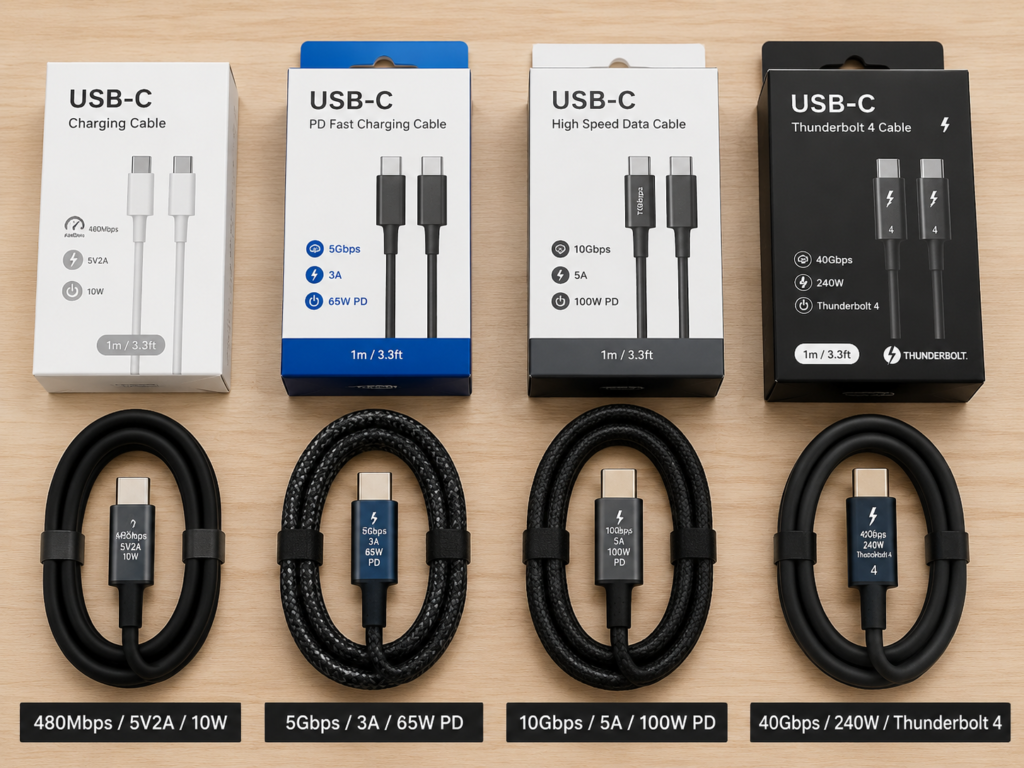
The first is to look at the packaging and markings: regular cables will mark key parameters on the packaging or cable body, such as transmission speed (480Mbps, 5Gbps, 10Gbps, 40Gbps, etc.), maximum current (3A, 5A, etc.), maximum power (60W, 100W, 240W, etc.), and some will also mark PD, E-Marker (a smart identification chip in the cable, used to inform the device of the cable’s capabilities), Thunderbolt and other logos. The more complete the parameters, the clearer the cable’s capabilities.
The second is to look at the cable type: C-to-C cables (both ends are C ports) have a higher capability upper limit, and can support high-power fast charging, high-speed data and video output; while A-to-C cables (one end is USB-A, one end is C port) generally have limited capability upper limits. Ordinary A-to-C cables are usually mainly for basic charging, USB 2.0 data or some old fast charging, and are not suitable for expecting high power like USB PD 65W/100W; some brand private fast charging may achieve higher power through A-to-C, which requires the joint support of the device, charger and original/certified cable.
The third is to look at the price and certification: generally speaking, ultra-low-priced unmarked C cables are mostly only able to meet basic charging needs, and even don’t support data transmission; while cables with formal certification (such as USB-IF certification, Thunderbolt certification) will be more expensive, but their capabilities and safety are more guaranteed.
Of course, it’s not that the more expensive the better, just suit your own needs. If you just charge a Bluetooth headset, it’s enough to buy a basic model for a few yuan, there’s no need to buy a Thunderbolt 4 cable for hundreds of yuan, it’s a total waste.
5.3 Micro USB Also Has Different Versions
Many people think that all Micro USB are the same, but in fact it also has different versions, and the capability gap is not small:
The most common is Micro USB 2.0, which is what we usually call the “old Android port”, with a single row of pins, a relatively small plug, mostly supporting USB 2.0 data and basic charging, used in ordinary mobile phones, power banks, and small home appliances.
There is also Micro USB 3.0 (also called Micro-B 3.0), whose plug is wider than ordinary Micro USB, with an extra row of pins, and can support USB 3.0 high-speed transmission. It was often used on 2.5-inch mobile hard drives and old digital cameras before. Note here: the Micro-B 3.0 plug is wider and cannot be inserted into an ordinary Micro-B 2.0 female seat; but the female seat of many Micro-B 3.0 devices can be inserted with an ordinary Micro-B 2.0 cable, but the speed will drop to USB 2.0 level, and only a dedicated Micro-B 3.0 cable can achieve high speed. When buying cables, you should see clearly the shape of the device’s female seat to avoid buying the wrong one.
Now Micro USB 3.0 is relatively rare, and most have been replaced by USB-C, but if you have an old mobile hard drive at home, you should pay attention to the distinction and don’t buy the wrong cable.
5.4 The Relationship Between Thunderbolt, USB4, and DP Alt Mode
Many people often confuse Thunderbolt, USB4, DP Alt Mode with USB-C, but they are completely different levels of things:
USB-C is interface shape, which is the physical appearance;
DP Alt Mode, Thunderbolt, and USB4 are all protocol or capability standards, which are functions running inside the C port, and not all C ports support them.
Specifically:
- DP Alt Mode: It is a function that allows the C port to output DisplayPort video signals. A C port that supports this function can directly connect to a monitor or TV through an adapter to achieve video output.
- Thunderbolt 3/4: It is a high-speed interface standard launched by Intel, using the physical shape of USB-C. In addition to charging and data transmission, it also supports video output and docking station connection, with a speed of up to 40Gbps. It is currently the high-end specification among C ports.
- USB4: It is a new generation of transmission standard launched by USB-IF, based on the underlying technology of Thunderbolt 3, also using the physical shape of USB-C. Common devices are mostly marked with 20Gbps/40Gbps, and the USB4 v2 specification can reach up to 80Gbps, supporting video output and expansion. It has high compatibility with Thunderbolt 4, but the two are not exactly the same.
In short: Thunderbolt and USB4 are both “high-end version” C port capabilities, not all C ports have them. When buying devices, if you need high-speed transmission, video output or one-cable solution function, be sure to check whether the device is marked with Thunderbolt, USB4 or DP Alt Mode, don’t just default that it supports it because the interface is a C port.
6. Real Scenario Decision-Making: Which Interface to Choose for Different Devices
After talking about so many parameters and principles, in actual use, the selection logic for different devices is actually different, and there is no need to generalize. Let’s talk about them one by one according to common device types.
6.1 Mobile Phones and Tablets
If you are using an old Android phone, a 100-yuan backup phone, or an elderly phone, which itself has a Micro USB interface, as long as it can meet daily needs, just continue to use it. There is no need to change the phone specifically just to change the interface – after all, the core of a mobile phone is to be easy to use, not what shape the interface is.
If you plan to buy a new mobile phone and tablet, give priority to those with USB-C interface. Now, whether it is fast charging speed, accessory versatility, or the convenience of borrowing cables when going out, the C port has become the absolute mainstream. You can basically find C port cables in airports, cafes, and friends’ homes, no need to bring old cables separately.
Also note that if you buy a flagship phone, you also need to confirm the matching degree of the fast charging protocol and the cable, to avoid that the third-party cable you buy cannot reach the original fast charging speed.
6.2 Power Banks and Portable Chargers
If the old power bank at home still has Micro USB input and USB-A output, as long as the capacity is okay and it can be used normally, just continue to use it, no need to deliberately buy a new one.
If you buy a new power bank, give priority to models with USB-C two-way fast charging – that is, the C port can both charge the power bank itself and charge devices such as mobile phones and tablets. If you have several C port devices, this kind of power bank can let you bring one less cable, and you only need one C-to-C cable when going out, which is much more convenient.
If you are a user who often charges laptops, you should also pay attention to whether the C port output power of the power bank is sufficient. You should choose at least 65W or more to charge most thin and light laptops.
6.3 Headphones, Speakers and Small Home Appliances
For low-power devices like cheap Bluetooth headsets, desktop small fans, desk lamps, electric toothbrushes, and remote controls, Micro USB is completely sufficient. As long as the device is not broken, there is no need to deliberately buy a new one just to change to a C port – anyway, the charging frequency is not high, some even only charge once every six months, and the difference in plugging and unplugging experience is almost imperceptible.
If it is mid-to-high-end headphones, speakers, or you already have many C port devices at home and want to unify the interface, then choosing the USB-C version will be more convenient, no need to keep a separate Micro cable.
The core of decision-making is: don’t spend unnecessary money just for “having a C port”. For example, a 20-yuan small fan, the C port version is 10 yuan more expensive than the Micro version, which is completely unnecessary, after all, it is only plugged and unplugged a few times a year.
6.4 Mobile Hard Drives and USB Flash Drives
If the old mobile hard drive at home is Micro USB 3.0 and the speed can meet the demand, just continue to use it. Remember to keep the original dedicated cable well, don’t lose it, otherwise it will be quite troublesome to get a replacement.
If you often transfer large files, edit videos, back up a large number of photo materials, or often use thin and light laptops and docking stations, then give priority to high-speed storage devices with USB-C interface, whether it is transmission speed or connection convenience, it will be much better.
If it is only used to store some documents, photos, and occasionally transfer small files, then whether it is Micro USB or USB-C, as long as the speed is sufficient, there is no need to deliberately pursue the C port.
6.5 Laptops and 2-in-1 Devices
Nowadays, new thin and light laptops basically use USB-C for charging, and many also support integrated data and video output, that is, “one-cable solution” – one C cable connected to the monitor can charge the laptop, transfer data, and output video at the same time, and the desktop will be particularly tidy.
Here is a special note: the charging ports of old laptops are mostly round dedicated power ports, not Micro USB, don’t confuse them – the power upper limit of Micro USB is very low, it can’t support the charging demand of laptops at all, and no consumer-grade laptop uses Micro USB for charging.
If you want the “one-cable solution” experience, when buying a laptop, be sure to confirm that the C port is “full-featured USB-C”, supports PD charging and DP video output, and preferably supports Thunderbolt 4, otherwise it may only charge or only transfer data, and cannot achieve the one-cable solution.
6.6 Game Consoles and Cameras
Nowadays, new game controllers, handheld consoles, and mainstream cameras basically use USB-C interfaces, which are universal with the cables of mobile phones and computers, no need to prepare separate dedicated cables, which is very convenient.
But some old cameras, flashes, and controller accessories still use Micro USB interfaces. When buying accessories or cables, don’t just take it for granted based on the interface shape, be sure to check the manual to confirm the interface type and supported protocols, to avoid buying the wrong cable that can’t be used.
Also note that the C port of some cameras can only be used for charging or transferring photos, and does not support video output or fast charging. Be sure to see the parameters clearly before buying, don’t think that a C port can do everything.
6.7 How to Deal with Existing Devices
Many people have both old Micro USB devices and new USB-C devices at home, and find it very troublesome to mix the two interfaces, not knowing how to transition. In fact, don’t worry, just follow this idea:
If you only have one or two Micro USB devices, such as an old headset and an old power bank, then just keep two reliable Micro cables, no need to toss, and the cost is low.
If there are many devices and mixing the two interfaces is very troublesome, then first replace the frequently used devices (such as mobile phones, commonly used power banks, main headphones) with USB-C ones, then prepare one or two C-to-Micro adapters for emergencies, and transition slowly. There’s no need to replace all devices at once, it’s too wasteful.
For those low-frequency use devices, such as remote controls, small fans, and backup flashlights that only charge once every six months, you can completely continue to use Micro USB, no need to deliberately buy new ones just to unify the interface, after all, they are used less, so the impact is small.
7. Purchase and Pitfall Avoidance: Avoid Wasting Money
Whether buying cables, adapters or devices, there are many common pitfalls about these two interfaces. Avoiding these pitfalls can help you save a lot of wasted money.
7.1 The 5 Most Common Misconceptions
- USB-C must be better than Micro USB: This is the most common misconception. Whether it is good depends on the scenario. For a charging cable for a few-yuan small fan, a Micro cable can be used for a few yuan, and a C port one is completely unnecessary, but more expensive.
- All USB-C support fast charging, screen casting and high-speed transmission: Wrong. Many low-end C ports only have basic charging and USB 2.0 data functions, can neither fast charge nor cast screens, no different from ordinary Micro USB.
- Micro USB can’t fast charge at all: Wrong. Old flagship phones that support QC2.0/QC3.0 protocol can also reach a fast charging speed of about 18W with Micro USB, much faster than the 5W charging of many low-end C ports.
- The more expensive the C cable, the better: Wrong. The one that suits your needs is the best. If you just charge a Bluetooth headset, buying a tens-of-yuan 100W PD cable is a complete waste, a basic model for a few yuan is enough.
- A loose interface means it’s broken and the whole device needs to be replaced: Wrong. Many times, a loose interface is just because too much dust has entered inside, or the cable is broken. Just clean it up or change the cable, no need to rush to send it for repair.
7.2 How to Choose Cables
When buying cables, don’t blindly pursue expensive ones, just choose according to your own needs:
- Only used to charge small devices: For example, charging headphones, desk lamps, small fans, just choose the basic model of a regular brand, no need to buy expensive ones, as long as the workmanship is reliable and the contact is stable.
- Need both charging and data transmission: First think clearly about your needs. If you just transfer photos and documents, USB 2.0 speed is enough; if you often transfer large files and edit videos, choose a high-speed cable of 5Gbps or 10Gbps.
- For high-power devices: For example, charging a 65W thin and light laptop or a 100W fast charging phone, give priority to C-to-C cables that clearly mark the power and have formal certification. Don’t buy unmarked no-name cables, which are easy to fail to charge or even damage the device.
- Micro USB cables for old devices: Just choose ones with reliable brands and sturdy workmanship, no need to pursue fancy functions, after all, the functions of Micro USB itself are relatively single.
7.3 How to Choose Adapters
Adapters are only suitable for temporary transition use, such as occasionally charging old devices or temporarily plugging in a USB flash drive. They are not suitable for long-term high-frequency plugging and unplugging – after all, there is an extra layer of adapter, and the contact stability and durability are not as good as native interfaces, and long-term use is more prone to problems.
When choosing adapters, try to choose products with brands and clearly marked parameters. Don’t buy those inferior products that cost one yuan and include free shipping. They are not only easy to break, but also may burn the device due to unreasonable circuit design.
If you need to use fast charging, high-speed data or screen casting functions, be sure to confirm that the adapter supports the corresponding protocol, and your main device itself also supports these functions – again, the adapter cannot create capabilities that the device does not have out of thin air.
7.4 How to Choose Devices
For new main devices, such as mobile phones, laptops, commonly used power banks, and main headphones, give priority to those with USB-C interfaces. It will be more worry-free to use in the future, and accessories are easier to find, which is more convenient in the long run.
If it is a very cheap low-power small device, such as a few-yuan small toy, a dozen-yuan Bluetooth headset, or a desk lamp that is plugged on the table and rarely unplugged, Micro USB is also completely no problem, as long as it is sufficient, no need to spend extra money for a C port.
The core principle is: don’t spend more money than your needs just for the gimmick of “having a C port”. The interface is just an accessory, and it is most important to suit your own usage scenario.
7.5 Safety Rules
No matter which interface you use, safety issues cannot be ignored:
- High-power devices (such as laptops, fast charging phones, large-capacity power banks) must use matching cables and chargers. Don’t use no-name inferior products, which are easy to damage the device and even cause safety problems such as fire and explosion.
- If after plugging in the cable, the interface has abnormal heating, smoking, or burnt smell, immediately unplug the power supply, stop using it, and check the problem clearly before using it again. Don’t force it to continue using.
- If the interface gets water, beverages or other liquids, don’t repeatedly plug and unplug the cable to test. First wipe off the liquid on the surface, put it in a ventilated and dry place to dry, and confirm that it is completely dry before using it, otherwise it is easy to short circuit and burn the device.
8. Poor Interface Contact and Basic Troubleshooting
Many people encounter situations where the interface can’t charge, can’t connect to the computer, or disconnects frequently, and think that the interface is broken and needs to be sent for repair. In fact, many small problems can be troubleshooted and solved by yourself, no need to waste money.
8.1 How to Troubleshoot Poor Micro USB Contact
If you encounter poor contact or failure to charge with the Micro USB interface, you can troubleshoot in three steps:
Step 1: First check whether there is dust, lint, or bent pins inside the interface. If there is a lot of dust, you can wrap a small amount of cotton around a toothpick and gently wipe out the dust inside; if the pins are crooked, you can use a toothpick to carefully straighten them (don’t do it if you are clumsy, so as not to break the pins).
Step 2: Try another Micro USB cable that is confirmed to be good. Many times, poor contact is not a broken interface, but a broken cable – especially cables that have been used for a long time and are often bent, the copper wire at the root is easy to break, just change the cable.
Step 3: If it still doesn’t work after changing the cable, and it disconnects charging or data connection as soon as you touch it, then it may be that the interface female seat is loose, or the solder joints on the motherboard have fallen off. In this case, find a professional maintenance person to take a look, don’t disassemble the machine yourself, so as not to damage the motherboard.
8.2 How to Troubleshoot Poor USB-C Contact
Poor contact of USB-C interface is more common, mostly caused by dust ingress. The troubleshooting steps are as follows:
Step 1: First clean up the foreign objects in the interface. The gap of the C port is relatively large, and it is easy for the phone to get lint when put in a pocket. If too much is stuffed, it will cause the cable to not be inserted to the end and poor contact. You can wrap a soft cloth or cotton around a toothpick and gently take out the lint inside. Don’t poke around with metal things, so as not to short circuit and burn the interface.
Step 2: Try another cable that is known to be good. Many cheap C cables, after long-term use, the shrapnel of the connector will wear out, or the internal wire is broken, which will cause poor contact, and it will be normal after changing the cable.
Step 3: If after changing the cable, it still disconnects frequently, can’t charge, or can only connect at a certain angle, then it may be that the internal shrapnel of the interface is worn, or the solder joint in the device is loose. In this case, send it for repair and inspection, don’t toss around by yourself.
8.3 How to Check for Failure to Charge, Transfer Data, and Cast Screen Respectively
When encountering these three common problems, you can troubleshoot according to the corresponding ideas, don’t blame the broken interface at the beginning:
- Failure to charge: Check in turn whether the charger is good, whether the cable supports charging, whether the interface has dust, and whether the protocol of the device and charger matches. Many times it is a problem with the charger or cable, not a broken interface.
- Failure to transfer data: First confirm whether your cable can only charge – many cheap charging cables only have power supply pins, no data pins, and can’t transfer data at all; then confirm whether the device has turned on data transfer mode, and whether the computer’s USB port is normal.
- Failure to cast screen: First confirm that your device’s C port supports video output (such as DP Alt Mode or Thunderbolt), then confirm that the adapter or cable supports video transmission, and finally check whether the monitor has selected the correct input source. Many times it is the device itself that does not support video output, not a broken interface.
8.4 When Self-Handling Is Not Recommended
If you encounter the following situations, don’t toss around by yourself, directly find a professional maintenance person to deal with, to avoid making it worse:
- The interface is obviously deformed, burnt, has a peculiar smell, or has a short circuit after getting liquid;
- The interface is so loose that it cuts off power as soon as it is touched, basically the internal solder joints have fallen off, and you can’t fix it without tools;
- If you need to disassemble the machine for welding or replace the interface female seat, it is easy to damage other components on the motherboard if you disassemble it yourself, which is not worth the loss.
9. Conclusion and Frequently Asked Questions
After talking so much, finally we have sorted out the simplest judgment method for everyone, you can choose the right one without memorizing parameters, and then answer a few of the most frequently asked questions.
9.1 3-Step Quick Judgment of Which Interface to Choose
Don’t struggle, follow these three steps, and you can make a judgment quickly:
- Look at the device type: Give priority to USB-C for new main devices, and it is completely no problem to continue using Micro USB for old low-power small devices;
- Look at usage needs: If you need fast charging, transferring large files, screen casting, or connecting many peripherals, give priority to USB-C; if you just charge small devices and use it occasionally, Micro USB is sufficient;
- Look at the existing ecosystem: If most of the devices at home are already C ports, try to unify to USB-C, which can reduce the number of cables you bring and is more worry-free to use; if you only have one or two C port devices, there is no need to toss deliberately.
9.2 One-Sentence Conclusion
Micro USB is suitable for existing old devices, low-cost small devices, low-power and low-plugging-frequency scenarios, as long as it is sufficient, no need to deliberately eliminate; USB-C is suitable for new devices, high-frequency plugging and unplugging, scenarios that require multi-function and high performance, more worry-free for long-term use, and more in line with future trends.
9.3 Future Trends
From the perspective of industry development, USB-C will definitely continue to be the mainstream interface for consumer electronics, more and more devices will switch to C ports, and even many devices that used dedicated interfaces before will gradually unify to USB-C.
But Micro USB will not disappear immediately. It will exist for a long time on low-cost, low-power, low-plugging-frequency small devices – after all, its cost is low enough and the technology is mature enough. For those small devices that are rarely plugged and unplugged, it is completely sufficient, and there is no need to switch to a more expensive C port.
There is no need to prematurely eliminate still usable old devices just to chase the so-called “trend”. The one that suits you is the best.
9.4 Frequently Asked Questions
Finally, we have sorted out a few of the most frequently asked questions, and clarify them at once:
- Is USB-C necessarily faster than Micro USB?
Not necessarily. Whether it is charging speed or data transmission speed, it depends on the specific protocol and specifications. Low-end USB-C may only have 5W charging and USB 2.0 speed, which is not as fast as Micro USB that supports fast charging or Micro USB 3.0. - Is there a difference between Type-C and USB-C?
No difference at all, they are different names for the same thing. The official name is USB Type-C, and people usually abbreviate it as USB-C or Type-C, both referring to the same interface. - Does USB-C necessarily support fast charging?
Not necessarily. The C port of many low-priced small devices only has a basic charging power of 5V1A or 5V2A, the same as the most ordinary Micro USB, and there is no fast charging at all. - Does USB-C necessarily support screen casting?
Not necessarily. Only C ports that support video output protocols such as DP Alt Mode, Thunderbolt or USB4 can cast screens. The C port of many devices can only charge and transfer data, and does not support video output. - Can I still buy Micro USB?
Of course. If it is used for old devices or cheap low-power small devices, Micro USB is completely sufficient, and the price is cheaper, with higher cost performance. - Is the more expensive the C cable, the better?
No. The one that suits your needs is the best. If you just charge a Bluetooth headset, a reliable basic cable for a few yuan is enough, no need to buy high-power high-speed cables for tens or hundreds of yuan, it’s a total waste of money.
9.5 5 Things You Can Independently Judge After Reading
After reading this article, you should be able to independently do these 5 things:
First, you can distinguish Micro USB and USB-C at a glance, and will no longer confuse different interfaces;
Second, you can distinguish that interface shape, USB transmission standard, and charging protocol are completely different concepts, and will no longer be fooled by marketing rhetoric like “C port is fast” and “C port is all-round”;
Third, you can choose suitable cables, adapters and devices according to your own usage scenarios, and not waste money;
Fourth, when encountering small problems such as poor interface contact, failure to charge, and failure to transfer data, you can first troubleshoot the cause by yourself, no need to send it for repair at every turn;
Fifth, you will no longer waste money eliminating still usable old devices just to chase the so-called “interface trend”, and can make choices according to your actual needs.