
If you’ve bought a new phone, thin-and-light laptop, or charger recently, you’re definitely no stranger to USB-C. Many people think USB-C is just “a more advanced USB” — as long as it’s a C port, it must charge fast, transfer files quickly, and connect to monitors. But in actual use, people often run into pitfalls: an expensive C-port docking station you bought doesn’t work when connected to a monitor; a new C-port charging cable transfers files slower than the old USB-A; even phones with the same C port, some support fast charging and some don’t.
Where does the problem lie? Actually, USB-A and USB-C are first and foremost just “interface shapes”, just like the difference between a round plug and a square plug — they only determine whether you can plug the cable in, not the capabilities behind them. In this article, we’ll start from the most basic appearance, and thoroughly explain the knowledge points about charging, speed, video, purchasing, and troubleshooting. After reading, you won’t have to guess when choosing accessories, and you’ll be able to solve most common problems on your own.
Understand Before Comparing: Interface Shape Does Not Equal Performance
Before the formal comparison, let’s clarify a few of the most easily confused concepts first. This is the basis for all the following knowledge points. Once you understand them, you won’t be confused by merchants’ promotions.
First, Distinguish: What is USB-A, What is USB-C
Let’s start with two plainest definitions, so you can tell them apart at a glance even if you know nothing about digital products:
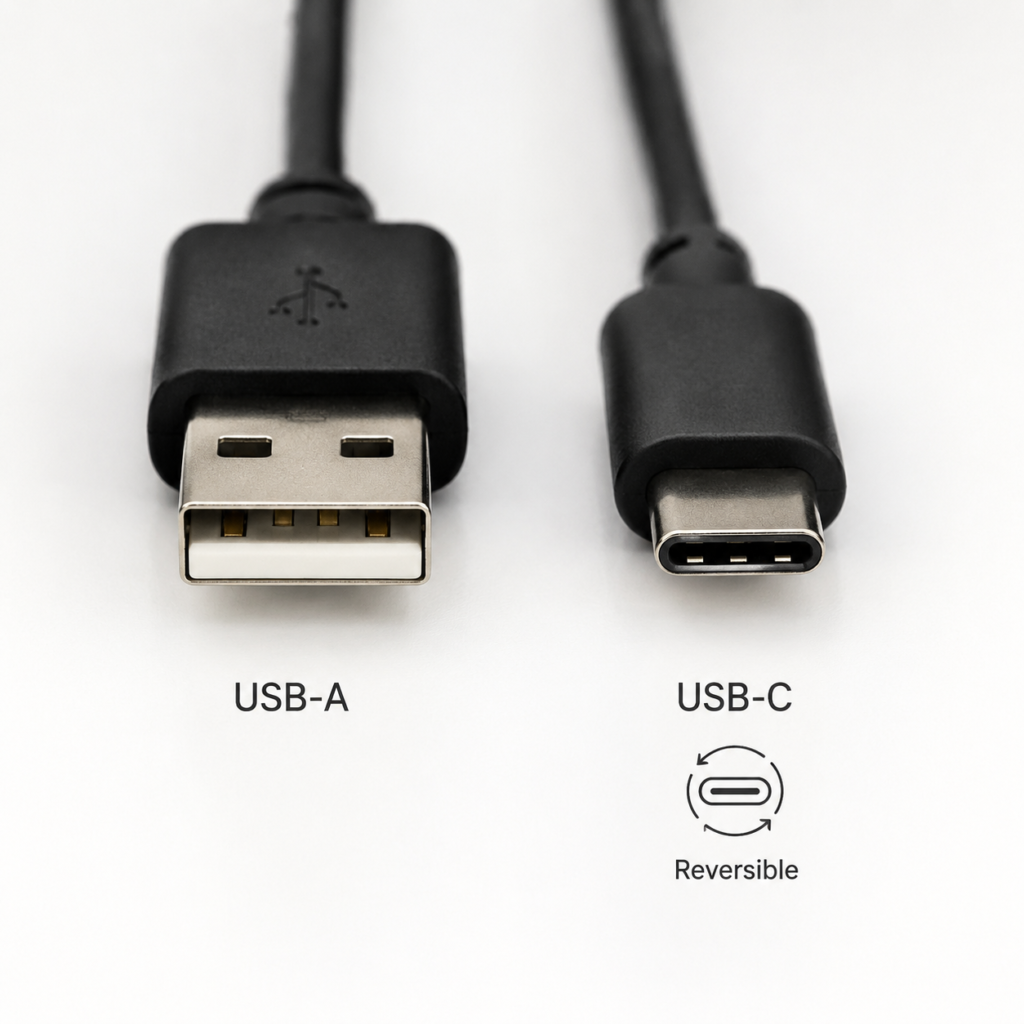
- USB-A: The traditional rectangular “large USB port” we’ve used for more than a decade, with a small plastic tab inside, has a fixed insertion direction — you can’t plug it in upside down. It’s most common on desktops, old laptops, ordinary charging heads, old car interfaces, USB flash drives, keyboards and mice, and printers.
- USB-C: A small oval interface that is symmetrical top and bottom, no front or back difference, you can plug it in any way. It’s increasingly common on new phones, tablets, thin-and-light laptops, handheld game consoles, docking stations, fast charging heads, and high-speed portable hard drives.
The most intuitive difference between the two is size and insertion direction: USB-A is larger and cannot be plugged in upside down; USB-C is smaller and can be plugged in either way.
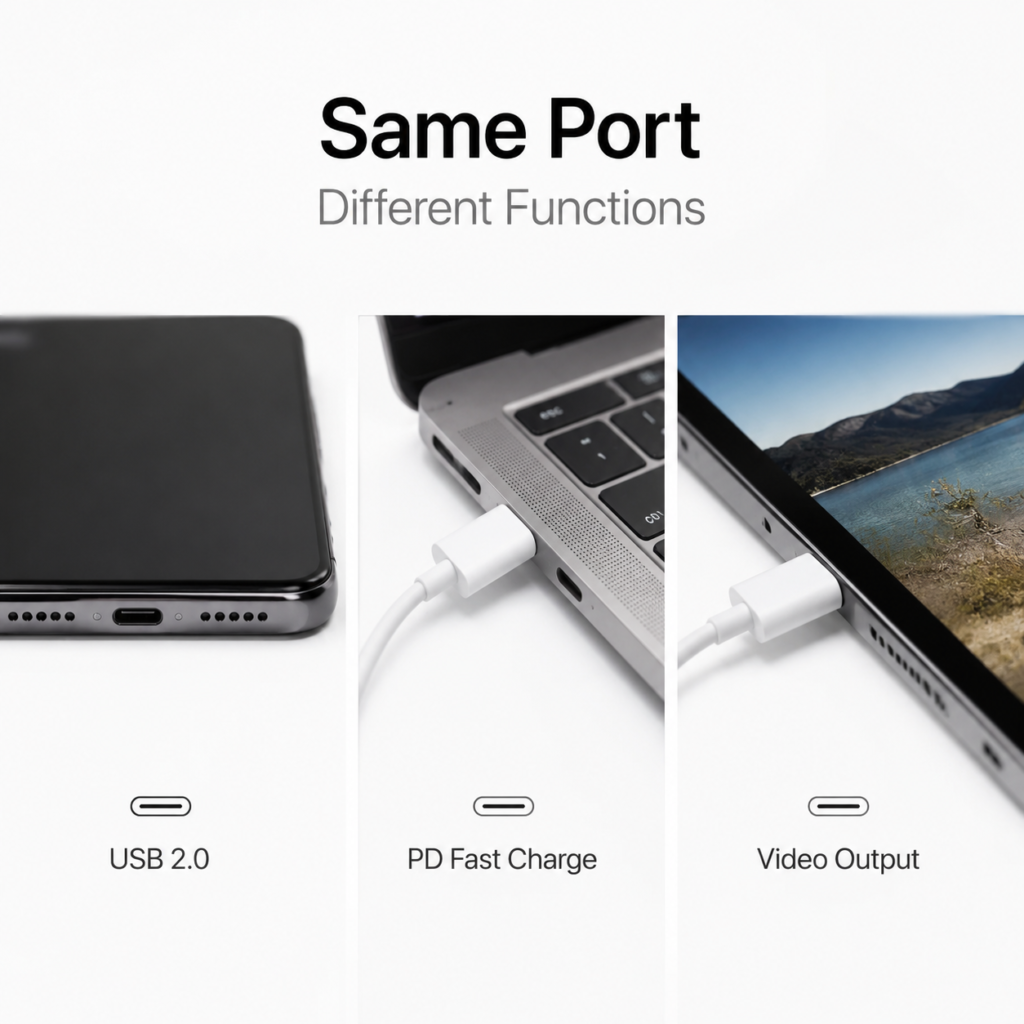
Here you must remember a beginner’s judgment principle: When you see the interface shape, you can only judge “whether this cable can be plugged in”, and absolutely cannot judge “how fast it charges, how fast it transfers files, or whether it can connect to a monitor”. Many people fall into pitfalls because they default to “C port equals high performance”, but that’s not the case at all.
Three Key Concepts: Interface, Data Protocol, Function Protocol
Why can’t shape determine capability? Because USB capability is determined by three layers together. We can use the home water and electricity system as an analogy:
- Interface shape: The shape of the socket, whether it’s two-prong or three-prong, only determines whether the plug can be inserted — corresponding to USB-A or USB-C.
- Data protocol: The thickness of the water pipe, which determines the maximum amount of water (data) that can flow — corresponding to names like USB 2.0, USB 3.2 Gen1, USB4, which determine the upper limit of data transmission speed.
- Function protocol: The power supply capacity and special functions of the socket, such as whether it can connect to high-power air conditioners, whether it has a ground wire — corresponding to USB PD (fast charging), DP Alt Mode (video output), Thunderbolt, etc., which determine whether it can fast charge, connect to a monitor, use a docking station, etc.
In one sentence: USB-C is just the “shape of the interface”; functions like USB PD fast charging, USB4, and Thunderbolt are not built into all USB-C interfaces. Just like three-prong sockets, some can only plug in desk lamps, and some can plug in air conditioners — the key depends on the wires and circuits connected behind them.
USB Version Naming Quick Reference: Don’t Get Dizzy from Parameters
Many people get dizzy looking at USB parameters: now it’s USB 3.0, now USB 3.1 Gen1, now it’s changed to USB 3.2 Gen1. They look different, but many are the same thing, just named in different periods. We have compiled a comparison table of common versions. You don’t need to memorize it by rote, just take it out for reference when shopping:
| Common Name | Nominal Maximum Speed (Theoretical Value) | Common Use Scenarios |
|---|---|---|
| USB 2.0 | 480Mbps (approx. 60MB/s) | Keyboards and mice, printers, ordinary charging cables, low-cost USB flash drives |
| USB 3.0 / USB 3.1 Gen1 / USB 3.2 Gen1 | 5Gbps (approx. 625MB/s) | Ordinary USB flash drives, portable hard drives, common high-speed interfaces on computers |
| USB 3.1 Gen2 / USB 3.2 Gen2 | 10Gbps (approx. 1250MB/s) | High-speed SSD portable hard drives, high-end computer interfaces |
| USB 3.2 Gen2x2 | 20Gbps | Only supported by a small number of USB-C devices, not widely available on the market |
| USB4 | Commonly 40Gbps, higher specifications can be faster | High-end thin-and-light laptops, professional expansion devices, requires joint support from both devices and cables |
| Thunderbolt 3/4 | Commonly 40Gbps | Uses USB-C shape, supports high-speed data, video, external graphics cards, etc.; all Thunderbolt interfaces are USB-C, but not all USB-C support Thunderbolt |
The Core Misconception Most People Fall For: Shape Does Not Represent Capability
Combining the above concepts, let’s first clarify a few of the most common cognitive misconceptions, which are the pitfalls that beginners are most likely to fall into:
- USB-C is not necessarily faster than USB-A: Many cheap C-port charging cables only have USB 2.0 speed, taking half a minute to transfer a 1GB file, which is not as fast as the old blue USB 3.0 A port.
- USB-C does not necessarily support fast charging: The C port on low-end small accessories and cheap cables may only support 5W basic charging, no different from the old A port.
- USB-C cannot necessarily connect to a monitor: Only C ports that support video-related functions such as DP Alt Mode, USB4, or Thunderbolt can do this. The C port on many budget phones, power banks, and earphone cases can only charge.
- High-specification USB-A can also be very fast: The USB-A ports on some desktops and high-end motherboards support speeds of 5Gbps or even 10Gbps, much faster than ordinary USB 2.0 C ports.
The formula for judging real capability is actually very simple, it’s the barrel effect: Actual capability = device interface specification + cable specification + charger/docking station specification + protocol negotiation result, ultimately determined by the weakest link. Just like a water pipe, no matter how big the faucet is, if there’s a section of thin pipe in the middle, the total flow still won’t go up.
Explanation of the Comparison Scope in This Article
To avoid making you more confused after reading, let’s first explain our comparison principles:
- First talk about the inherent differences between the two physical interfaces themselves, then talk about the common capabilities of mainstream consumer products on the market;
- All conclusions about speed, power, and video have preconditions, and you must never draw conclusions based solely on interface shape;
- This article is aimed at ordinary users, office users, and daily digital purchasing scenarios. We won’t cover engineering-level content like pin disassembly or electrical specifications, so you can read with confidence.
Physical Appearance and User Experience Comparison: The Most Intuitive Difference
Putting performance aside, just looking at appearance and daily user experience, the difference between the two interfaces is actually the most obvious, and it’s something everyone can feel every day.
Insertion Convenience: The Difference of Reversible Insertion Is Really Big
USB-A has a fixed front and back direction, you must align it when inserting. Blind insertion is easy to get upside down, especially when the light is poor, you have to try repeatedly. Frequent forceful insertion may also wear out the plastic tab of the interface, or deform the plug.
USB-C is symmetrical top and bottom, you can plug it in either way, no need to check the direction. This advantage is particularly obvious in many scenarios: charging your phone at night with the lights off, blind inserting while driving, plugging in a USB flash drive when the computer is under the desk, fumbling for a charging cable by the bed in the dark — you don’t have to lean over to look, just plug it in and use it.
Quick identification tip: The rectangular one with a visible small plastic tab inside is USB-A; the small oval one that is completely symmetrical top and bottom is USB-C.
Impact of Size on Device Design: Why Phones All Use C Ports
The USB-A interface is relatively large in size and takes up a lot of space inside the device, so it’s impossible to install it on small devices like phones and ultra-thin tablets — if a phone had a USB-A port, its thickness would at least double.
USB-C is much smaller in size, not only suitable for portable devices like phones and tablets, but also allows thin-and-light laptops to be made thinner, and more interfaces can fit in the same side space. Now new phones and tablets almost no longer use USB-A, and thin-and-light laptops also generally use USB-C to replace the original charging port, video port, and some data ports.
Of course, this doesn’t mean USB-A will disappear immediately: desktops, monitors, and docking stations still generally retain USB-A ports to this day, because there are still a large number of A-port peripherals on the market such as keyboards, mice, printers, and old USB flash drives. Replacing all of them would be too costly and unnecessary.
Durable Lifespan: C Port Has Longer Theoretical Lifespan, But Actual Depends on Usage Habits
Many people say USB-C is more durable. This statement has a basis, but it also depends on actual usage:
- The common design insertion lifespan of USB-A is about 1000-1500 times, depending on the interface specification and the manufacturer’s workmanship;
- According to the specifications of USB-IF (USB Implementers Forum), the target insertion lifespan of USB-C is about 10,000 times, which is theoretically much more durable than the A port.
However, actual lifespan is affected by many factors: violent insertion, dust in the interface, liquid corrosion, poor cable workmanship, loose plug, and device dropping will all accelerate damage. And many times when you think “the interface is broken”, it’s actually the cable plug that’s worn out, or dust accumulated in the interface causing poor contact. The interface on the device’s motherboard is less likely to break.
If you encounter loose interface or poor contact, first try cleaning the dust in the interface, then test with a different cable. Don’t continue to insert and remove forcefully, otherwise you will really damage the device’s interface.
Physical Compatibility: Adapters Can Only Change Shape, Not Capability
Physical compatibility is very simple:
- The USB-A male plug can only be inserted into a USB-A female socket, and cannot be directly inserted into a USB-C female port;
- The USB-C male plug can only be inserted into a USB-C female socket, and cannot be directly inserted into a USB-A female port.
If you want to use across interfaces, buy an A-to-C or C-to-A adapter or adapter cable to solve the physical connection problem. But there’s a very important boundary here: Adapters can only change the shape of the interface, and absolutely cannot give old interfaces new capabilities out of thin air. For example, if you use an A-to-C adapter to convert a USB 2.0 A port on an old computer to a C port, it still has USB 2.0 speed, and cannot support PD fast charging or video output. Whatever capability the original interface had, it remains the same after conversion.
Core Function Comparison: Charging, Transmission, Video and Expansion Capabilities
After talking about appearance, let’s talk about the functional differences that everyone cares most about. We still need to emphasize again: what’s said below are common situations. For a specific device or cable, you must look at the parameters, not just the interface shape.
Charging Capability: C Port Has Higher Upper Limit, But Not All C Ports Can Fast Charge
Charging is the function everyone cares most about. Let’s talk about the common levels of the two interfaces separately:
- Common power of USB-A: Ordinary USB-A ports are generally 5W-12W, which can only meet slow charging needs; if they support BC 1.2 protocol or manufacturer’s proprietary fast charging, they may reach around 18W or 22.5W. But note that most high-power fast charging on A ports is a proprietary protocol developed by the manufacturer themselves, which can only be used for their own specific devices. Cross-brand it will revert to slow charging, with very poor universality.
- Common power of USB-C: If it supports the universal USB PD fast charging standard, common ones are 18W, 30W, 45W, 65W, 100W, covering needs from phones to laptops. The latest USB PD 3.1 EPR standard can reach up to 240W, and can even charge gaming laptops, but it requires the charger, device, and cable to all support it.
Cables also have a great impact on charging: ordinary C to C cables are mostly 3A current, supporting up to 60W power; if you want high power of 100W or 240W, you need cables that support 5A current and have an E-Marker chip — simply put, there’s a small chip in the cable that can tell the device “how much power I support”, so the device will dare to deliver high power, otherwise it’s afraid of burning the cable.
Another common advantage of USB-C is bidirectional power supply: for example, the C port of a laptop can not only be connected to a charger to charge itself, but also reverse to charge phones, earphones, and portable hard drives. While USB-A generally only supplies power outward, and cannot be used to charge the device itself (except for a few special designs).
Finally, restate the rule of real charging speed: Charger power, cable power, power supported by the device, ambient temperature, and current battery level of the device together determine the actual charging speed, and the final limit is the lowest one. For example, if you use a 100W charger to charge a phone that only supports 30W, the phone will still charge at most around 30W, it won’t be faster; even if you buy a 240W cable, it won’t make unsupported devices charge at 240W.
Data Transmission Speed: Depends on Protocol, Not Interface Shape
The same goes for data transmission speed. The core depends on the data protocol, and there is no inevitable relationship with whether the interface is A or C:
- Common speeds of USB-A are 480Mbps for USB 2.0, and 5Gbps for USB 3.x, and the A ports of a few high-end devices can reach 10Gbps;
- The speed range of USB-C is very large, from the lowest USB 2.0 480Mbps, to 5Gbps, 10Gbps, 20Gbps, 40Gbps or even higher. The difference between the slowest and fastest is dozens or even hundreds of times.
If it’s the same protocol, whether using USB-A or USB-C, there is no essential difference in speed. For example, if both are USB 2.0, A port and C port transfer files just as slowly; if USB-A is a 10Gbps high-speed port, and the C cable you use is just a USB 2.0 charging cable, then the A port is instead much faster than the C port.
To give you an intuitive concept of speed, let’s give a few common examples (actual speed will be affected by many factors, for reference only):
- USB 2.0 480Mbps: Theoretical speed is about 60MB/s, actual is mostly below 40MB/s. Transferring a 1GB file takes about 25 seconds to 1 minute, suitable for transferring documents and photos, but very slow for large videos;
- USB 3.2 Gen1 5Gbps: Theoretical speed is about 625MB/s, actual common is several hundred MB/s. Transferring a 1GB file takes about 2-5 seconds. Most ordinary USB flash drives and portable hard drives are at this level;
- USB 3.2 Gen2 10Gbps: Theoretical speed is about 1250MB/s, actual speed is more affected by the performance of the hard drive itself, suitable for high-speed SSD portable hard drives;
- Thunderbolt 3/4 or USB4 40Gbps: Faster speed, suitable for professional-level high-speed solid-state drives, multi-screen output, external graphics cards, high-end docking stations and other scenarios.
Also remind everyone: the bottleneck of actual transmission speed is not necessarily the interface. Cables, computer controllers, portable hard drive enclosures, the hard drive itself, whether the files are large or small, and whether there are tasks in the system background will all affect the speed. For example, transferring thousands of small photos will definitely be much slower than transferring a 10GB movie. This is normal, not a broken interface.
Video and Expansion Capabilities: C Port Has Obvious Advantages, But Not All C Ports Can Do It
Video output is one of the functions with the biggest difference between the two interfaces:
- Video capability of USB-A: The vast majority of ordinary USB-A interfaces do not support native video output, and cannot be directly connected to a monitor. If you must use an A port to connect to a monitor, you need to buy a USB graphics card or adapter with a DisplayLink chip, which compresses the picture and transmits it via USB through the chip. Not only do you need to install drivers, but it also occupies CPU, and the latency, picture quality and stability are not as good as native video output. It’s only suitable for temporary emergency use.
- Video capability of USB-C: The C ports of many new laptops, tablets, and high-end phones support DP Alt Mode (simply put, the function that allows the C port to directly output DisplayPort video), USB4 or Thunderbolt, and can be directly connected to monitors and projectors. But note that not all C ports support video — the C ports of many low-end phones, power banks, earphone cases, and small accessories can only be used for charging or low-speed data transmission, and cannot connect to monitors at all.
As for what resolution and refresh rate it can output, such as whether it can do 4K 60Hz, dual screens, or 8K high refresh rate, it also depends on the output capability of the device, cable bandwidth, docking station specification, and the input specification of the monitor — all are indispensable.
How to judge whether the C port of a device can connect to a monitor? The most reliable method is to look at the official website parameter page, find descriptions like “DisplayPort Alt Mode”, “DP Alt Mode”, “Thunderbolt 3/4”, “USB4”, “supports video output”, etc. Don’t buy just because it has a C port.
Differences in Audio and Headphone Support
Although audio function is not core, many people care about it:
- USB-A audio devices, such as USB headphones, USB sound cards, and conference microphones, generally have built-in audio processing chips in the peripherals themselves, which work when plugged in, with good compatibility.
- For USB-C audio devices, phones, tablets, and laptops can directly connect to C-port headphones, or use an adapter cable to connect to 3.5mm headphones. But note: some cheap USB-C to 3.5mm adapter cables rely on the device itself to output analog audio. If your device does not support analog audio output, there will be no sound when plugged in; while adapter cables with built-in DAC (audio conversion chip) can process audio by themselves, with better compatibility.
So when buying a USB-C to 3.5mm adapter, prioritize products marked “built-in DAC” and clearly compatible with your device system, to avoid buying something that doesn’t work.
Function Integration: The “One-Cable Connection” of C Port Is Really Convenient
USB-A generally assumes a single function: plugging in a keyboard is for input, plugging in a USB flash drive is for transferring data, plugging in a charging cable is for power supply.
High-specification USB-C interfaces can integrate multiple functions such as charging, data, video, network, card reader, and audio on one interface. The most typical example is “one-cable connection”: a laptop connects to a monitor with a single USB-C cable, which can charge the laptop, output picture, and also use the USB ports on the monitor to plug in keyboard and mouse. One cable handles all expansion, and the desktop will be much tidier.
Of course, “one-cable connection” also has prerequisites: the computer’s C port, monitor, and cable must all support the corresponding functions and power. For example, if your cable can only charge, then it definitely can’t transmit picture; if the monitor’s C port only supports 15W power supply, then it’s not enough to charge the laptop.
Real Usage Scenario Comparison: Which Is More Suitable for You
After talking about functions, let’s combine everyone’s daily usage scenarios to talk about what situations the two interfaces are suitable for. You don’t have to struggle with “which is better”, the one that suits your needs is the right one.
Phone, Tablet and Earphone Scenarios
Now new Android phones, iPhone 15 and newer models, and new tablets basically use USB-C interfaces. Older iPhones use Lightning interfaces, and old Android devices may use Micro-USB. These two are not the same as USB-A and USB-C, don’t confuse them.
For phone fast charging, USB-C to C paired with USB PD protocol is the most universal, and most brands can use it; but if you want to use some brands’ proprietary super fast charging, you may still have to use the original charger and cable.
As for low-power devices like earphones, bracelets, and watches, the experience gap between USB-A and USB-C is very small. As long as the cable interface matches, it’s fine. There’s no need to specially change accessories just for the C port.
Laptop and Office Scenarios
New thin-and-light laptops basically use USB-C as the main interface, relying on it for charging, docking stations, external monitors, and high-speed hard drives. It has few interfaces but full functions.
Old laptops and desktops generally have more USB-A ports, suitable for plugging in traditional peripherals like keyboards, mice, printers, and old USB flash drives, no need for extra adapters.
For gaming laptops, note: even if there is a USB-C port, it may not fully replace the original high-power power supply, because gaming laptops have high full-load power consumption, and PD charging power may not be enough. Be sure to check the parameters to see if it supports PD charging and what the maximum supported wattage is.
The most reliable combination for office scenarios: The computer should keep at least one USB-A port, or have a reliable A-to-C adapter ready. At the same time, prioritize USB-C for main charging and expansion, so that both old and new devices can be taken into account.
Data Transmission and Mobile Storage Scenarios
If you only connect keyboards, mice, printers, or occasionally transfer documents and photos, the difference between USB-A and USB-C is not big. Stability and usability are the most important.
If you often transfer large files such as 4K videos, RAW format photos, game libraries, or full machine backups, prioritize USB-C devices and cables that support 10Gbps, 20Gbps, USB4 or Thunderbolt, the speed will be much faster.
For USB flash drives, buying a dual-head USB flash drive (one end USB-A, one end USB-C) is the most convenient. It can be used directly on both new and old computers, no need to carry an adapter.
If you use a mechanical portable hard drive, pay attention to the power supply problem: old USB-A ports sometimes have insufficient power supply, which will cause the hard drive to not be recognized or disconnect frequently. At this time, you can try a shorter cable, or use a USB cable with dual-head power supply, or connect to a docking station with independent power supply.
Monitor, Projector and Docking Station Scenarios
USB-C’s “one-cable connection” is especially suitable for thin-and-light laptops connected to monitors. One cable handles charging, display and peripheral connection, the desktop is tidier, and plugging and unplugging is also convenient.
If you want to use USB-A to connect to a monitor, you generally need an additional DisplayLink expander, or separate HDMI/DP cables. It’s not the native capability of ordinary A ports, which is quite troublesome.
For meetings using old projectors, most still have HDMI or VGA interfaces. USB-C computers need to have a C-to-HDMI adapter or docking station ready.
When buying a docking station, don’t just look at the promotions of “10-in-1” or “12-in-1”. Be sure to check the specific parameters: PD power supply power, maximum video resolution and refresh rate, USB port speed, network port speed, card reader speed, system compatibility — these are the key factors that determine whether it’s easy to use.
Car, Travel and Public Charging Scenarios
Old car models generally only have USB-A ports, and new cars are increasingly equipped with USB-C ports, or A+C hybrid interfaces.
For travel and business trips, bringing a multi-port USB-C PD charger can charge phones, tablets, and laptops at the same time, no need to bring a bunch of different chargers, saving a lot of luggage space.
For power banks, prioritize those that support USB-C bidirectional charging and discharging, which charge the power bank itself faster and are more convenient for output to devices.
Also remind everyone: for public USB ports in places like hotels, airports, and ride-hailing cars, it’s recommended to prioritize using them only for charging, don’t plug them in to transfer data, to avoid unknown data security risks. If it’s a sensitive device, you can use a charge-only data cable, or directly use your own charger plugged into a wall socket.
Industrial, Instrument and Old Equipment Scenarios
Scenarios such as industrial equipment, cash registers, printers, barcode scanners, and old instruments still use USB-A interfaces in large numbers to this day. These scenarios value stability, compatibility and maintenance costs the most. There’s no need to forcefully replace all equipment just for the “new interface”, which will instead easily cause problems.
If you want to upgrade new equipment, prioritize using reliable adapter cables or docking stations for transition. Key equipment must first undergo compatibility testing, and then be replaced in batches after no problems.
Interface, Cable and Identification Methods: Essential for Avoiding Pitfalls
Many people fall into pitfalls when buying accessories because they don’t know how to read labels and parameters, and are fooled by vague promotions like “fast charging cable” and “full-function cable”. Below we’ll teach you how to identify the real capabilities of interfaces and cables, so you spend less wasted money.
How to Judge USB-A Cables and Interfaces
Many people think blue USB-A is USB 3.0. In fact, color is just a common practice of manufacturers, not a mandatory standard — some manufacturers use red and black for USB 3.0 interfaces, and some unscrupulous merchants make USB 2.0 blue to deceive people. So color can only be used as a reference, not the only basis.
A more reliable judgment method:
- Look at the label: If there is “SS” on the interface or cable, it is generally SuperSpeed, that is, the high-speed specification of USB 3.x;
- Look at the parameters: Those marked with specific speeds like 480Mbps, 5Gbps, 10Gbps are much more credible than those that only write “high-speed transmission”;
- Look at the purpose: Many particularly cheap A-port cables actually only have wire cores for charging, no data wire cores, and can’t transfer files at all. When buying, check clearly whether it’s a “data cable”;
- Cable length reminder: The longer the high-speed data cable, the more susceptible the signal is to interference. If it’s longer than 2 meters, try to choose products from regular brands, don’t buy too cheap ones.
USB-C Cable Classification: Same C Port, Very Different Capabilities
There are many types of USB-C cables, with prices ranging from a few yuan to hundreds of yuan, and their capabilities vary vastly. We have compiled a common classification table, just check it when buying and you won’t go wrong:
| Cable Type | Common Charging Capability | Data Speed | Suitable Scenarios |
|---|---|---|---|
| Charge-only C cable | Variable, mostly low power | None or very low | Charging earphones, bracelets, small accessories |
| USB 2.0 C to C cable | Commonly 60W (3A) | 480Mbps | Daily phone charging, occasional small file transfer |
| 5Gbps/10Gbps C to C cable | 60W-100W | 5Gbps / 10Gbps | Portable hard drive file transfer, phone backup, camera material import |
| 20Gbps/40Gbps C to C cable | 100W and above | 20Gbps / 40Gbps | USB4/Thunderbolt docking stations, high-speed SSDs, multi-screen output |
| High-power PD C cable (100W/240W) | 100W / 240W | Depends on specification, needs separate confirmation | High-power laptop charging, PD 3.1 devices |
Special reminder: If you want to use a C port to connect to a monitor, the cable must be clearly marked to support video transmission, DP Alt Mode, USB4 or Thunderbolt. Ordinary charging cables, even if the power is sufficient, cannot transmit picture.
How to Read USB-C Interface Labels
Some devices have labels next to their USB-C ports, which can help you quickly judge capabilities, but you also need to pay attention to distinguishing:
- SS label: Generally indicates support for USB 3.x high-speed data;
- Numbers like 10, 20, 40: May indicate the corresponding Gbps speed level, it’s best to confirm with the manual;
- DP or monitor icon: Usually indicates support for DisplayPort video output;
- Lightning icon: If there is a number 3 or 4 next to it, it is generally a Thunderbolt 3/4 interface; but note that the separate lightning icon on some devices only means “supports fast charging/power supply”, not necessarily Thunderbolt, don’t confuse them.
The most reliable method is still to check the official website specification page of the product — many laptops and phones don’t mark full functions next to the interface at all, you can’t guess just by looking at the appearance, you must check the official parameters.
Differences Between Adapters, Adapter Cables and Docking Stations
Many people can’t tell these three things apart, but it’s actually very simple:
- Adapter: Mainly changes the shape of the physical interface, such as A to C, C to A, very small in size, will not improve the protocol capability of the original interface. Whatever the original port is, it remains the same after conversion;
- Adapter cable: Not only changes the interface combination, but also determines the charging power and data speed. For example, “C to C 100W 10Gbps” means this cable can transmit 100W of power and 10Gbps of data;
- Docking station: Expands one USB-C port into multiple interfaces, such as HDMI, USB-A, network port, SD card, audio, power input, etc. It has the most functions and also requires the most parameter checking.
No matter which one you buy, if there is no clear marking of power, speed, video specification and certification information, you should buy carefully, it’s probably a pitfall.
Certification and Safe Purchasing Tips
When buying USB accessories, especially high-power charging accessories, safety is very important. Here are a few purchasing principles for everyone:
- Prioritize regular brand products with clear parameters, don’t just look at vague promotional terms like “fast charging cable” and “full-function cable”;
- For high-power charging, prioritize products marked with USB PD, specific power levels, with E-Marker chip, with USB-IF certification or clear test parameters;
- Don’t buy too cheap inferior A-to-C cables, which are prone to identification abnormalities, heating, unstable charging, and even have safety hazards;
- It’s normal for a docking station to get a little hot when in use, but if it’s abnormally hot, disconnects frequently, or the picture flickers, stop using it immediately, and check the power supply and cable problems.
Common Misconceptions and Troubleshooting: Know How to Judge and Troubleshoot
In this part, we have sorted out the cognitive misconceptions that everyone is most likely to fall into, as well as troubleshooting methods for common faults. When you encounter problems, don’t rush to find after-sales service. Check step by step, and most of the time you can solve it yourself.
7 Most Common Cognitive Misconceptions
- Misconception: USB-C must be faster than USB-A
Truth: Speed is determined by the data protocol and cable. Many cheap USB-C cables only have USB 2.0 speed, not as fast as high-speed USB-A ports.
Avoid pitfall: Look for clear speed parameters like 5Gbps, 10Gbps, 40Gbps, don’t just look at the interface shape. - Misconception: All USB-C support fast charging
Truth: Only when the device, charger, cable, and fast charging protocol all support it, will fast charging be activated. Missing any one won’t work.
Avoid pitfall: Check if there is a USB PD label, specific power levels, and the rated power of the cable. - Misconception: All USB-C can connect to monitors
Truth: Only C ports that support video functions such as DP Alt Mode, USB4, Thunderbolt can do this. The C ports of many low-end devices can only charge.
Avoid pitfall: Check the official website specification page of the device, don’t buy just because it has a C port. - Misconception: Adapters can automatically improve performance
Truth: Adapters can only change the interface shape, cannot turn USB 2.0 into USB 3.x, nor can they turn ordinary C ports into Thunderbolt ports.
Avoid pitfall: Confirm that the source device, cable, adapter, and target device all support the function you need, all are indispensable. - Misconception: USB-A will be completely eliminated soon
Truth: USB-A will exist for a long time in old devices, office peripherals, industrial equipment, and car scenarios, at least it won’t disappear in the next few years.
Avoid pitfall: You can prioritize USB-C for new devices, but keeping an A port or adapter is more realistic, no need to pursue “all C”. - Misconception: Thunderbolt interface is just ordinary USB-C
Truth: Thunderbolt uses the USB-C shape, but the protocol requirements are much higher, and the speed and functions are stronger than ordinary USB-C; ordinary USB-C does not necessarily support Thunderbolt.
Avoid pitfall: Check if there is a Thunderbolt label and official website parameters, don’t use ordinary C ports as Thunderbolt ports. - Misconception: Buying a 240W cable will make all devices charge at 240W
Truth: The cable only allows higher power to pass through. The actual charging power is determined by negotiation between the device and the charger. If the device doesn’t support it, no matter how high the power of the cable is, it’s useless.
How to Troubleshoot No Charging or Slow Charging
When encountering slow charging or no charging, check in this order, and most problems can find the cause:
- First confirm that the charger’s power is sufficient. For example, if a laptop needs 65W PD charging, using a 20W phone charger will definitely be slow;
- Then confirm that the cable’s power is sufficient. For example, charging a 100W laptop requires a C to C cable that supports 100W, ordinary 60W cables may not reach it;
- Confirm whether the device supports the corresponding fast charging protocol. Some brands’ proprietary fast charging must use the original charger and cable, third-party ones may only charge slowly;
- Check if the interface has dust, is loose, or is damp. Poor contact will cause charging power to not go up;
- Consider the impact of temperature and battery level: when the device temperature is too high, or when the battery is nearly full, it will automatically slow down charging. This is a normal protection mechanism, not a breakdown.
How to Troubleshoot Slow Transmission Speed
If you feel file transfer is slow, don’t blame the interface first, check these steps:
- Check if the computer interface, cable, portable hard drive enclosure, and hard drive itself all support the same high-speed specification. As long as one is USB 2.0, the speed will be pulled down;
- Confirm if you plugged into the wrong low-speed port. For example, many USB-A ports on the front panel of desktops are USB 2.0, and the ones on the back of the motherboard are high-speed ports;
- Check if the cable is a charge-only cable, or just a USB 2.0 cable, which doesn’t support high-speed data at all;
- When testing speed, use a single large file (such as a 10GB movie) to test, don’t use thousands of small photos. The transmission speed of small files is inherently much slower;
- If the portable hard drive speed is not up to standard, you can try changing to a shorter cable, changing the interface, changing the hard drive enclosure, or checking if the speed of the hard drive itself is just that fast.
How to Troubleshoot No Display on External Monitor
If the C port connected to the monitor has no response, check in this order:
- First confirm whether the USB-C port of your computer, phone or tablet supports DP Alt Mode, USB4 or Thunderbolt video output. If it doesn’t support it, there will definitely be no picture;
- Confirm whether the cable supports video transmission. Ordinary charging cables, even if they can conduct electricity, cannot transmit video signals;
- Confirm that the docking station or adapter supports the resolution and refresh rate you want, such as 4K 60Hz. Many cheap docking stations can only reach 4K 30Hz;
- Check if the monitor’s input source is switched to the corresponding interface. Many times it’s just that the input source hasn’t been switched;
- If it’s a phone connected to a monitor, also confirm whether the phone system supports desktop mode or video mirroring function.
How to Troubleshoot Device Not Recognized
If the device has no response when plugged in, do these steps first:
- Change the cable, change the interface, change the computer to test, first rule out cable and interface problems. 80% of the cases are broken cables or dirty interfaces;
- For old devices, check if drivers are installed, if the system has given permissions, and if the power supply is sufficient;
- If the portable hard drive is not recognized, prioritize considering insufficient power supply, or compatibility issues between the hard drive enclosure and the device;
- If the docking station disconnects frequently, check if the PD power supply is stable, if the docking station is overheating, or if too many devices are connected, exceeding the bandwidth limit of the interface.
Purchasing and Usage Decisions: Choose According to Your Needs
Finally, let’s talk about how to choose the most suitable interface when buying new devices and accessories. You don’t have to blindly pursue the new, nor cling to old interfaces.
How to Choose Interfaces When Buying New Devices
You can choose according to your own usage scenarios:
- Situations to prioritize USB-C: Your main devices are new phones, tablets, thin-and-light laptops; you need fast charging, large file transfer, external monitor, one-cable office work; you hope for better compatibility in the next 3-5 years, no need to change accessories frequently.
- Situations to prioritize keeping USB-A: You have a lot of old peripherals on hand; the office environment has many printers, barcode scanners, old USB flash drives; car or commonly used public scenarios are still mainly A ports.
The most reliable solution is: prioritize A+C hybrid configuration for computers, monitors, and docking stations, so that both old and new devices can be taken into account, no need for a bunch of adapters.
Never buy low-specification C-port devices just because “USB-C looks more advanced”. For example, a C port with only USB 2.0 speed and no fast charging support is not as practical as a high-specification USB-A port.
Four-Step Judgment Method for Buying Data Cables
You don’t have to struggle when buying data cables. Follow these four steps, and you definitely won’t buy wrong:
- Determine the interface combination: First figure out whether you want A to C, C to C, C to Lightning or something else, the two ends of the interface must correspond;
- Determine the main purpose: Is it only for charging, or for transferring files, or for connecting to monitors, docking stations, high-speed hard drives. Different uses require very different cable grades;
- Check power: Phones generally need 18W-45W, tablets and thin-and-light laptops commonly need 30W-100W, high-power gaming laptops then consider 140W, 240W;
- Check speed and video capability: For transferring large files, look at parameters like 5Gbps, 10Gbps, 40Gbps; for connecting video, look for markings of DP, USB4, Thunderbolt.
Remember that enough is enough: you don’t need to buy a 240W cable for charging earphones, it’s a waste of money; don’t buy a USB 2.0 cable that only says “fast charging” for connecting high-speed SSDs, it won’t work.
How to Match Chargers When Buying
Choosing a charger is also very simple, according to your device combination:
- Only charge phones: prioritize USB-C chargers that support USB PD/PPS and have appropriate power;
- Phone + tablet: you can choose a dual C port or A+C port charger, pay attention to whether the power is sufficient when multiple ports output at the same time;
- Laptop + phone: prioritize multi-port USB-C PD chargers with 65W, 100W or higher power, confirm that single-port output can meet the needs of the laptop;
- Many old devices: choosing a charger with A+C hybrid interfaces is more convenient, no need to change all cables to C ports.
How to Choose a Docking Station
Docking stations are not the more interfaces the better, it depends on your actual needs:
- Basic office model: HDMI, USB-A, USB-C PD input, network port are enough, no need to buy too many unused interfaces;
- Photography and editing users: Focus on the speed of SD/TF card readers, whether there are 10Gbps USB ports, and whether it can connect to high-speed SSDs;
- Multi-screen office users: Confirm how many monitors it supports, maximum resolution and refresh rate, also pay attention to the compatibility differences between Windows and macOS, for example, some M-series Macs have restrictions on multi-screen connection via docking stations;
- High-performance needs: choose USB4 or Thunderbolt docking stations, suitable for high-speed hard drives, multi-screen, high-bandwidth devices.
Also note a pitfall: the “100W PD input” marked on the docking station does not mean it can output 100W to the computer. The docking station itself consumes part of the power, and may only give the computer about 85W. Leave a little margin when buying.
Direct Suggestions by Population
If you’re too lazy to calculate yourself, just match directly:
- Ordinary phone users: Prepare a set of USB-C PD charger and C to C cable, plus an A to C cable for emergencies, that’s basically enough;
- Students and office users: The computer should preferably have both USB-C and USB-A, or have a reliable docking station ready, to take into account both old and new devices;
- Photography and editing users: Prioritize USB-C cables, card readers and high-speed SSDs with 10Gbps or above, don’t casually buy ordinary charging cables to make do;
- Gamers: For handheld consoles, laptops, external hard drives, focus on PD charging power, video output capability and high-speed data specifications;
- Users with many old devices: No need to replace all USB-A devices at once, use A+C hybrid accessories for transition, which is cost-effective and stable.
Summary
Finally, let’s summarize the core content in a few sentences for easy memorization:
The advantages of USB-A are strong compatibility with old devices, low cost, and rich peripherals, suitable for keyboards, mice, printers, old USB flash drives, traditional office and industrial scenarios; the advantages of USB-C are convenient insertion, small size, and high functional upper limit, more suitable for fast charging, high-speed transmission, video output and new devices.
The most important principle is: USB-A and USB-C are not a relationship of “which is better than the other”, but depend on whether the interface shape, protocol specification, cable and device match. Don’t think a C port is advanced just by seeing it, and don’t think an A port is necessarily slow. The key depends on the parameters behind it.
In the future, new phones, tablets, thin-and-light laptops, and chargers will definitely use USB-C more and more. Regions such as the European Union are also promoting the unified use of USB-C charging for consumer electronics, and the popularization speed will be faster and faster. But USB-A will not disappear in the short term. A large number of office peripherals, industrial equipment, car interfaces and existing computers will continue to be used for many years. Long-term coexistence of the two is the norm.
Next time you buy digital accessories, you don’t have to stare at the words “USB-C” and place an order. Flip to the parameter page to check the specific power, speed and protocol, and you can spend less wasted money and avoid many pitfalls.