
Is your 100W charger actually charging your phone at full speed? Don’t let wattage labels fool you — learn four reliable ways to verify real fast charging, spot “fake fast charging,” and fix slow speeds.
Introduction: Why Your Fast Charger Feels Like It’s Not Working
We’ve all been there: you buy a shiny 65W or 100W USB-C charger, plug in your phone, and wait… only to find the battery barely ticks up after half an hour. The lock screen says “charging,” but it feels no faster than the old 5W brick from a decade ago.
You’re not imagining the problem — and it’s rarely a broken phone right out of the gate. Fast charging is a team sport: the charger, cable, and phone all have to speak the same language and work in sync. If even one piece falls short, you’re stuck with slow, basic charging despite the big wattage number on the box.
This guide will walk you from zero-cost visual checks to precise hardware testing, explain why charging speeds change on their own, and help you tell normal battery protection from actual technical issues. By the end, you’ll know exactly whether your fast charging is working as advertised — and what to fix if it’s not.
Quick Summary: 30-Second Fast Charging Check
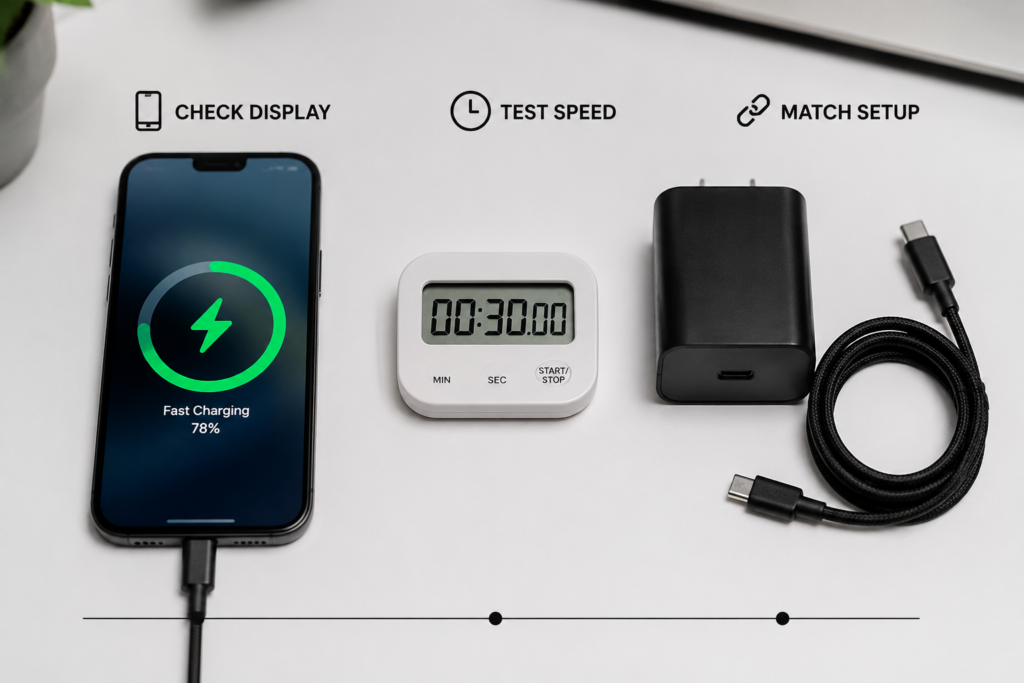
You don’t need tools to get a first answer. Run through these three steps:
- Check the on-screen prompt Android phones will show “Fast Charging,” “Super Fast Charging,” or “Charging Rapidly” if fast mode is active. iPhones won’t show text, but you’ll feel a double vibration when plugging in a PD charger.
- Test the 30-minute charge speed Start at 20–50% battery, leave the screen off at room temperature. If you gain 30%+ in 30 minutes, fast charging is likely working. Less than 20% means something is holding it back.
- Verify your three-piece setup Confirm your charger, cable, and phone all support the same fast charging protocol (like USB PD or PPS). Mismatched protocols are the #1 cause of “slow fast charging.”
How Fast Charging Actually Works (The Basics)
Before you test anything, it helps to understand what “fast charging” really means. It’s not just “more watts” — it’s a smart negotiation between your devices.
The Core Formula: Power = Voltage × Current
Fast charging speeds up battery refilling by raising either the voltage, the current, or both, measured in watts (W). A standard old USB charger delivers 5V at 1A = 5W. Modern fast chargers bump this to 9V/2A (18W), 11V/2.25A (25W), or much higher.
But here’s the catch: the wattage printed on your charger is its maximum output, not what your phone will actually receive. Power gets lost as heat in the charger, the cable, and the phone’s internal charging chip. The battery itself never sees the full label wattage — and that’s normal.
The Fast Charging Handshake: Why Plugging In Isn’t Enough
When you connect a charger, nothing happens at full speed immediately. First, the charger and phone have a digital conversation called USB PD negotiation (the “handshake”):
- The charger announces which voltage/current profiles it supports.
- The phone reviews the options and requests the best match it can handle.
- The charger confirms and adjusts its output.
- Only then does fast charging begin.
If they don’t share a common protocol, they fall back to basic 5V charging — even if the charger says “100W” on the side.
The 3 Non-Negotiable Ingredients for Working Fast Charging
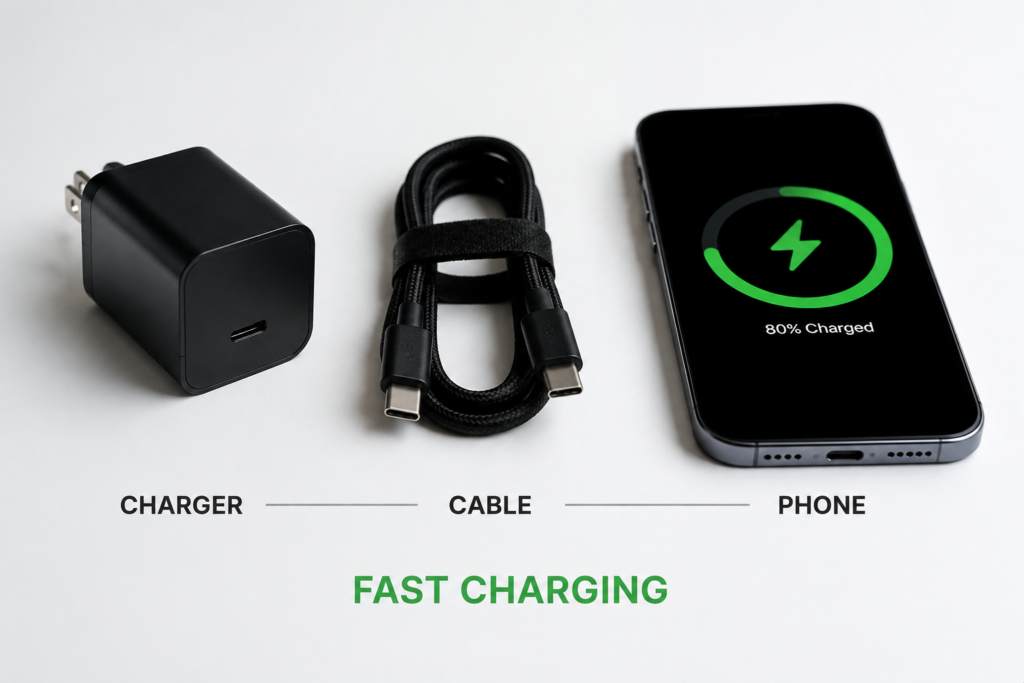
Think of fast charging like a highway system: all three lanes have to be open for traffic to move fast.
- Charger: Protocol matters more than raw wattage A charger has to support the exact protocol your phone uses (USB PD, PPS, QC, etc.). A 100W QC-only charger won’t fast-charge an iPhone, which only speaks USB PD.
- Cable: The unsung hero of fast charging Cables aren’t all the same. Cheap, thin cables can only carry small currents. For anything above 60W, you need a cable with an E-Marker chip that tells the system it can handle 5A of current. A bad cable is the most underdiagnosed cause of slow charging.
- Phone: It sets the speed limit Your phone’s internal charging chip is the final boss. A 25W phone will never charge faster than 25W, even plugged into a 100W charger. It only takes what it needs.
Fast Charging Protocols At a Glance
| Protocol | Common Use Cases | Typical Power Range |
|---|---|---|
| USB PD | iPhones, Pixel, laptops, most modern Android | Up to 240W |
| USB PD PPS | Samsung Galaxy, flagship Android, optimized efficiency | Dynamic fine-tuned voltage |
| Qualcomm Quick Charge (QC) | Older Android devices | Up to 100W |
| VOOC / SuperVOOC | OPPO / OnePlus ecosystem | High-current low-voltage design |
| Qi2 / MagSafe | Wireless charging for flagships | 15W–25W sustained |
Charging Curve 101: Fast Charging Isn’t Full Speed the Whole Time
If you think fast charging should blast at max wattage until 100%, you’re in for a surprise — and that’s by design. Lithium-ion batteries follow a CC-CV (Constant Current → Constant Voltage) charging pattern:
- Constant Current stage (low to medium battery): This is the fast part. The charger pushes high current into the battery, and power sits near its peak. This is where you get those “0–50% in 20 minutes” marketing numbers.
- Constant Voltage stage (near full charge): Once the battery reaches roughly 70–80%, the system drops the current and holds voltage steady. Charging slows down gradually to protect the battery from damage.
This slowdown at the end is not a bug — it’s how batteries last hundreds of charge cycles.
4 Practical Ways to Check If Fast Charging Is Working (Easiest to Most Accurate)
Method 1: Check On-Screen Indicators (Zero Cost, Instant)
The fastest test is right in front of you: your phone’s screen.
Android Phones
When you plug in a compatible charger, you’ll see a label on the lock screen or notification panel:
- Samsung: “Fast charging” or “Super Fast Charging” (you’ll also see the estimated time remaining drop noticeably)
- Google Pixel: “Charging rapidly”
- OnePlus / OPPO: “Warp Charge” or “SUPERVOOC”
You can also double-check in settings:
- Samsung:
Settings > Battery and device care > Battery > More battery settings - Pixel:
Settings > Battery > Charging preferences
Important: A single lightning bolt icon alone is not proof of fast charging. Every charger — even a slow one — shows a lightning bolt. Look for the extra word: “Fast,” “Super,” or “Rapidly.”
iPhone
iPhones don’t display the words “Fast Charging” anywhere on screen. Instead, look for these clues:
- A double vibration when you first plug in a USB PD charger (iPhone 8 and newer)
- Use Apple’s official benchmark: with a 20W+ USB-C PD charger, an iPhone charges from 0% to ~50% in 30 minutes
- In newer iOS versions, if your charger is too slow, the phone will actually show a “Slow Charger” warning on the lock screen
Method 2: Time a 30-Minute Charge Test (Most Real-World)
Numbers don’t lie. For the most everyday-accurate test, measure how much battery you gain in half an hour under fair conditions.
Standard Test Rules (For Comparable Results)
- Start at 20–50% battery (the fast-charging sweet spot)
- Turn the screen off, close background apps, and use Airplane Mode if you want the cleanest numbers
- Test at room temperature (10–35°C / 50–95°F)
- Don’t use the phone while charging
What to Expect (Smartphone Reference)
| Charger Class | 30-Minute Battery Gain (Screen Off) | Typical Devices |
|---|---|---|
| Standard 5–10W | ~10–20% | Old phones, basic USB ports |
| 18–25W Fast Charging | ~30–50% | iPhone, mid-range Android |
| 30–45W Super Fast Charging | ~50–70% | High-end Samsung, Pixel Pro |
| 65W+ Ultra Fast Charging | ~70–90% | Gaming phones, flagship Chinese brands |
Your exact results will vary by battery size, phone model, and temperature — but if you’re only gaining 10–15% in 30 minutes with a “25W” charger, fast charging isn’t active.
Pro Hack: Reverse-Calculate From “Time Remaining”
You don’t even need to wait 30 minutes. Most phones show an estimated time until full charge. Do a quick reality check:
- Example: 4000mAh battery, currently at 20%. It says 60 minutes to full.
- Math: 3200mAh to fill = ~3.2Ah × 3.8V ≈ 12W average.
- If your charger is labeled 25W and you’re only getting ~12W average, fast charging isn’t running at full speed.
Method 3: Use Third-Party Apps (No Extra Hardware)
For a closer look at real-time numbers, Android users can use battery monitoring apps.
Recommended Android Tools
- AccuBattery: Tracks charging sessions, estimates real power, and shows battery health.
- Ampere: Displays live current and voltage readings.
- Battery Guru: All-in-one battery management with charging analytics.
To calculate power:
Power (W) = (Current in mA ÷ 1000) × Voltage (V)
For iPhone users: iOS restricts deep system access, so there’s no equivalent app that reads live charging power reliably. Stick to the 30-minute speed test and Apple’s official specifications.
Note: App readings come from system estimates, not direct hardware measurement. They’re great for spotting big problems (like 10W when you expect 25W) but not lab-precise. Use them as a clue, not final proof.
Method 4: Use a USB Power Meter (Most Direct Way to Verify Input Power)
If you want hard numbers, a USB power meter is the best tool regular consumers can buy. It’s a small device with a screen that sits between your charger and cable, showing live voltage, current, wattage, and even which protocol was negotiated.
How to Test
- Plug the power meter into your charger.
- Plug your charging cable into the power meter.
- Connect your phone and wait 10–20 seconds for the handshake to finish.
- Read the wattage on the screen.
What’s Normal?
You’ll almost never see the exact label number. 80–95% of the rated peak power is normal and excellent. For example:
- 18W PD charger: ~9V × 2A = ~18W peak
- 25W PPS charger: ~9V × 2.77A or 11V × 2.25A
- 45W+ charger: ~11V × 4A or 15V × 3A (requires a 5A E-Marker cable)
Red Flags to Spot
- Power stays below 10W the whole time (handshake failed)
- Flickering numbers or frequent disconnect/reconnect cycles
- The screen shows “5V” only, never stepping up to 9V/11V/15V
How to Spot “Nominal Fast Charging”: Avoid Overhyped Chargers
A charger that says “100W” on the box isn’t always lying — but it might not be useful 100W for your phone. This is what we call “nominal fast charging”: technically it can output high wattage, but not in a way your device can use.
Common Signs of a Misleading Fast Charger
- Big wattage number, missing protocols It says “100W” but only lists QC, not USB PD or PPS. If your phone uses PD, you’re stuck at 5W.
- Multi-port chargers with hidden sharing rules A “100W dual-port charger” often only delivers 100W on a single port. Plug in two devices, and it might split to 65W + 35W — or even less. Always read the fine print.
- No certification logos Trustworthy chargers carry marks like USB-IF Certified, UL, ETL, CE, or FCC. No logos on a no-name charger? Assume the specs are optimistic at best.
- Bundled cheap cable A 100W charger paired with a thin, unmarked cable is a classic trap. The cable will bottleneck the whole system.
Real-World Example
100W charger + 100W cable + 25W phone = 25W actual charging.
The charger is capable of more, but the phone sets the limit. This isn’t a scam — it’s how USB PD works. But it’s definitely not “100W charging” for your phone.
How to Tell If Wireless Fast Charging Is Working
Wireless charging is even easier to get wrong. Small alignment issues can cut your speed in half without you noticing.
Wireless Charging Standards to Know
- Qi (legacy): The basic standard, usually 5–7.5W in real use. Works with almost everything, but slow.
- Qi2 (MPP): The modern standard with built-in magnets for perfect alignment. Delivers consistent 15W on iPhones and up to 25W on some Android flagships.
- MagSafe: Apple’s implementation of magnetic wireless charging, aligned with Qi2. Official MagSafe chargers deliver 15W peak on supported iPhones.
How to Verify Wireless Fast Charging
- Check the on-screen animation and text iPhones show the MagSafe animation; Android phones show “Fast wireless charging” if active.
- Confirm alignment With Qi2/MagSafe, the magnet snaps into place. If it doesn’t click into position, it’s not aligned — and it won’t charge fast.
- Mind the case Cases thicker than 3mm, or cases with metal parts, can drastically reduce wireless charging speed or even block it entirely.
- Test the 30-minute rule Wireless is always slower than wired. A 15W Qi2 charger will add roughly 20–30% in 30 minutes on a typical smartphone. Much less than that, and something is off.
Myth bust: No iPhone charges faster than 15W wirelessly, no matter what the charger box says. 20W+ wireless claims are burst-speed marketing, not real sustained charging.
Why Is My Fast Charging Slow or Not Working? Common Causes
If fast charging isn’t living up to expectations, the problem almost always falls into one of three categories.
1. Accessory Issues (Most Common)
- Wrong protocol: Charger and phone don’t speak the same language.
- Cable bottleneck: The cable can’t carry enough current (no E-Marker for high power).
- Damaged cable: Frayed wires, bent connectors, or oxidized pins reduce capacity.
- Multi-port power split: Other devices are siphoning power.
- Charger is fake / heavily overrated: No-name chargers rarely hit their advertised numbers.
2. Phone-Related Issues
- Dirty charging port: Lint, dust, and pocket fluff get packed into USB-C ports and cause bad connections. This is shockingly common.
- Battery health is low: Once battery health drops below ~80–85%, most phones limit peak charging power to protect the aging cells.
- Fast charging is turned off: System updates sometimes reset settings. Double-check the toggle in battery settings.
- Software bugs: Occasional firmware updates can break charging handshake behavior — and later patches fix them.
3. Environment and Usage Factors
- It’s too hot: Once the battery hits ~35°C (95°F), the system throttles charging speed to prevent damage. Direct sunlight, thick cases, and warm rooms all trigger this.
- You’re using the phone: Gaming, recording video, or running heavy apps uses power and generates heat. The charging system slows down to compensate.
- Battery is already high: Past 80%, you’re in the constant-voltage slow stage. That’s normal, not a problem.
Fast Charging Troubleshooting Checklist (Easiest First)
Work through these steps in order. 80% of slow-charging issues are fixed by the first four steps.
- Basic check: Unplug and replug everything firmly. Clean lint out of your phone’s charging port with a soft brush or compressed air.
- Verify settings: Make sure Fast Charging / Super Fast Charging is toggled on. Turn off power-saving modes.
- Swap the cable: Try a known-good certified USB-C cable. This alone fixes most problems.
- Fix the environment: Move to a cool room, take the case off, stop using the phone, and let it rest while charging.
- Restart and update: Reboot your phone and install any pending system updates.
- Test another charger: Borrow or try a different certified charger to rule out the adapter.
- Hardware check: If nothing works, contact official support to inspect the charging port or battery.
Normal Slowdown vs. Red Flag: When to Worry
This Is Totally Normal (Don’t Panic)
- Charging speed slows down past 70–80% battery
- Power numbers bounce up and down slightly during charging
- The charger and phone feel slightly warm during peak fast charging
- Charging is slower when the phone is in use or hot
- The “fast charging” notification disappears as the battery fills up
This Is a Problem (Investigate)
- Power stays below 10W the entire charge with a certified fast charger
- Charging keeps disconnecting and reconnecting on its own
- The charger gets painfully hot to the touch, or smells strange
- Charging takes 60%+ longer than the manufacturer’s advertised time
- The charging port feels loose or pins look damaged
Common Fast Charging Myths, Debunked
Myth 1: “A higher-watt charger always charges faster.”
Fact: Your phone is the speed limit. A 100W charger won’t charge a 25W phone any faster than a 25W charger. It just has extra headroom — it doesn’t force more power into the phone.
Myth 2: “If it says ‘Fast Charging’ on screen, it’s running at full power the whole time.”
Fact: The notification only means the protocol handshake succeeded. Actual power shifts constantly based on battery level, temperature, and usage.
Myth 3: “Third-party chargers can’t do real fast charging.”
Fact: Certified third-party chargers work perfectly fine — often for less money. Look for USB-IF, UL, or MFi certification. The risk is with unbranded, no-certification chargers.
Myth 4: “If the charger gets warm, something is wrong.”
Fact: Converting wall power to battery power generates heat. A warm charger during peak fast charging is normal. It’s only a problem if it’s too hot to hold, smells burnt, or shuts off randomly.
Myth 5: “Charging slows down at 80% — my charger is broken.”
Fact: That’s the constant-voltage battery protection phase kicking in. It’s intentional, and it’s how your battery stays healthy for years.
FAQ: Your Fast Charging Questions Answered
Why does my phone say “Fast Charging” but charge slowly?
Most often, it’s thermal throttling (the phone is too warm), background apps eating power, or a cable that can’t carry full current. The “Fast Charging” label just means the protocol connected — not that it’s running at peak wattage.
Will a 100W charger damage a 25W phone?
No. The phone only requests the power it can handle. The charger doesn’t “push” 100W into an unwilling device. As long as the protocol matches, higher-wattage chargers are perfectly safe.
Can a laptop’s USB-C port fast-charge my phone?
Sometimes. Many laptop USB-C ports only deliver 15W (5V/3A), which is faster than old USB but not full fast charging. Some higher-end laptops support higher PD output — check your laptop’s specs. It will almost always be slower than a dedicated wall charger.
My fast charging got slower after a system update. Is that a bug?
It can be. Some updates tighten battery protection logic, which intentionally lowers peak speed for longevity. Other times it’s a genuine bug that gets fixed in a later patch. First, check that your fast charging toggle didn’t get reset to off.
Does fast charging ruin your battery faster?
Modern fast charging systems with proper thermal management have minimal impact on battery lifespan when used normally. Heat is the real enemy of batteries, not fast charging itself. Charging in extreme heat is far more damaging than using a certified fast charger at room temperature.
How do I know if my charger actually supports fast charging?
Check the fine print on the charger’s label. It will list supported output voltages (5V, 9V, 12V, 15V, 20V) and protocols (USB PD, PPS, QC). If it only lists 5V, it’s not a fast charger. Also look for certification logos.
Why is wireless charging so much slower than wired?
Wireless charging loses more energy as heat through induction, and it has stricter temperature limits. Even the fastest wireless chargers top out at 25W, while wired chargers go far higher. It’s more convenient, but not faster.
Final Thoughts & Action Plan
Checking if fast charging is working doesn’t require a lab — it just requires looking at the right clues the right way. Start with the on-screen label, verify with a 30-minute speed test, and dig deeper with apps or a power meter if you want hard numbers.
Your highest-impact fix, if things are slow: Try a different certified USB-C cable first. It’s cheap, and it solves the majority of “mystery slow charging” cases.
And remember: fast charging is a tool, not a race. It’s designed to top you up quickly when you’re in a hurry. For overnight charging, slower speeds are actually better for your battery long-term. You don’t need max wattage 24/7 — you just need to know it’s there and working when you need it.