
Many thin-and-light laptop users run into a frustrating problem: the same 4K monitor works perfectly at 4K 60Hz when plugged directly into the computer, but when connected through a USB-C dock, the refresh rate drops to 30Hz, making motion feel choppy. Some docks even cap out at 1080p resolution.
Most people’s first thought is “the dock is defective” or “I bought a knockoff.” But in the vast majority of cases, the hardware itself is working fine. The real explanation is simple: video signal travels through an entire chain from your laptop to your screen. The final performance is limited by the weakest link in that chain — just like how water flow through a pipe is always limited by the narrowest section.
1. For 4K 60Hz, Every Part of the Chain Must Meet the Spec
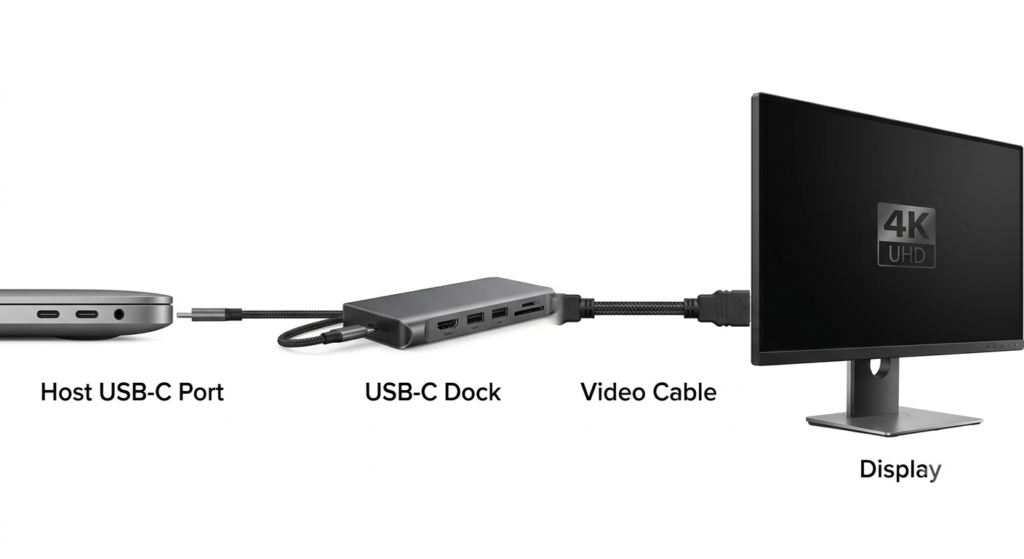
To get stable 4K at 60Hz, all four core components in the video chain must support the required standard. None can be left out.
1.1 Your laptop’s USB-C port must support video output
Not every USB-C port can carry video. Some USB-C ports only handle charging and data transfer. Only USB-C ports that support DisplayPort Alt Mode or Thunderbolt/USB4 protocols can output video to an external display.
1.2 The USB-C dock itself must support 4K 60Hz
Docks vary wildly in hardware capability. Many budget docks are built with a maximum video output of 4K 30Hz. No matter how powerful your laptop or monitor is, the signal will be capped once it passes through the dock.
1.3 Your monitor must accept 4K 60Hz input
Supporting 4K resolution does not automatically mean supporting 60Hz. Some older 4K monitors top out at 30Hz, or only support 60Hz through specific ports.
1.4 Your video cable must meet bandwidth requirements
HDMI and DisplayPort cables come in different versions. Low-quality or low-spec cables cannot carry the bandwidth needed for 4K 60Hz. Your system will automatically lower the display spec to keep the picture stable.
2. The Core Issue: USB-C Bandwidth Is Shared
What most people don’t know is that the high-speed lanes inside a USB-C connection are shared between video and USB data. This is the single most common reason docks drop to 30Hz.
Think of the high-speed lanes in USB-C as four highway lanes:
- If all four lanes are dedicated to video, there’s more than enough bandwidth for 4K 60Hz;
- If two lanes are diverted to USB data (for flash drives, external hard drives, wireless receivers), the remaining video bandwidth is cut in half. In most cases, that’s only enough for 4K 30Hz.
Nearly all standard docks prioritize keeping USB ports running at full speed, so they automatically compress video down to two lanes. That’s why so many people see their refresh rate drop the moment they plug in a dock.
| Operating Mode | High-Speed Lane Allocation | Video Bandwidth | Typical Video Capability | USB Data Capability |
|---|---|---|---|---|
| 4-lane video-only mode | All 4 lanes used for video | Full bandwidth | Easily supports 4K 60Hz | Only USB 2.0 low-speed transfer |
| 2-lane video + USB 3.x mode | 2 lanes for video, 2 for USB data | Video bandwidth cut in half | Usually limited to 4K 30Hz | Full USB 3.2 high-speed transfer |
3. Dock Hardware Sets the Hard Limit
Beyond bandwidth allocation, the internal chipset and product tier of a dock directly define its maximum video performance.
3.1 Video conversion chip specifications
Most docks convert the DisplayPort signal from your laptop into an HDMI signal using an internal conversion chip.
- Older, low-cost chips only support HDMI 1.4, which maxes out at 4K 30Hz;
- Newer chips support HDMI 2.0 or higher, and can deliver stable 4K 60Hz.
3.2 Multi-monitor setups split bandwidth
If your dock is connected to two or more displays, the total video bandwidth is divided between them. Each screen gets less bandwidth, so resolution or refresh rate per display will drop.
3.3 Product tier matches capability
Docks range from budget models to premium units costing hundreds of dollars, and their video capabilities scale accordingly.
| Product Tier | Typical Video Output | Best For |
|---|---|---|
| Budget portable dock | Up to 4K 30Hz + USB 3.x ports | Casual office use, temporary monitor connection |
| Mainstream office dock | Single 4K 60Hz + multiple ports | Regular office work, single-display desktop setup |
| High-performance dock | Single 4K 60Hz + multi-monitor support | Design, video editing, multi-screen productivity |
| Thunderbolt / USB4 dock | Multiple 4K 60Hz displays, up to 8K | Professional creation, full-featured premium setups |
4. Easy-to-Miss Details That Reduce Your Refresh Rate
Sometimes every device technically supports 4K 60Hz, but you still only get 30Hz. The problem is usually one of these overlooked details.
4.1 Video interface version limits
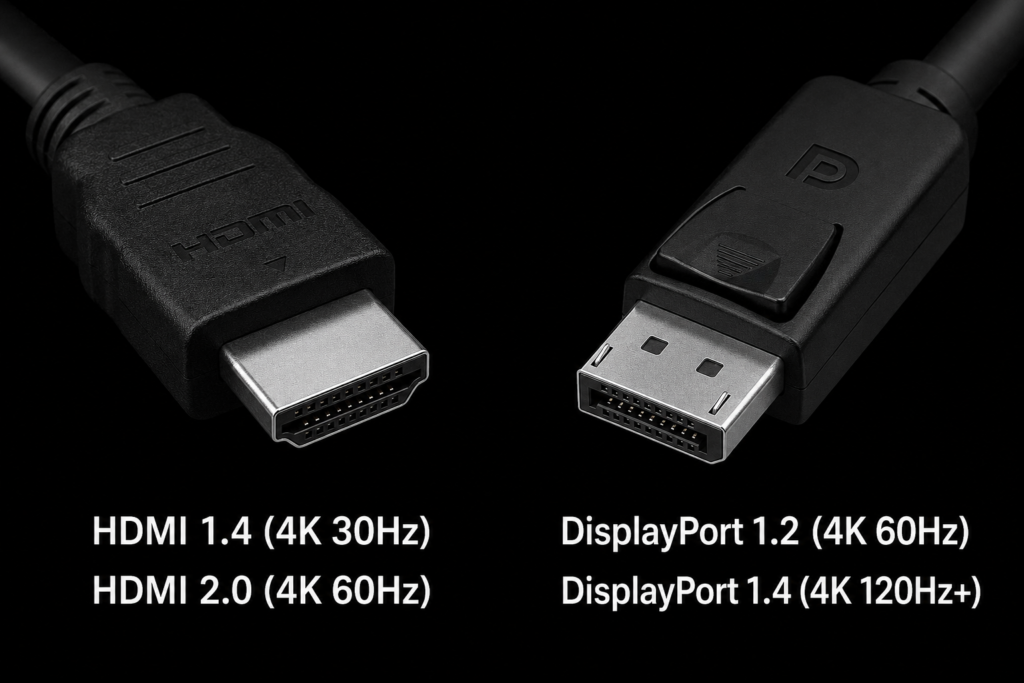
Different generations of HDMI and DisplayPort have very different bandwidth limits. This is one of the most common hidden restrictions.
| Interface Type | Common Version | Max 4K Refresh Rate | Notes |
|---|---|---|---|
| HDMI | 1.4 | 30Hz | Standard on budget docks, the main cause of 4K refresh drops |
| HDMI | 2.0 | 60Hz | The baseline requirement for 4K 60Hz |
| HDMI | 2.1 | 144Hz+ | Found on premium devices, supports higher specifications |
| DisplayPort | 1.2 | 60Hz | Basic video output standard |
| DisplayPort | 1.4 | 120Hz+ | High bandwidth, easily handles multi-monitor setups |
4.2 System or monitor settings aren’t configured for high refresh
On many computers, the default display settings don’t automatically select the highest refresh rate. You’ll need to manually pick 60Hz in your system display settings.
Some monitors also require you to enable a “high bandwidth mode” or switch the port’s compatibility mode in the on-screen menu before they accept 4K 60Hz.
4.3 Outdated drivers or firmware
Old graphics drivers, outdated USB-C controller drivers, or compatibility issues with the dock’s own firmware can all prevent 60Hz from working properly.
5. Five Steps to Diagnose the Problem
If you can’t get 4K 60Hz, follow this order to quickly find which part of the chain is holding you back.
- Check your laptop’s port capabilities: Look up your laptop’s specifications to confirm its USB-C port supports video output, DisplayPort Alt Mode, or Thunderbolt.
- Verify the dock’s official specs: Check the dock’s product page or manual. Look for explicit “3840×2160 @ 60Hz” labeling — “4K support” alone does not mean 60Hz.
- Swap in a certified video cable: Use a confirmed HDMI 2.0 or DisplayPort cable to rule out low-quality cables causing downgrades.
- Check your monitor settings: Enable the correct high-bandwidth input mode in the monitor’s menu, and manually select 60Hz in your computer’s display settings.
- Update drivers and firmware: Update your graphics driver and USB controller driver. Install the latest dock firmware if the manufacturer provides one.
6. How to Choose a Dock That Actually Delivers 4K 60Hz
Avoid these common pitfalls when shopping, and you’ll get a dock that matches your needs.
6.1 Don’t trust generic “4K support” marketing
Many product pages advertise “4K support” or “Ultra HD output” in big letters but never mention the refresh rate. Always look for 3840×2160 @ 60Hz written clearly in the specifications. If it only says “4K”, assume it’s 30Hz.
6.2 Check the output port specifications
Pay close attention to the video port versions: HDMI ports should be 2.0 or newer, DisplayPort ports should be 1.2 or newer. Also confirm the dock supports DisplayPort Alt Mode.
6.3 Pick based on your real use case
If you only occasionally connect a monitor for light office work, a budget dock may be fine. If you use a 4K display daily for work, design, or editing, choose a mainstream or high-performance dock with explicit 4K 60Hz support.
7. Summary
The reason some USB-C docks can’t output 4K 60Hz is never just the dock itself. Your laptop’s port capability, the dock’s hardware specs, bandwidth allocation rules, interface versions, cable quality, monitor capability, and even system settings all play a part.
Remember one simple rule: the final performance of your video chain is determined by its weakest link. Only when your laptop, dock, cable, and monitor all meet the required standard will you get stable 4K 60Hz output.