
1. Introduction: Why USB-C and Thunderbolt Are So Often Confused
Today, laptops, docks, monitors, and nearly all new gadgets use USB-C ports. Some of these ports are labeled “Thunderbolt,” but they look identical from the outside — and any USB-C plug fits into any USB-C port. This leaves many users confused: if they all look the same, why do some ports transfer files way faster, some work with monitors, and others don’t?
The core issue is simple: just because it plugs in doesn’t mean every feature will work. USB-C describes the physical shape of the port, while Thunderbolt is a high-speed transmission protocol. They exist at completely different technical layers.
This article answers the most common questions for everyday users: Can regular USB-C devices work with Thunderbolt accessories? Will Thunderbolt ports work with standard USB-C gear? Why do some USB-C ports support video output and others don’t?
2. Basic Concepts: Tell USB-C and Thunderbolt Apart in 60 Seconds
2.1 USB-C: A Universal Physical Port Standard
USB-C only defines the physical design of the connector: oval shape, reversible plug, 24-pin layout. Think of it like a standard wall outlet shape — it defines how something plugs in, not how much power or performance it can deliver. Two USB-C ports can look identical, but one might only charge devices, another transfers data at high speed, and a third can also connect a monitor. The difference is the protocol running behind it.
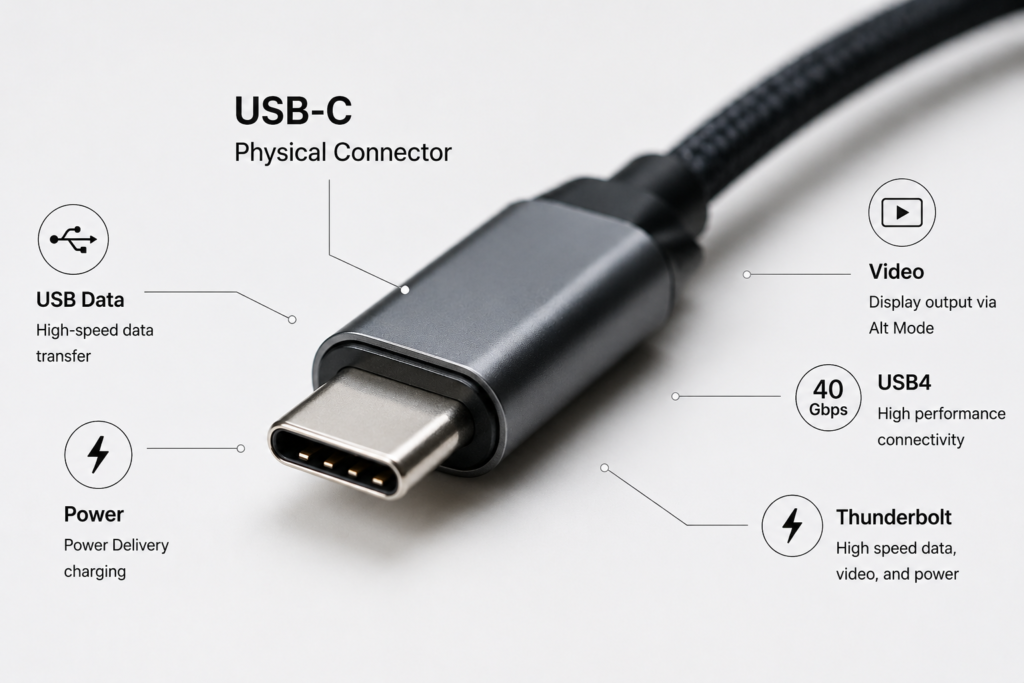
2.2 Thunderbolt: A High-Speed Connection Protocol
Thunderbolt is a high-performance connectivity protocol developed by Intel. It carries data, video, and power charging all over a single cable, with far higher bandwidth than standard USB. It also supports advanced expansion features that regular USB-C cannot handle.
2.3 Key Turning Point: Thunderbolt 3 Switches to USB-C
Before Thunderbolt 3, Thunderbolt 1 and 2 used Mini DisplayPort connectors and were not compatible with USB-C at all. In 2015, Thunderbolt 3 adopted USB-C as its official physical connector. That is when the two began sharing the same port shape — and when user confusion started.
2.4 Quick Version Guide: Thunderbolt 3/4/5 and USB4
- Thunderbolt 3: The first Thunderbolt version with a USB-C shape, delivering up to 40Gbps bandwidth.
- Thunderbolt 4: Same 40Gbps bandwidth as Thunderbolt 3, but with stricter mandatory requirements for video, PCIe expansion, and reliability.
- Thunderbolt 5: Upgraded to 80Gbps bandwidth, with enhanced video and expansion capabilities.
- USB4: A standard released by the USB Implementers Forum, built directly on Thunderbolt 3 technology. It is highly compatible with the Thunderbolt ecosystem, effectively bringing Thunderbolt-level technology into the official USB standard.
3. Core Compatibility Rules
USB-C and Thunderbolt follow consistent compatibility logic. Once you understand these rules, you can predict how almost any combination will work.
3.1 Basic Rule: Higher Specs Are Backward Compatible; Performance Is Set by the Weakest Link
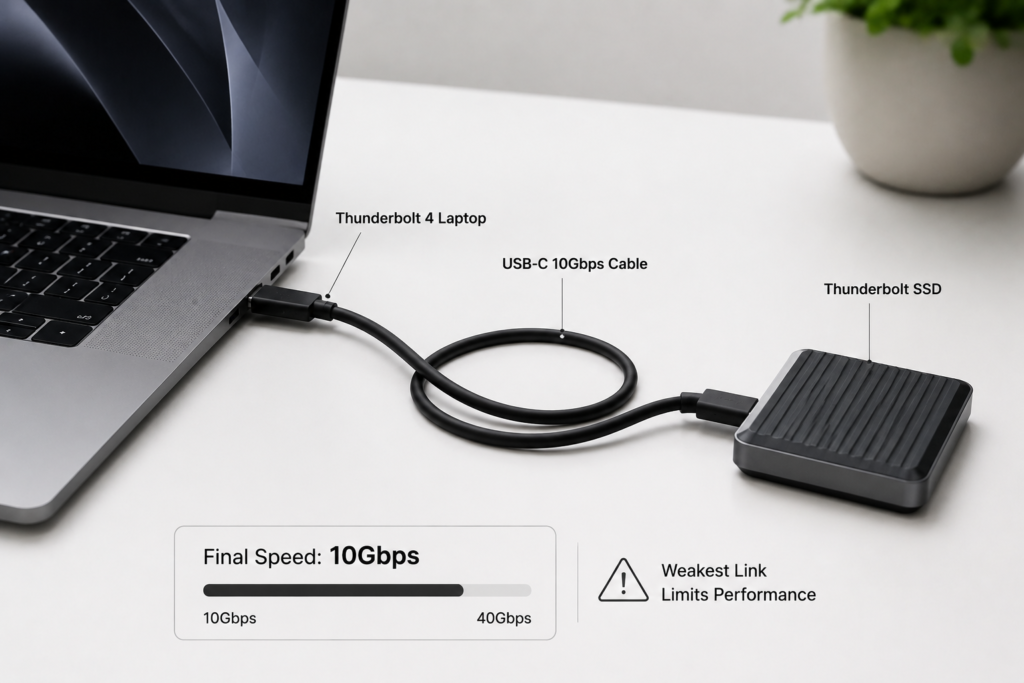
Compatibility follows the “bucket effect”: a higher-spec port or device will always work with a lower-spec one, but the real-world performance is limited by the slowest or least capable part of the chain. For example, a Thunderbolt laptop connected to a basic USB flash drive will only run at the drive’s slower speed — it can’t make the drive faster.
3.2 Data Transfer Compatibility: Speed Limits and Downclocking
Thunderbolt ports support every generation of USB data standards, from old USB 2.0 up to the latest USB4. On the flip side, when you plug a Thunderbolt device into a regular USB-C port, the device automatically switches to USB compatibility mode. It will work, but only at standard USB speeds — it cannot reach full Thunderbolt bandwidth.
3.3 Video Output Compatibility: Differences in DisplayPort Support
Thunderbolt ports include a mandatory DisplayPort video channel, so every Thunderbolt port supports video output. Regular USB-C ports do not guarantee video capability; they require DisplayPort Alt Mode to drive a monitor. Ports without this feature will show no picture when you plug in a display.
3.4 Power Compatibility: USB PD Interoperability and Power Limits
Both Thunderbolt and standard USB-C use the same USB Power Delivery (USB PD) fast-charging standard. This means charging is almost fully interoperable. Whether you use a Thunderbolt port or a regular USB-C port, PD chargers will work, with the final charging speed limited by the lowest maximum power rating among the laptop, charger, and cable.
3.5 PCIe Expansion: Thunderbolt’s Exclusive Capability
PCIe (PCI Express) channel expansion is Thunderbolt’s signature exclusive feature, and it is not available on standard USB-C ports. Devices like external graphics cards (eGPUs), high-speed capture cards, and professional storage arrays need a direct connection to the motherboard’s bus — this only works over Thunderbolt, and will not function with a regular USB-C port.
| Port Type | Typical Speed (Everyday Reference) | Video Output | eGPU Support | Fast Charging |
|---|---|---|---|---|
| Standard USB-C (USB 3.2 Gen 2) | 10Gbps (10GB file in ~10 seconds) | Partial (requires DP Alt Mode) | No | USB PD supported |
| Thunderbolt 3 / Thunderbolt 4 | 40Gbps (10GB file in ~2 seconds) | Mandatory, multi-display capable | Yes | USB PD supported |
| USB4 | 40Gbps (10GB file in ~2 seconds) | Supported on most models | Supported on some models | USB PD supported |
4. The Most Overlooked Compatibility Bottleneck: Cables
Most users only pay attention to ports and devices, and ignore cables. In reality, a huge number of compatibility issues and slow transfer speeds are caused by the wrong cable.
4.1 Difference Between Standard USB-C Cables and Thunderbolt Cables
Most standard USB-C cables only support basic charging and USB data speeds up to 10Gbps. They cannot carry Thunderbolt’s high-speed signals or PCIe channels. Certified Thunderbolt cables are tested and validated to support the full Thunderbolt protocol, run at full 40Gbps or 80Gbps bandwidth, and enable every Thunderbolt feature.
4.2 How the E-Marker Chip Affects Compatibility
The E-Marker chip acts as the cable’s “digital ID.” It stores information about the cable’s maximum speed and maximum power rating. When connected, the device reads this chip to determine which mode to run in. Any cable that supports 5A high current or speeds above 20Gbps requires an E-Marker chip.
4.3 Passive vs. Active Cables: Use Cases
- Passive cables: Transmit signal directly through copper wiring, lower cost. Most short Thunderbolt cables (0.8m or less) are passive and still run at full bandwidth.
- Active cables: Include built-in signal amplification chips to maintain full speed over longer distances. Almost all Thunderbolt cables longer than 1m are active, and cost more. Nearly all standard USB-C cables are passive.
4.4 How to Identify Certified Cables
Genuine Thunderbolt-certified cables have the lightning-bolt Thunderbolt logo printed on the cable or packaging. USB-IF certified standard USB-C cables carry the official USB logo. Always look for official certification marks, and avoid unbranded cables with unverified specs.
| Cable Type | Max Transfer Speed | Full Thunderbolt Support | Common Lengths | Best For |
|---|---|---|---|---|
| Basic USB-C charging cable | 480Mbps (USB 2.0) | No | 1–2m | Charging only, keyboards/mice |
| Standard USB-C data cable | 10Gbps | No | 0.5–1.5m | File transfers, standard flash drives/HDDs |
| Certified Thunderbolt passive cable | 40Gbps | Full support | 0.5–0.8m | Short-range Thunderbolt drives, docks |
| Certified Thunderbolt active cable | 40Gbps / 80Gbps | Full support | 1–3m | Long-range Thunderbolt setups, eGPUs |
5. Real-World Compatibility by Use Case
5.1 Thunderbolt Ports With Standard USB-C Devices
Fully compatible, with no issues. A Thunderbolt laptop will work perfectly with regular USB-C flash drives, chargers, and standard docks. It will simply run at the accessory’s standard USB-C speed and feature set — you’re just not using the full potential of the Thunderbolt port.
5.2 Standard USB-C Ports With Thunderbolt Devices
Most will work, but with reduced features. Almost all Thunderbolt devices include a built-in USB compatibility mode. When plugged into a regular USB-C port, they automatically switch to USB mode: speeds drop to standard USB levels, and Thunderbolt-exclusive features like PCIe and multi-display support will not work.
5.3 Common Accessory Scenarios
- Docking stations: A Thunderbolt dock connected to a Thunderbolt laptop unlocks every feature: high-speed data, multi-monitor, Ethernet, and PCIe accessories. Connected to a regular USB-C laptop, it only provides basic USB ports and charging. Standard USB-C docks work fine with Thunderbolt ports.
- External SSDs: A Thunderbolt SSD runs at top speed on a Thunderbolt port, and drops to USB speeds on a regular USB-C port. Standard USB SSDs work normally on Thunderbolt ports.
- Monitors: A Thunderbolt port will almost always work with a USB-C monitor, and can charge the laptop at the same time. A regular USB-C port will only work with a monitor if the port supports video output.
- External GPUs (eGPUs): An exclusively Thunderbolt use case. They require Thunderbolt 3/4 or a USB4 port with PCIe tunneling support. Regular USB-C ports cannot run eGPUs at all.
6. Common Myths and Troubleshooting
6.1 Three Widespread Myths Debunked
- Myth 1: All USB-C ports are Thunderbolt ports False. USB-C is only the port shape. Thunderbolt is the premium, high-performance version of USB-C. The vast majority of USB-C ports on the market do not support Thunderbolt.
- Myth 2: If a USB-C port supports PD fast charging, it’s Thunderbolt False. PD charging and Thunderbolt are separate features. Many standard USB-C ports support PD fast charging but lack Thunderbolt’s high-speed data and expansion capabilities.
- Myth 3: Thunderbolt cables can replace every USB-C cable Technically they work, since Thunderbolt is backward compatible. But Thunderbolt cables are more expensive — using one just for charging or a keyboard is overkill. On the other hand, regular USB-C cables cannot replace Thunderbolt cables, as they cannot reach full Thunderbolt speeds.
6.2 Common Problems and Fixes
- Slow transfer speeds: First check if your cable is a certified Thunderbolt cable. Then verify the port specs on both your computer and your device to find the weakest link in the chain.
- No video signal from monitor: Confirm your computer’s USB-C port supports video output (DP Alt Mode). Then test with a cable that is rated for video transmission.
- Insufficient charging power: Check if your cable has an E-Marker chip, and confirm both your charger and device support the required PD power level.
6.3 How to Quickly Tell if a Port Supports Thunderbolt
- Check the logo: Ports with a lightning-bolt ⚡ symbol are Thunderbolt ports. Ports marked USB4 are also highly compatible with Thunderbolt.
- Check the specs: Look up your device’s official specifications or manual, and search for “Thunderbolt” to confirm.
- Check your system: On Windows, look in the Thunderbolt Control Center or Device Manager. On macOS, go to System Information → Thunderbolt.
7. Buying and Usage Tips to Avoid Headaches
7.1 Devices: How to Confirm Port Capabilities
If you plan to use an external GPU, professional high-speed storage, or a multi-monitor dock, choose devices with official Thunderbolt branding. If you only need charging, standard flash drives, and a single monitor, regular USB-C ports are perfectly sufficient — there’s no need to pay extra for Thunderbolt you won’t use.
7.2 Cables and Accessories: Pick the Right One for the Job
- Charging only, keyboards and mice: A basic USB-C charging cable is enough.
- File transfers and standard monitors: Choose a 10Gbps USB 3.2 data cable.
- Thunderbolt SSDs, docks, and eGPUs: Always buy officially certified Thunderbolt cables. For lengths over 1m, choose an active cable.
7.3 Tips for Mixing and Matching Devices
- All USB-C ports are safe to plug into. Mismatched specs will never damage your hardware — at worst, features won’t work or speeds will be slower. You don’t have to worry about breaking anything.
- To get full advertised performance, your computer, cable, and device must all support the same spec. All three matter.
- Prefer officially certified accessories to avoid spec inflation and compatibility issues from no-name brands.
8. Summary and Future Outlook
8.1 Key Compatibility Takeaways
- Same port shape ≠ same features. USB-C is the physical connector; Thunderbolt is a high-performance protocol. They are not the same thing.
- Higher specs are always backward compatible. Thunderbolt devices work on regular USB-C ports, but with reduced performance and features. Standard USB-C devices work normally on Thunderbolt ports.
- Regular USB-C can never fully replace Thunderbolt. PCIe expansion and other exclusive features are Thunderbolt’s core advantage.
- Compatibility depends on more than just the port — you have to check the protocol version, cable rating, and device capabilities too.
8.2 The Convergence of USB4 and Thunderbolt
Today, USB4 and Thunderbolt 4/5 already share nearly identical underlying technology, and the line between them is fading. As standards evolve, protocols will become even more unified, and users will no longer have to carefully distinguish between USB and Thunderbolt — they’ll only need to check the bandwidth rating.
8.3 Long-Term Buying Advice for Everyday Users
You don’t need to chase Thunderbolt for the sake of it — pick what matches your actual needs. That said, if you’re buying a mid-range or premium laptop, opting for USB4 or Thunderbolt will give your port a longer usable life and better support for future accessories.