
Introduction
1.1 The Trend of Simplified Ports: How USB-C Evolved From Charging/Data to Video
In recent years, laptops, tablets, and smartphones have become thinner and lighter, leading to fewer large-sized ports on devices. With its reversible design and compact form factor, USB-C has gradually become the universal connector for digital devices. From charging and file transfer at launch to connecting monitors and Ethernet adapters today, USB-C is replacing multiple traditional ports with a single connector, and “one port for all uses” has become a clear industry trend.
1.2 Background and Core Purpose of HDMI Alt Mode
HDMI is the most widespread video port for TVs and monitors. In the past, devices needed either a built-in full-size HDMI port or an adapter with a conversion chip to output HDMI signals. To let USB-C output native HDMI signals directly without extra conversion, the industry introduced HDMI Alternate Mode (HDMI Alt Mode), which allows a USB-C port to transmit standard HDMI video and audio signals natively.
1.3 Scope and Practical Value of This Article
Many people hold common misconceptions about USB-C to HDMI connections — for example, assuming all USB-C ports can output HDMI directly, or all USB-C to HDMI cables work the same way. This article explains in plain language what HDMI Alt Mode is, how it works, which devices support it, and how to choose the right accessories, helping you avoid common mistakes when buying and using USB-C video gear.
Basic Overview of HDMI Alt Mode
2.1 Core Definition: What Is USB-C HDMI Alt Mode
HDMI Alt Mode, short for HDMI Alternate Mode, is a special operating mode for USB-C ports. When enabled, the USB-C port stops running standard data transfer protocols and instead transmits video and audio signals following the official HDMI standard — essentially turning the USB-C port temporarily into a native HDMI port.
2.2 Standard Origin: Governing Body and Specification Version
HDMI Alt Mode was developed by the HDMI Forum in partnership with USB-IF, officially released in 2016, and is built exclusively on the HDMI 1.4b specification. To date, there has been no official updated version of the Alt Mode standard for HDMI 2.0 or HDMI 2.1.
2.3 Technical Essence: Native HDMI Transmission Without a Conversion Chip
Most common USB-C to HDMI cables take DisplayPort signals from the USB-C port and convert them to HDMI signals using a built-in chip. HDMI Alt Mode works differently: the source device outputs native HDMI signals directly through the USB-C port, with no conversion chip required inside the cable. In theory, this results in lower signal loss and lower cable costs — but it only works if the source device (phone, laptop, etc.) includes dedicated hardware support for this mode.
2.4 Common Use Cases
- Laptops connecting to monitors or projectors for office work
- Smartphones connecting to TVs for streaming media or mobile gaming on a big screen
- Tablets connecting to external displays for desktop mode productivity
- Handheld gaming consoles pairing with larger desktop displays
How It Works: How USB-C Transmits HDMI Signals
3.1 Basics of USB-C Pin Multiplexing
Inside a USB-C connector are many small metal pins. These pins do not have one single fixed function — instead, their purpose can be reconfigured depending on the operating mode. This is called pin multiplexing. Think of it as a multi-lane highway: normally it carries charging and data traffic, but when video output is needed, several lanes are repurposed exclusively for video signals.
3.2 Channel Allocation for HDMI Signals Over USB-C
A standard USB-C port includes 4 high-speed differential lanes, normally used for USB 3.x high-speed data transfer. When HDMI Alt Mode is activated, all 4 of these high-speed lanes are dedicated to transmitting HDMI video and audio signals, delivering the picture and sound from the source device to the display.
3.3 Mode Detection and Full Switching Process
When you connect a device to a display with a cable, the CC (Configuration Channel) pins inside the USB-C port first “negotiate” with each other: they verify if the source device supports HDMI Alt Mode, if the display accepts HDMI signals, and if the cable meets the required specifications. If all three components are compatible, the port automatically switches to HDMI Alt Mode and begins transmitting video.
3.4 Coexistence Rules With PD Charging and USB 2.0 Data
Enabling HDMI Alt Mode does not disable all other USB-C functions:
- USB Power Delivery (PD) fast charging still works normally, so you can charge your device while using an external display;
- USB 2.0 low-speed data (for mice, keyboards, etc.) also works simultaneously;
- However, USB 3.0 and faster high-speed data transfer is not available at the same time, since all high-speed lanes are already allocated to video.
Performance Specifications: What Display Quality Can You Actually Get
Many people assume HDMI Alt Mode supports the latest HDMI 2.1 features and high-refresh 4K output, but in reality its specifications are limited to an older generation standard. The key parameters are listed in the table below:
| Feature | Specification |
|---|---|
| Base Protocol Version | HDMI 1.4b |
| Max Resolution & Refresh Rate | 4K@30Hz, 1080p@120Hz |
| Audio Support | Up to 8-channel lossless audio, synchronized AV |
| HDR Support | Not supported |
| eARC Audio Return | Not supported |
| HDCP Content Protection | HDCP 1.4 supported |
4.1 Officially Supported HDMI Protocol Version
The official HDMI Alt Mode specification is built only on HDMI 1.4b. There has never been an official Alt Mode standard released for HDMI 2.0 or HDMI 2.1. Any USB-C to HDMI solution claiming HDMI 2.0+ support is not native HDMI Alt Mode.
4.2 Video Capabilities: Resolution and Refresh Rate Limits
Limited by the bandwidth of HDMI 1.4b, HDMI Alt Mode can output a maximum of 4K resolution at 30Hz. At 4K, this results in noticeably choppy motion, making it unsuitable for smooth office work or gaming. At 1080p resolution, it can support up to 120Hz, which is sufficient for daily office use and streaming media.
4.3 Audio and Additional Feature Support
It can transmit video and audio simultaneously, supporting up to 8 channels of lossless audio to meet the needs of regular TVs and speakers. However, it does not support ARC/eARC audio return, HDR, variable refresh rate (VRR), or other advanced display features.
4.4 Transmission Distance and Cable Requirements
Because it uses native signal transmission, HDMI Alt Mode works with passive cables with no built-in chip, keeping costs low. Standard copper cables have an effective range of about 3–5 meters. Longer distances can cause signal degradation and screen flickering.
Comparison With Similar Solutions: Understanding Different USB-C Video Outputs
Many people cannot tell the difference between the various USB-C video output methods. The table below compares the three most common consumer solutions:
| Comparison Point | HDMI Alt Mode | DisplayPort Alt Mode | Standard USB-C to HDMI Adapter |
|---|---|---|---|
| Operating Principle | Native HDMI signal transmission | Native DisplayPort signal transmission | Converts DP signals to HDMI signals |
| Base Protocol | HDMI 1.4b | DP 1.4 / 2.1 and higher | Depends on source DP protocol + conversion chip |
| Maximum Capability | 4K@30Hz | Up to 8K@60Hz, 4K@144Hz | Most support 4K@60Hz; premium models support 8K |
| Conversion Chip Required | No | No | Required for active adapters; not required for passive DP++ |
| Market Adoption | Very low, rarely supported by devices | Very high, the current mainstream standard | Very high, nearly all retail cables use this design |
5.1 Key Differences From DisplayPort Alt Mode
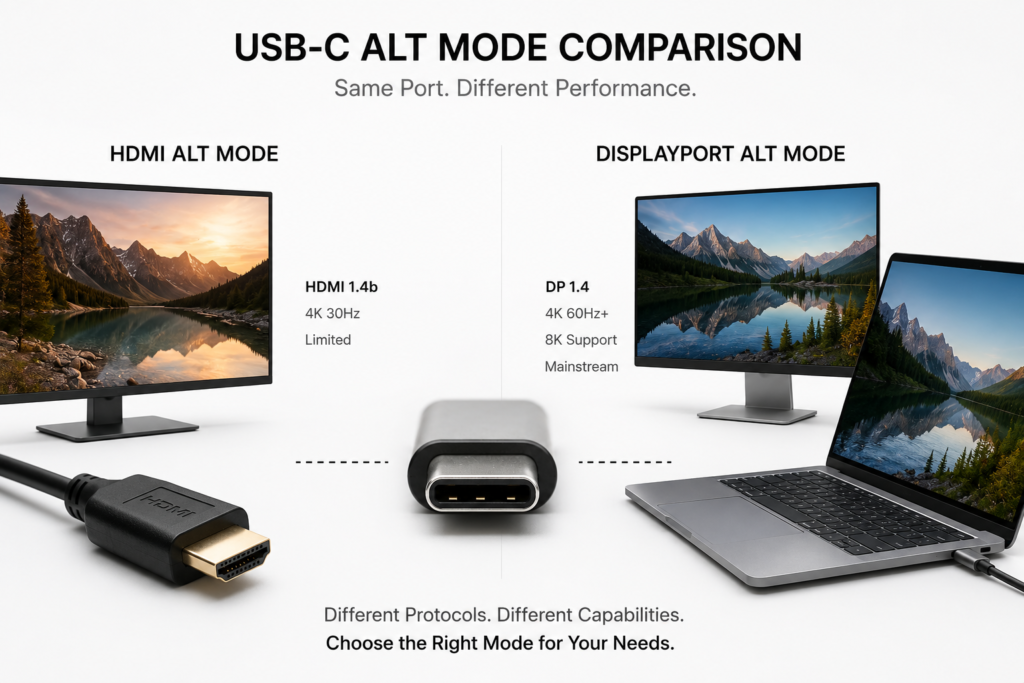
DisplayPort Alt Mode (DP Alt Mode) was introduced around the same time as HDMI Alt Mode, and it is now the absolute mainstream standard for USB-C video output. The core difference is that DP Alt Mode transmits DisplayPort signals, which offer higher bandwidth and more features, supporting 4K 60Hz and even 8K displays. Almost every USB-C laptop and phone with video output supports DP Alt Mode, while HDMI Alt Mode has limited specifications and little device support, and has been largely marginalized by the market.
5.2 Fundamental Difference From Standard USB-C to HDMI Adapters
Nearly all affordable USB-C to HDMI cables available today are not HDMI Alt Mode. How they work is: the device first outputs a DisplayPort signal via DP Alt Mode, then a conversion chip in the cable (or the DP++ compatibility feature of the port) converts the DP signal to HDMI for the display. In short: “DP signal first, then converted to HDMI” — a completely different mechanism from native HDMI Alt Mode.
5.3 Relationship and Differences With USB4 / Thunderbolt Video Output
USB4 and Thunderbolt 3/4 ports use a “tunneling” mechanism for video: they package DisplayPort signals inside the USB4 data channel. Essentially they are still based on the DisplayPort protocol, and do not support native HDMI Alt Mode. Their advantage is much higher total bandwidth, allowing both high-speed data and video transmission at the same time, without dedicating all high-speed lanes to video like Alt Mode does.
Device Support and How to Check
6.1 Device Types and Current Market Adoption
HDMI Alt Mode has very low device support across the industry:
- Laptops: Only a small number of older models offer native support. Almost all recent laptops only support DP Alt Mode.
- Smartphones: A handful of early Android flagships supported it, but nearly all modern flagship phones have dropped the mode and use DP Alt Mode for video output instead.
- Monitors and TVs: There are very few displays with a native USB-C port that supports HDMI Alt Mode input — they are extremely uncommon.
Overall, HDMI Alt Mode never became a market mainstream, and has remained a niche technical solution since its launch.
6.2 How to Quickly Check If Your Device Supports It
The only reliable way to know if your device supports HDMI Alt Mode is to check the official product specification sheet, and look for an explicit mention of “HDMI Alt Mode”.
If it only says “supports video output” or “USB-C display output” without specifically naming HDMI Alt Mode, it almost certainly uses DisplayPort Alt Mode. Thunderbolt or DisplayPort logos next to the USB-C port also indicate DP video support, not HDMI Alt Mode.
6.3 Real-World Accessory and Cable Market
Today, you will barely find any retail cables marketed specifically as “HDMI Alt Mode exclusive”. The vast majority of USB-C to HDMI cables and docks on the market are adapter solutions based on DP Alt Mode. The few cables that do mention HDMI Alt Mode support are usually also compatible with DP adapters, not designed exclusively for HDMI Alt Mode.
Common Misconceptions and Troubleshooting
7.1 Clarifying Three Widespread Misconceptions
- Misconception 1: All USB-C to HDMI cables use HDMI Alt Mode Fact: Over 99% of retail USB-C to HDMI cables are DP-to-HDMI adapter solutions, and have nothing to do with HDMI Alt Mode.
- Misconception 2: Any USB-C port with video output supports HDMI Alt Mode Fact: Almost every video-enabled USB-C port supports DisplayPort Alt Mode. HDMI Alt Mode support is exceptionally rare.
- Misconception 3: HDMI Alt Mode delivers better quality than adapter solutions Fact: Limited by the HDMI 1.4b specification, HDMI Alt Mode maxes out at 4K@30Hz, which performs far worse than DP-to-HDMI adapters that support 4K@60Hz.
7.2 Troubleshooting No Picture on External Display
If you get no image when connecting USB-C to an HDMI display, it is almost never related to HDMI Alt Mode. Common causes include:
- Your USB-C port does not support video output at all, and only works for charging and data;
- The cable does not meet the specifications for your desired resolution and refresh rate;
- The display is not set to the correct HDMI input source;
- The dock or adapter’s conversion chip is incompatible with your device.
7.3 Frequently Asked Questions: Charging, High Refresh Rates, and More
- Q: Can I charge my device while using HDMI Alt Mode for video? A: Yes. Alt Mode only uses the high-speed data lanes. USB PD charging uses separate pins, so the two work simultaneously. Many docks output video and charge your laptop at the same time.
- Q: Does HDMI Alt Mode support 4K high refresh rates? A: No. At 4K resolution, the maximum is 30Hz. For 4K 60Hz or higher, you need DP Alt Mode or a Thunderbolt/USB4 solution.
Buying and Usage Guide
8.1 Key Points for Choosing a USB-C Video Cable
Regular users do not need to specifically look for “HDMI Alt Mode” cables. Follow these tips instead:
- First confirm what video output capabilities your device has (for example, max 4K 60Hz or 8K);
- Pick a cable that matches your display’s resolution and refresh rate. For a 4K monitor, choose a USB-C to HDMI cable rated for 4K@60Hz;
- Choose reputable brands to avoid flickering screens and compatibility issues with low-quality cables.
8.2 Tips for Choosing a USB-C Hub / Dock
When buying a hub with HDMI output, focus on three key points:
- HDMI output specification: whether it runs at 4K@30Hz or 4K@60Hz, and if it supports HDR;
- PD charging power: 65W or higher is recommended for laptops; 30W is usually enough for phones and tablets;
- Port count: pick the number of ports you need for mice, USB drives, Ethernet, etc. — you do not need more ports than you will actually use.
8.3 Recommendations for Different Use Cases
- Everyday office users (1080P work, streaming): A standard USB-C to HDMI cable is sufficient, with reliable options available at budget prices.
- Creative professionals (4K monitors for photo/video editing): Choose an active adapter that supports 4K@60Hz, or use a USB-C monitor with native DisplayPort input.
- Gamers (high-refresh monitors): Prioritize Thunderbolt/USB4 docks or DP Alt Mode solutions for higher refresh rates and lower latency.
Current Status and Future Trends
9.1 Why It Never Became Widely Adopted
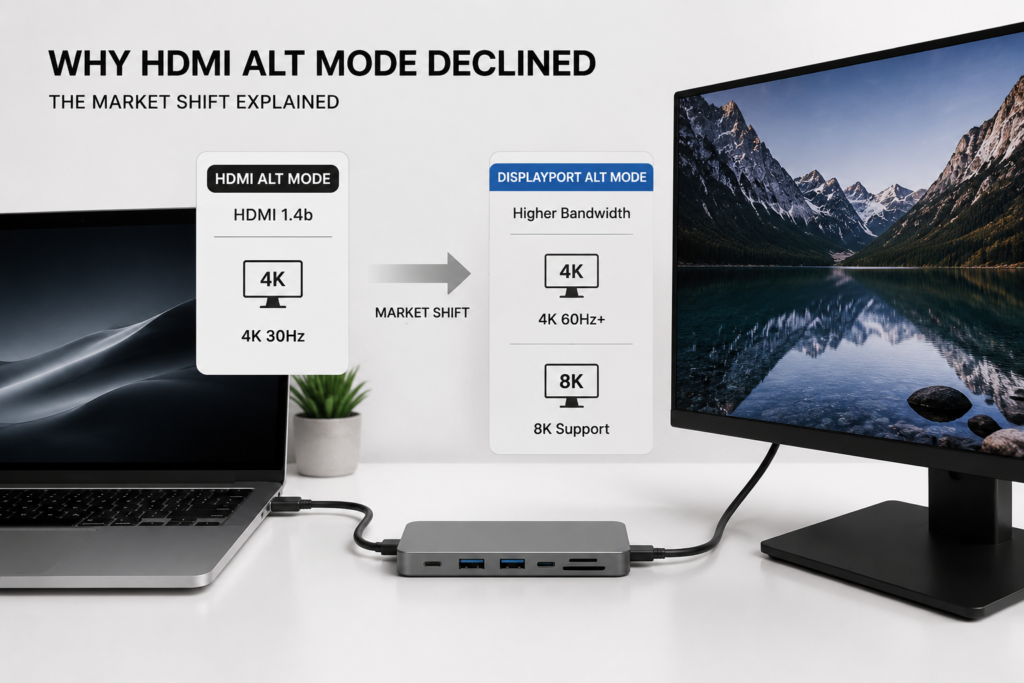
There are three core reasons HDMI Alt Mode failed to gain mainstream popularity:
- Late launch and low performance ceiling: It arrived after DP Alt Mode had already captured the market, and was limited to HDMI 1.4b, which could not deliver 4K 60Hz to meet growing user demand.
- Low manufacturer interest: Adding HDMI Alt Mode support requires extra hardware cost for device makers. Since DP Alt Mode is already standard on USB-C, there is no business case for adding a second video system.
- Incomplete ecosystem: Very few displays include HDMI Alt Mode input. With little support on both ends of the connection, the standard could not spread.
9.2 Current State of the Specification
The HDMI Forum has not updated the HDMI Alt Mode specification in years, and there are no public plans to release Alt Mode versions for HDMI 2.0 or 2.1. The technology is effectively discontinued, and remains a transitional, experimental solution in the history of USB-C video.
9.3 Future of the USB-C Video Ecosystem
Going forward, the mainstream of USB-C video output will continue to be DisplayPort Alt Mode and USB4/Thunderbolt tunneling. The DisplayPort standard will keep evolving to support higher bandwidth and more advanced features. USB4 will further unify data and video delivery, enabling a single cable to handle charging, high-speed data, and high-definition video. HDMI Alt Mode will gradually fade from the market, remaining only on older legacy devices.
Conclusion
10.1 Historical Position and Technical Value of HDMI Alt Mode
HDMI Alt Mode was an early attempt to unify video output over USB-C. The core idea was sound — using one port for native HDMI transmission to skip conversion steps. But due to outdated specifications and a weak supporting ecosystem, it never became mainstream, and remains mostly a footnote and experimental supplement in the broader USB-C Alt Mode ecosystem.
10.2 Practical Buying and Usage Advice for Consumers
For the average user, there is no reason to fixate on whether a product uses “HDMI Alt Mode”:
- Before buying accessories, confirm your device’s video output capabilities and your display’s specifications.
- Prioritize mature, widely supported DP Alt Mode accessories — they offer far better compatibility and real-world performance.
- Do not be misled by marketing terms like “native transmission” or “lossless quality”. The actual rated resolution and refresh rate are what determine your real-world experience.