
Introduction
With the widespread adoption of USB-C ports, more and more Dell laptops support charging via USB-C. Compared with traditional barrel charging ports, USB-C charging features a reversible design, delivers both power and data through a single cable, and works with chargers for phones, tablets and other devices — making travel much more convenient.
This guide is written for everyday Dell users. No technical expertise is required. You will learn how to choose the right accessories, charge your device properly, and troubleshoot common issues. It applies to all Dell laptops with USB-C charging support.
Quickly Check If Your Dell Device Supports USB-C Charging
Not every USB-C port on a Dell laptop supports charging. You can confirm it quickly with the three methods below.
Identify via Port Labels on the Device
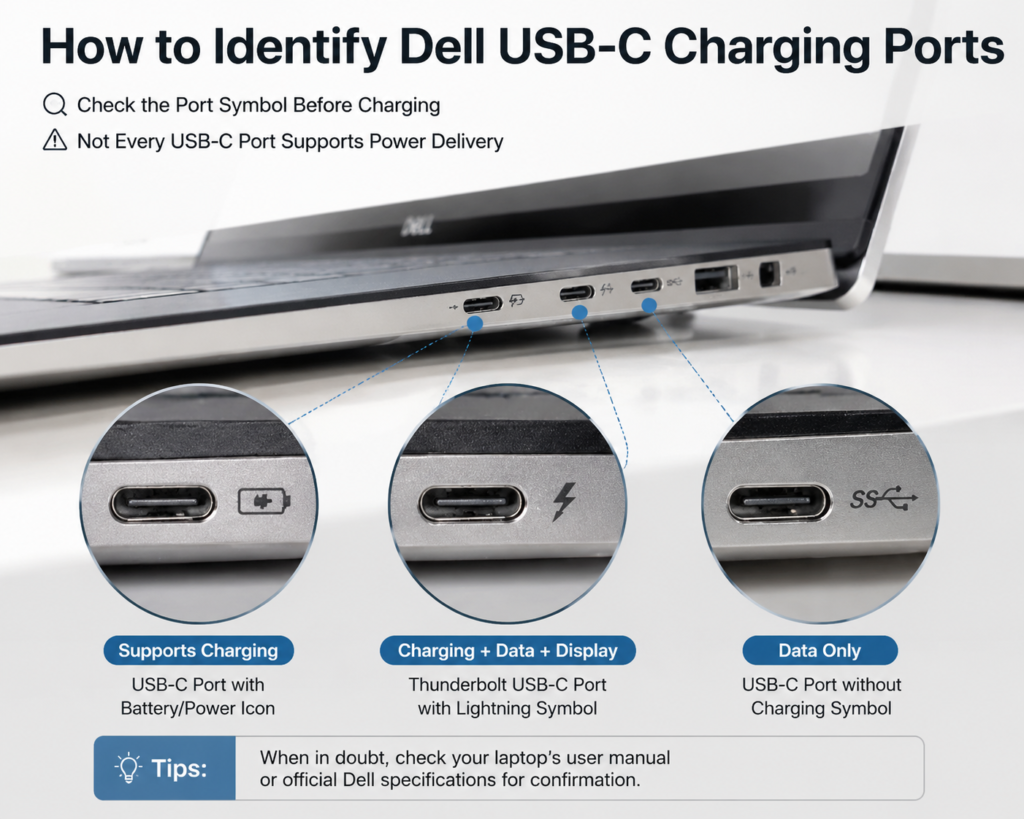
Check the icons next to the USB-C ports on the side of your laptop for a quick indication:
| Icon Next to Port | What It Means |
|---|---|
| Battery / power icon | Clearly supports charging function |
| Thunderbolt (lightning) logo | Typically supports charging, high-speed data and video output |
| USB-only symbol | Most likely for data transfer only, no charging support |
Support Status by Dell Product Lines
- XPS Series: Almost all recent models come with USB-C charging as standard.
- Latitude Business Series: Most new models support USB-C charging, ideal for docking station setups.
- Inspiron Series: Supported on most thin & light models; may be unavailable on larger, high-performance variants.
- Precision Mobile Workstations: Supported on mid-range models; high-end configurations usually require a dedicated power adapter.
- Gaming Laptops: Most do not support full-speed USB-C charging; only a few support slow emergency charging.
Check Official Specifications and User Manual
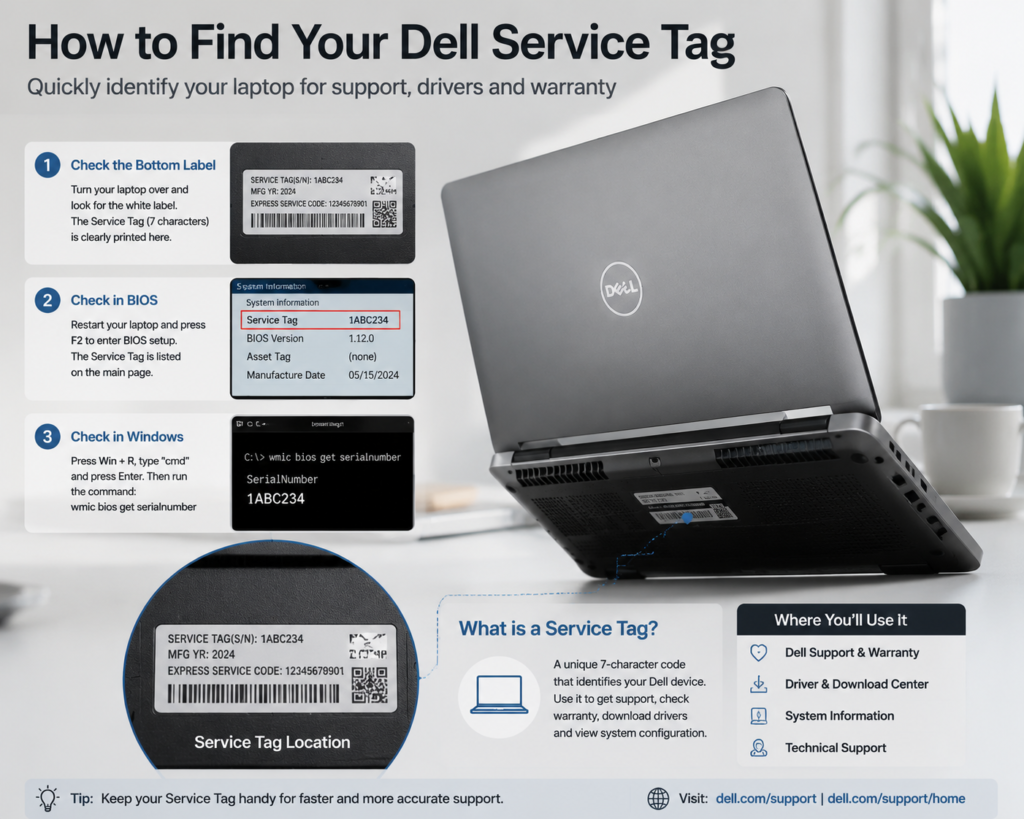
For the most accurate result, visit Dell’s official website, look up your laptop model on its product specification page, or refer to the included user manual. The “Power Supply” section will clearly state whether USB-C charging is supported.
Charging Power and Protocol Basics
Whether a charger works and how fast it charges depends mainly on power output and charging protocol.
Common Power Levels and Compatible Laptops
Dell laptops use several common USB-C power levels, each suited to different types of devices:
| Charging Power | Typical Compatible Laptop Types |
|---|---|
| 45W | 13-inch and smaller ultra-thin office laptops |
| 65W | Mainstream thin & light and business laptops — the most common specification |
| 90W | Thin & light laptops with discrete graphics, mid-range business models |
| 130W and above | High-performance thin & light laptops, entry-level mobile workstations |
USB PD Protocol and Dell Compatibility
USB Power Delivery (USB PD) is the universal fast-charging standard for USB-C ports. All Dell laptops with USB-C charging support this standard. Simply put, any standard PD charger can power your Dell laptop. Genuine Dell chargers include Dell’s proprietary recognition mechanism for stable full-power performance and the best compatibility.
How Charger Power Affects Actual Charging Speed
Many people assume a higher-wattage charger always charges faster — this is not true. Every laptop has a maximum charging power limit. If your charger exceeds that limit, the laptop will only draw power at its own maximum rate, with no speed gain. If the charger’s power is lower than the laptop’s requirement, charging will slow down, or the battery may even drain while in use.
Charger and Cable Buying Guide
Choosing the right accessories is the key to safe and efficient charging — you don’t need the most expensive option, just the right one.
How to Match Genuine Dell USB-C Chargers
Genuine Dell chargers are the most reliable option. The rule is simple: match the wattage of your original charger. For example, if your original adapter is 65W, buy a 65W genuine Dell USB-C charger. There is no need to buy a higher-wattage model — it will not speed up charging and is a waste of money.
Third-Party PD Chargers: Selection Tips and Pitfalls
When choosing a third-party charger, look for two key points: first, it must support the USB PD fast-charging protocol; second, its output power must be at least equal to your original charger’s wattage.
Stick to well-known, reputable brands. Avoid no-name, ultra-cheap products, as they may cause unstable charging or even damage your device.
USB-C Cable Requirements and Buying Tips
Many people overlook the impact of the cable. A regular USB-C data cable may not handle high-power charging.
For 65W and lower power laptops, most good-quality USB-C cables will work. For 90W and higher power models, you must use a cable with an E-Marker smart chip that supports 5A current. Otherwise, the cable will limit the power and slow down charging.
Docking Stations and USB-C Monitor Power Delivery
When using a USB-C docking station or a USB-C monitor with one-cable connectivity, pay attention to its power output rating. For example, if your laptop requires 65W charging, the dock or monitor must output at least 65W over its USB-C port. Otherwise, charging will be slow or may not work at all.
Common Charging Scenarios and Usage Tips
Charging best practices vary by scenario.
Everyday Direct Charging: Proper Use and Notes
For daily charging, plug into the USB-C port marked with a charging or Thunderbolt icon, and push it in fully. You don’t need to drain the battery completely before charging — topping up frequently does not harm the battery. Slight warmth at the port during charging is normal.
USB-C Monitor One-Cable Charging Tips
Using a USB-C monitor for both video output and charging is very convenient for desktop work. Before use, confirm that the monitor’s upstream USB-C port supports power delivery and that its wattage meets your laptop’s needs. Use the monitor’s original USB-C cable for best results.
Power Bank Charging: Requirements and Feasibility
To charge your Dell laptop with a power bank, the power bank must support USB PD output with at least 45W of power for emergency charging of thin & light laptops. For higher-performance laptops, standard power banks do not provide enough power and will not charge properly.
Car Charging and Multi-Port Chargers Notes
For car charging, use a dedicated car PD charger. Regular car USB ports have too little power to charge a laptop.
When using a multi-port charger to charge multiple devices at once, the charger splits its power output. The power available to your laptop may drop, slowing down charging. For best results, charge your laptop alone on a single port.
Charging While Using: Performance and Power Draw
For light use like office work or streaming video, charging while using barely affects charging speed. However, under heavy load such as gaming or running large software, the laptop consumes a lot of power. If the charger is not powerful enough, the battery level may still drop — this is normal, not a malfunction.
Compatibility Issues and Common Warning Messages
Here are explanations for common compatibility issues and on-screen alerts.
Can Low-Power / Phone Chargers Charge Dell Laptops?
Phone chargers that support PD can charge your Dell laptop in an emergency, but their low power means very slow charging. They can only sustain light use and are not recommended as a long-term replacement for your original charger. Regular phone chargers without PD support generally cannot charge laptops at all.
Meaning of “Low Power Adapter” and Similar Warnings
If you see alerts like “The power adapter wattage is insufficient” or “Slow charger” at startup, it means the current charger does not meet your laptop’s standard power requirements. In this case, the laptop will reduce performance to save power, and charging will be slower. The fix is to use a properly rated, standard PD charger.
Third-Party Brand PD Chargers: Compatibility and Risks
Reputable third-party PD chargers with sufficient power will work normally with Dell laptops for daily use. However, uncertified no-name chargers may have unstable voltage or mismatched protocols. At best, they cause unstable charging; at worst, they can damage the port or battery.
Reverse Charging From Your Laptop’s USB-C Port
On most Dell laptops, the USB-C ports can charge small devices like phones and earbuds while the laptop is on, acting like a large power bank. Some models also support reverse charging when turned off, but this drains the laptop’s battery and is not recommended for extended use.
Charging Difference: Thunderbolt vs. Standard USB-C Ports
If both ports support charging, there is no difference in charging speed or performance between a Thunderbolt port and a standard USB-C port. Thunderbolt’s advantages are faster data transfer and support for higher-end displays — its charging capability is identical.
Troubleshooting and System Settings
Most charging issues can be fixed on your own by following these steps.
Step-by-Step Fix for No Charging / Intermittent Charging
- Unplug the cable, plug both ends back in firmly, and try a different USB-C port on your laptop.
- Try a different, known-good USB-C cable to rule out a broken cable.
- Try a different working PD charger to rule out a faulty charger.
- Gently clean dust and debris from the laptop’s port to ensure a good connection.
Common Causes of Slow Charging and Solutions
The three most common reasons for slow charging are: an underpowered charger, a cable that can’t handle high power, or the laptop running under heavy load. The fixes are: use a properly rated charger, use a compatible high-power cable, and close heavy programs to reduce system load.
Dell Power Manager Charging Settings
Dell’s official Dell Power Manager app lets you set a charging threshold — for example, stop charging at 80% battery. This protects the battery during always-plugged-in use and extends battery life. Most users are recommended to enable this feature.
BIOS and Driver Updates: Why and How
Rare charging or compatibility issues can be caused by outdated BIOS, Thunderbolt drivers or power management drivers. You can download the latest BIOS and drivers for your model from Dell’s official website. Keep the laptop plugged in during the update and do not turn it off.
Battery Care and Safety Tips
Good charging habits can significantly extend your battery’s lifespan.
Does USB-C Charging Affect Battery Life?
USB-C charging itself does not damage the battery. The biggest factors affecting battery life are: staying at 100% charge for long periods, charging in high temperatures, and frequent full discharge. These are usage habits, not related to whether you charge via USB-C or a traditional barrel port.
Daily Habits to Extend Battery Life
- When using the laptop plugged in long-term, enable the charging threshold and set the upper limit to 70%–80%.
- Avoid draining the battery completely before recharging. Regular top-ups are healthier.
- Charge in a well-ventilated area. Do not block the laptop’s vents, to avoid overheating.
Battery Care for Long-Term Storage
If you will not use your laptop for a long time, do not store it fully charged or fully drained. Charge it to around 50%, turn it off, and keep it in a cool, dry place. Charge it once every one to two months to prevent the battery from draining completely and getting damaged.
Charging Safety and Port Care
- Never use chargers or cables without brand labeling or safety certification.
- Do not charge if the port is wet or damp — wait until it is fully dry.
- Grip the plug when plugging/unplugging. Do not yank the cable itself, as this can damage the port and cable.
Summary and Practical Recommendations
Recommended Setups for Different Scenarios
- Light office use / frequent travel: Get a reputable 65W GaN charger and a good-quality cable. It’s compact and works with both your laptop and phone.
- Fixed desktop office: Use a properly rated USB-C docking station or USB-C monitor. One cable handles charging, display and peripherals for a clean desk.
- High-performance laptop users: Stick to your genuine charger for daily use, and keep a third-party PD charger as a backup for reliable power under heavy load.
Key Principles for Buying and Using
First, confirm your laptop supports USB-C charging. Then choose a charger and cable that match your original wattage, and always go with reputable brands. Good daily charging habits ensure reliable charging speed and protect your battery, extending the life of your device.