
1. Basics: Understanding USB-C Charging on MacBook
Supported MacBook Models
Nearly all MacBook models released after 2016 use USB-C for charging, including all Apple Silicon (M-series) models. This covers the 12-inch MacBook, the entire MacBook Air lineup, and 13/14/16-inch MacBook Pro models. All currently sold MacBooks support USB-C charging, while higher-end models also include the magnetic MagSafe charging port.
Core Technology: USB PD Fast Charging Protocol
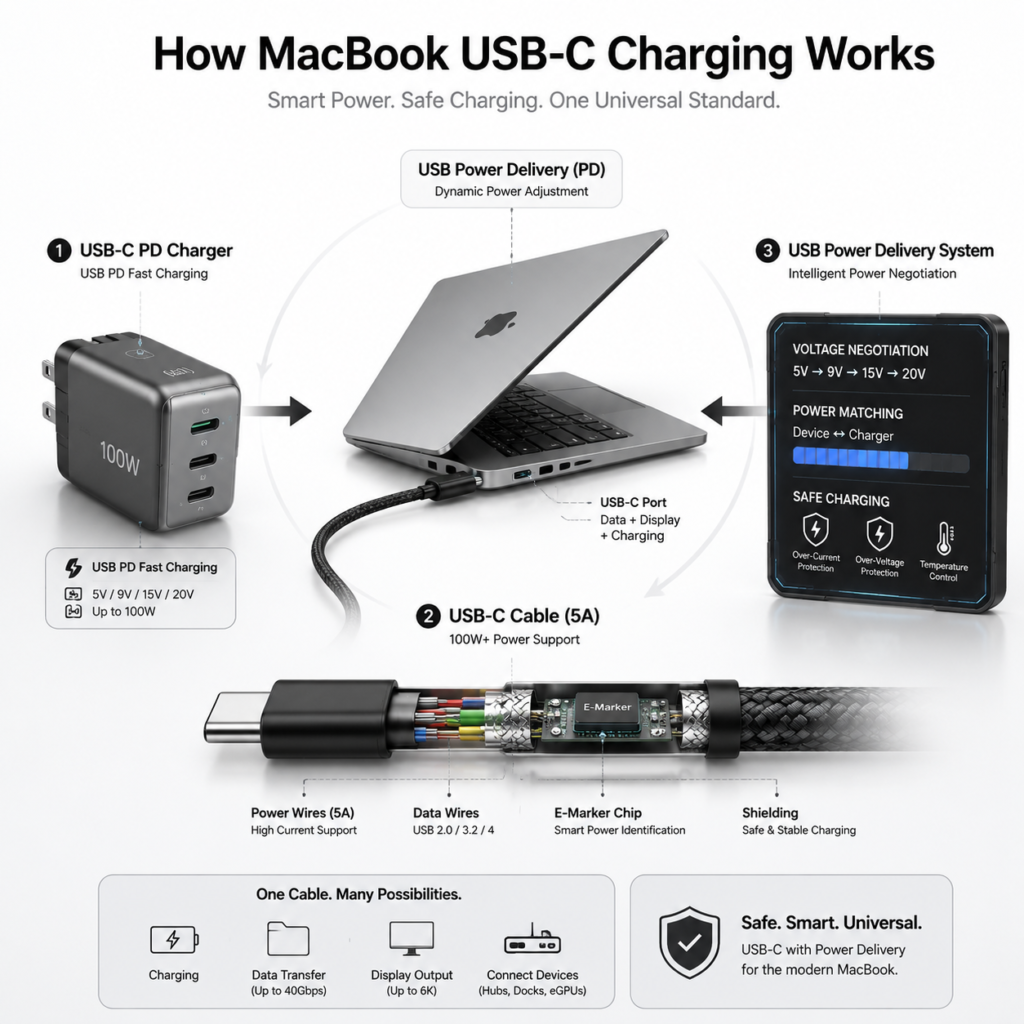
USB PD, short for USB Power Delivery, is the global standard fast charging protocol that powers MacBook USB-C charging. In simple terms, any charger that supports USB PD can safely charge your MacBook by automatically matching the appropriate power level — you do not need to use an official Apple charger exclusively.
Differences Between USB-C and MagSafe Charging
USB-C is a universal port that supports charging, data transfer, external displays and accessories, with broad compatibility for cables and chargers. MagSafe is Apple’s proprietary magnetic charging connector: it snaps into place securely and detaches easily if pulled, preventing your laptop from being knocked over. Higher-end MacBook models also support faster charging speeds via MagSafe. Both work with your MacBook, so you can choose based on your daily needs.
2. Charging Specifications and Fast Charging Requirements
Charging Power for Mainstream MacBook Models
Different MacBook models have different battery capacities and maximum charging limits. The key specifications for popular models are listed below:
| Model | Included Charger Power | Max USB-C Charging Power | Max MagSafe Charging Power |
|---|---|---|---|
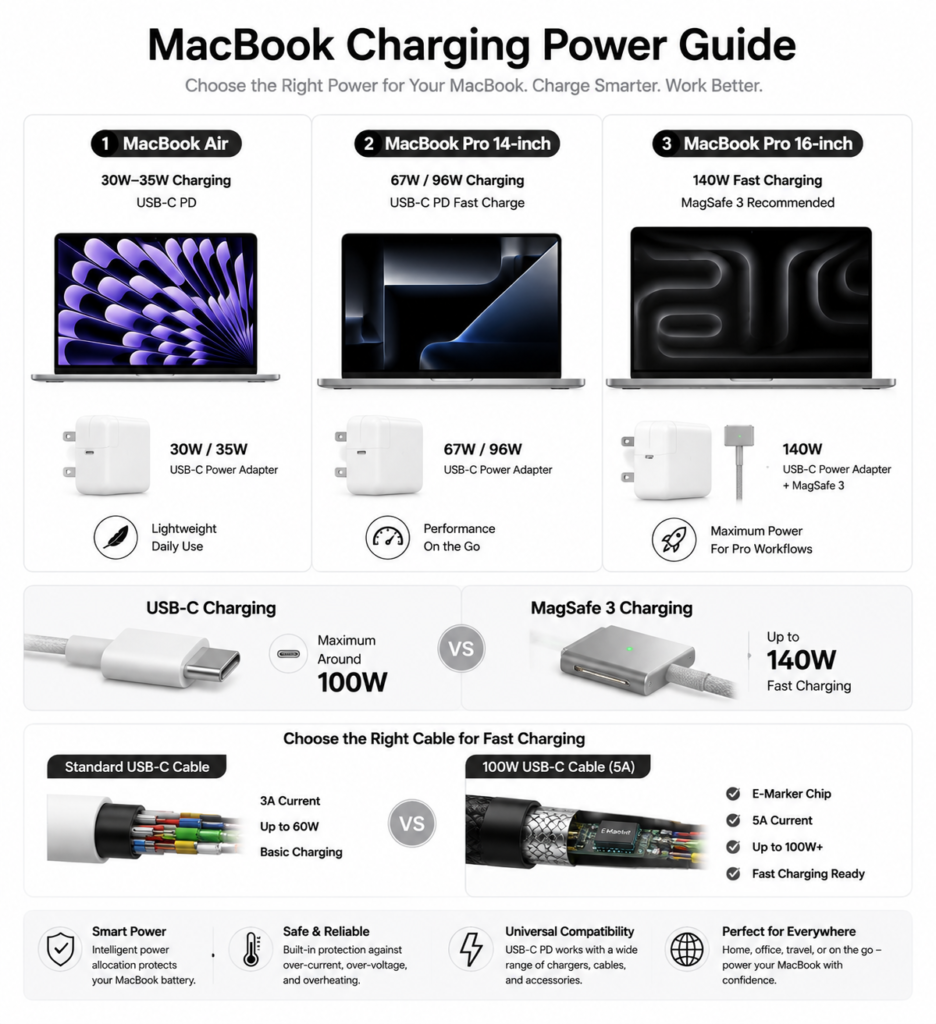
| MacBook Air (M1/M2/M3) | 30W/35W | 35W | Not supported |
| 13-inch MacBook Pro | 61W/67W | 67W | Not supported |
| 14-inch MacBook Pro (M-series) | 67W/96W | 96W | 140W |
| 16-inch MacBook Pro (M-series) | 140W | 100W | 140W |
Requirements for Fast Charging
Fast charging on MacBook requires three conditions to be met at the same time: a charger that supports USB PD with sufficient power output, a charging cable capable of carrying the required power level, and a MacBook model that supports the corresponding fast charging speed. All three are necessary.
Power Limits: USB-C Port vs. MagSafe
Due to standard USB-C interface limitations, MacBook USB-C ports support a maximum charging power of around 100W. MagSafe 3 has no such restriction: 14-inch and 16-inch MacBook Pro models can reach up to 140W fast charging with MagSafe 3, for faster charging speeds. Even with a 140W charger, charging a 16-inch MacBook Pro via USB-C will not reach full fast charging speed.
3. USB-C Charger Buying Guide
Official Apple Charger Compatibility
Apple’s official USB-C chargers range from 29W to 140W. The basic compatibility is as follows: 30W/35W for MacBook Air, 61W/67W for 13-inch MacBook Pro, 96W for 14-inch MacBook Pro, and 140W for 16-inch MacBook Pro. Official chargers offer the best compatibility and stability, but are more expensive and bulkier.
Key Standards for Third-Party Chargers
There are three core rules for choosing a third-party charger: first, it must support the USB PD fast charging protocol; second, its output power must meet or exceed the recommended power for your MacBook; third, choose reputable brands with official safety certifications. Meeting these three requirements ensures safe use without damaging your laptop.
GaN Chargers: Features and Buying Tips
GaN (Gallium Nitride) is the current mainstream fast charging technology. Compared to traditional chargers, GaN chargers are smaller, lighter and produce less heat at the same power level, making them ideal for daily carry and travel. When buying, prioritize models where a single port outputs enough power for your MacBook; GaN chargers from well-known brands offer reliable performance.
Multi-Port Chargers: Power Distribution and Pitfalls
Multi-port chargers can power your laptop, phone, earbuds and other devices at the same time, but pay attention to power distribution. Most multi-port chargers have a fixed total power output: when charging multiple devices at once, the power allocated to your laptop port will automatically drop. Always confirm the maximum single-port output meets your MacBook’s needs, and avoid models where total power is high but single-port power is too low.
4. Choosing the Right Charging Cable
Differences in Charging Capacity Between USB-C Cables
Not all USB-C cables support fast charging for MacBook. Standard USB-C cables usually only support 3A current, with a maximum 60W power capacity — enough only for slow charging on lightweight MacBook Air models. High-power USB-C cables carry 5A or higher current, supporting 100W or 240W power, and work for fast charging on all MacBook models. Thunderbolt / USB4 full-featured cables also support high-power charging, plus high-speed data and video transfer.
Key Indicators for Fast Charging Cables
You can identify a fast-charging cable by two simple indicators: first, the current rating printed on the cable or packaging — cables marked “5A” support 100W or higher power. Second, check the rated power directly: cables labeled 100W or 240W will meet the USB-C fast charging needs of any MacBook.
How to Choose Reliable Third-Party Cables
For third-party cables, prioritize products with USB-IF certification — the universal industry standard for USB specifications and safety. You can also choose cables from reputable digital accessory brands. Avoid ultra-cheap, unbranded cables, as poor quality can lead to slow charging, overheating, or even device damage.
5. Charging Solutions for Every Scenario
Desktop Setup: Monitor and Dock Reverse Charging
For desktop use, choose a USB-C monitor with PD reverse power delivery. A single USB-C cable connects to your MacBook and handles display output, data transfer and charging all at once, for a cleaner desk. If you use a USB-C dock, pick one with PD power input. Keep in mind that docks cause a small amount of power loss, so use a charger 10W-20W higher than your laptop’s recommended power to maintain charging speed.
On-the-Go: Power Banks and Car Charging
To charge your MacBook with a power bank, choose one that supports USB PD output with at least 45W per port. Too little power will charge very slowly, and may not even keep up with power use during heavy workloads. For car charging, buy a USB PD car charger — standard USB car ports do not have enough power to charge a MacBook properly.
Travel: Voltage Compatibility and Portable Charging Tips
USB-C chargers use wide voltage design, supporting 100V-240V for use worldwide. You do not need a voltage converter for international travel, only a plug adapter for the country you are visiting. In-flight USB ports usually have very low power, only suitable for emergency top-ups, not normal fast charging.
6. Battery Health and Smart Charging Habits
macOS Battery Protection Features and Settings
macOS includes built-in battery protection, centered around the Optimized Battery Charging feature. When turned on, the system learns your charging habits and slows down charging after the battery reaches 80%, preventing the battery from staying at 100% full for long periods and extending its overall lifespan. You can turn this feature on in System Settings > Battery.
What Actually Damages Your Battery
The three biggest causes of accelerated battery wear are: charging or using your MacBook in high temperatures, fully draining the battery until the laptop shuts down, and storing the laptop for long periods at 100% charge. Avoiding these three things will significantly slow down battery aging.
Practical Daily Charging Tips
For daily use, you do not need to drain the battery completely before charging — plugging in whenever convenient is the best way to use lithium-ion batteries. Leaving your MacBook plugged in long-term for office work will not damage the battery: the system automatically switches to direct power from the charger, and the battery stays on standby. If storing your MacBook long-term, charge it to around 50% and top it up every 1-2 months.
How to Check Battery Cycle Count and Health
Battery cycle count is the core measure of battery lifespan; MacBook batteries are rated for roughly 1000 cycles under normal use. To check: click the Apple icon in the top-left corner, select About This Mac, click System Report, and find the cycle count and battery health under the Power section. You can also view battery health directly in System Settings > Battery.
7. Common Myths and Troubleshooting
Common Charging Myths Debunked
- Only official Apple chargers are safe: False. Reputable brand PD chargers are all safe to use.
- Charging overnight will overcharge and damage the battery: False. The laptop has built-in overcharge protection and stops charging automatically when full.
- Draining the battery completely is better for battery health: False. Full discharge speeds up aging; charging whenever you can is better.
- Leaving the charger plugged in all the time will ruin the battery: False. The system manages power automatically, and permanent plug-in use does not damage the battery.
Troubleshooting No Charge or Slow Charging
If you have charging issues, follow these steps in order: first, check that the outlet and charger are plugged in securely; second, try a known working charging cable to rule out a broken cable; third, try a different charger to rule out a faulty charger; fourth, gently clean dust and debris from your MacBook’s USB-C port. If none of these work, contact official support for inspection.
Normal vs. Abnormal Charging Heat
Slight warmth from the charger and laptop body during charging is normal, especially during fast charging or heavy use. If the device gets hot to the touch, or the laptop slows down due to overheating, this is abnormal. Stop charging, close heavy apps, and place the laptop on a flat, well-ventilated surface to cool down. Do not use it on soft surfaces like beds or couches while charging.
8. Summary and Quick Reference
Quick Accessory Guide for Popular Models
| Model | Recommended Charger Power | Recommended Cable Spec | Best For |
|---|---|---|---|
| MacBook Air Series | 30W-65W | 100W USB-C cable | Daily office use, travel |
| 13-inch MacBook Pro | 65W-67W | 100W USB-C cable | Daily office, mobile use |
| 14-inch MacBook Pro | 96W-100W | 100W USB-C cable | Performance work, desktop use |
| 16-inch MacBook Pro | 100W/140W | 100W USB-C / MagSafe cable | Heavy use, fast charging needs |
Balanced Charging for Speed and Battery Health
For daily use, pick a reputable PD charger with the right power rating, paired with a quality high-power USB-C cable. Charge whenever convenient, turn on Optimized Battery Charging, and avoid high temperatures and full battery discharge. For desktop use, a monitor with reverse charging keeps your setup clean. For travel, a GaN multi-port charger works great for all your devices.